

Live Previewing a Theme
Once you’ve installed the Stencil CLI, the next steps are downloading a theme to edit and previewing live changes using Stencil CLI’s powerful Browsersync functionality. This article walks you through the process of downloading a theme for development, installing theme modules, and serving a live preview using Stencil CLI’s stencil start command.
The steps in this article assume you’ve installed Stencil CLI on your system. If you haven’t installed it yet, see Installing Stencil CLI for detailed, system-specific instructions.
Theme access, copyright, and distribution
Developers may customize free and purchased marketplace themes; however, the original creator retains rights to the theme’s design, which means derived themes may not be uploaded to a public theme marketplace (BigCommerce’s or third-party) or sold privately.
Creating Stencil API credentials
Stencil CLI uses various BigCommerce APIs to inject store-specific data, like carousel images and products, into the live theme preview it serves up. To do so, you must supply the Stencil CLI with a Stencil-specific access token.
To automatically create an API account with the scopes and permissions required by Stencil CLI, apply the following settings as you create a store-level API account.
Select Create Stencil-CLI Token in the Create API Accounts dropdown:

The Stencil-CLI Access Level can then be set by selecting local development only or publish theme:
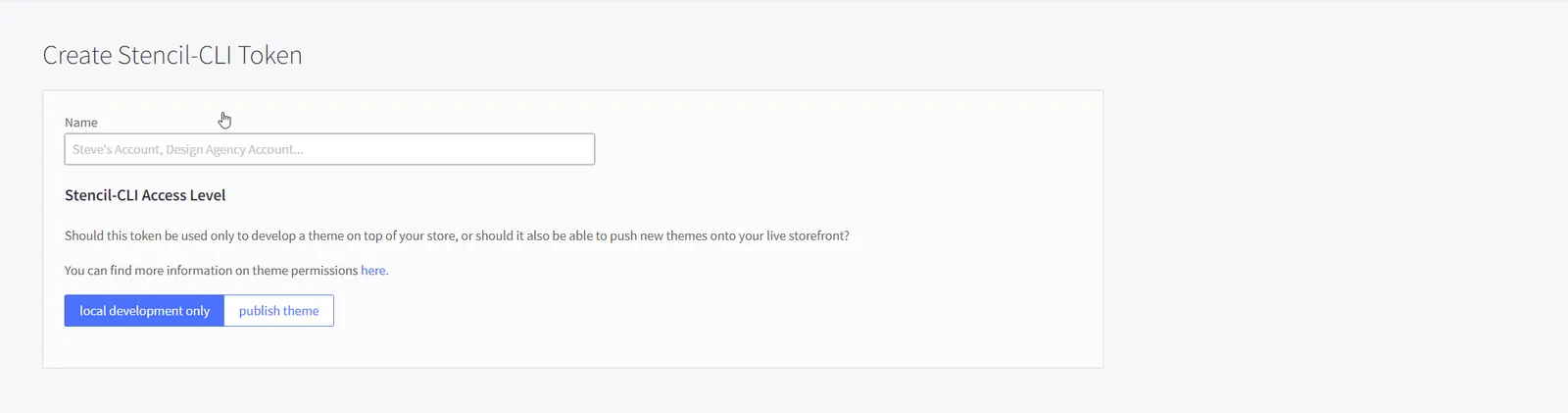
- local development only - can read theme related store data, but can not publish
- publish theme - can read theme related store data and push themes to the live storefront
For detailed instructions, see Store API Accounts.
Downloading a theme
To develop against BigCommerce’s Cornerstone theme (which is the building block and starting point for rapidly developing themes for BigCommerce) clone the repository from GitHub:
Distribution of Cornerstone-based themes
Distribution of Cornerstone-based themes is subject to BigCommerce’s Cornerstone license, including the mandatory incorporation of BigCommerce’s copyright statement.
Cornerstone and other themes can also be downloaded from the BigCommerce control panel. For instructions on doing so, see Downloading and Uploading Custom Themes (BigCommerce Knowledge Base).
Update themes after download
Downloading a theme does not include the current configuration of a theme. Run a stencil pull command to obtain the theme’s most recently saved version (appears only for themes customized for this store).
Installing theme modules
Back up before reinstalling
If you’re re-installing an existing theme, be sure to back up the theme’s .stencil file or secrets.stencil.json and config.stencil.json files (if using Stencil V3.1 release or later). The files contain the store URL, username, access tokens, and other settings. If you would like to allow for complete rollback, back up your entire theme’s directory.
For theme versions 1.10.0+, modules can be installed with npm:
This will install the npm modules required to properly leverage the Stencil event framework.
Serving a live preview
Once Stencil CLI is installed and a theme is downloaded, a .stencil or config.stencil.json configuration file (if using Stencil V3.1 release or later) can be initialized for the theme and development can begin.
Stencil CLI uses Browsersync to serve up a live preview of a theme in development. When the preview is opened on multiple devices or browser windows, scroll, click, refresh and form actions are mirrored across the browser instances.
The Browsersync preview is launched by executing the stencil start command in a terminal window. When stencil start is executed, Stencil CLI checks for the required .stencil configuration file or secrets.stencil.json and config.stencil.json configuration files (if using Stencil V3.1 release or later), which contains the following information:
- the store’s URL
- a store-level API account access token
- a local port number
The store’s URL should be a vanity URL.
This configuration file is created by running stencil init and entering the information listed above. Before doing so, be sure to create Stencil API credentials.
To initialize a new .stencil or config.stencil.json configuration file (if using Stencil V3.1 release or later) and start live preview, run the following commands in a terminal:
stencil start will output several URLs:
Browse to the local URL to preview the theme and see changes updated in real-time. To preview the theme on multiple devices simultaneously, browse to the external URL on the desired devices. As you navigate through the site, Stencil CLI will use the Stencil API token supplied to make API calls to BigCommerce and populate the theme preview with live store data in order to mimic production as closely as possible.
Serving a live preview over HTTPS
To serve a live preview over HTTPS, expose the Stencil CLI port with a remote tunnel such as VS Code port forwarding or ngrok. For setup steps, see Remote tunnels. Tunnel the port shown in the stencil start output, such as 3000. Stencil CLI also has a built-in --tunnel option that creates a password-protected tunnel URL.
Preview Makeswift content
If Makeswift is enabled for your storefront channel, stencil start shows your published Makeswift content in the local preview. BigCommerce renders and hydrates the Makeswift components on top of your local theme, so you can see how your theme changes look with the content. For example, you can check that Makeswift components use your theme fonts, or that your theme’s CSS rules apply to them.
You do not have to configure Makeswift preview. When stencil start runs, Stencil CLI checks your storefront and turns on Makeswift preview automatically.
Makeswift preview shows only published content. You cannot edit Makeswift content locally. To create or change content, use the Makeswift editor and publish your changes. For more information, see Makeswift on Stencil.
How Makeswift preview works
On your live storefront, BigCommerce adds Makeswift content to the HTML of each page. In Makeswift preview, the page HTML comes from your local theme instead:
- Stencil CLI starts a Cloudflare Quick Tunnel to the local server that renders your theme. Quick Tunnels do not need a Cloudflare account.
- Stencil CLI uses the access token in your Stencil configuration to register a short-lived preview session with your storefront.
- When you open the local URL, Stencil CLI sends each request to your storefront with a signature for the preview session.
- The storefront sends the request back to your computer through the tunnel, and your local theme renders the page.
- The storefront adds your published Makeswift content to the page and returns the page to your browser.
The preview session ends when you stop stencil start. If Stencil CLI cannot end the session, for example because the process stops unexpectedly, the session expires after a few minutes.
Makeswift preview requirements
- Stencil CLI 10.1.0 or later.
- Makeswift is enabled for the storefront channel. If your store has more than one storefront, select the channel that uses Makeswift when
stencil startprompts you, or use the--channelIdor--channelUrloption. - Your Stencil configuration contains a valid Stencil CLI access token. The local development only access level is sufficient.
- The storefront URL uses HTTPS.
cloudflaredis available on your computer. For more information, see Install cloudflared.- Your network lets
cloudflaredconnect to Cloudflare. - You do not use the
--tunneloption. When you set--tunnel, Makeswift preview is off.
If Makeswift preview cannot start, stencil start shows a warning and continues without Makeswift preview. For help with the warnings, see Makeswift preview errors.
Install cloudflared
Stencil CLI uses cloudflared to start the tunnel. Stencil CLI looks for cloudflared in this order:
- The path in the
STENCIL_CLOUDFLARED_PATHenvironment variable. cloudflaredon yourPATH, version 2025.10.0 or later.- A copy of
cloudflaredthat Stencil CLI downloaded before.
If Stencil CLI does not find cloudflared, it asks if it can download a pinned cloudflared release from GitHub. Stencil CLI verifies the checksum of the download and keeps the file in a cache directory, so it downloads only one time:
If you do not agree to the download, or the terminal is not interactive (for example, in a CI job), stencil start continues without Makeswift preview.
To use your own cloudflared binary and not download a release, set STENCIL_CLOUDFLARED_PATH to the path of the binary:
Open the Makeswift preview
When Makeswift preview starts, stencil start shows the local URL to open:
Open the local URL in a browser on the same computer. Theme file changes reload in the browser as usual, and links to your storefront domain stay on the local URL.
In Makeswift preview, the local URL is the only entry point. Note the following limits:
- The local server accepts requests only from
localhost. Other devices, the Browsersync external URL, and tools that expose your local server, such as ngrok, do not work. - Do not open the tunnel URL (
https://*.trycloudflare.com) directly. It accepts only the requests that your storefront sends for your preview session. - Your live storefront URL does not show your local theme.
Debugging your theme
BitBucket re-authentication
If you receive error messages about resolving BitBucket as an SSH host when running stencil init, enter the BitBucket password used to set up the BitBucket SSH Keys when prompted.
The Stencil framework provides built-in debugging tools to aid in your custom front-end development. To see what data is available on the page you are working on, add the debug query string to your store’s localhost URL. For example, http://localhost:3000/product/sample-product?debug=context. This string will return a list of all the objects on the page in JSON syntax. If you want to view the available JSON objects and rendered page simultaneously, change the debug value to bar. For example, http://localhost:3000/product/sample-product?debug=bar.
For a full list of Stencil CLI commands, see Stencil CLI Options and Commands. For help troubleshooting errors or installation issues, see Troubleshooting Your Setup.