For AI agents: a documentation index is available at the root level at /llms.txt and /llms-full.txt. Append /llms.txt to any URL for a page-level index, or .md for the markdown version of any page.
Dev Portal
DocsAPI ReferenceLearnCommunityChangelog
  • Overview
    • Quick Start
    • Sandboxes
    • Tools & SDKs
    • Support
  • Docs
      • Getting Started
        • Overview
        • Localization
          • Overview
          • Versioning
          • Global Regions
          • GraphQL Templates
        • Examples
        • Widget Builder
        • Scripts
    • Archive
    • Closed Beta Programs
Dev Portal
LogoLogo
On this page
  • Prerequisites
  • Create a widget template
  • Create a widget
  • Place the widget
  • Update the widget template
  • Create a new widget
  • Upgrade the widget
  • Related resources
  • Articles
  • Endpoints
DocsAdminWidgets & ScriptsGuide

Widget Versioning

Was this page helpful?
Previous

Overview

Next

Global Regions

Built with

This article documents how to use widget versioning to update a widget template without updating its widgets.

Prerequisites

  • A BigCommerce store.
  • API access_token with content modify scope.
  • Knowledge of the Widgets API.

This tutorial uses Cornerstone theme.

Create a widget template

To create a widget template, send a POST request to v3/content/widget-templates.

Example request: Create a widget template
POST /stores/{{store_hash}}/v3/content/widget-templates
Host: api.bigcommerce.com
X-Auth-Token: {{ACCESS_TOKEN}}
Content-Type: application/json
Accept: application/json
{
"name": "Simple Text",
"schema": [
{
"type": "tab",
"label": "Content",
"sections": [
{
"settings": [
{
"type": "text",
"label": "Text Content",
"id": "textContent",
"typeMeta": {
"maxLength": 1000
}
}
]
}
]
}
],
"template": "<h1>{{textContent}}</h1>"
}

Make a note of uuid and current_version_uuid. We will use them in the steps that follow.

You can use Page Builder, BigCommerce’s storefront editing and customization tool, to view your widget template in the control panel. It will be displayed in the left pane under Custom.
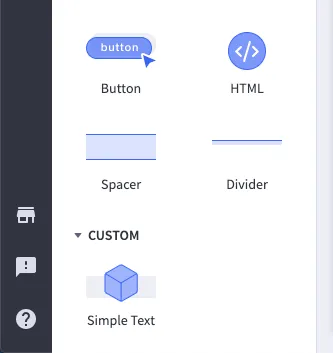
Page Builder

Create a widget

In this tutorial, you will create and place a widget programmatically. To place your widget using Page Builder, drag and drop the widget template from the left pane onto the page.

To create a widget using the Widgets API, send a POST request to /v3/content/widgets. Replace the widget_template_uuid placeholder with the uuid from the previous step.

Example request: Create a widget
POST /stores/{{STORE_HASH}}/v3/content/widgets
Host: api.bigcommerce.com
X-Auth-Token: {{ACCESS_TOKEN}}
Content-Type: application/json
Accept: application/json
{
"name": "Version 1 Widget",
"widget_configuration": {
"textContent": "Hello, World!"
},
"widget_template_uuid": "{your-widget-template-uuid}"
}

Look for version_uuid and current_version_uuid in the response. The widget’s version_uuidshould match the current_version_uuid of the widget template.

Example response: Create a widget
{
"data": {
"channel_id": 1,
"date_created": "2020-11-06T18:05:21.679Z",
"date_modified": "2020-11-06T18:05:21.679Z",
"description": "",
"name": "Version 1 Widget",
"uuid": "03ada835-fc01-4cf1-9c05-af86ee141cd5",
"version_uuid": "5bb17ca3-a8c3-4a5a-bbf1-18a2b9ee9ddd", // value matches current_version_uuid
"widget_configuration": {...},
"widget_template": {
"channel_id": 1,
"client_rerender": false,
"current_version_uuid": "5bb17ca3-a8c3-4a5a-bbf1-18a2b9ee9ddd", // value matches version_uuid
"date_created": "2020-11-06T18:04:34.817Z",
"date_modified": "2020-11-06T18:04:34.817Z",
"icon_name": "default",
"kind": "custom",
"name": "Simple Text",
"schema": [...],
"template": "<h1>{{textContent}}</h1>",
"uuid": "ee65e81f-a6a6-43a4-8d52-60bab87dbff3"
}
},
"meta": {}
}

Place the widget

You can place the widget on the storefront by creating a placement. The following example uses the home_below_featured_products region. To get a list of all available regions, send a GET request to v3/content/regions.

To place your widget, send a POST request to /v3/content/placements.

Example request: Place a widget
POST /stores/{{STORE_HASH}}/v3/content/placements
Host: api.bigcommerce.com
X-Auth-Token: {{ACCESS_TOKEN}}
Content-Type: application/json
Accept: application/json
{
"widget_uuid": "{your-widget-uuid}",
"entity_id": "",
"template_file": "pages/home",
"status": "active",
"sort_order": 1,
"region": "home_below_featured_products"
}

The widget should now be visible on your store’s homepage under Featured Products.

Update the widget template

The create_new_version parameter controls whether widget updates are forced or opt-in. Omitting the create_new_version parameter or setting it to false will make it a forced update.

To create a new version of the widget template without affecting existing widgets, set create_new_version to true when sending a PUT request to /v3/content/widget-templates/{uuid}. This will create a new widget template version record and associate that record to the current_version_uuid.

Example request: Update a widget template
PUT /stores/{{store_hash}}v3/content/widget-templates/{uuid}
Host: api.bigcommerce.com
X-Auth-Token: {{ACCESS_TOKEN}}
Content-Type: application/json
Accept: application/json
{
"name": "Red Text",
"schema": [
{
"type": "tab",
"label": "Content",
"sections": [
{
"settings": [
{
"type": "text",
"label": "Text Content",
"id": "textContent",
"typeMeta": {
"maxLength": 1000
}
}
]
}
]
}
],
"template": "<h1 style='color:red;'>{{textContent}}</h1>",
"create_new_version": true
}

Send a GET request to /v3/content/widgets/{uuid} to retrieve your widget’s data. You will notice that current_version_uuid has changed and is now different from the widget’s version_uuid. Although you have updated the widget template, the widget created using that template did not change.

Create a new widget

All widgets created after the update will be based on the most current version. Let’s create another widget to test this functionality.

Send a POST request to /v3/content/widgets replacing the widget_template_uuid placeholder with your widget template uuid.

Example request: Create a widget
POST /stores/{{STORE_HASH}}/v3/content/widgets
Host: api.bigcommerce.com
X-Auth-Token: {{ACCESS_TOKEN}}
Content-Type: application/json
Accept: application/json
{
"name": "Version 2 Widget",
"widget_configuration": {
"textContent": "Hello, World!"
},
"widget_template_uuid": "{your-widget-template-uuid}"
}

To display the new widget next to the old one, place it in the same region. In our case, it is home_below_featured_products.

You should now see two different widgets displayed below Featured Products.
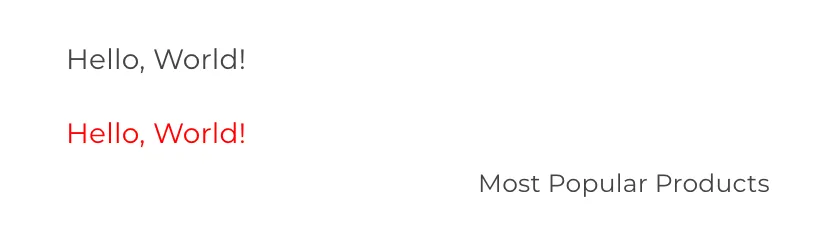
Add a new widget

Upgrade the widget

To upgrade the widget derived from the original widget template, send "upgrade":true in a PUT request to /v3/content/widgets/{uuid}. This will push the widget up to the latest widget template version.
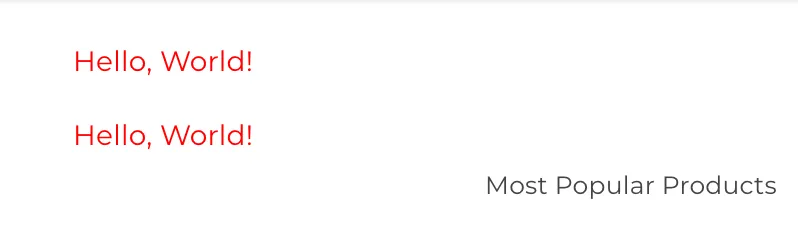
Upgrade the widget

If the newer version of your widget template contains different schema settings, you need to provide the necessary configuration values along with the upgrade flag to make sure the widget is updated correctly.

Related resources

Articles

  • Widgets Overview
  • Page Builder Overview

Endpoints

  • Widgets API