

Customer Login API
Introduction
In this tutorial, you will learn how to enable single sign-on for storefront customers using the Customer Login API and JSON Web Tokens.
You can also use the GraphQL Storefront API to authorize your application to work with customer-specific storefront data.
Overview
Single sign-on (SSO) is an authentication mechanism that enables users to sign in to multiple software applications using the same set of credentials that the user enters only once. It eliminates the need to maintain multiple passwords, which streamlines the process of accessing web applications. For more details, see Single Sign-On.
When a user signs into your web app, you can use the Customer Login API to authenticate the user to your BigCommerce store through SSO.
You can use the Customer Login API in the following use cases:
- Integrate with an SSO provider or identity provider (IdP)
- Set up continuous login between a BigCommerce store and another application
- Enable alternative sign-in methods (ex. phone number and SMS password)
Storefront customers are signed in using the access point URL /login/token/{token}. The {token} must be a JSON Web Token (JWT) containing parameters for the customer login request signed by your application’s OAuth client secret. For more information on the OAuth protocol, see OAuth.
JWT is an industry standard (RFC 7519) for securely transmitting information between two parties. A JWT is a sequence of base64url-encoded strings separated by dots (.). The sections include the header, payload, and signature. For more details, see Introduction to JSON Web Tokens.
A customer account has a single active storefront session. Signing the customer in again or signing them out through any method invalidates all customer access tokens previously issued for that account, regardless of each token’s expiresAt value. For details, see Customer session behavior.
Customer Login JWT payload reference
Prerequisites
To enable SSO using the Customer Login API, you will need the following:
- A BigCommerce store
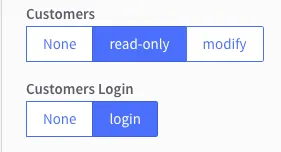
- API client ID and client secret with the OAuth Scope set to Customers Login
- Node.js installed on your machine if you plan to use JavaScript
Be sure to set the Customers Login scope to Login.
API account notes
- This endpoint requires store-level API account credentials. For more information about generating accounts, consult the Guide to API Accounts.
- The app you create needs to be installed or published on a store to be able to generate store-level access tokens. All you would need are the client ID and client secret. See the section on client ID-based authentication in the Authentication tutorial.
Enable single sign-on
To sign a customer in to their storefront account using the Customer Login API, your app needs to redirect the customer’s browser to the following access point URL: https://storedomain.com/login/token/{token}.
The {token} parameter is the JWT containing the payload data signed by your app’s OAuth client secret.
We recommend writing a script to generate a login token since the JWT’s iat (issued at) claim is only valid for 30 seconds. BigCommerce supplies helper methods for generating login tokens in our API Client Libraries.
The beginning of this tutorial focuses on manually creating a token using the debugger tool at JWT.io. Then, we will explore how to use a JavaScript function to programmatically generate an access point URL.
Create JWT using the debugger tool
To create a JWT, you will need to obtain a customer_id using the Customers v3 API.
- Send a
GETrequest to the Get All Customers endpoint. Choose a customer and make note of thecustomer_id.
-
Open the debugger at JWT.io.
-
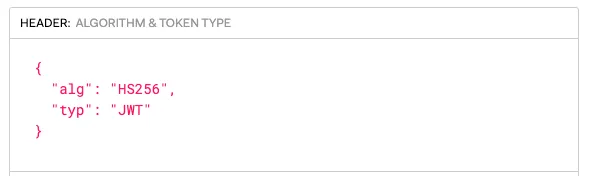
In the “HEADER” field, make sure the JWT
alg(algorithm) field is set to"HS256"and thetyp(token type) field is set to"JWT".
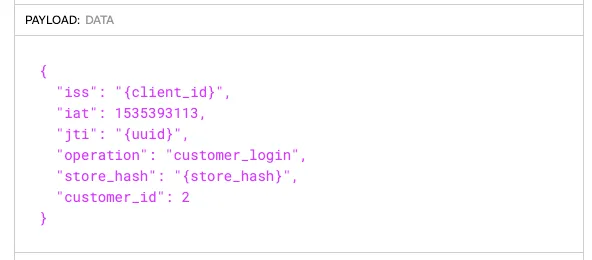
- In the “PAYLOAD: DATA” field, create a payload.
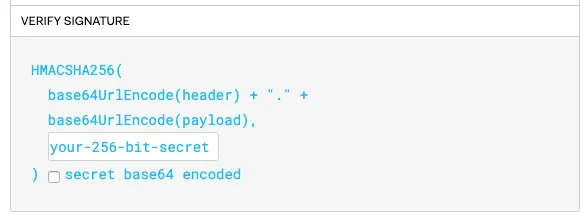
- In the “VERIFY SIGNATURE” field, replace “your-256-bit-secret” with your Client Secret.
- Copy the login token from the encoded box and paste it into the access point URL, replacing the
{token}parameter.
Example:
- Paste the URL into the address bar of your web browser.
If the request was successful, you will be signed in as a customer and directed to /account.php. If it was unsuccessful, a sign in attempt error message will be displayed, and you will be directed to /login.php.

For common causes of sign-in failure, see Troubleshooting.
Create JWT using a JavaScript function
In this part of the tutorial, we will walk you through creating an access point URL using JavaScript. You will need node.js installed on your machine to complete this section.
- Create and open a new folder by running the following commands in your terminal:
- Create a new node project with the following command:
- Install jsonwebtoken and uuid npm packages:
-
Open the
urlGeneratorfolder in your code editor of choice and create a new JS file. -
Paste the following code into the new JS file:
-
Replace your app and customer-specific values in the variables.
-
Run the code:
You should receive a complete access point URL as an output.
- Copy the URL and paste it into the address bar of your browser.
If the request was successful, you will be signed in as a customer and directed to /account.php. If it was unsuccessful, you will receive a sign in attempt error message and be directed to /login.php. For common causes of sign in failure, see Troubleshooting.
Sample code
Helper methods for generating login tokens are provided in our API Client Libraries. See the following BigCommerce repositories for language-specific examples:
For client libraries in other languages, see Libraries for Token Signing/Verification.
Signing out
To sign a customer out, set the redirect_to field of the JWT’s payload to /login.php?action=logout.
Customer session behavior
The platform maintains a single active storefront session per customer account. When a customer signs in again, the platform rotates the underlying session token and invalidates every customer access token previously issued for that customer. This applies no matter which sign-in method the customer uses, for example:
- A storefront sign-in
- The Customer Login API access point URL,
/login/token/{token} - The GraphQL Storefront API login mutations,
loginandloginWithCustomerLoginJwt - Sign-in flows built on these methods, such as a B2B Edition buyer portal sign-in
Signing out invalidates the customer access token in the same way. A customer access token’s expiresAt value is the latest possible expiry time, not a guaranteed lifetime. A token can stop working earlier because the customer signed in again or signed out.
Requests that carry an invalidated customer access token do not fail. The GraphQL Storefront API processes the request as an anonymous shopper: the customer field returns null, and customer-specific values, such as pricing based on the customer’s customer group, fall back to guest values. To make such requests return an explicit error instead, send the X-BC-Error-On-Invalid-Customer-Access-Token header with a value of true.
If you maintain a headless storefront or an integration that stores customer access tokens, design for this behavior:
- Store at most one customer access token per customer account, and replace it with the newest token after each sign-in.
- Consolidate a customer’s sign-in flows on a single method. Each additional sign-in path rotates the token and ends the customer’s other sessions.
- Treat a
nullcustomerresponse as a signal that the customer’s session ended, and prompt the customer to sign in again.
Troubleshooting
- If the clock of the server generating the “iat” claim is not synchronized, the timestamp will be out of sync and the request will fail. If your system’s time is different from the BigCommerce server time, you can use the Get System Timestamp endpoint as a source of truth.
- You can only visit the access point URL once. The token will be invalidated after the
GETrequest is made. - Tokens should not be generated in advance. Instead, the app should generate the token and immediately redirect the user’s browser to the access point URL.
- If a customer’s requests return
nullfor thecustomerfield or customer-specific pricing stops applying, check whether the customer signed in again or signed out elsewhere. Each sign-in rotates the session token and invalidates previously issued customer access tokens. See Customer session behavior.