

Editing and Syncing Content
Edit your storefront’s design and layout in the Makeswift visual editor, and sync your BigCommerce products so you can use them in Makeswift. This page applies to Makeswift-connected Catalyst projects; see Makeswift for which setup paths give you one.
Edit your storefront in Makeswift
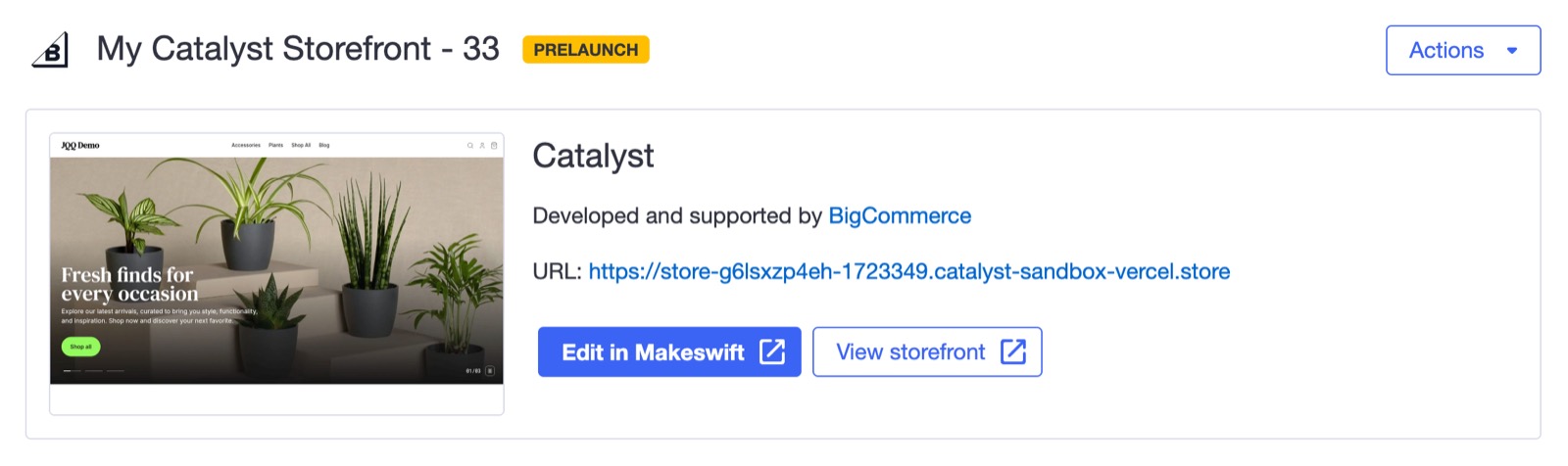
Your Makeswift site comes with pre-built content, including pages, custom components, and theming options, that you can customize to change your storefront’s design and layout.
To start editing, open your Catalyst channel in the BigCommerce control panel and click Edit in Makeswift.
Sync your products to Makeswift
Syncing products to Makeswift is in beta.
By default, your Makeswift site doesn’t have any products synced from your BigCommerce store. To view your products in Makeswift, make sure that:
- Product Syncing is enabled in the BigCommerce control panel for your Catalyst channel
- Routes are enabled in your Makeswift site
Once both are set up, any products you add, remove, or update in BigCommerce sync to your Makeswift site automatically through webhooks.
Next steps
- Create custom components that content authors can edit in Makeswift.
- Show different content to different customer groups with the Customer Group Slot.