Global Regions
Global regions are special regions you can use to place and manage content sitewide. In this tutorial, we will explore the concept of global regions by creating a global region and placing a widget in it using Page Builder.
Prerequisites
- A BigCommerce store.
- Knowledge of the Widgets API.
- Knowledge of Page Builder.
This tutorial builds on the workflow in Create and Place a Widget. If you haven’t worked with regions or widgets before, complete that tutorial first.
The steps in this tutorial require you to edit your theme’s template files. You can edit theme files in either of the following ways:
- Locally, using Stencil CLI, BigCommerce’s theme development and deployment tool. Download your theme, make your edits, then run
stencil pushto apply the changes to your store. - In the control panel, using Edit Theme Files.
Create a global region
As with non-global regions, you add global regions at the template file level. For a global region to appear on all of the targeted pages, you need to add that region to the templates of the pages you want to target.
Let’s start by creating a global region called below_content--global and adding it to your store’s home and category pages. Page templates live in your theme’s templates/pages/ folder. In your theme’s template files, add {{{region name="below_content--global"}}} to templates/pages/home.html and templates/pages/category.html as shown in the following examples.
home.html
category.html
If you are using Stencil CLI and editing theme files locally, run a stencil push command to apply your changes before proceeding to the next step. stencil push bundles your theme into a zip file and uploads the zip to BigCommerce. For more information on Stencil CLI commands, see Stencil CLI Options and Commands.
To preview the global region you just created, launch Page Builder by going to Storefront > My Theme in the control panel, then click Customize.
Scroll to the bottom of your home page. You should see the below_content--global region under the non-global region below New Products.

Place a widget in the global region
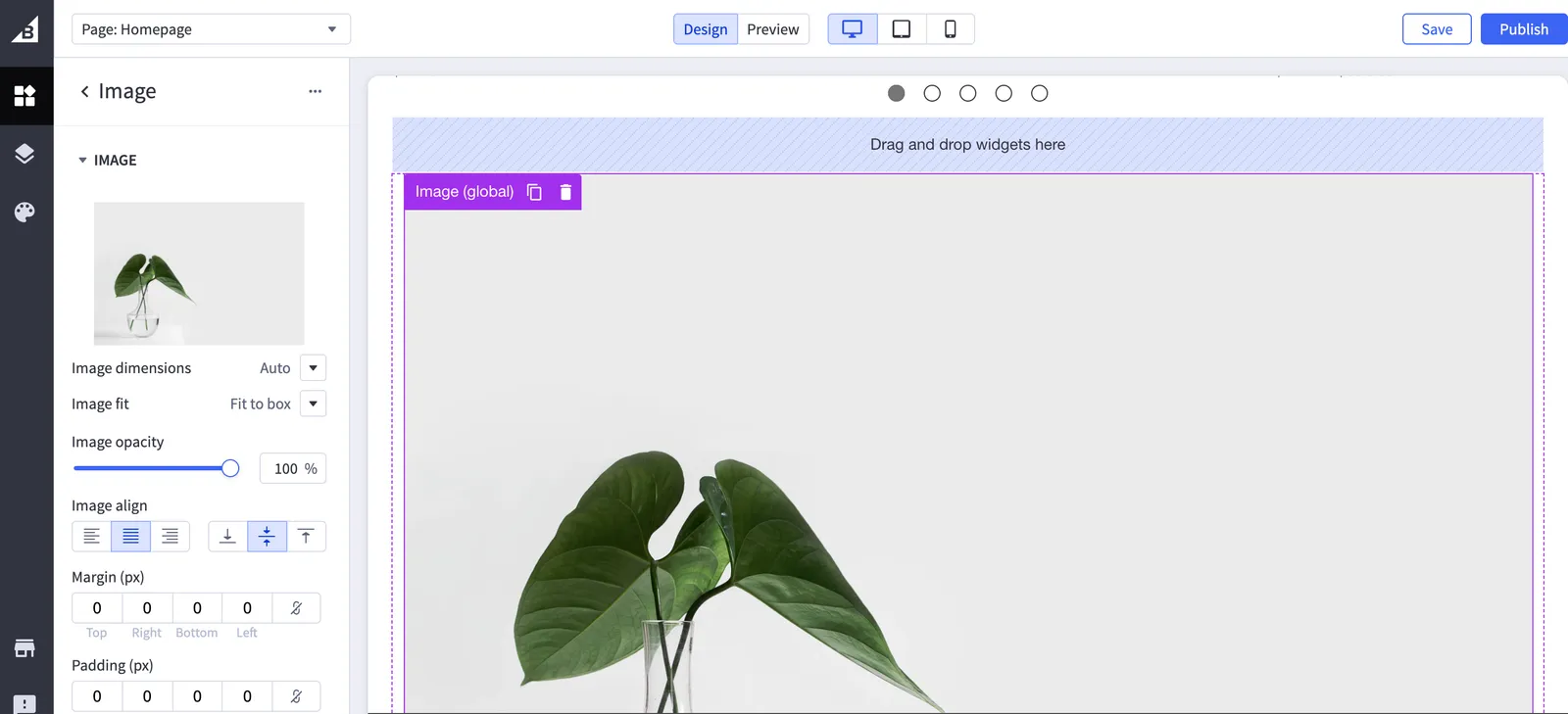
To test your global region’s functionality, drag and drop one of the basic widgets from the left pane into the below_content--global region, then click Preview. You should see the widget you just placed displayed on the home page and the category pages of your store.