

How Currencies Work
This article details how you can surface currencies throughout BigCommerce APIs, user interfaces, and storefront components. It assumes you’re already familiar with the core concepts behind BigCommerce’s multi-currency settings. For a high-level overview and instructions on how to add currencies to a BigCommerce store, see Currencies Overview.
Catalog pricing
When you configure multiple currencies, BigCommerce will convert the catalog default currency price of items into the selected non-default currency on the storefront. It does not change the default catalog pricing of products.
Catalog search and filtering by price only work for the default currency and auto-converted pricing for non-default transactional currencies. If a merchant sets up pricing through Price Lists and has price filter enabled on their store, shoppers will be unable to see any products when searching by price.
Shop by: Priceonly works for default currency and auto-converted pricing for non-default transactional currencies. If merchant sets up pricing through price lists and has price filter enabled on their store, shoppers will be unable to see any products when searching by price.
BigCommerce does not dynamically convert currency. To convert, the merchant will need to do one of the following:
- Manually update their conversion rate from default currency to other transactional currencies.
- Set up automatic updates to their conversion rate through APIs.
- Set up explicit pricing per each currency using price lists (only available to Performance plan merchants).
- Pricing by currency only, not by country.
Currencies
Details:
- There was a new field added to the Currency API:
is_transactional- Boolean indicating if the currency is transactional or not; false means active only currency.
Example:
Price Lists
You can create price lists in any currency setup in the store. Both transactional and active currencies are available in price lists. BigCommerce does not copy price records from one currency to another; you must create the price record for each currency.
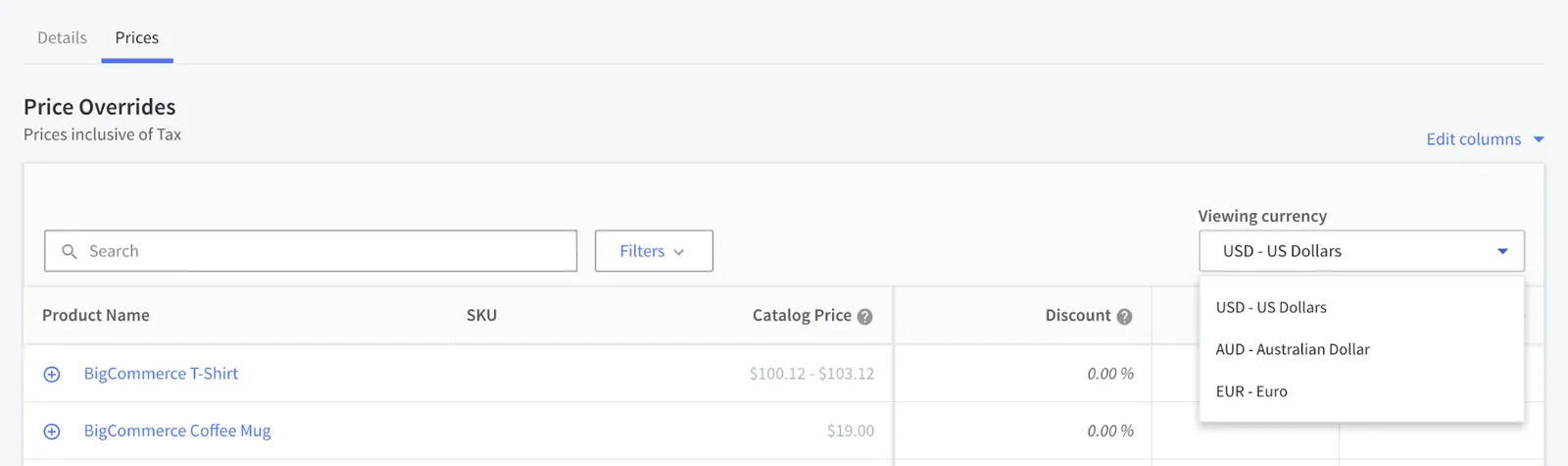
This feature is limited to Performance plans and requires a Stencil theme.
Price list modifiers
Modifiers use the auto conversion rate. For example, if the keychain is €30, and there’s a modifier for engraving, the price is: €30 + ($5 * auto conversion rate).
The above example assumes a default currency of USD.
Price records
To create a price record in multiple currencies via API, send a POST request to the Set Price Records endpoint — as long as the currency is available in the store, you can set multiple currencies in the request.
S-2-S Cart and Checkout
You can set up the cart currency when creating a Server to Server Cart. You can set up the currency in the control panel first.
Example POST Create a Cart
https://api.bigcommerce.com/stores/{storehash}/v3/carts*
The API will return the item price and the currency of the item price in the store’s current transactional currency.
Storefront Cart and Checkout
In the example below, the store’s default currency is USD, and the item is $7.95. Since the shopper has switched to Euros as the transactional currency, we now convert the line item price and taxes to Euros:
The item shows prices, including tax.
Abbreviated example create a cart response
If a shopper changes the currency and has added at least one item to the cart, the charges will still be in the original transactional currency. Below the shopper changed from USD to AUS. A message is displayed that they will still checkout using USD:
*You will be billed for this order in USD*.
The API also still returns Australian Dollars as the currency.
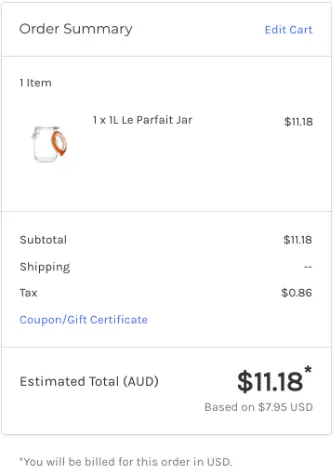
To change the transactional currency of their cart, the shopper will need to empty the cart and re-add the items in the desired transactional currency.
Orders
Details:
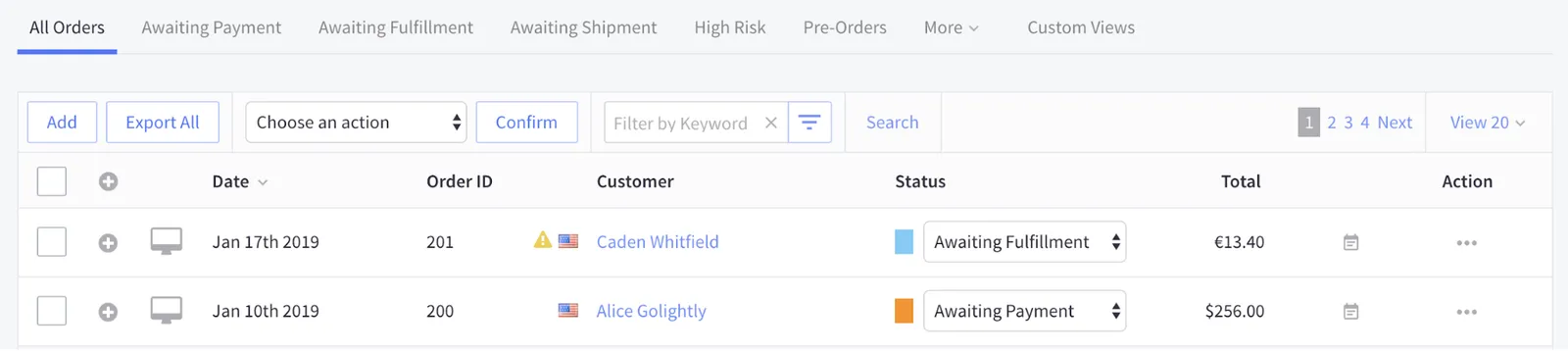
- The order history page shows the currency of the transaction.
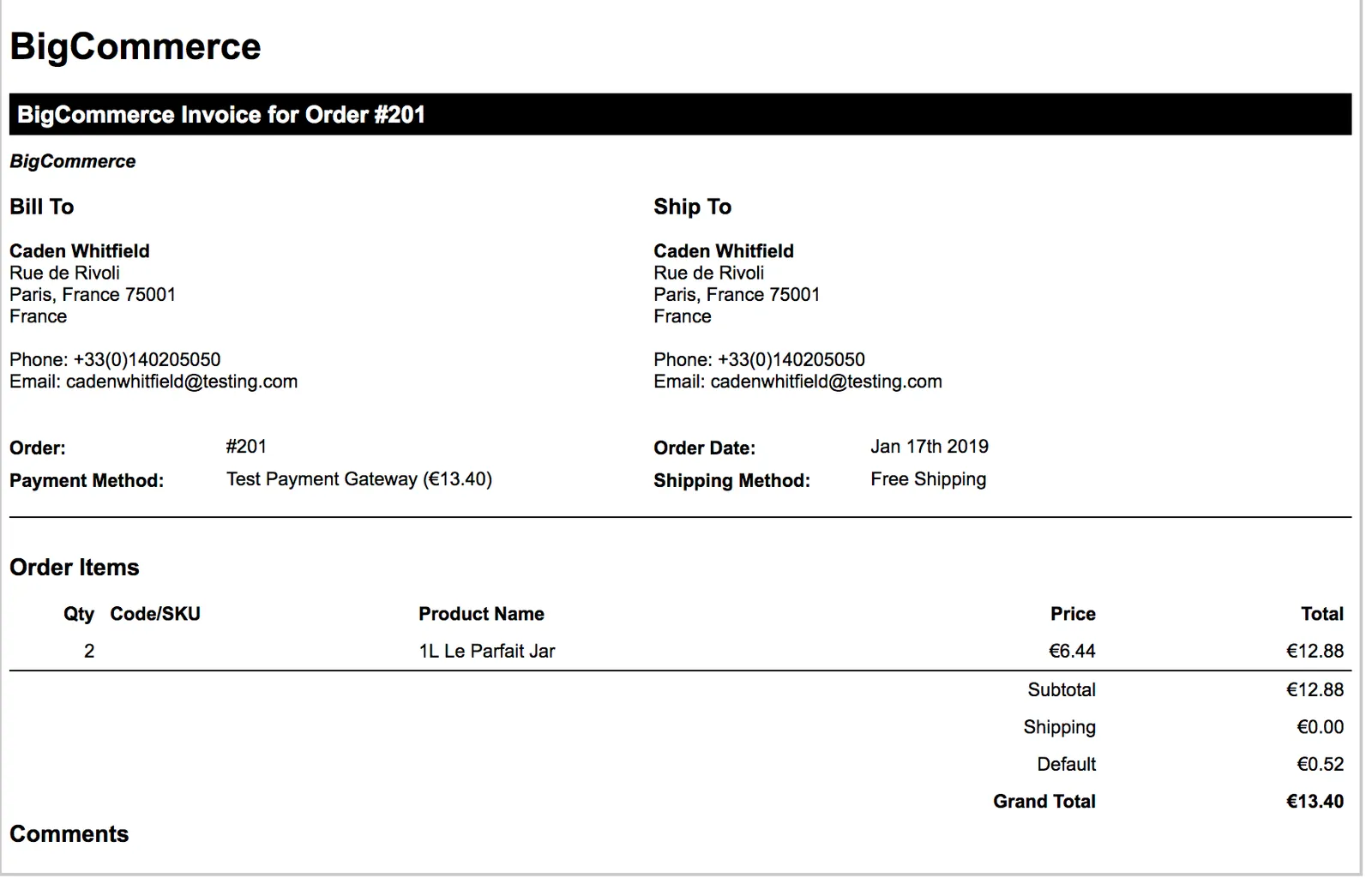
- Invoices show item prices and the currency of the transaction.
- Since each order can be in a different currency, the control panel order page shows the currency’s token (this also applies to Order Export data).
- The shopper’s order history shows the transactional currency, not the active currency. While the underlying historical data itself will remain unchanged, the page now surfaces the transactional currency and amount, rather than active currency and amount — this change applies to all orders, including historical ones.
default_currency_code- The transactional currency used in the order; previously the store’s default currency.currency_code- The active currency used to present prices to the shopper on the storefront.currency_exchange_rate- The exchange between the store’s default currency and the active currency; when you create the order using REST Management endpoints, the value is always1; only in the storefront can this value differ from1.- The following additional fields are returned on orders when multi-currency is enabled:
store_default_currency_code- The store’s default currency.store_default_to_transactional_exchange_rate- The exchange rate between the store’s default currency and the transactional currency used in the order.
Example:
Shopper Order History:
Shopper Invoice:
Control Panel Order History:
Promotions
Coupons are available in the default currency only. Attempting to use a coupon with a different currency will return an invalid coupon error. If a customer is checking out in the default currency and then changes to a different currency, the coupon code will still work in the cart. The coupon code works because once you create the cart, it is “locked” into the default currency until being deleted.
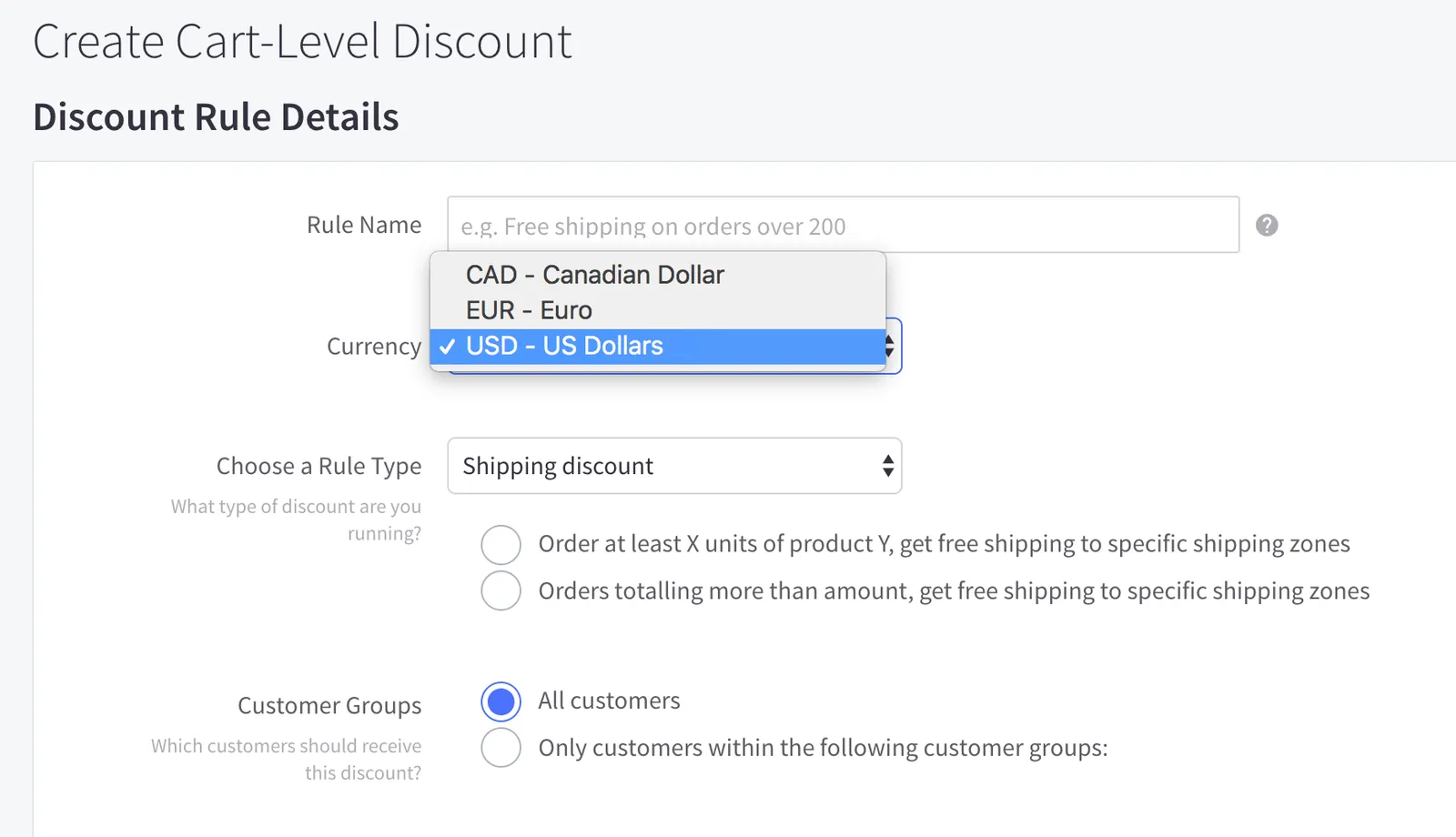
You can create cart level discounts in your currency of choice. The shopper must have the currency selected for the promotion to apply.
Shipping
Details:
- Product Level Fixed Shipping - Shipping is set at the product level in the store’s default currency. During checkout, BigCommerce converts shipping costs using the store’s exchange rate and displays that value to the shopper.
- Flat Rate Shipping - Flat rate shipping is converted based on the store’s currency.
- Shipping Carriers - The currency is sent to the carrier and, depending on the carrier, quotes are returned in the store’s transactional currency. If the shipping carrier can not return in the transactional currency, the store will convert it using the transactional currency exchange rate set by the merchant. If you’ve set the checkout to be viewed in an active currency, the store will convert it to the transactional currency for payment. Shipping providers that support multiple currencies can supply quotes straight in shopper’s transactional currency, so no currency conversion needed. ShipperHQ does not support multiple currencies.
Refunds
-
Default Currency - Works as normal; no changes made.
-
Transactional Currency - The refund is shown in the transaction currency. When processing refunds, the amount is refunded to the shopper in the transactional currency.
-
Active Currency - The refund is shown in the store’s default currency. When processing refunds, the shopper is refunded the transactional currency amount. For example, if an order was purchased with an active currency of 26 USD back when the refund is processed.
Payment methods supported
Gift certificates
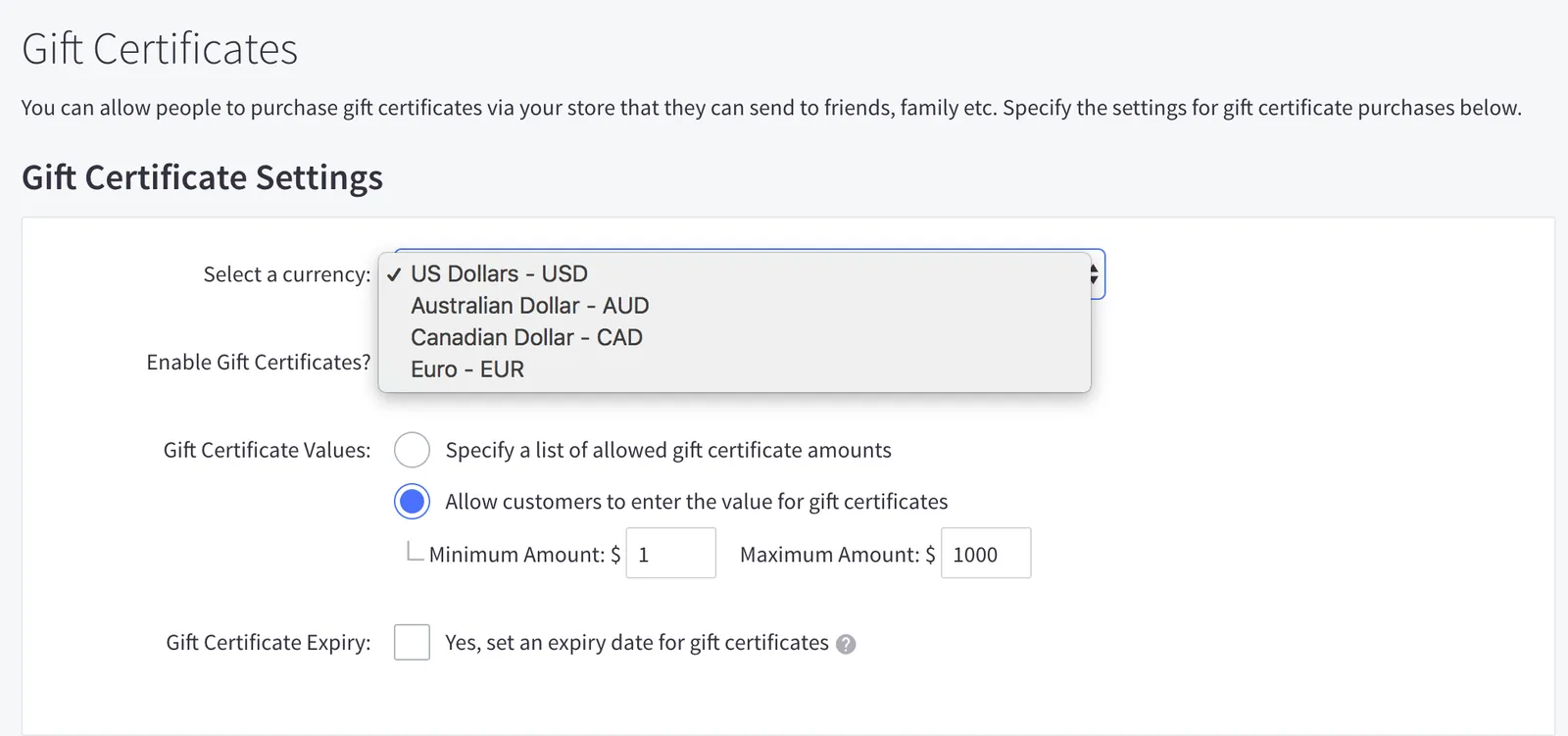
Control Panel UI