

Creating an External Installation Button
Single-click apps can be installed from outside the BigCommerce control panel. For example, an install button on your company’s site that directs the merchant to download your app. This tutorial provides step-by-step instructions for creating an external install button for BigCommerce single-click apps.
Creating an install button
First, embed an install button like the one below, at any web location from which you’d like to enable app installation.

Redirect anyone who presses your button to: https://login.bigcommerce.com/app/{CLIENT_ID}/install.
Configuring the button
When clicked, your button should open a modal similar to the image below. We recommend a modal sized 900px wide by 450px high.
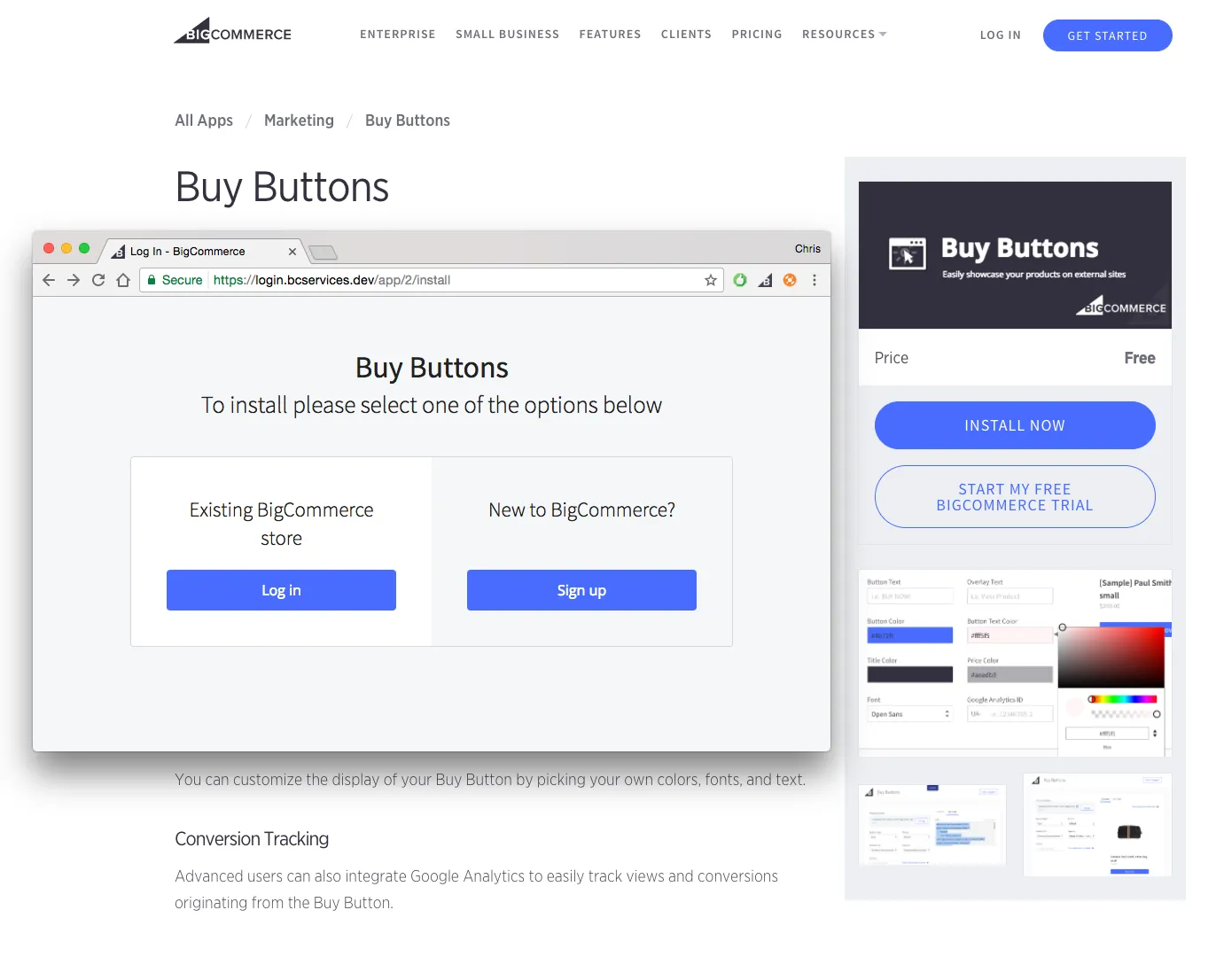
Your button will link merchants to BigCommerce’s install endpoint for your application. Once the merchant clicks the link, they will be prompted to sign in and authorize your application.
Rendering success and failure pages
Modify your website’s server-side code to serve either a success or failure page, depending on whether the external installation was successful or unsuccessful.
If you skip this step, your application will load in the iFrame created by your button. To ensure a good experience for your users, we strongly recommend that you return a confirmation page, instead of allowing your application to be loaded in that modal.
Handling errors
If your application’s installation was initiated and completed through an external link, BigCommerce will send your auth callback endpoint an extra parameter called external_install.
If you receive this parameter and there are no errors, make a GET request to the install succeeded endpoint.
If there were errors, make a GET request to the install failed endpoint:
Depending on which endpoint you call, BigCommerce will render a success or failure page to the modal.
Code samples
Handling errors in Lua:
Next steps
Resources
Sample apps
Tools
- Node API Client
- Python API Client
- PHP API Client
- Ruby API Client
- Ruby OmniAuth Gem
- BigDesign Developer Playground
- Figma Component Library