

Catalyst Multi-Storefront Setup
When you sell internationally, you can localize many aspects of your Catalyst storefront, including the language, products sold, and currency. This tutorial shows you how to localize the shopping experience for the US with the en locale, and for Switzerland with the de and fr locales, within the same Catalyst app.
By the end of this tutorial, you have a Catalyst app where:
-
The products sold in the US are not the same as the products sold in Switzerland. Localizing products ensures that imagery and branding resonate with the local culture, values, and norms of a region.
-
The pricing features are localized for each country. Localizing prices helps fulfill price expectations and tailor the shopping experience to pricing differences that vary by region. Displaying prices in local currency reduces friction in the purchasing process.
-
The translations are localized for each country. The US storefront has English (en) translations. The Switzerland storefront has French (fr) translations and German (de) translations. Localizing language helps shoppers understand product details and connect with your brand.
There are two kinds of data to localize:
-
Static data: This involves language translations for text elements, which are created for a specific locale that you enable in your Catalyst storefront.
-
Dynamic data: This involves both channel and global data pulled from the BigCommerce backend.
Channel data - Many of the features that you localize, like catalog and pricing, are first created for your global store and then assigned to storefront channels. You can then assign the storefront channel to a locale in the Catalyst app so that channel-specific data gets propagated to those locales.
Global data - Other features, like tax, belong to the global store and require that you create zones, or regions, where you want tax rules to apply. Localizing global data is out of scope for this tutorial.
Prerequisites
You need Multi-Storefront enabled on your store, so that you can create one storefront channel for the US and another for Switzerland. One of them must be your Catalyst channel. To have two active storefront seats, you may need to buy more storefront seats or upgrade your BigCommerce plan.
- Primary channel: Create a Catalyst storefront with One-Click Catalyst and choose the option to use sample catalog data. Then follow the Run locally steps to run it on your machine. This storefront is your Catalyst app’s default channel, the one written to your
.env.localfile. - Secondary channel: Create a second Catalyst storefront with One-Click Catalyst.
Your secondary Catalyst storefront also creates two Makeswift sites, an Edit in Makeswift button, and a preview deployment, which this tutorial doesn’t use. You can ignore them, or delete the Makeswift sites in Makeswift. The Makeswift site names match your Catalyst storefront’s name, so make sure you delete the sites for the secondary storefront, not the primary one.
Under Channels, make each channel active by clicking the ellipses (…) next to the storefront and clicking Make active.
Enable locales
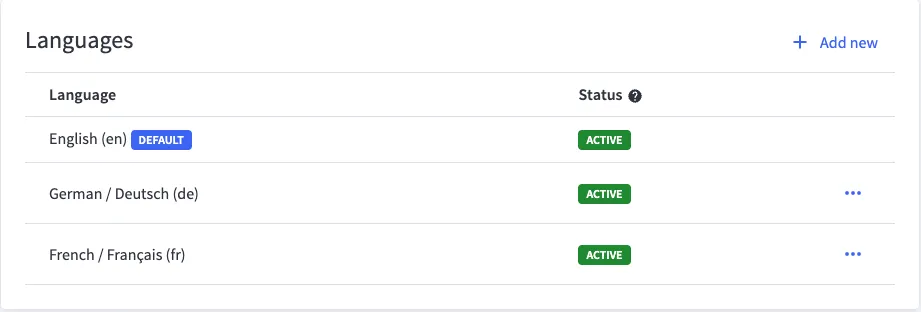
Enable all the locales you plan to use, in this case en, fr, and de. Add them only to your primary Catalyst channel, because it’s your Catalyst app’s default channel:
- Under Channels, choose your Catalyst storefront and click the Localization tab.
- Click Add new Language, select the languages to add, and save. Make sure each new language is active.
Configure channels in your Catalyst app
In your Catalyst app, configure which channel each locale pulls data from. When a shopper switches to a locale in the language selector, that channel’s data is shown.
First, identify the channel ID of your storefront channels:
- Under the Channels tab, choose your Catalyst storefront.
- Locate the numeric value in the URL that follows the channel path segment. This is your Channel ID.
Repeat this for your secondary storefront channel.
This example uses the channel IDs 1063175 and 1718564. The US is served through channel 1063175 with the en locale, and Switzerland through channel 1718564 with the fr and de locales.
In your Catalyst app, adjust the localeToChannelsMappings object in your channels.config.ts file:
channels.config.ts only changes which channel a locale loads data from. Locale routing (which locales exist, and the subfolder each one is served at) always comes from your default channel, BIGCOMMERCE_CHANNEL_ID, and isn’t affected by these mappings. The robots.txt, sitemap index, and favicon routes also always use the default channel, even if you map the default locale to a different channel here.
You can assign a given locale to only one storefront, so two storefronts can’t share a locale. However, for some locales, you can add a subtag to the locale code to indicate the region, for example, en-US (U.S. English) and en-AU (Australian English). You can find a list of all locale codes (with subtags) that BigCommerce supports when you add locales to your storefront.
Localize your data
Static data
Each locale on your storefronts, in this case en, fr, and de, has text elements that need translations. See Translate static strings.
If you use Makeswift, add the same locales in Makeswift that you enabled in the control panel.
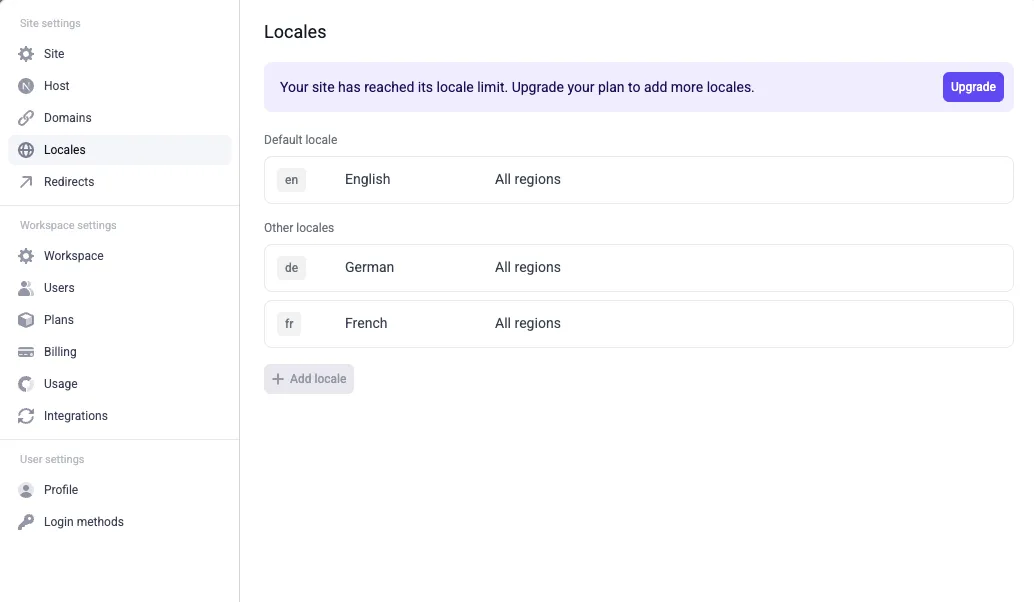
For more on customizing content in Makeswift, see Translate Makeswift content.
Dynamic data
Catalog
If you created your storefront with sample data, it already includes products and categories. Your data differs if you didn’t use sample data. This tutorial uses the following products from your catalog:
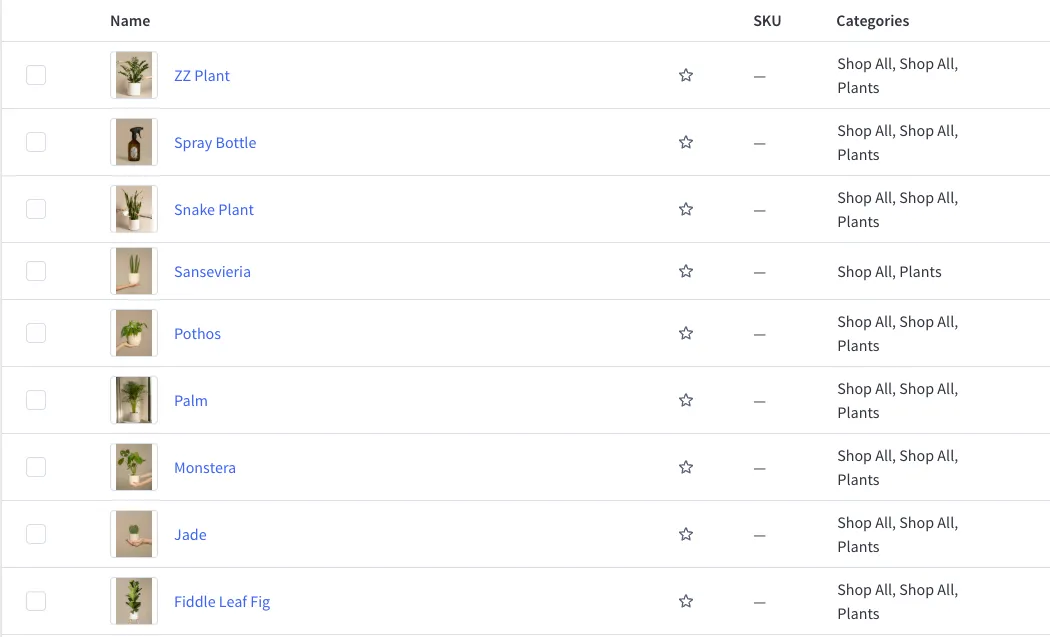
To sell different products in the US and Switzerland, you need to assign US products to the US channel and Swiss products to the other channel.
Assign the following products to the US channel and remove them from the Swiss channel:
- ZZ Plant
- Spray Bottle
- Snake Plant
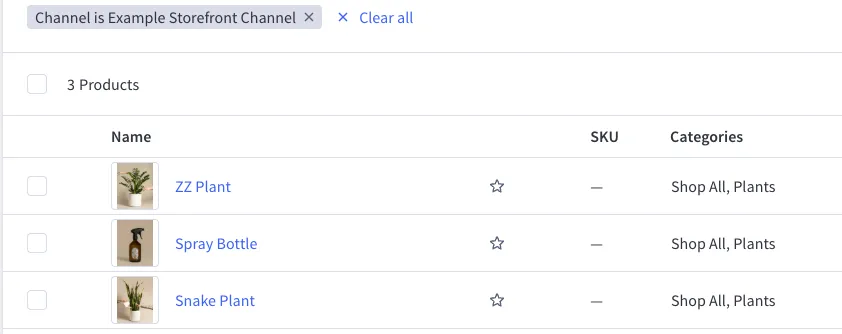
Then assign the following products to the Swiss channel and remove them from the US channel:
- Sansevieria
- Pothos
- Palm
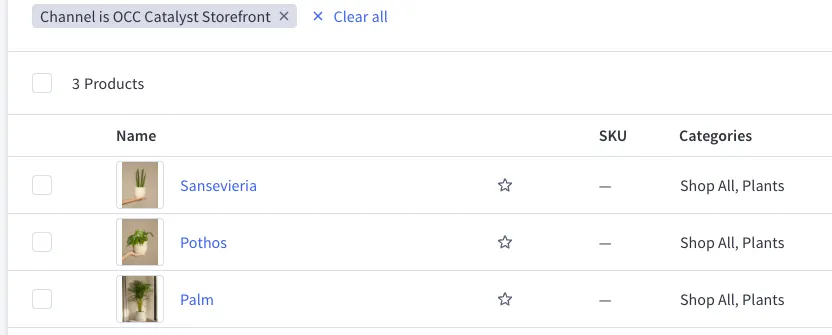
To assign (or remove) catalog products to your channels in the control panel:
- Under the Products tab in the control panel, click on All Products.
- For a given product, click the dropdown under the Channels column, click Manage channels, and check the box next to each channel you want to assign the product to.
To follow along, make sure you have a category named Shop All on both channels. That category comes by default with the sample data on your Catalyst storefront. Make sure the products you assigned to each channel are in that channel’s Shop All category.
You can create categories for your channel in the control panel:
- Under the Products tab in the control panel, click on Categories
- Click + Add New and select the channel you want for the category. Make sure you enable the category’s visibility.
- Assign the product to the categories you created by clicking the ellipses (…) next to the product, clicking Edit, checking the category you created for the storefront, then clicking Save.
Start your development server. When you visit the Shop All category in the en locale, you see the products you added to the US channel. In the de or fr locale, you see the products you added to the Swiss channel.
To translate the products and categories into French and German, see Translate dynamic data from BigCommerce.
Pricing
Next, localize prices for products sold on both the US and Swiss storefronts.
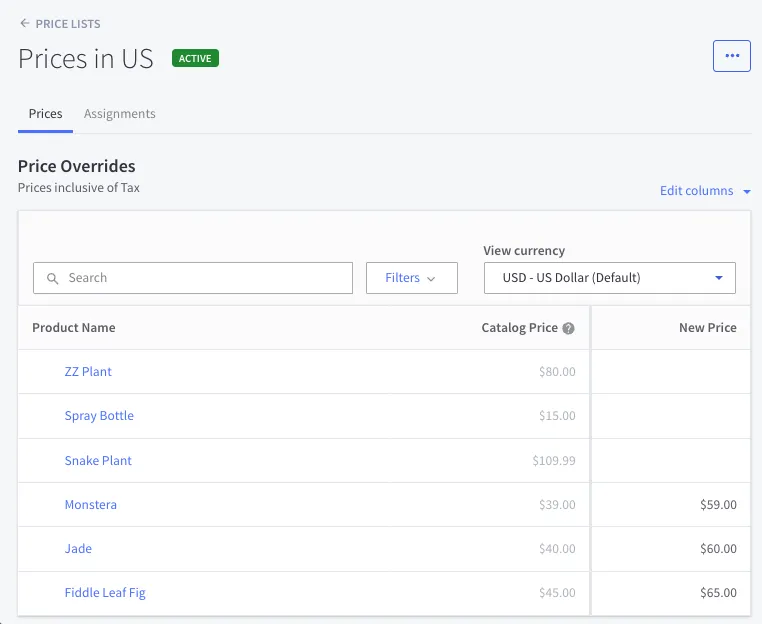
Make sure the following products are assigned to both the US and Swiss channels:
- Monstera
- Jade
- Fiddle Leaf Fig
Then create a price list to specify US prices and a separate price list to specify prices for Switzerland.
To create a price list for a channel:
- Under the Products tab in the control panel, click on Price lists, click Create new, and give it a name
- Click the ellipses (…) next to the price list, click Edit. You can filter the products you see in the control panel by the storefront channel. Enter prices for one of the channels for the three products, then click Save.
- Click on the Assignments tab, click + Add Assignment, and choose the channel you want to assign the price list.
The following are sample prices for the US:
The following are sample prices for the Swiss channel:
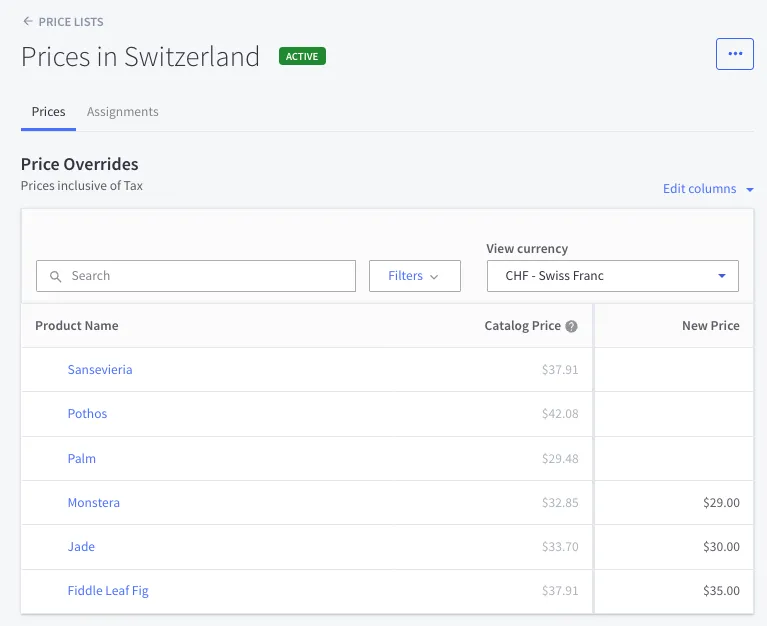
In the en locale, you see the US prices. In the fr and de locales, you see the prices for Switzerland.
Currencies
Finally, localize currencies so that your US channel uses US dollars (USD), while your Swiss channel uses Swiss Francs (CHF) and Euros (EUR):
-
In the control panel, click the Settings tab, and click Currencies to view the currency settings for your global store.
-
If USD, EUR, or CHF aren’t listed, click Add new currency and enter the currency code. Currencies must be Visible on the storefront in the global settings to show up in Catalyst.
-
Assign the currency to the correct channel by clicking the channels dropdown next to the currency.
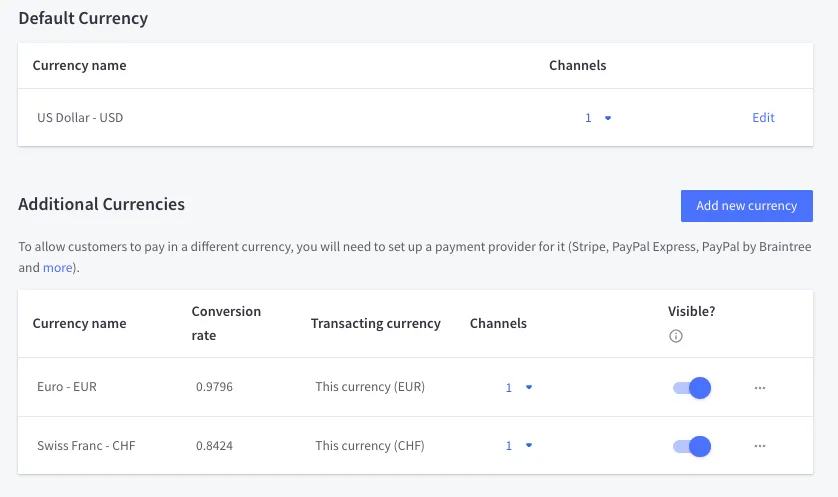
When you visit your storefront, each locale shows its channel’s currency:
Next steps
- Translate your products, categories, and brands for each locale with Translate dynamic data from BigCommerce.
- Review the deployment options for localized storefronts.
- Learn more about channel-specific settings in the Catalyst Multi-Storefront Overview.