

Add Mailchimp to Catalyst
This guide shows you how to add the script from the Mailchimp app to your Catalyst storefront, so that Mailchimp features such as pop-up forms and tracking work on every page. To collect newsletter signups only, use Catalyst’s built-in newsletter subscription form instead. It was added in Catalyst 1.4 and subscribes shoppers through the GraphQL Storefront API.
Prerequisites
- The Mailchimp app installed on your BigCommerce store, and the script URL Mailchimp provides, as described in the Install scripts section of the Mailchimp docs.
- A Catalyst project running locally. See Getting Started.
Scripts added with the Next.js <Script> component load without waiting for cookie consent, and the Mailchimp script can set cookies as soon as it loads. To defer it until the shopper consents, add it with Script Manager instead. See Add scripts with Script Manager.
Add the script to the default layout
The script needs to load on every page, so add it to the default layout, which all pages share:
The lazyOnload strategy delays loading the script until the browser has processed the critical interactive elements and scripts.
Check that the script loads
If you have active Mailchimp pop-ups, load your site to confirm the script works. The following shows an email signup pop-up offering a discount:
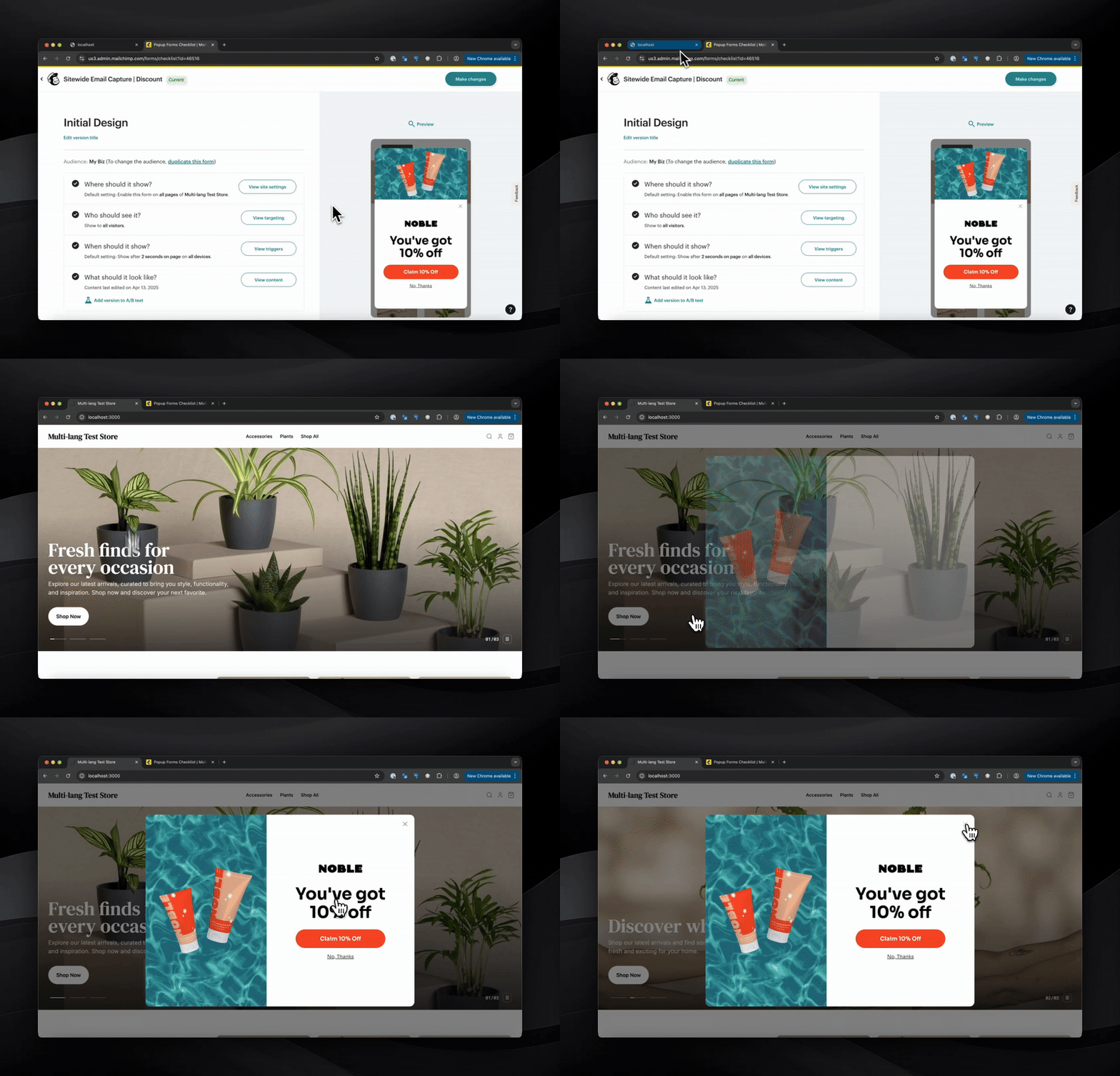
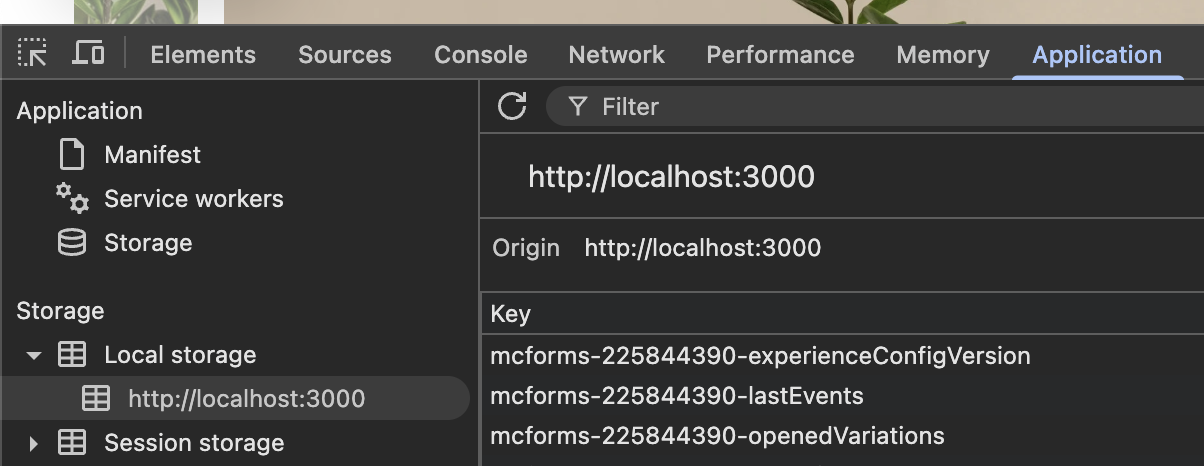
If you don’t see a pop-up, you might not have one configured. To confirm the script loaded, check your browser’s local storage for mcform keys under Application > Local storage:
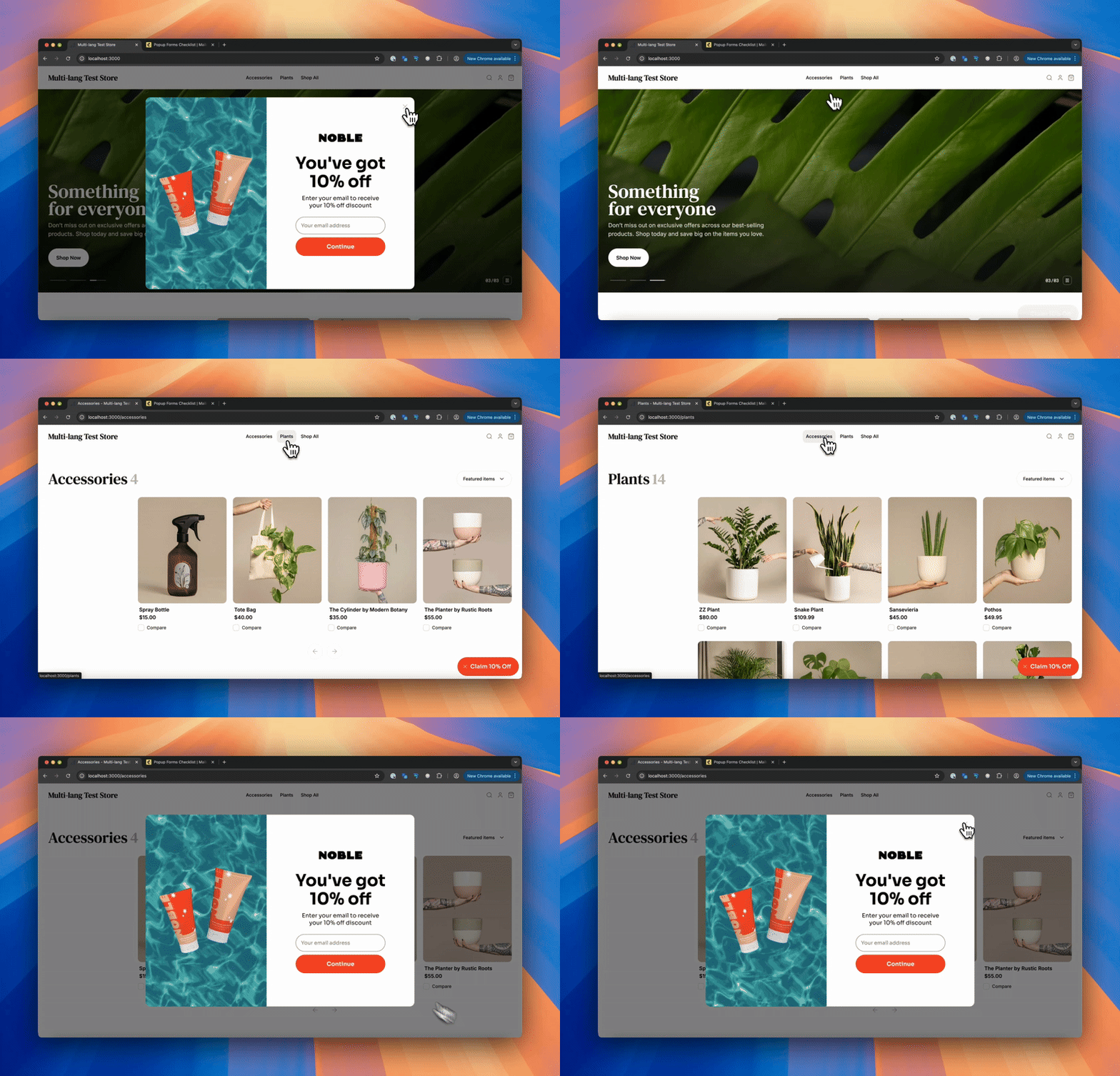
Because the script is in the shared default layout, navigating between pages doesn’t re-render the widget. The script loads once per session instead of on every page:
Next steps
- Manage the script from the control panel, with consent handling, using Script Manager.
- See the Next.js
<Script>documentation for other loading strategies.