

Publishing an App
After completing development, verifying best practices, and checking approval requirements, you may submit your app for Marketplace approval in the Developer Portal. This article takes you step-by-step through the submission form and provides descriptions for each field.
Before you begin
Your listing on the App Marketplace plays a major role in your app’s success. A good listing accomplishes three goals:
- Shows users how your platform or solution differs from competitive offerings
- Includes keywords so prospective users can find your listing in searches
- Sets up clear and accurate user expectations as to your solution’s features and functionality
Before you begin completing the app registration, we recommend prepping the following assets:
- Company logos
- Screenshots and video content
- Case studies
We also recommend giving special attention to the following search indexed fields:
- App name
- App summary
- App category
Provide technical information
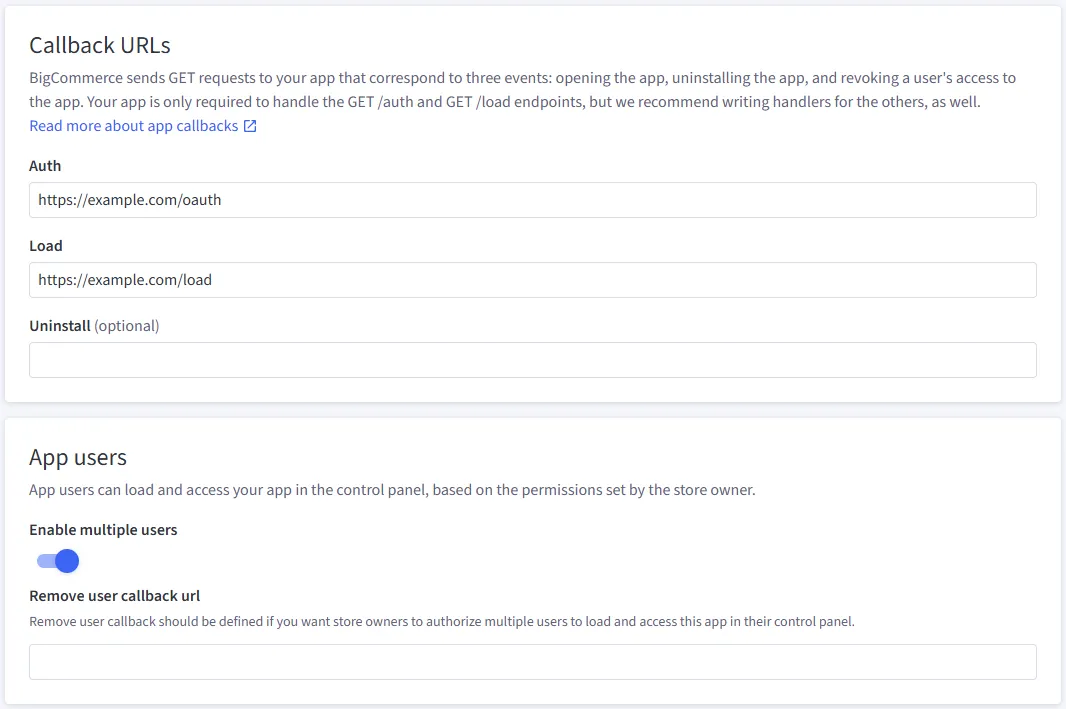
In the App information tab, provide the relevant technical information required for the app’s functionality. Specify callback URLs and multiple user support. This tab also provides the app’s API credentials.
Add OAuth Scopes
In the Scopes tab, add any scopes the app requires. For a list, see OAuth scopes.
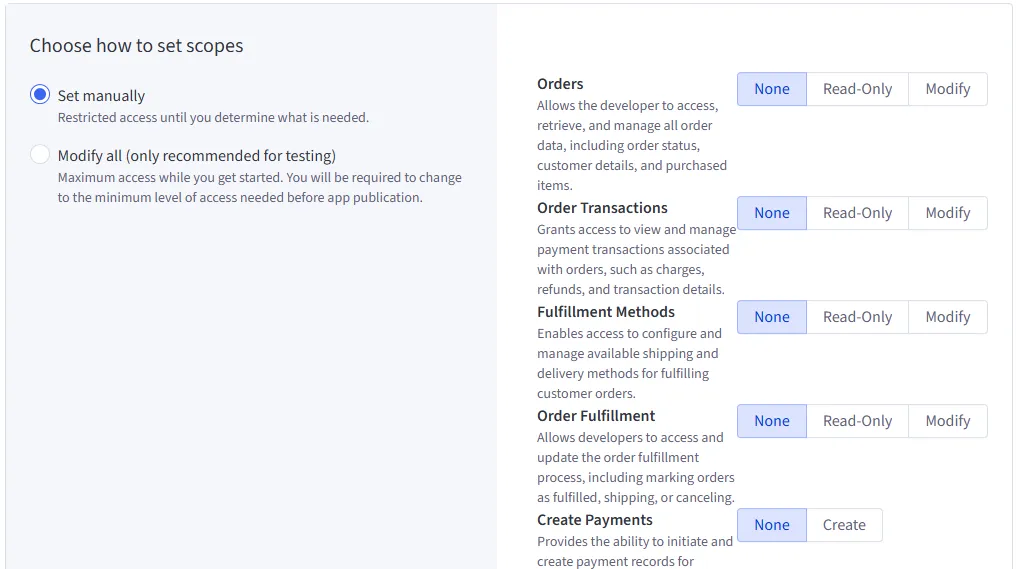
“Modify All” is for testing only. Apps configured with all scopes will not be approved for public listing in the Apps Marketplace.
Add listing information
In the Listing information tab, add basic information and finer details about the app. This includes support, pricing, style and much more information. The various fields are grouped by similar data, as outlined below.
While no fields are explicitly required for private apps, most are required for publication. See the FAQ for more information.
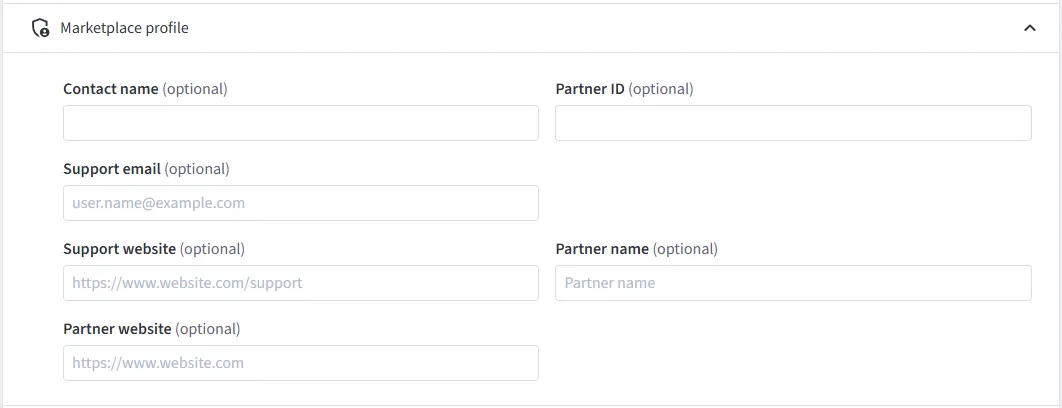
Marketplace profile
The marketplace display information that directs end-users to contact and support information for the app as well as partner-specific information.
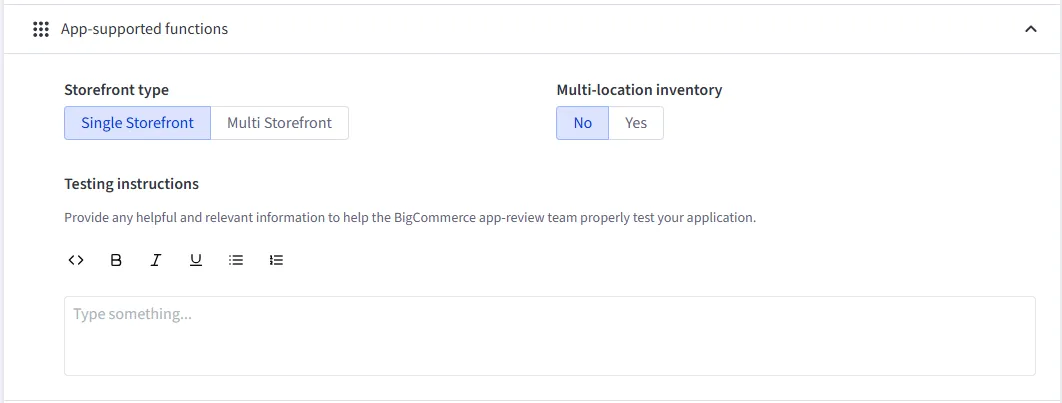
App-supported functions
The supported functions with which the app is expected to be compatible. This has no effect on the function of the app. The selectors in this section enable or disable feature badges on the apps marketplace.
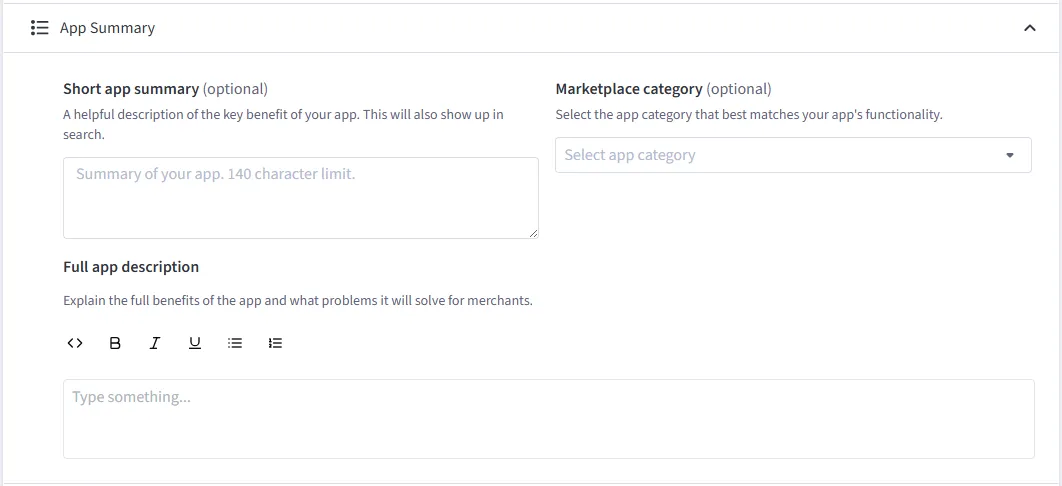
App Summary
Descriptive information about the app, including the category in which the app should display in the apps marketplace
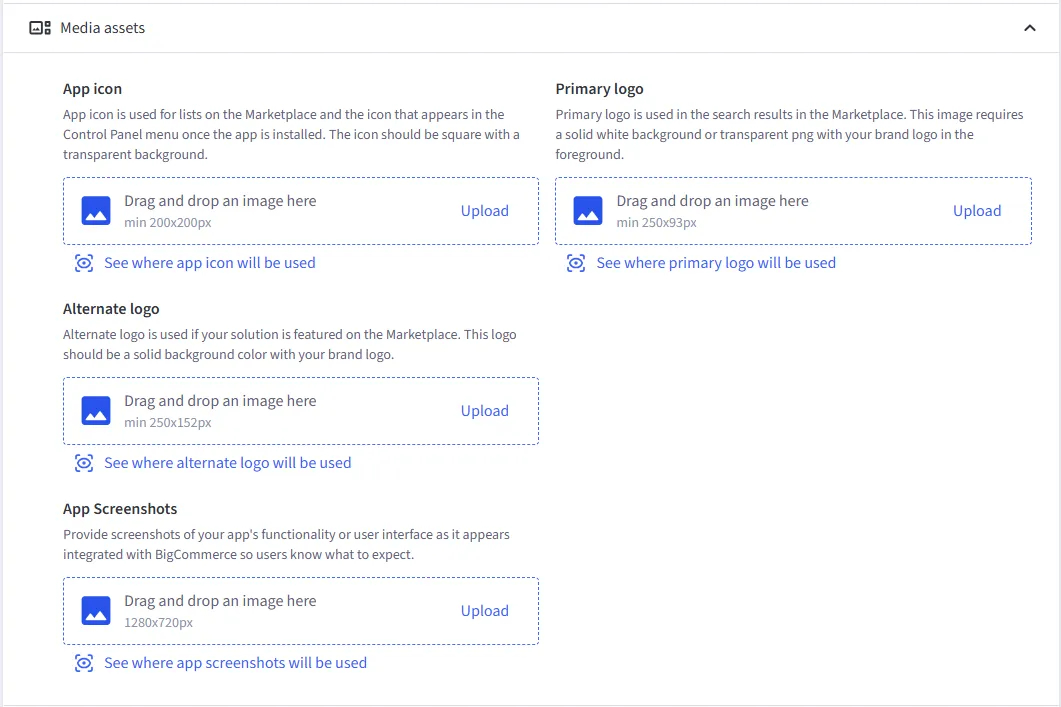
Media assets
Logos, icons, and screenshots of the app that provide unique branding and user expectations.
Videos, features, and case studies
Relevant videos of app functionality, features that users will find appealing, and case studies that demonstrate the app’s usefulness.
Videos and Case studies are optional fields.
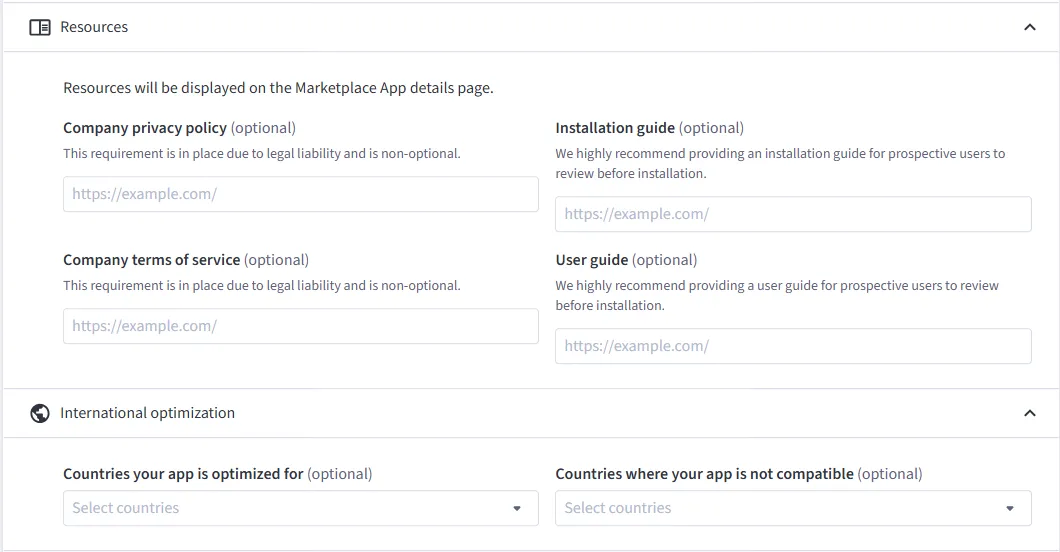
Resources and International optimization
Useful resources and locale information for the app.
Company privacy policy and Company terms of service are required for legal reasons and should be included. Apps without these items will not be listed in the Marketplace until this information is provided.
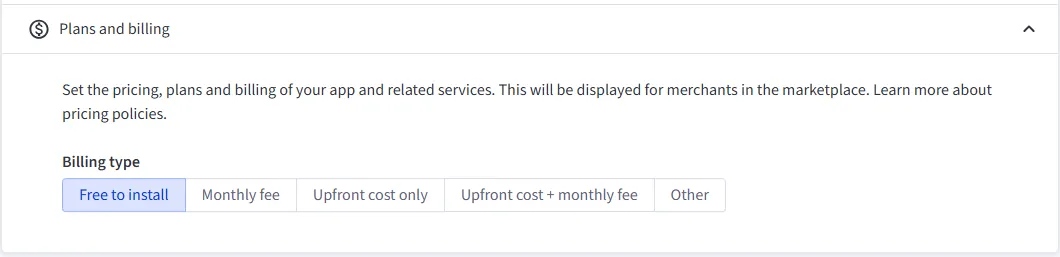
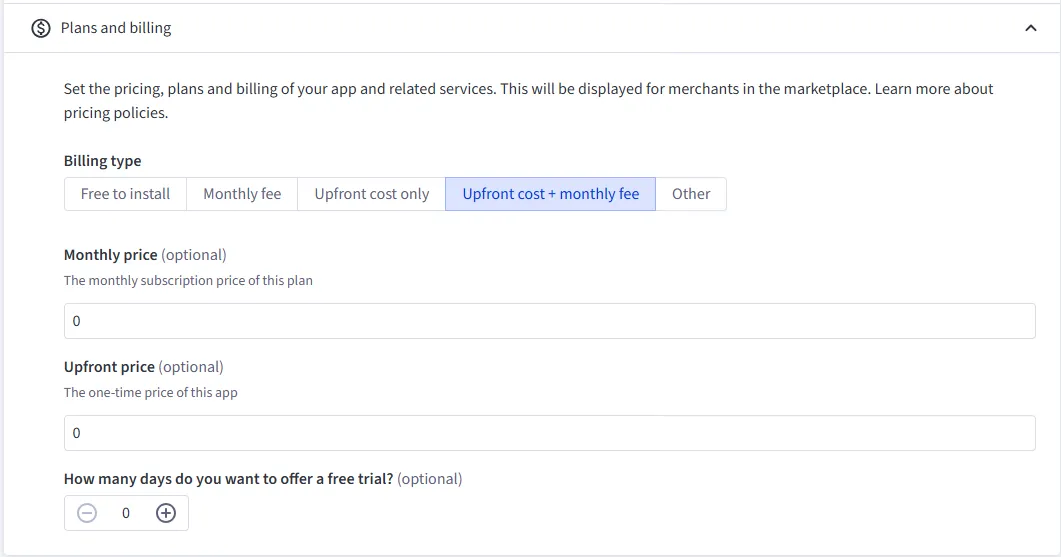
Plans and billing
Relevant pricing information. If your app has a free trial period, upfront costs, or monthly costs, these can be added after selecting the correct pay structure.
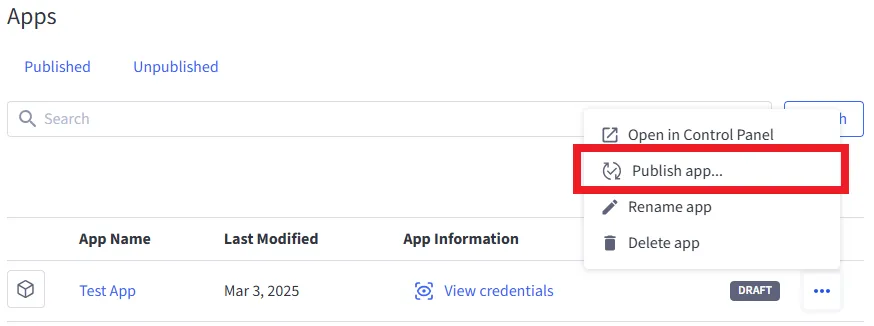
Submit your app for approval
Submit apps for App Marketplace approval by navigating to the Dev Portal’s Apps overview, then finding the app you want approved and clicking the Publish app… option from the action menu to the right of its listing.
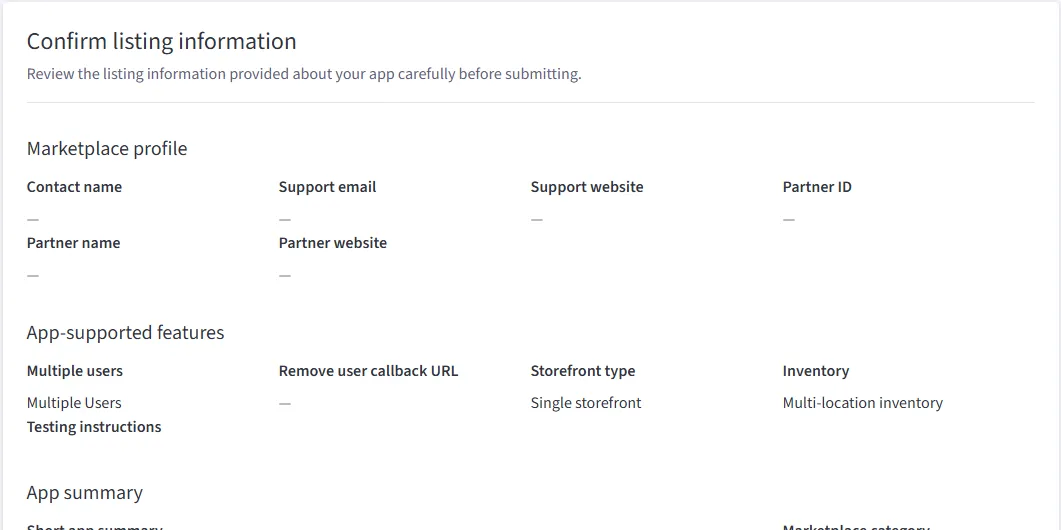
Review the information in the Confirm listing information page.
Before submitting your app for approval, it is imperative to adhere to the recommended best practices listed below to ensure the integrity of the app marketplace and keep clients safe.
- Integrate with the BigCommerce JS SDK for Java-based apps. The SDK effectively allows management of the user’s session, keeping it in sync with the control panel.
- At a minimum, design apps to be cookieless (to comply with Chrome and Safari privacy/ security policies) and instead use JWTs to pass information.
- Never pass sensitive data using query parameters.
After completing all information, then click Submit app for Review to pay the review and listing fee and submit the app. Test the app before submitting it to avoid paying additional review fees.
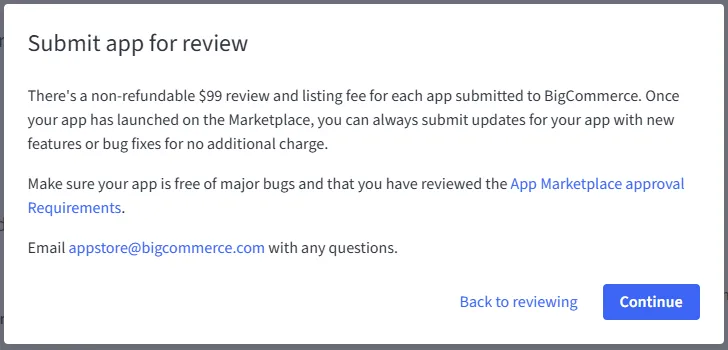
If you have any questions about your submission, email AppStore@bigcommerce.com.
To ensure a timely app review and Marketplace quality, BigCommerce enforces response timelines for app review cases.
-
Partners must respond within 30 days of receiving feedback.
-
Non-responses result in app rejection due to inactivity.
-
If the app is resubmitted within 30 days and shows progress, no additional fee will apply.
-
After 30 days, a new submission and fee are required.
FAQ
Are all fields required?
For Marketplace approval, you’ll need to fill out all fields on your listing with applicable content and links. These will be reviewed as part of the Marketplace approval process. The Case Studies field and Videos fields are optional.
Am I able to preview the changes to my listing before publishing them?
Yes! With the updated fields in the Developer Portal, we’re also adding the ability to preview how these changes will appear on the BigCommerce Marketplace. You will see the option to preview on a new step after Review when editing your listing.
Is there a draft status for these changes, or will saving make them live?
Any changes you save will take effect immediately, so make sure you’re ready to push them out to the Marketplace before saving.
I’ve logged in to the Developer Portal, but I don’t see my published listing. Where is it?
You may have logged in with the wrong account. Each listing can only be owned by one user, so it is likely assigned to another email address. If you’re unable to track down the correct owner account for your solution, please reach out to appstore@bigcommerce.com.
I saved my changes, but my listing has not updated yet. What’s the problem?
The changes will be effective immediately in your control panel app card, but the updates can take up to 24 hours to appear on the App Marketplace. Feel free to use this as a grace period to make edits as needed.
Next steps
Review the App Marketplace listing guide (PDF)
Resources
Sample apps
Tools
- Node API Client
- Python API Client
- PHP API Client
- Ruby API Client
- Ruby OmniAuth Gem
- BigDesign Developer Playground
- Figma Component Library