

How an enrichment works
An enrichment takes a set of products, generates content for them, and holds the results for your review until you apply them. This page covers the flow end to end. The pages linked from each step cover the decisions within it.
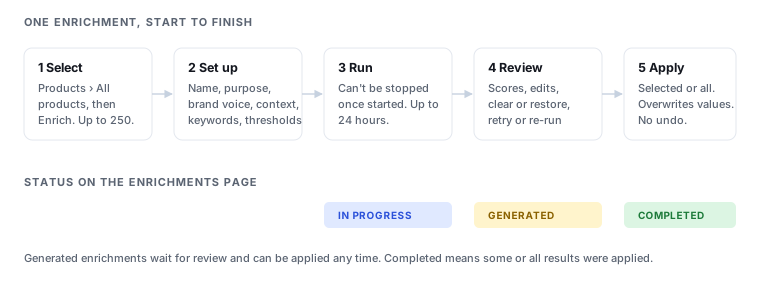
1. Select products
Go to Products › All products, select the products you want, and choose Enrich from the actions above the list.
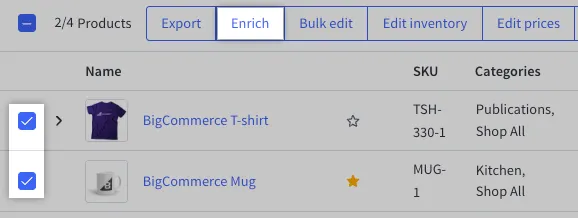
An enrichment includes up to 250 products. Products selected beyond the first 250 are left out. Which products to group together is covered in Grouping products into enrichments.
2. Set up the enrichment
The create panel walks through four steps: Settings, Brand, Thresholds, and Confirm.
- Settings — the run name and the purpose of the enrichment. The run name defaults to the time you chose Enrich; you can replace it with something more descriptive.
- Brand — brand voice, additional context, and search keywords. See Writing brand guidelines and Purpose, keywords, and context.
- Thresholds — the minimum score for each quality factor. See Understanding quality scores.
- Confirm — a final check before the enrichment starts.
3. Run it
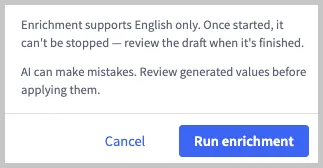
Start the enrichment from the final step. Before it starts you are reminded that enrichment supports English only and cannot be stopped once started.
If you have fewer entitlements left than the products selected, the enrichment can’t start. Reduce the selection or buy more entitlements.
An enrichment can take up to 24 hours, depending on the number of products and the complexity of your brand guidelines. You can work elsewhere in the control panel while it runs, and you receive a control panel notification when results are ready.
4. Review the results
Open Products › Enrichments and select the enrichment to review it. Results are scored, can be edited, and can be retried or re-run. See Reviewing at scale and Deciding what to change.
5. Apply
Select the products to update and choose Apply selected, or Apply all. If you plan to measure impact, capture a baseline before you apply. See Capture a baseline first.
Applying replaces the existing value in each field. There is no undo. Before your first apply, back up your catalog: select the products on Products › All products and choose Export. Then review content before you commit it.
Tracking your enrichments
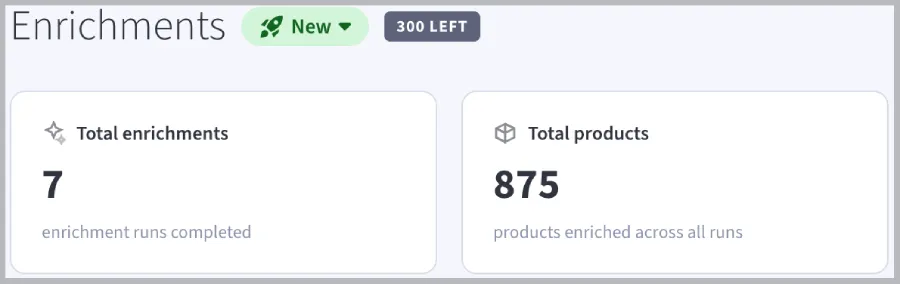
Products › Enrichments lists every enrichment you have run, with the number of products, the fields enriched, its status, and when it was created. The top of the page shows how many enrichments you have run, the total products enriched, and how many entitlements you have left.
Select an enrichment to see its details, including a progress bar while it runs and the date results were applied once completed.
A generated enrichment is saved to your store, so you can review it over several sessions and apply it any time.
To give feedback on enrichment, choose Give feedback on the data enrichment from the New menu on the Enrichments page. For troubleshooting, contact BigCommerce support.