

Reviewing at scale
Reading 250 products end to end is not a good use of time, and it is not how problems surface anyway. Problems in generated content are usually systematic — the same wrong assumption repeated — so scores plus a sample find them faster than a full read.
This page covers what to look at, and the controls for editing and applying results.
Editing results
Select a product’s row in the review table to open its details in the review panel.
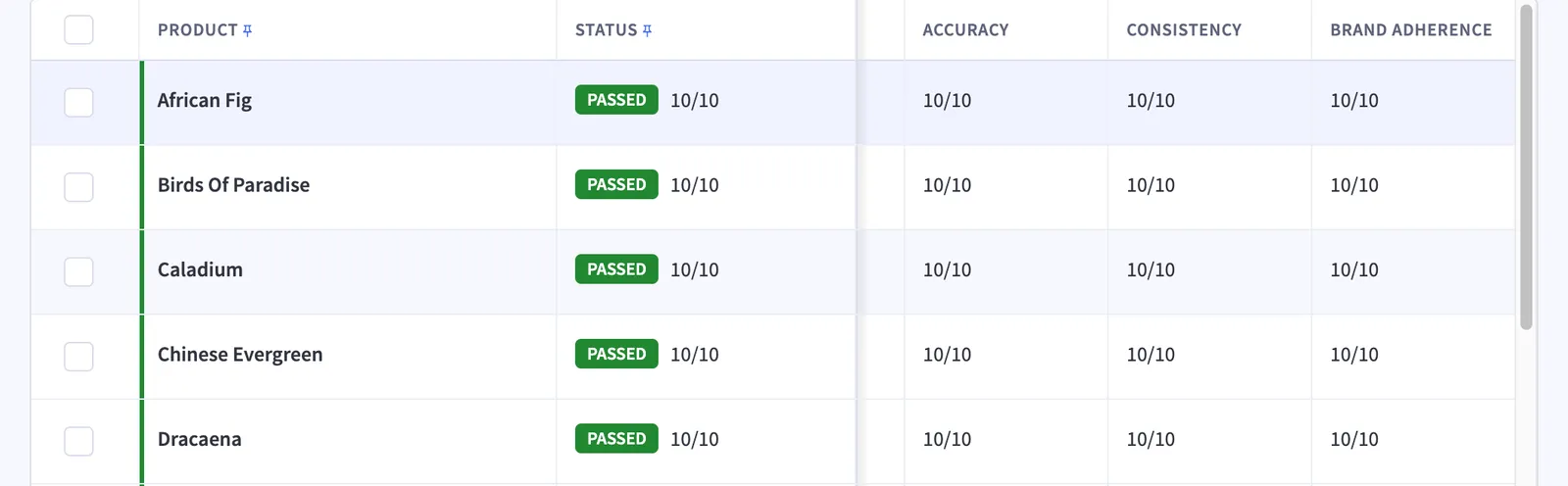
To edit a field, choose the edit icon next to it in the panel, make your changes, and choose Save. You can edit every field this way, with the panel either collapsed or expanded.
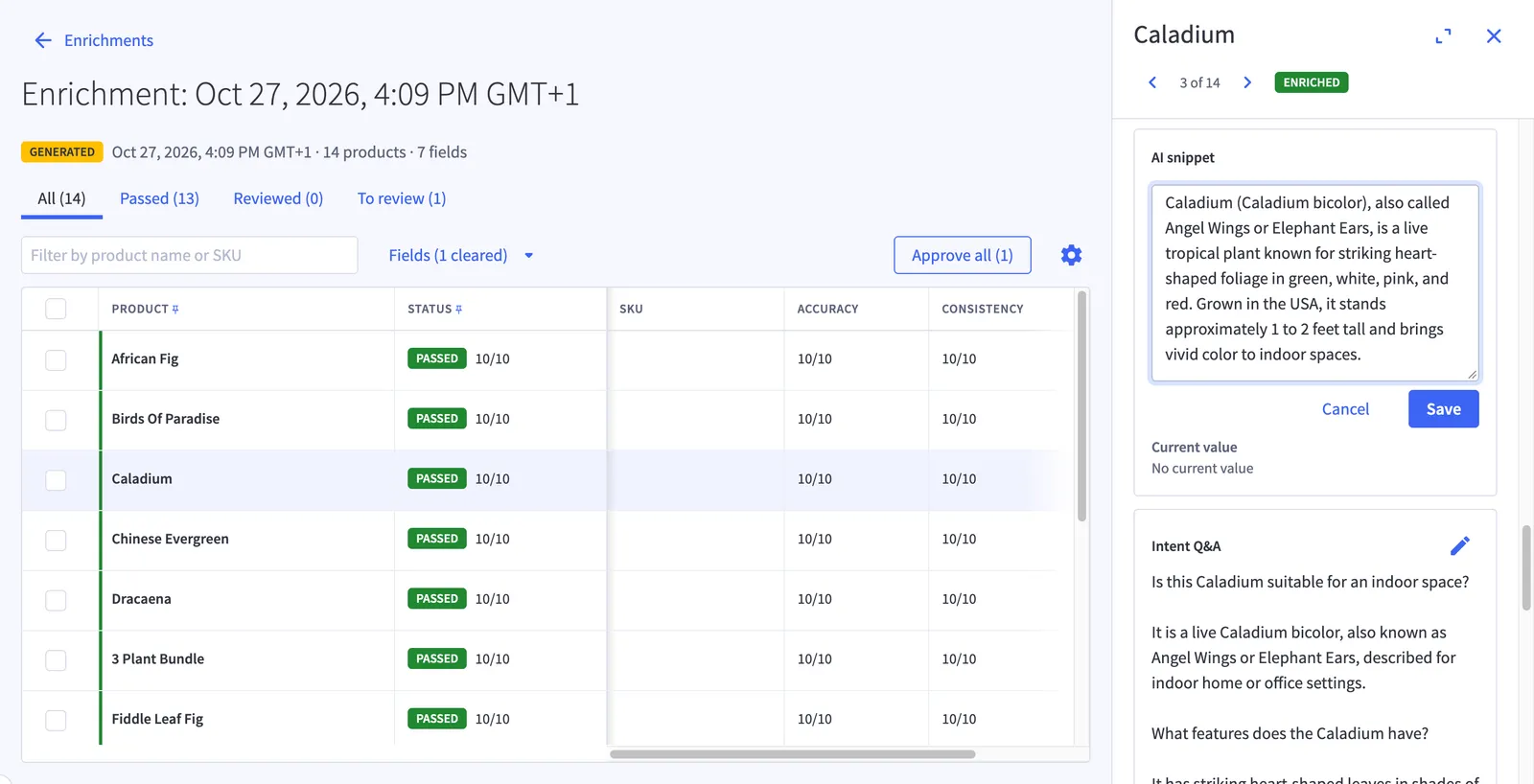
Expand the panel when you edit long or formatted text, such as Description, which opens in a formatting editor.
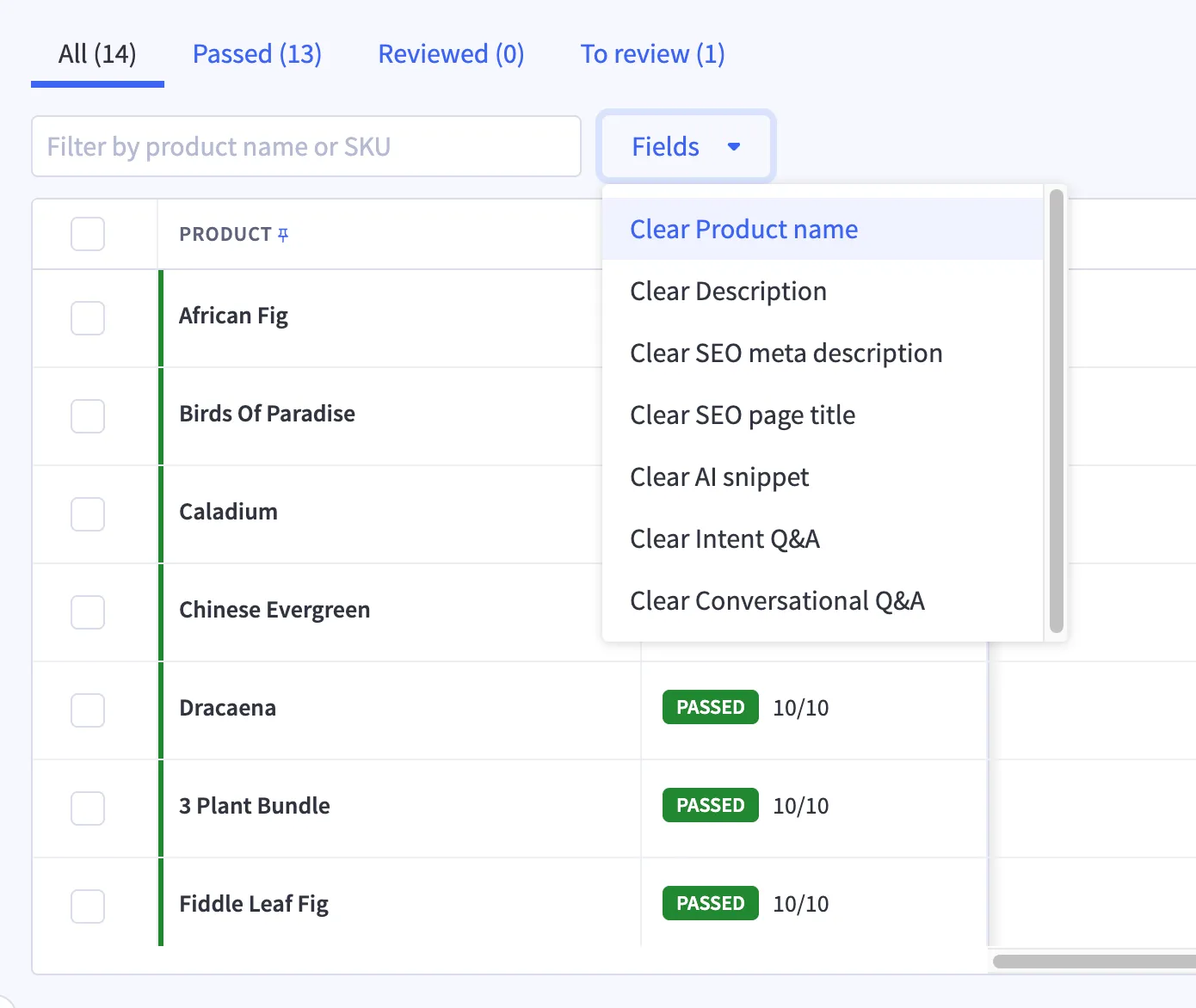
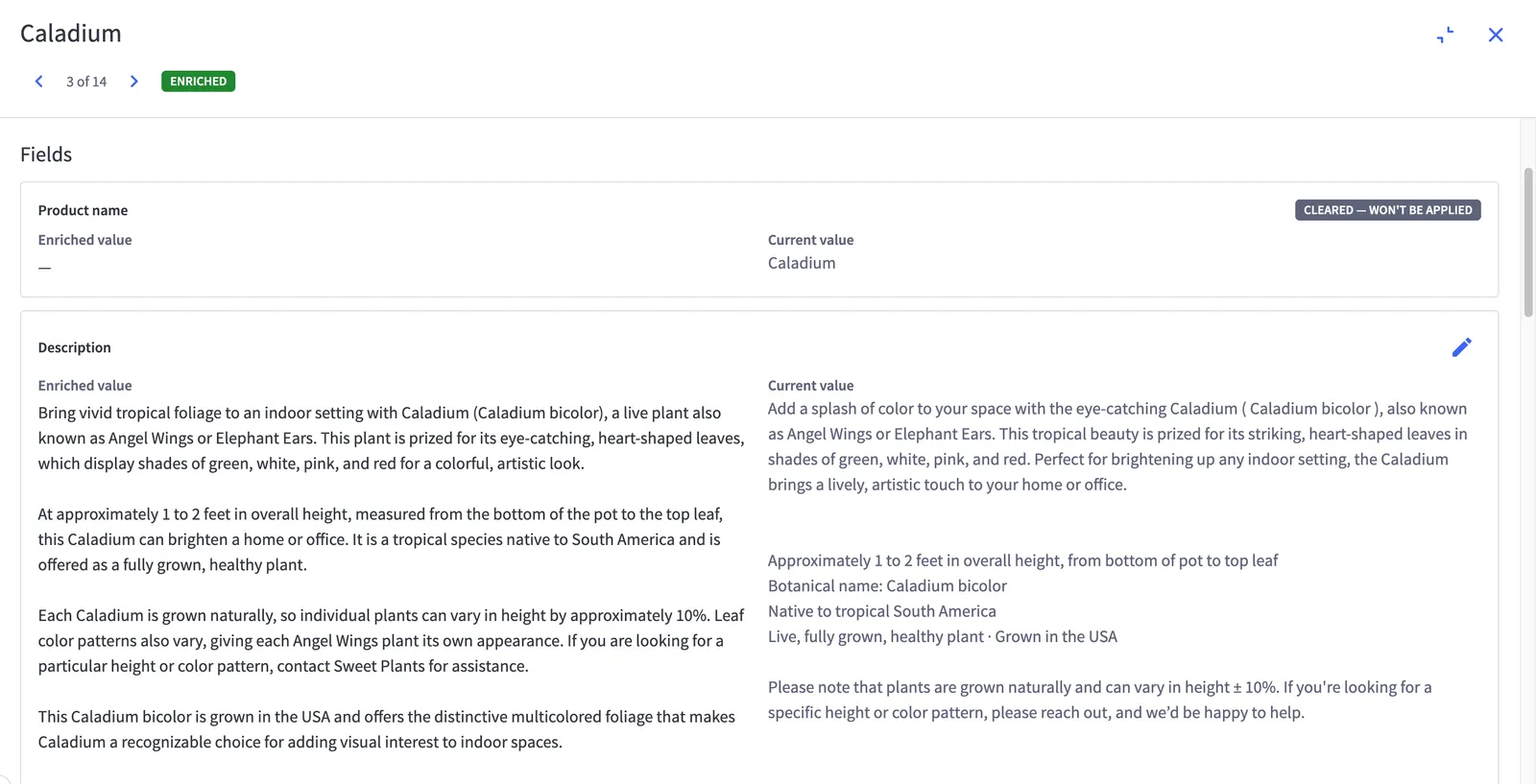
To discard everything generated for a field, open the Fields menu above the review table and choose Clear for that field, for example Clear Description. Clearing removes all of that field’s data from the draft, including any edits you saved to it.
To bring a cleared field back, open Fields again and restore it. Restoring puts the initially enriched values back in the draft, so any edits you made to that field are replaced. The Fields button shows how many fields are currently cleared, for example Fields (2 cleared).
In the review panel, a cleared field is marked Cleared — won’t be applied.
Undo and Redo step through your edits, and Discard changes removes all of them.
Reviewing one product at a time
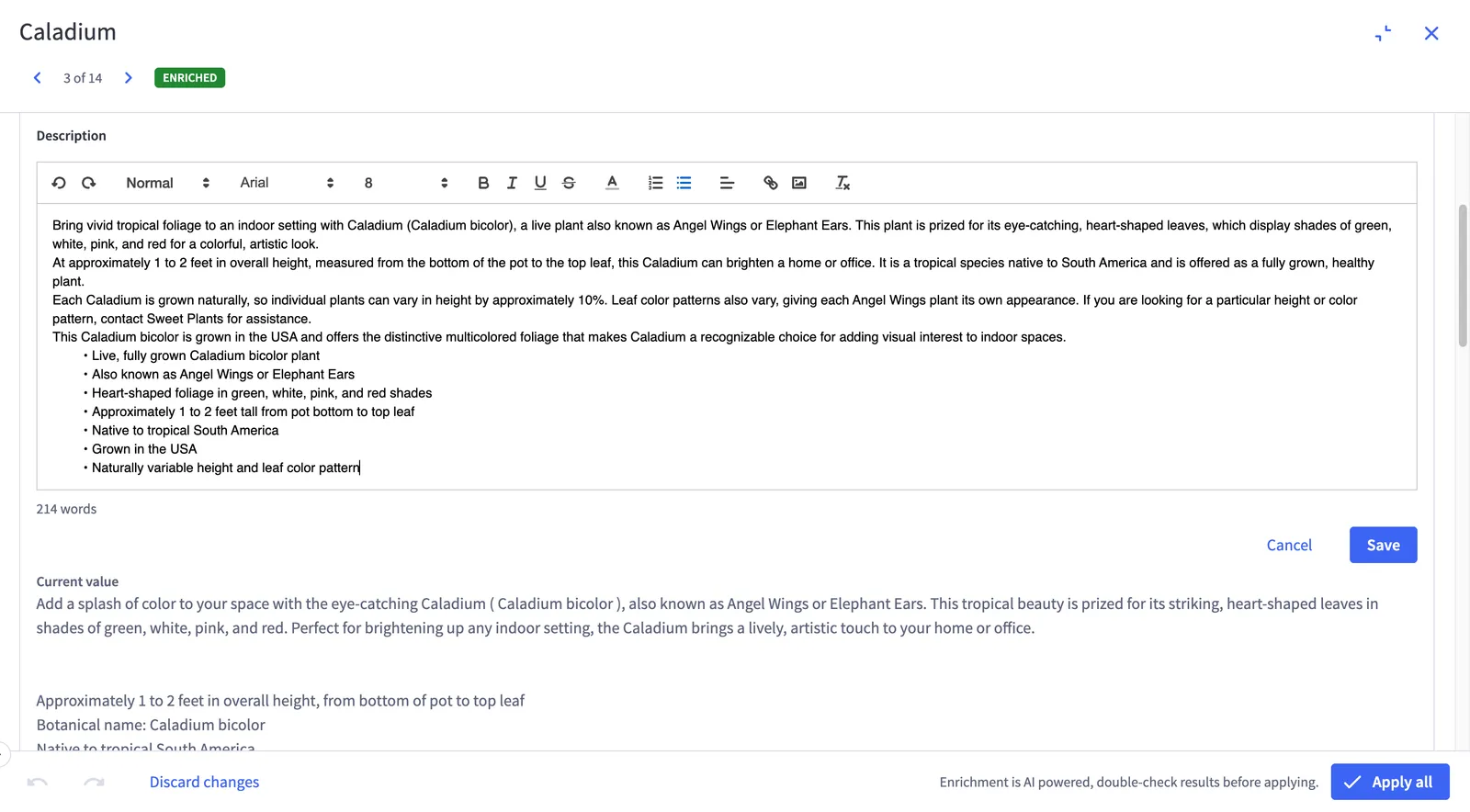
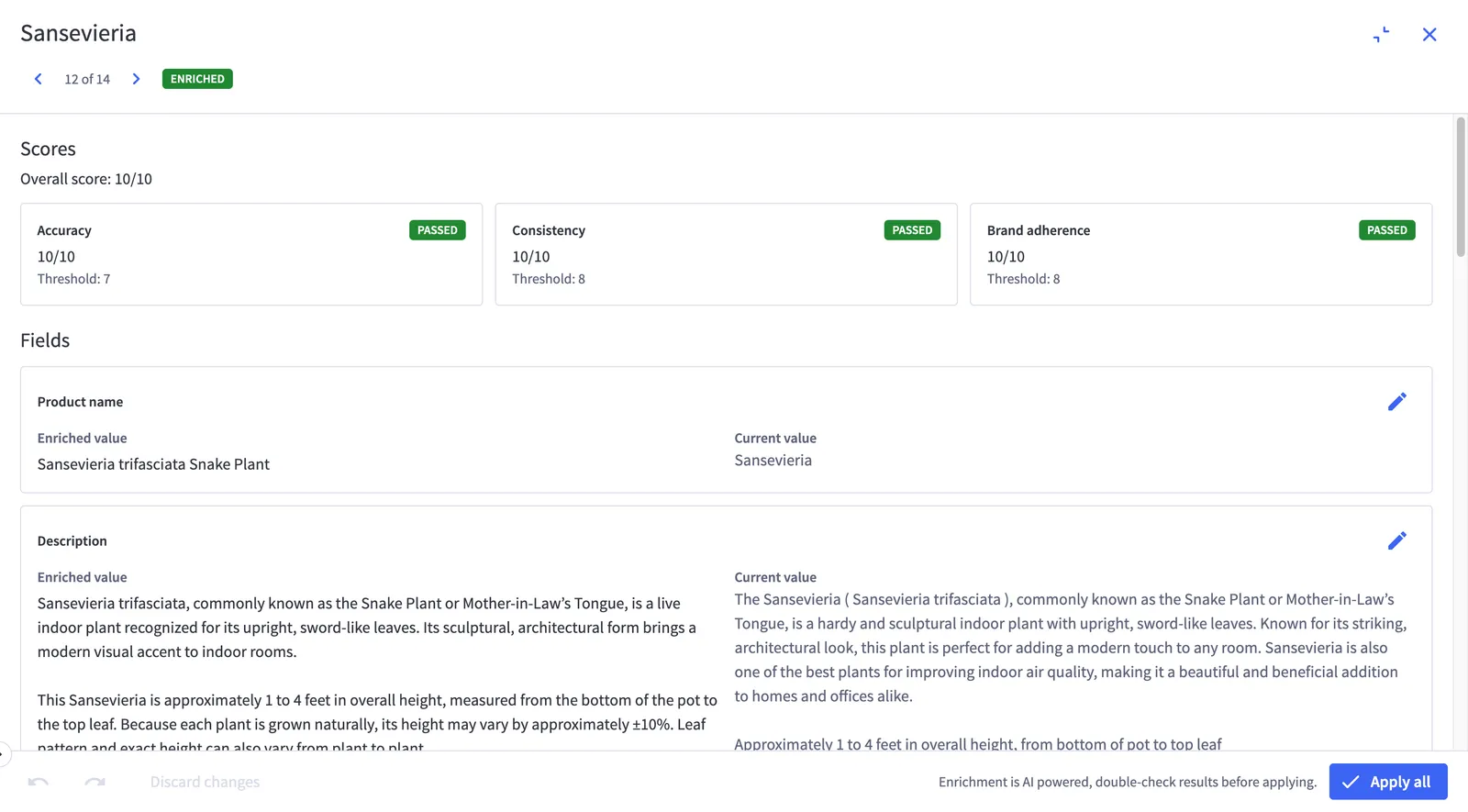
Select a product’s row in the review table to open it in the review panel. The panel shows the product’s score for each factor against its threshold, followed by the enriched and current value of each field, where you can edit them. Use the arrows next to the product counter to move to the previous or next product without closing the panel.
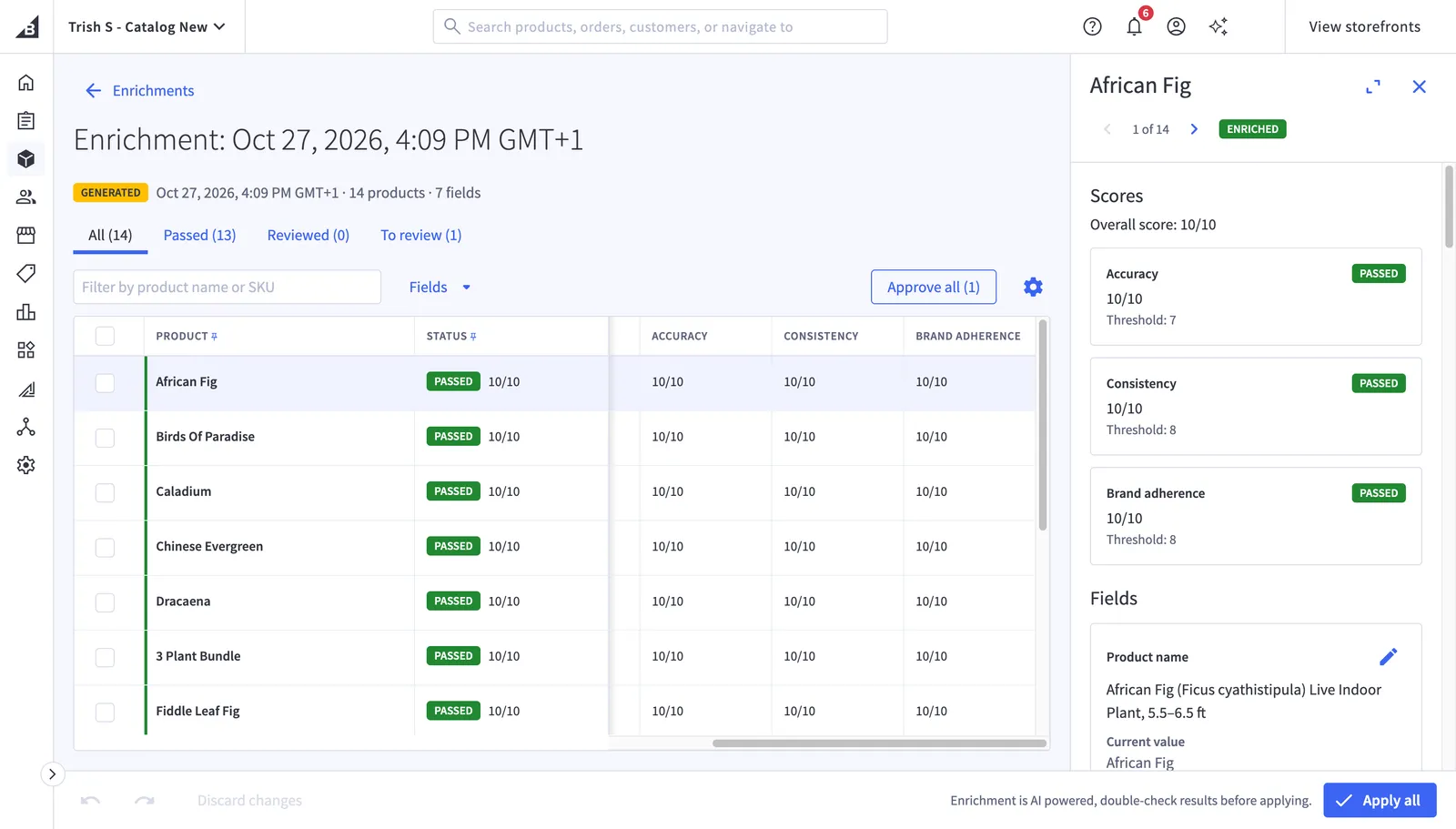
Expand the panel to give the fields more room. The product counter and arrows stay available, so you can keep stepping through products in the expanded view.
The panel steps through the products in the tab you have open. To limit the panel to one group, switch to the Passed, Reviewed, or To review tab first. For example, open To review to step through only the products that scored below a threshold, along with the issues that put them there.
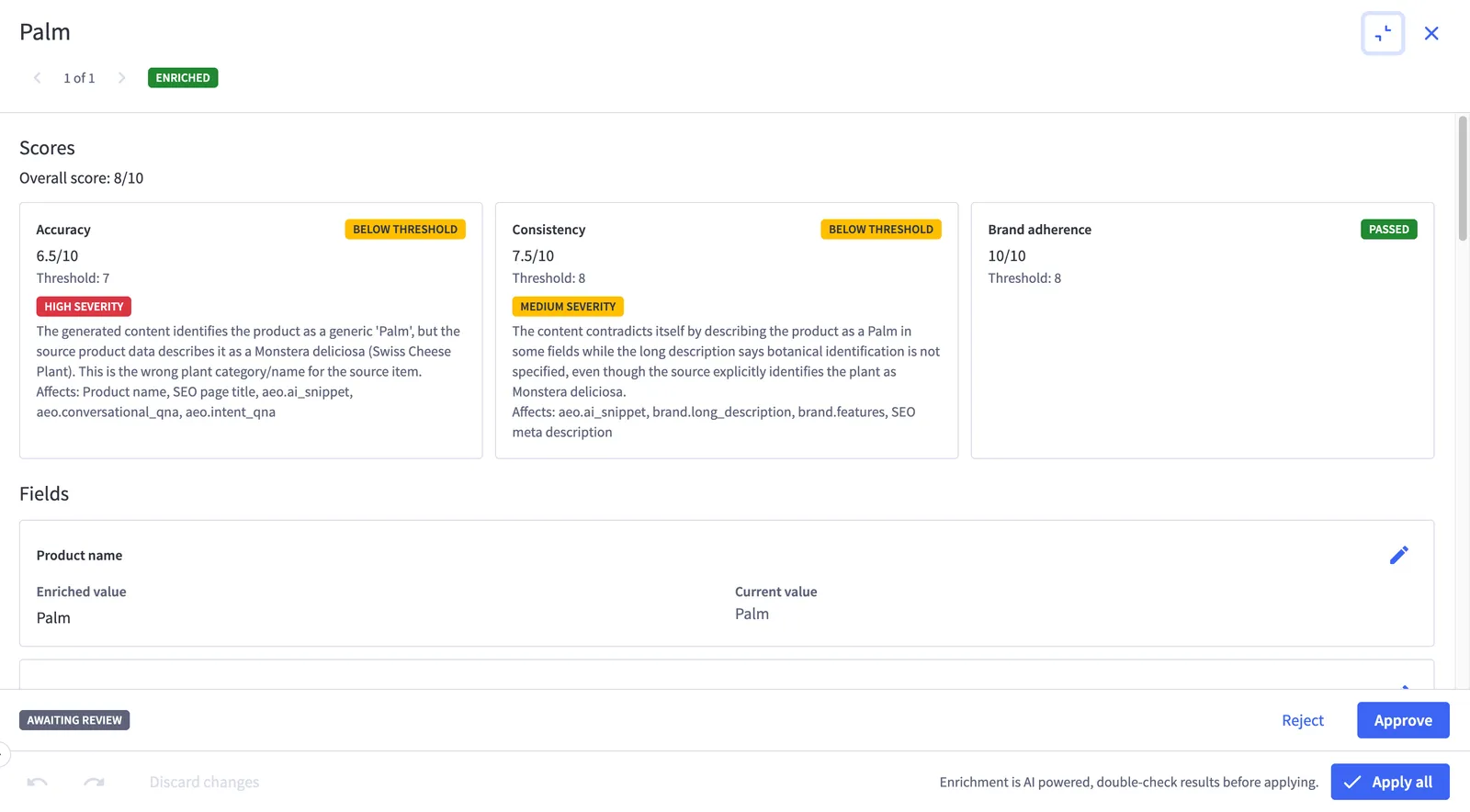
Choose Approve or Reject to record your decision on the product. The panel moves to the next product automatically, and the reviewed product moves to the Reviewed tab with an approved or rejected status, depending on your decision.
Approving or rejecting several products at once
To decide on several products together, select them in the review table and choose Approve or Reject. Each button shows how many products the action applies to.
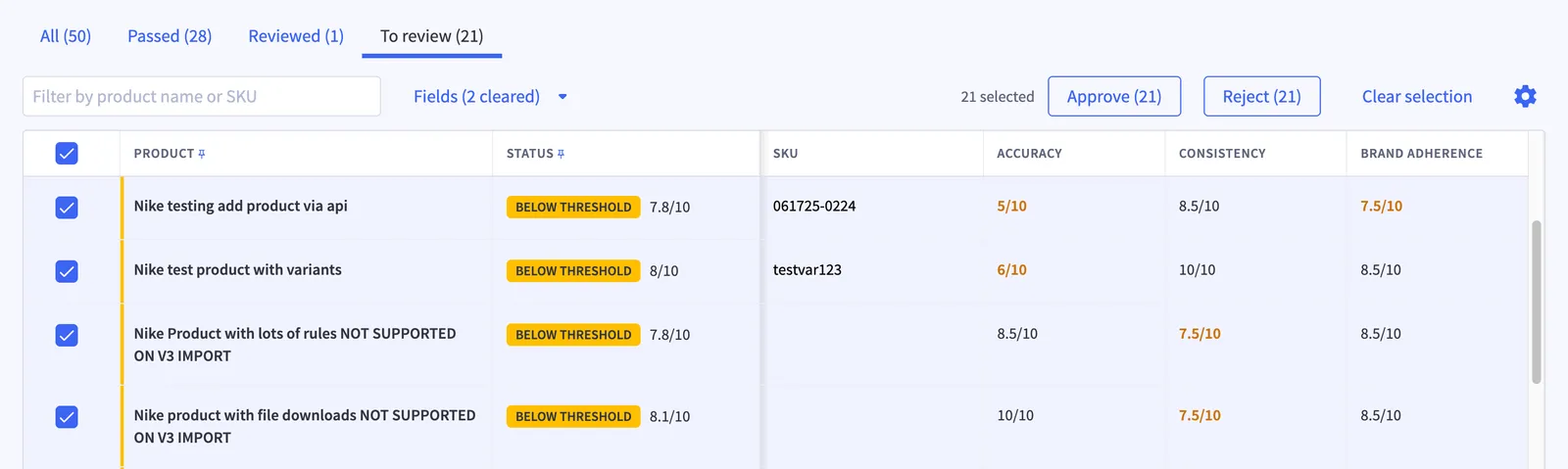
Start with what scored below threshold
Products held below your threshold come with the specific issues that put them there, named by field. Work these first: they are where real problems cluster, and the issue list tells you what to read rather than making you hunt.
See Understanding quality scores for how the factors and thresholds work.
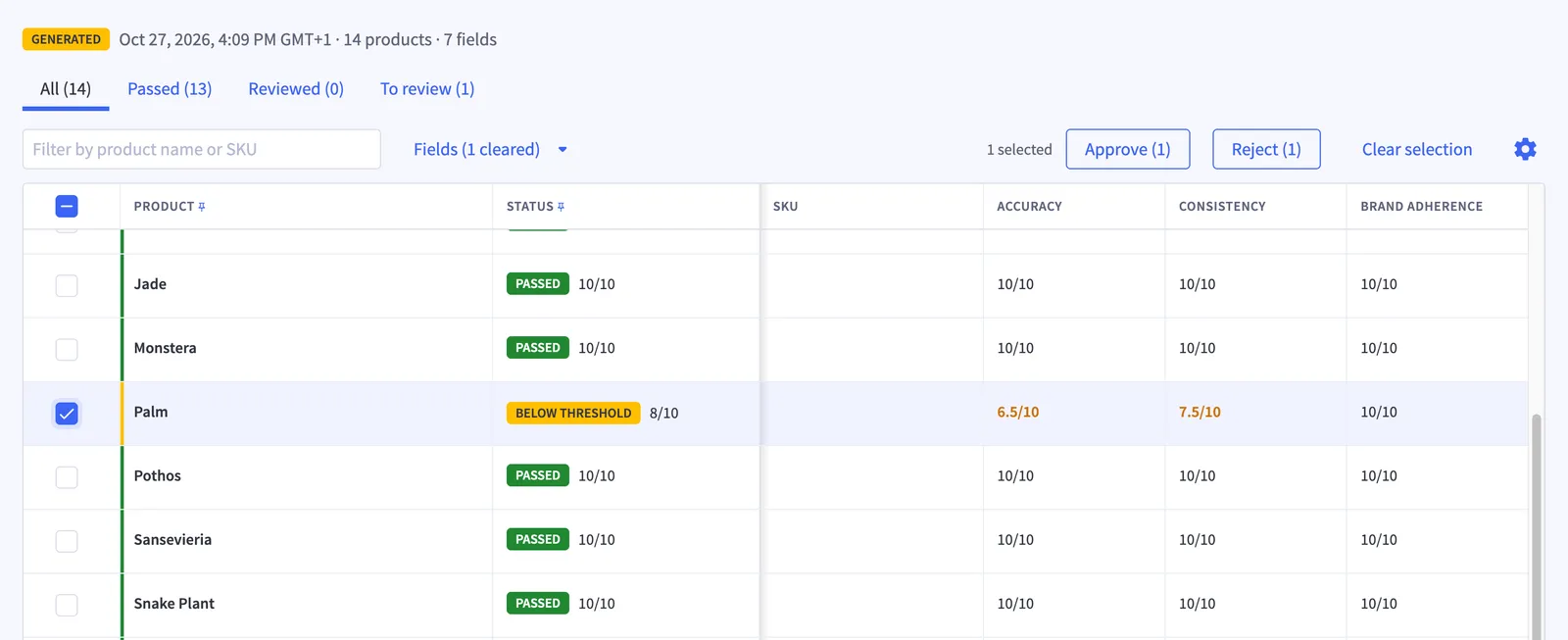
Then sample the rest
A clean score means the reviewer found no issues of the kinds it checks for. It does not mean the copy suits your brand, so do not skip the products that passed.
- Read 10 to 15 passing products fully. Every field, start to finish. Spread them across the categories and price points in the enrichment.
- Then scan one field at a time down the column. Patterns are far easier to see reading 250 descriptions than reading one product’s seven fields.
- Check your thinnest products deliberately. Sparse records produce the weakest output, and they are where unsupported claims would appear if anywhere.
What to check per field
The check that matters most
For any claim in the output, ask whether the product record supports it. Accuracy scoring is built to catch exactly this, but it is the failure with the highest cost if one slips through, so it is worth your own eyes on the thin records rather than relying on the score alone.
Scoring is a tool for resolving issues, not a grade on the enrichment. The number directs your attention; the issues attached to it are the part you act on. So when a product scores low, the next step is not to raise the threshold, enrich it again, or set the result aside. It is to open the record and understand what was flagged — which field the issue is in, what the reviewer found there, and what in the product data or your inputs produced it. Once you know that, the fix is usually clear: add the missing fact to the record, sharpen a brand guideline, or correct the field directly.
Working through a handful of low scorers this way in your first enrichment tells you what to change before the next one, which is worth more than the individual corrections. See Understanding quality scores.
Stop reviewing and fix the input
If you are correcting the same thing repeatedly, stop editing rows.
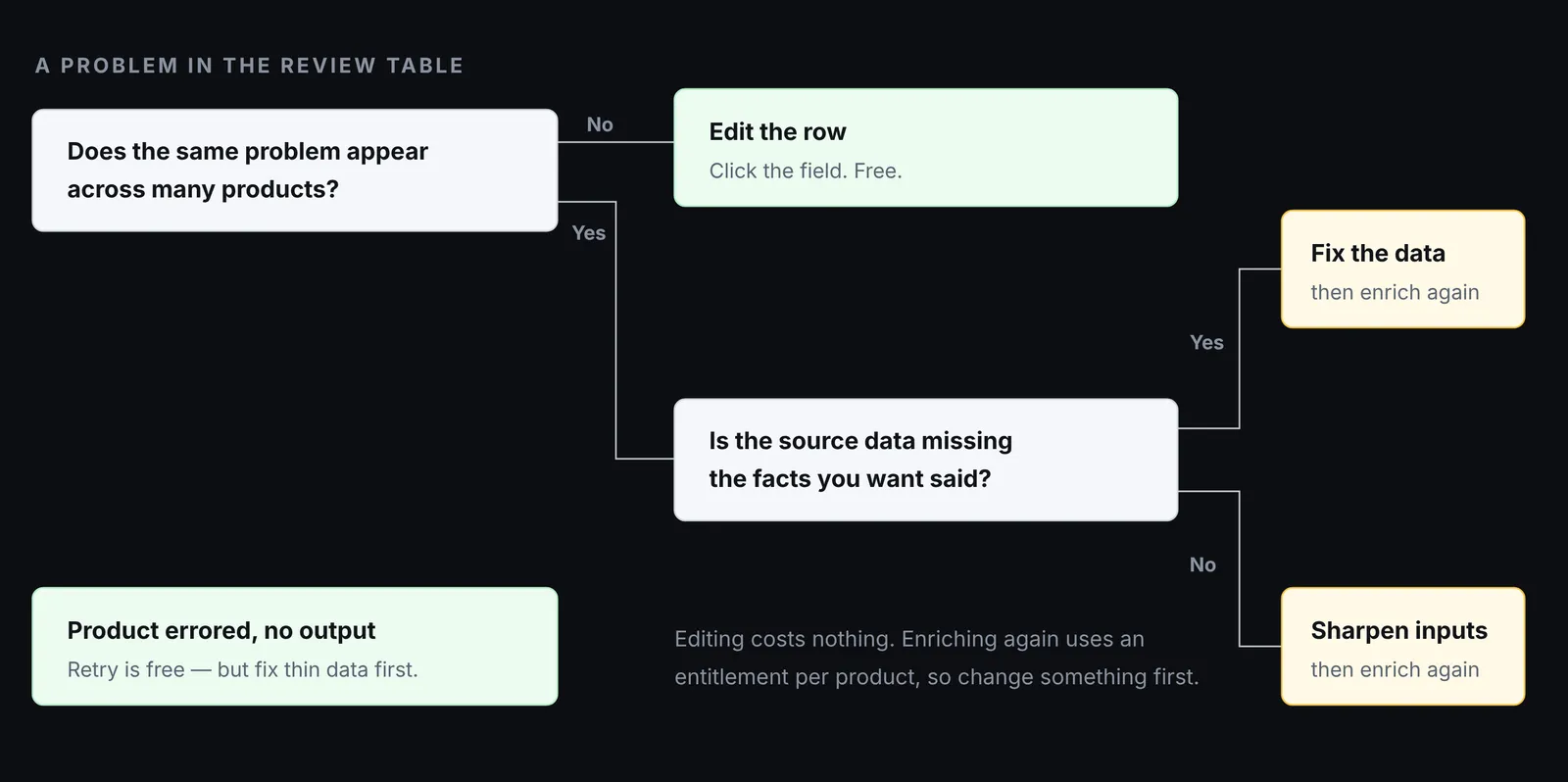
Roughly: more than five or six identical corrections means the input is wrong, and fixing it costs less than continuing to edit. See Deciding what to change.
Applying results
When you’re done, choose Apply all.
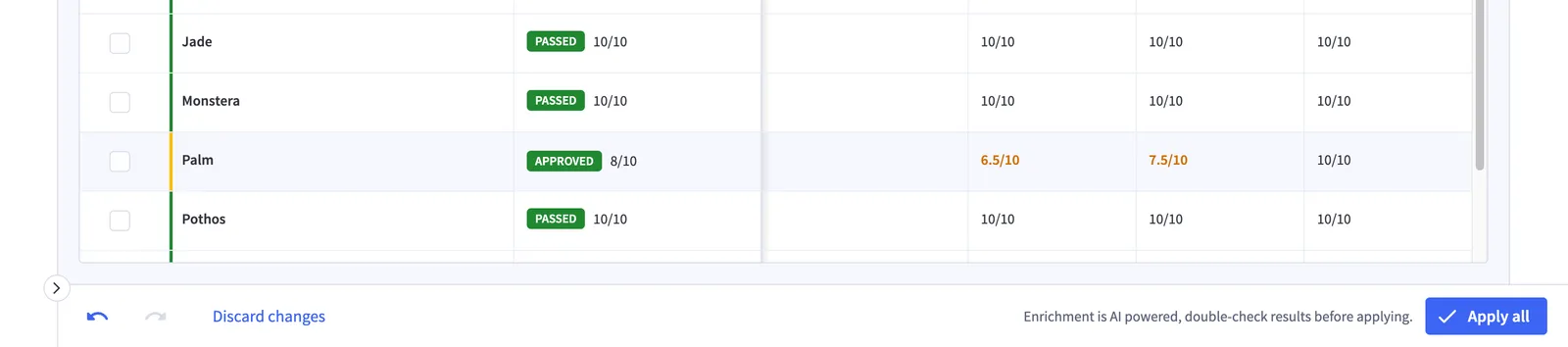
Before you apply
Applying replaces the existing value in each field. There is no undo. Before your first apply, back up your catalog: select the products on Products › All products and choose Export. Then review content before you commit it.
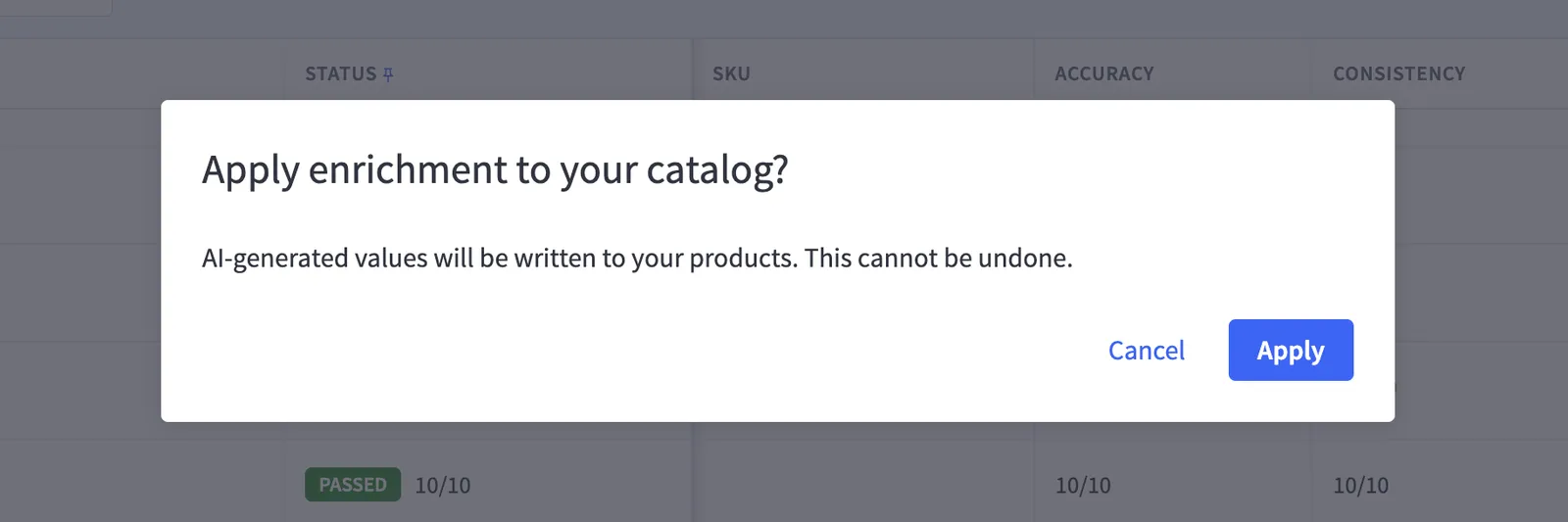
The first time you apply, you’re asked to confirm that the AI-generated values will be written to your products. This can’t be undone.
Before you apply a large enrichment, test with a small enrichment of 25 to 50 products and check the result on your storefront.