

Contextual Filters
The Settings API allows you to manage settings and configurations for BigCommerce-hosted stores and headless storefronts.
You can use the Contextual Filters endpoint of the Settings API to programmatically configure a store’s Product Filtering feature, also known as faceted search. Additionally, the Contextual Filters endpoint enables you to merchandise diverse product catalogs by creating a different faceted search configuration for each channel and product category on a store. With this feature, you can configure the product categories for various product lines with a different set of enabled filters, so that shoppers can filter by the most relevant criteria.
This article demonstrates how to use Contextual Filters to configure filters that appear on a particular category page.
Limitations
- Currently, the API only supports the default channel with an ID of 1.
- At this time, you can configure contextual filters for Category pages, but not for Brand or Search Results pages.
Prerequisites
- A BigCommerce store.
- API
access_tokenwithinformation & settings modifyscope. - Knowledge of the Settings API.
- Scale or Performance store plan. To upgrade, see Changing Your Store’s Plan.
- Your store plan must support Product Filtering to use contextual filters.
- Product Filtering is available for Scale and Performance plans. To upgrade, see Changing Your Store’s Plan.
- Enterprise accounts have the ability to use custom fields as product filters to provide shoppers with additional ways to customize their search.
View active storefront filters
There are two ways to retrieve your store’s currently active storefront filters:
- Settings API
- The store’s control panel
To view all configured filters using the API, send a GET request to /v3/settings/search/filters.
The response will contain all of the filters currently active on your store.
Request
Response
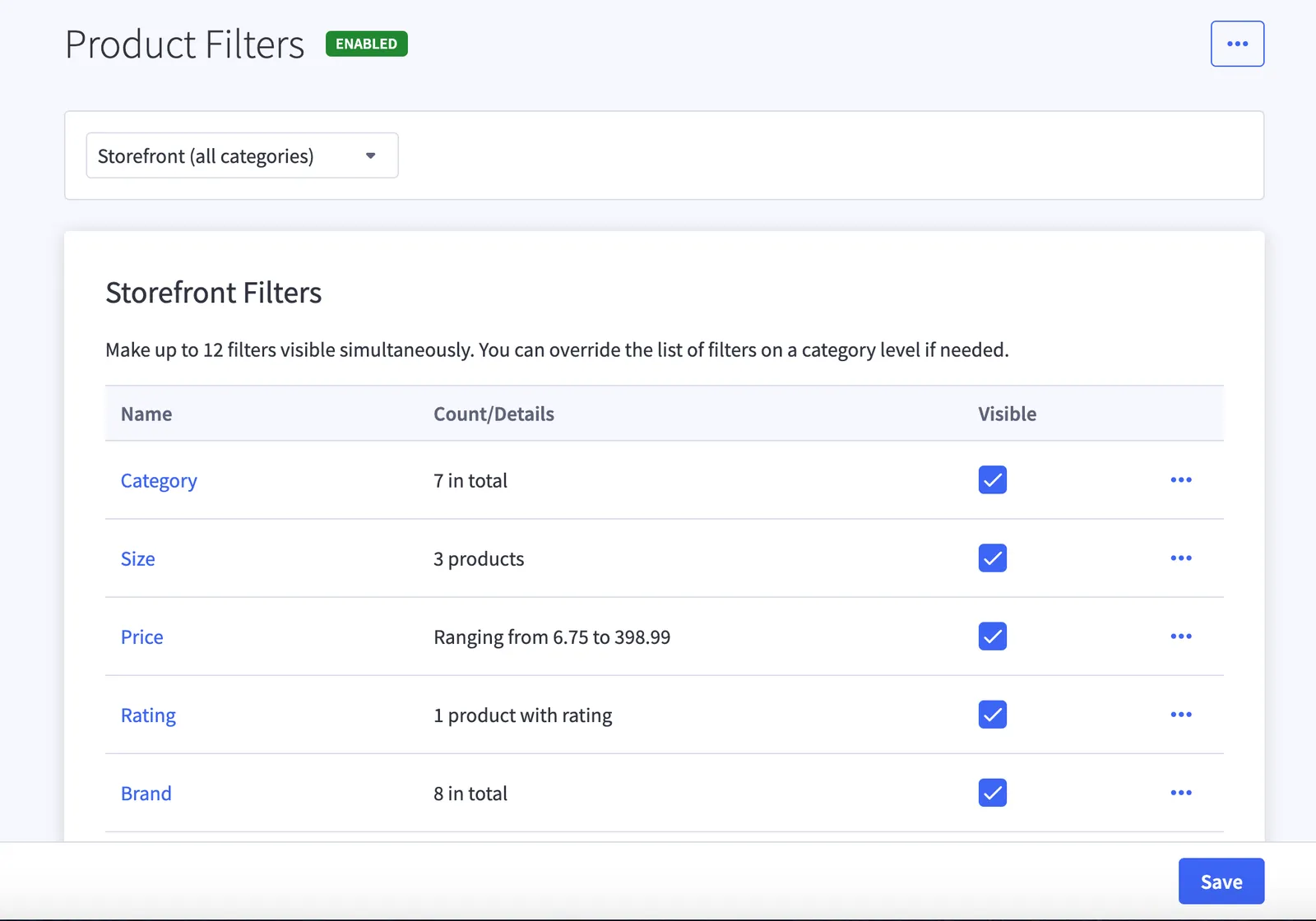
The filters returned from completing this GET request should match the filters you see in the control panel under Storefront Filters. This set of storefront filters is what you currently have configured on your store.
To access Storefront Filters in the control panel, go to Products Product Filtering.
View available storefront filters
The list of available storefront filters is derived from the product information in the catalog. You create new available filters by changing the product information in your catalog, such as adding new product options or custom fields.
To retrieve all available storefront filters, send a GET request to /v3/settings/search/filters/available.
Request
Response
View available category-level filters
To retrieve a list of filters available on a given category, include the category_id query parameter in your GET request to /v3/settings/search/filters/available. Currently, the Settings API only supports the default channel_id of 1.
Request
Response
The filters returned from completing this GET request are the filters available for configuration on the given category. In this example, we have Brand, Rating, Price, Color, Size, and Other filters to pick from when choosing which filters to activate for the Kitchen category. In reality, you will be able to select from more filters.
To get a list of your store’s categories, send a GET request to /v3/catalog/categories.
View contextual filters
To see if there are any contextual overrides present on a given category, send a GET request to /v3/settings/search/filters/contexts specifying the category_id query parameter.
The response will contain the category’s existing contextual overrides.
Request
Response
The order and names of returned filters should match the filters listed under Category Filters in the control panel.
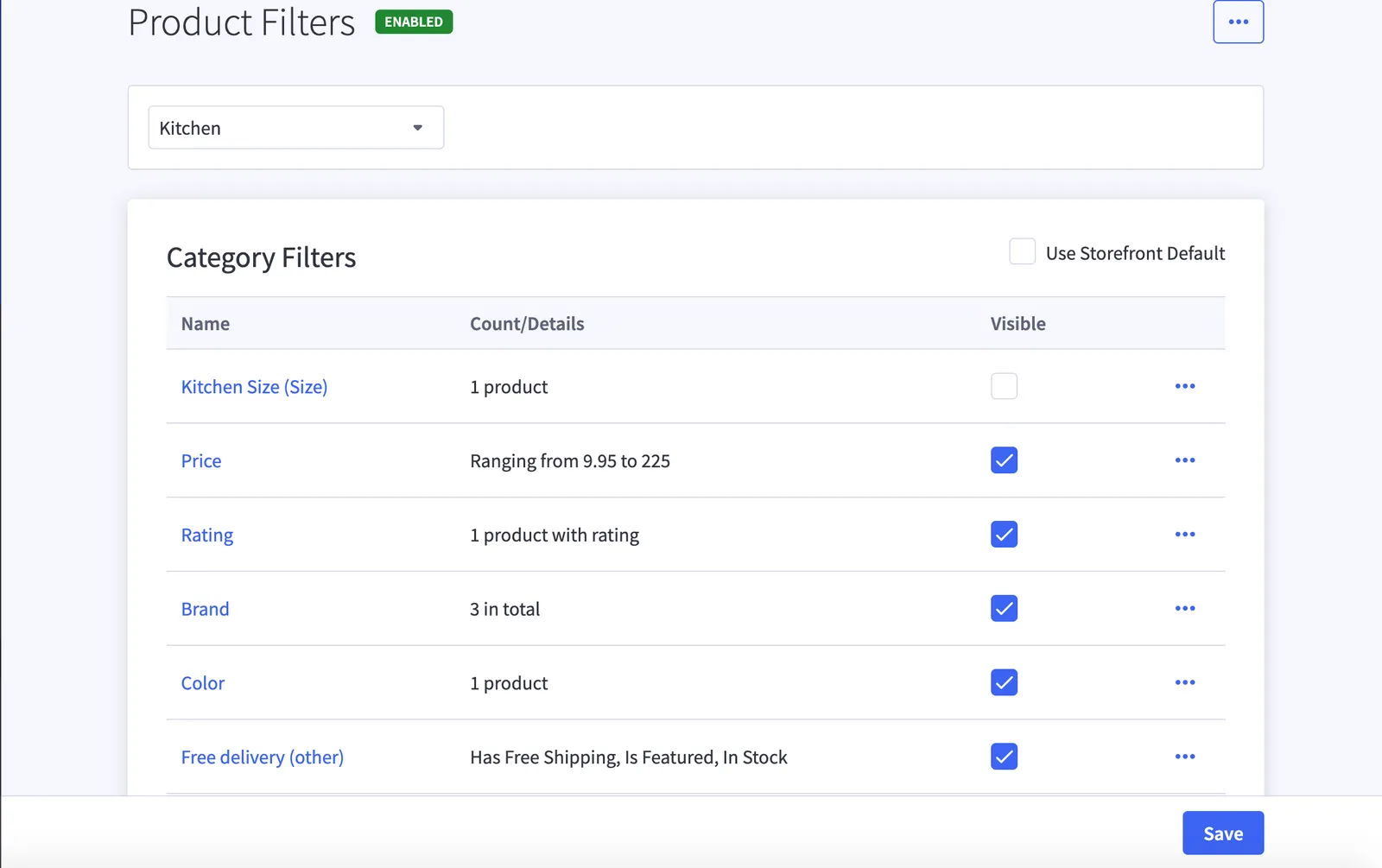
The order of the data you send implicitly determines the sort order of the filters on the storefront. You can change the order of the filters on the live site by changing the order of the array’s data.
Configure contextual filters
Using the Contextual Filters endpoint, you can configure available category-level filters. To test it out, update some of your category’s properties such as display_name, display_product_count, or collapsed_by_default and send a PUT request to /v3/settings/search/filters/contexts.
Refresh your store and open the category you just updated in the control panel.
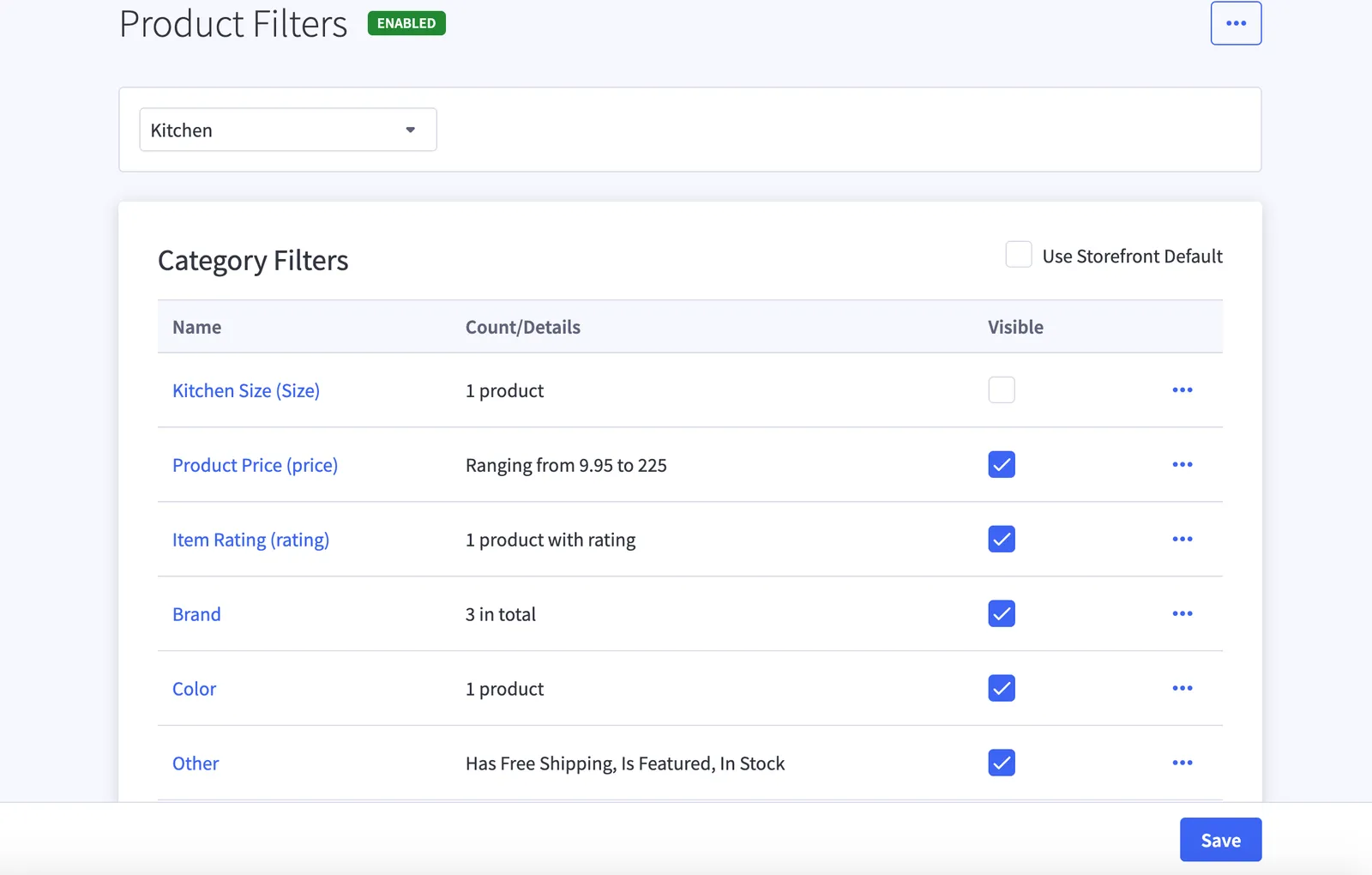
You can also view the changes on the storefront.
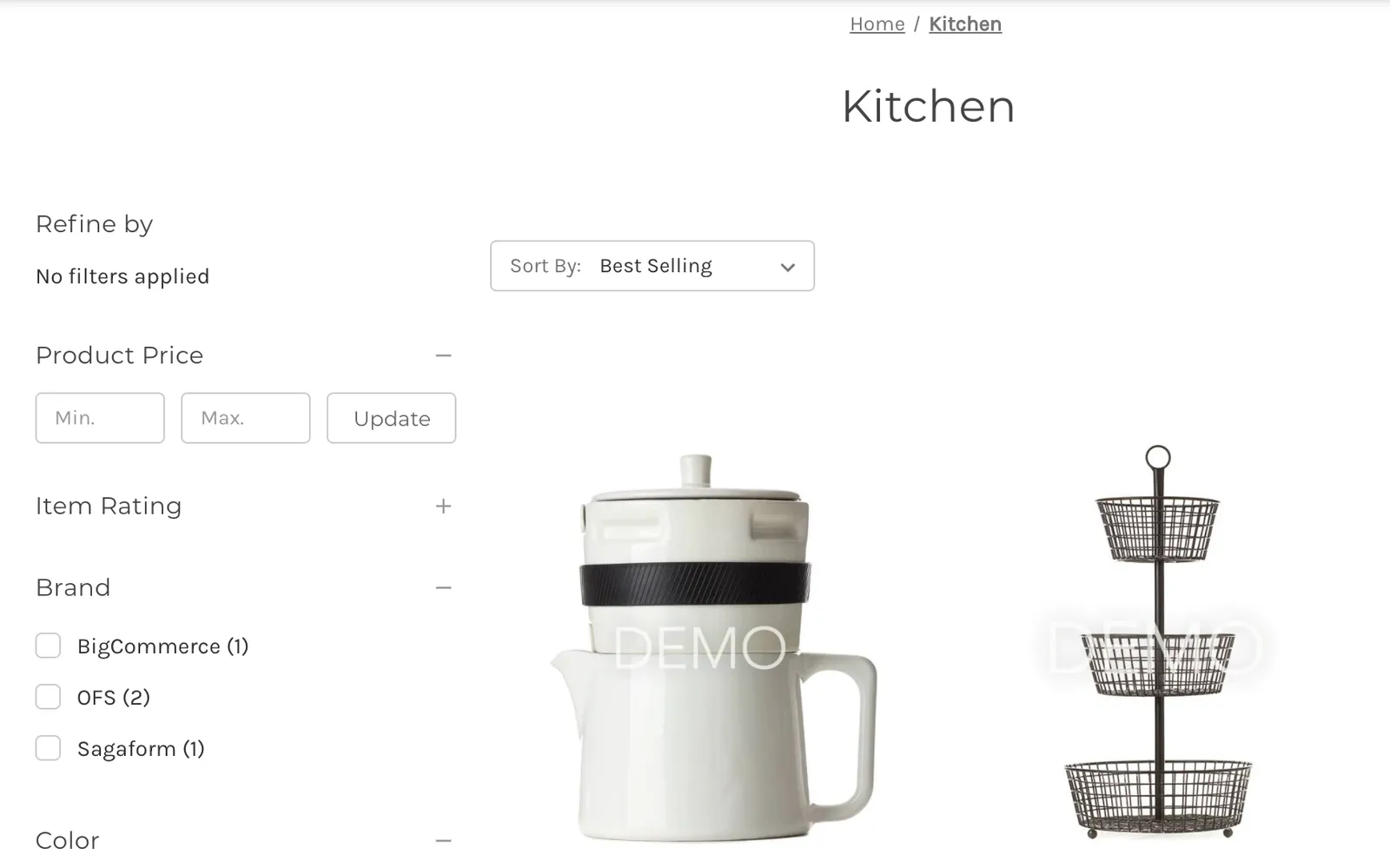
- You can add new filters using custom fields.
- For information on how to manage filters using the control panel, see Product Filtering.
- A storefront can display up to 12 filters per page.