

V2 to V3 Catalog Operations Comparison
This article illustrates the difference between V2 and V3 Catalog APIs by comparing major operations.
V2 and V3 operations
In this section, we will look at using V2 and V3 Catalog APIs to work with simple and complex products.
- Simple products are products that do not have variants, options, or modifiers.
- Complex products are products that have variants, options, or modifiers.
Get a product
Both versions of the API return a single product when a product_id is passed in a GET request; however, the response data differs slightly.
To retrieve a product using the V3 Catalog API, send a GET request to /v3/catalog/products/{product_id}.
V3 response
GET /v3/catalog/products/{product_id}
To retrieve a product using the V2 Products API, send a GET request to /v2/products/{product_id}.
V2 response
GET /v2/products/{product_id}
Create a product
To create a simple product using the V3 Catalog API, send a POST request to /v3/catalog/products.
V3 request
POST /v3/catalog/products
To create a simple product using the V2 Products API, in addition to the properties in the V3 example, your POST request must include availability.
V2 request
POST /v2/products
Add a product image
To add an image to the existing product using the V3 Catalog API, send a POST request to /v3/catalog/products/{product_id}/images.
V3 request
POST /v3/catalog/products/{product_id}/images
The V2 /images endpoint only accepts the multipart/form-data media type.
V2 request
POST /v2/products/{product_id}/images
Add a product video
To add a video to the existing product using the V3 Catalog API, send a POST request to /v3/catalog/products/{product_id}/videos. All videos must be loaded through YouTube and have a video_id.
V3 request
POST /v3/catalog/products/{product_id}/videos
To add a product video using the V2 API, you must pass the full video URL in the request body.
V2 request
POST /v2/products/{product_id}/videos
Create a product with variants and SKUs
The V3 Catalog API lets you create a complex product with SKUs in one request.
V3 request
POST /v3/catalog/products
Creating a product with variants and SKUs on V2 requires calling multiple V2 endpoints. Here is a sample V2 workflow you would have to follow to create product options and option sets.
V2 workflow
- Create an option (for example, Color).
This will only create an option with no values added.
POST /v2/options
- Add option values.
This will add values such as white, black, and blue. You can only create one value at a time. In this example, we will need to send three separate POST requests to create all colors.
POST /v2/options/{option_id}/values
- Create an option set.
Next, you need to create an option set and add the option and values created in the previous steps to it.
POST /v2/option_sets
- Add the options created in step 1 to the option set.
POST /v2/option_sets/{option_set_id}/options
- Assign the option set to the product.
To assign the option set to the product, send a PUT request to /v2/products/{id} and update the option_set_id property.
PUT /v2/products/{id}
- Assign SKUs to the options on the product.
First, retrieve the options associated with the option set. You will need the option’s option_value_id to create an SKU.
/GET /v2/option_sets/{option_set_id}/options
Then, send a GET request to /v2/products/{product_id}/options to retrieve the product_option_id.
Now that you have both option_value_id and product_option_id, you can add SKUs to the product. Each color will need a separate POST to create an SKU.
V2 request
POST /v2/products/{product_id}/skus
V2 response
Create a product with variants and modifiers
V3 example
This example uses a checkbox that is created in two steps.
- Create a modifier.
POST /v3/catalog/products/{product_id}/modifiers
- Update a modifier value.
PUT /v3/catalog/products/{product_id}/modifiers/{modifier_id}/values/{value_id}
V2 example
Modifiers are considered an option on V2. They follow the same workflow as described in Create a product with variants and SKUs. Assigning an SKU is optional.
Create a product with complex rules
In V3, it is best practice to either assign values directly to a variant or use adjusters on the modifier option itself. Complex rules should be reserved for rare cases where a rule condition is too complex to express. To learn more, see Complex rules.
V3 example
POST /v3/catalog/products/{product_id}/complex-rules
In the following V2 example, we will add a complex rule to increase the product’s price by $5 if the checkbox is selected.
In V2, you cannot add a complex rule without an option.
V2 example
POST /v2/products/{product_id}/rules
Stock levels
To update a product’s stock levels using the V3 Catalog API, send a PUT request to /v3/catalog/products/{id}.
V3 example
PUT /v3/catalog/products/{id}
To update a product’s stock levels using the V2 Products API, send a PUT request to /v2/products/{id}.
V2 example
PUT /v2/products/{id}
To update stock levels on a single variant and SKU using the V3 Catalog API, send a PUT request to /v3/catalog/products/{id}/variants/{id}.
V3 example
PUT /v3/catalog/products/{id}/variants/{id}
To update stock levels on a single variant and SKU using the V2 Products API, in addition to the properties in the V3 example, your PUT request must include sku.
V2 example
PUT /v2/products/{id}/skus/{id}
Update stock levels on multiple variants and SKUs
In V3, you can update stock levels on multiple variants and SKUs in one call by sending a PUT request to /v3/catalog/products/{id}. When using the V2 version, you need to send a separate request for each SKU.
Interoperability between V2 and V3
When a product option is created in V2 and assigned to a product, editing the global option using the V3 Catalog API will automatically copy the V2 global product option to a local product variant, option, or modifier. This is triggered by an UPDATE or a DELETE call to either the Product Options or Product Modifiers endpoints.
Editing the V2 global product option using the V3 Catalog API will do the following:
- Change the
option_value>id. Not theoption_id. - Create a copy directly on the product.
- Copy over any variants, modifiers, and option set rules.
- Copy global option set rules as product rules and update the
sort_order. These global option set rules take precedence over any existing product rules, which should mirror the behavior before we changed the product.
Editing the V2 global product option using the V3 Catalog API will not:
- Remove the option set from the store entirely. It will remain available in the control panel as an option set to be assigned.
- Change product pricing, rules, or any other product modifiers.
Update request to product option values
In this section, we will examine the difference between the original response for a V2 product and the final response after updating one of the option values using the V3 Catalog API.
The product used in this example is a t-shirt with a global option set of Size and Color. We will update the label property for Size Small, which has an option_value ID of 192. Make a note of the product’s option_values IDs. These IDs will change when you update the Size Small option using the V3 /options endpoint.
V2 response
GET https://api.bigcommerce.com/stores/{store_hash}/v3/catalog/products/{product_id}/options
option_valuesIDs for Color are 180, 181, and 182.option_valuesIDs for Size are 192, 193, and 194.
Size and Color
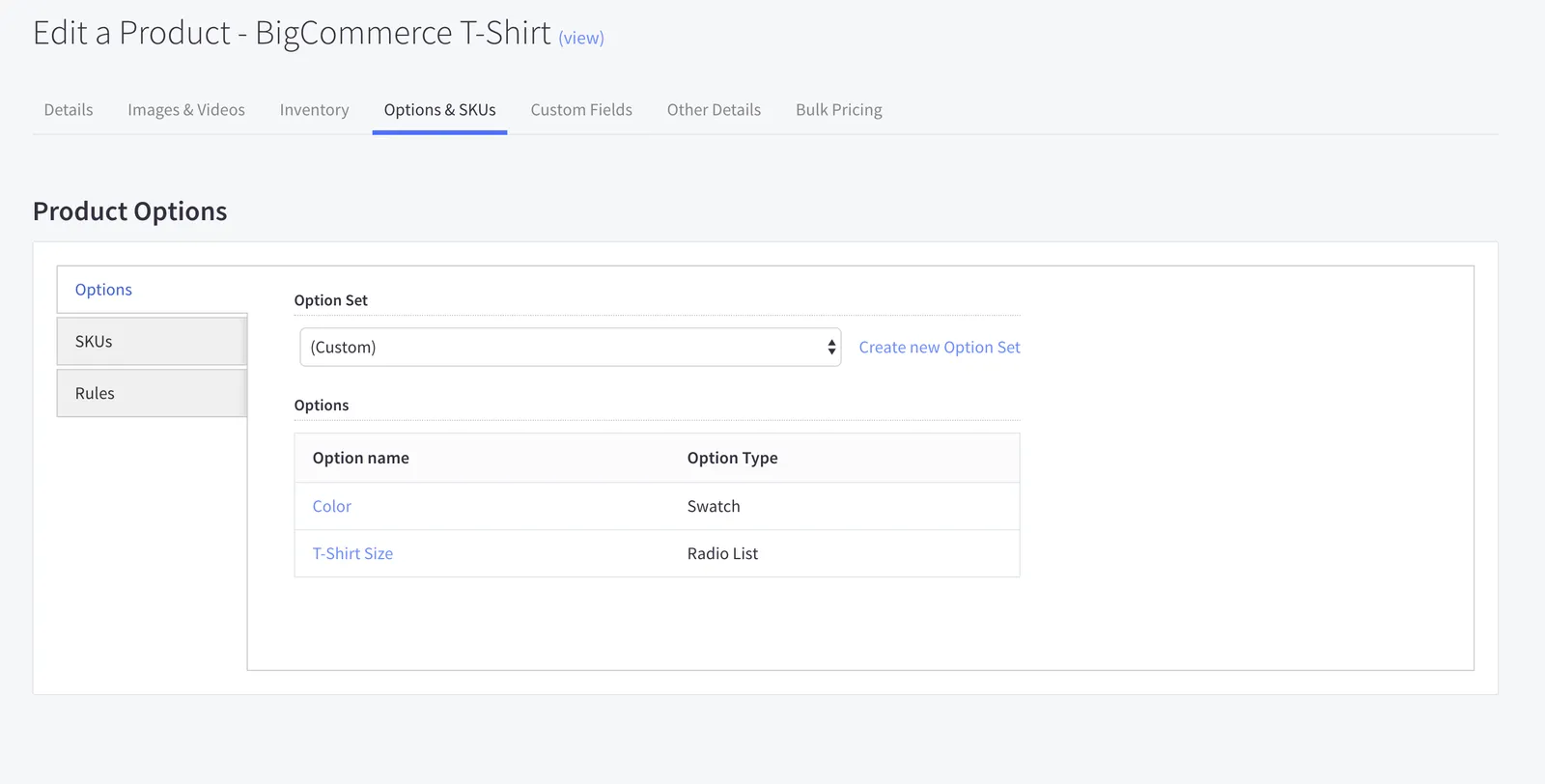
Below, Small is updated to Small T-Shirt.
V3 request
PUT https://api.bigcommerce.com/stores/{store_hash}/v3/catalog/products/{product_id}/options/{option_id}/values/{option_value)
Notice that the option value ID has changed from 192 to 214.
V3 response
Even though we edited only one option value, option value IDs for all other options have also changed. The control panel will display these options as (Custom).
V3 response
GET https://api.bigcommerce.com/stores/{store_hash}/v3/catalog/products/{product_id}/options
Size and Color