

Integrate Third-Party Search with Algolia
Integrate Third-Party Search with Algolia
This guide shows you how to replace Catalyst’s built-in product search with Algolia. You’ll learn how to:
- Connect your BigCommerce data with Algolia
- Replace Catalyst’s default search experience
- Use the Algolia JavaScript API client to fetch search results on the server
By the end of this guide, you’ll have a search experience powered by Algolia, with product and category results rendered in your Catalyst store’s existing search UI.
Prerequisites
- An Algolia account.
- A Catalyst project running locally. See Getting Started.
- Products in your Catalyst channel’s catalog. If you don’t have any, choose Use sample data when you create your Catalyst channel.
Create an application in Algolia
In your Algolia dashboard, create a new application. You can start with the free Build plan.
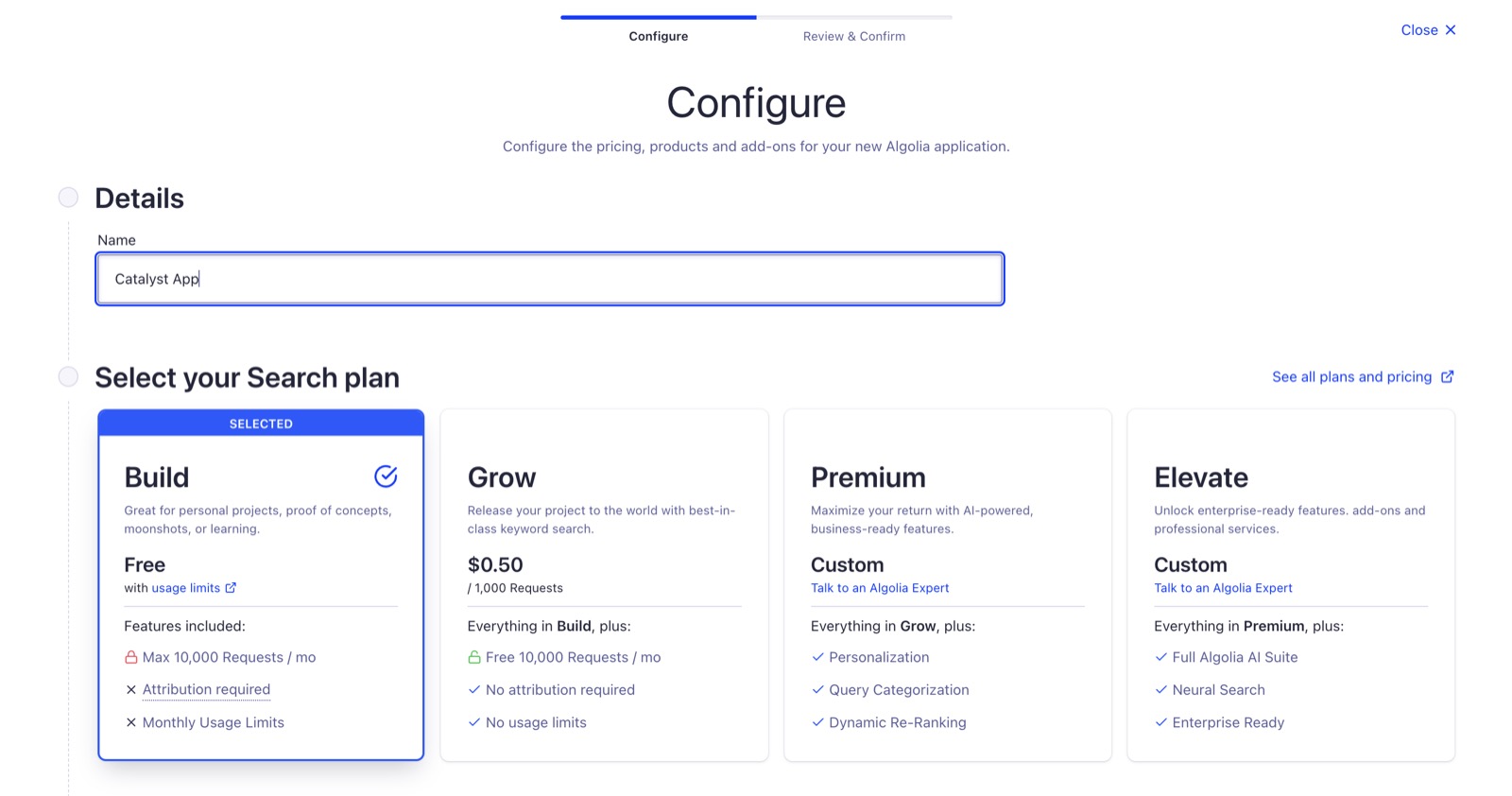
- Choose a region based on your location (for example, US East)
- Click Next: Review & Confirm
- Click Create Application
You should see a Congratulations page which indicates your application was created successfully.
Connect Algolia to BigCommerce
Next, create an Algolia index for your Catalyst channel’s products. An index is where Algolia stores the data it searches. From the Algolia docs:
An index is the equivalent of a table in a database but optimized for search and discovery operations.
The Algolia Single-Click App for BigCommerce creates the index for you.
Due to the 10 KB limit on Algolia Record sizes for the Build plan, unassign the 3 Plant Bundle product from your Catalyst channel’s catalog if you chose Use sample data when creating your Catalyst channel. Otherwise, indexing fails.
- Open the Algolia Single-Click App
- Click Get this App and log into your BigCommerce store
- Click Install
- Review and accept the API scopes that the Algolia app requires to properly function
- Click Login With Algolia and log into your Algolia account
- Select the application you created from the dropdown and click Next step: Channel selection
- Choose your BigCommerce channel
- Name your Algolia index using Product level indexing as the Record type and click Save
- Click Yes, index now to start indexing your products
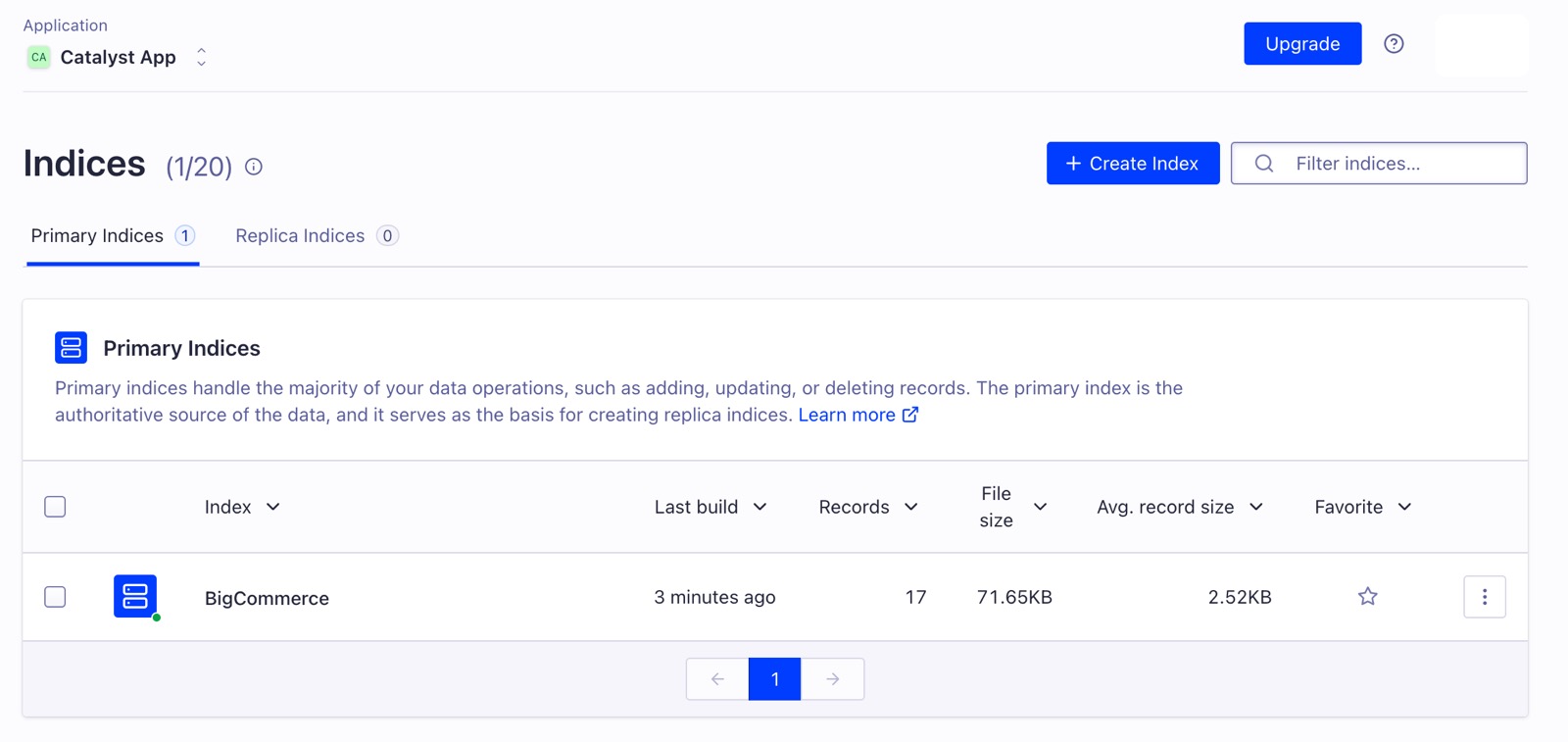
You can find your new index in Algolia under Data Sources > Indices.
Set environment variables
In your Algolia dashboard, navigate to the Overview tab and copy your Application ID and Search API Key.
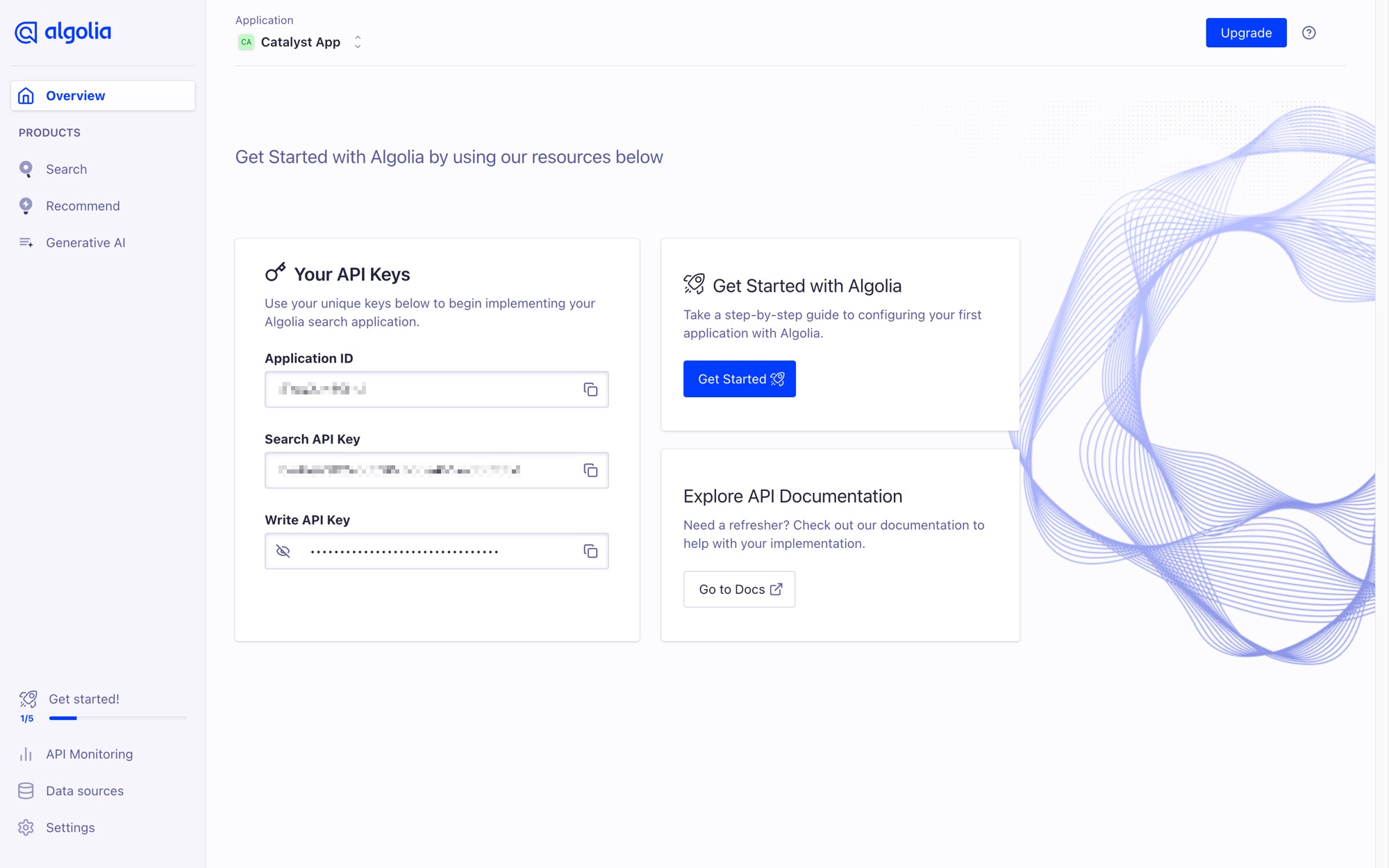
Add the following environment variables to your .env.local file:
These are used by the Algolia search client, which runs on the server.
Install Algolia dependencies
From the root of your Catalyst project, install the Algolia API client:
If your project uses the older monorepo structure, run this from the core/ directory, or use pnpm --filter "./core" add algoliasearch from the repository root. File paths in this guide are relative to that directory.
Implement Algolia search
To replace Catalyst’s search with Algolia:
- Create an Algolia client.
- Modify the search results data transformer.
- Modify the search server action to fetch results from Algolia.
Create the Algolia client
Create a new directory lib/algolia and, inside, add a new file client.ts. Then, create and export a new Algolia client:
Modify the search results data transformer
Transform the data from Algolia into the shape Catalyst expects. For this, you need a type definition for the Algolia data and an algoliaResultsTransformer function to transform the data. Open data-transformers/search-results-transformer.ts and replace its contents with the following.
Modify the search server action
To use the new transformer, update the components/header/_actions/search.ts file, which handles search on the server. Open that file and replace its contents with the following:
Check your work
Save your changes, then run the development server:
Open http://localhost:3000 and search for Plant. Your storefront shows the search results from Algolia.
Next steps
- Optimize your Algolia settings for ranking and typo tolerance
- Expand your facets for improved filtering