

Store Management MCP
Store Management MCP lets an AI agent — Claude, Cursor, ChatGPT, or any other Model Context Protocol (MCP)-compatible client — work directly with your BigCommerce store’s catalog, pricing, inventory, orders, promotions, and store profile. This guide covers how an administrator turns on access, how to connect a client, and how to use the tools available in the closed beta.
Store Management MCP is in an invite-only closed beta and isn’t available by default. To request access, submit the form on the Commerce AI Labs page. Some capabilities are deliberately limited during this phase; see Beta limitations for details.
Before you begin
- Your store must be active. Suspended, cancelled, or closed stores can’t connect.
- An administrator must turn on Store Management MCP for the store (see Enable Store Management MCP) and grant scopes to the specific user who will connect an agent (see Grant a user access). Every user starts with no access.
- If you manage more than one store, repeat both steps separately in each store. A grant in one store doesn’t carry over to another.
Enable Store Management MCP for your store
Only the store owner can turn on Store Management MCP — this step can’t be delegated to another user.
-
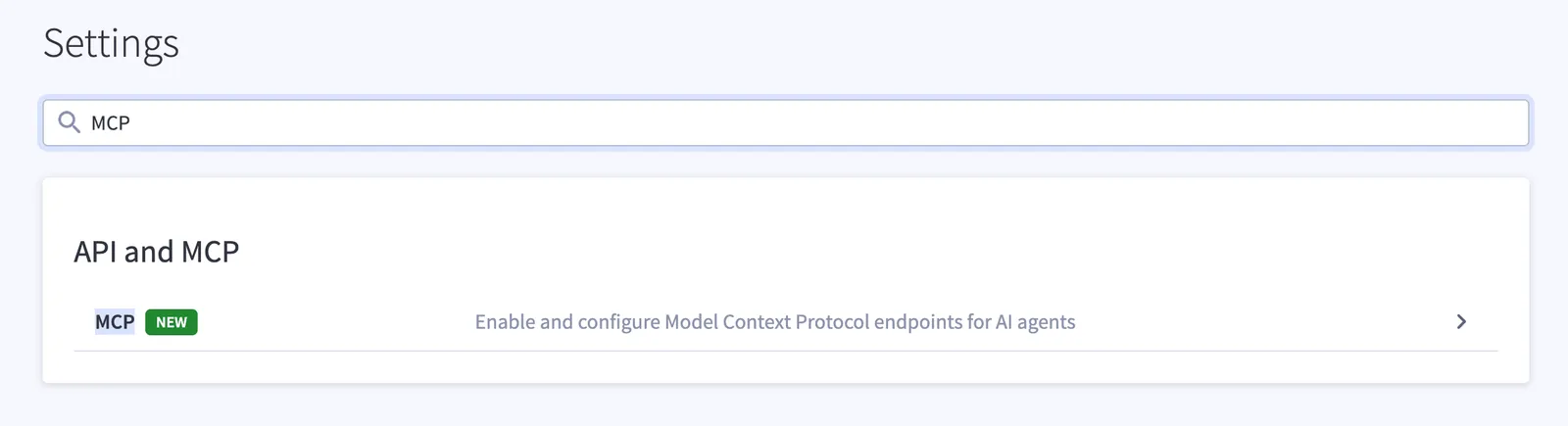
In the control panel, go to Settings → API and MCP → MCP. You can also search for “MCP” from the Settings page.
-
Turn on the Management MCP toggle.
-
Accept the terms of service for the MCP server and tools for AI agents. This is a binding acknowledgment on behalf of your organization.
Once accepted, the page records who accepted the terms and when, and reveals your store’s MCP API Endpoint and a Manage AI agent access button.
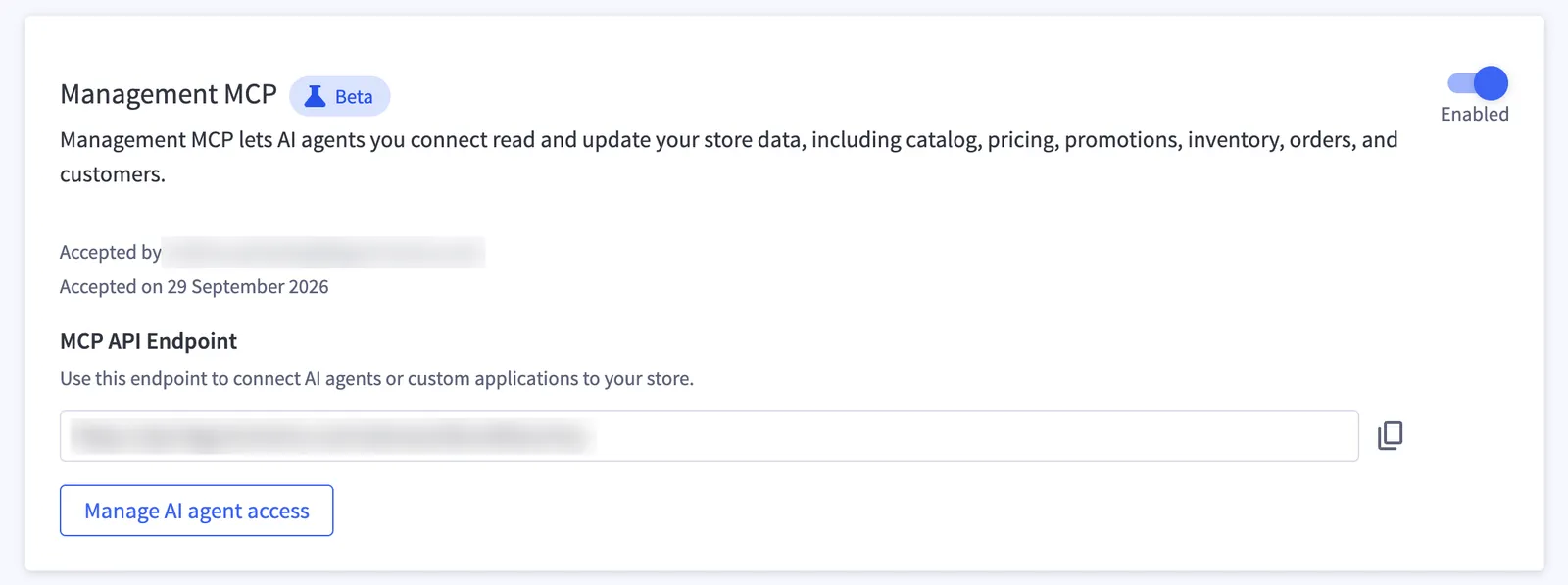
The control panel describes Management MCP as covering catalog, promotions, inventory, orders, and customers. That’s the eventual scope. Today, tools are available for catalog, pricing, and inventory; for creating and reading promotions; for looking up and refunding orders; and for reading store details. No tool uses the Customers scope yet — see Available tools.
Turning Management MCP off revokes access for every connected agent, though it can take a few minutes to take effect everywhere — see Beta limitations.
Grant a user access to connect an agent
From the Management MCP card, select Manage AI agent access, then Assign agent access. Pick an existing control panel user and set their access, one scope at a time:
Selecting modify implicitly includes read access.
Only grant Orders modify if you want your agent to be able to refund orders. A refund returns real money to a shopper and can’t be undone through the tool. Promotions modify lets your agent create discounts, which are always created disabled until someone enables them in the control panel. None of the tools return shopper names, email addresses, phone numbers, or addresses.
The Store scope returns your business’s contact information, not shopper data. However, if your store is registered to a home address, or uses a personal email or phone number, granting Store access lets your agent see those details.
Three details about how grants work:
- Every new user starts at None across every scope. Connecting an agent as that user grants it nothing until you explicitly assign scopes.
- Grants are flat, not per-agent. If a user connects both Claude and ChatGPT, both get exactly the same access — there’s no way yet to give two agents different scopes for the same person.
- Grants are per store. A user who administers several stores needs scopes assigned separately in each one.
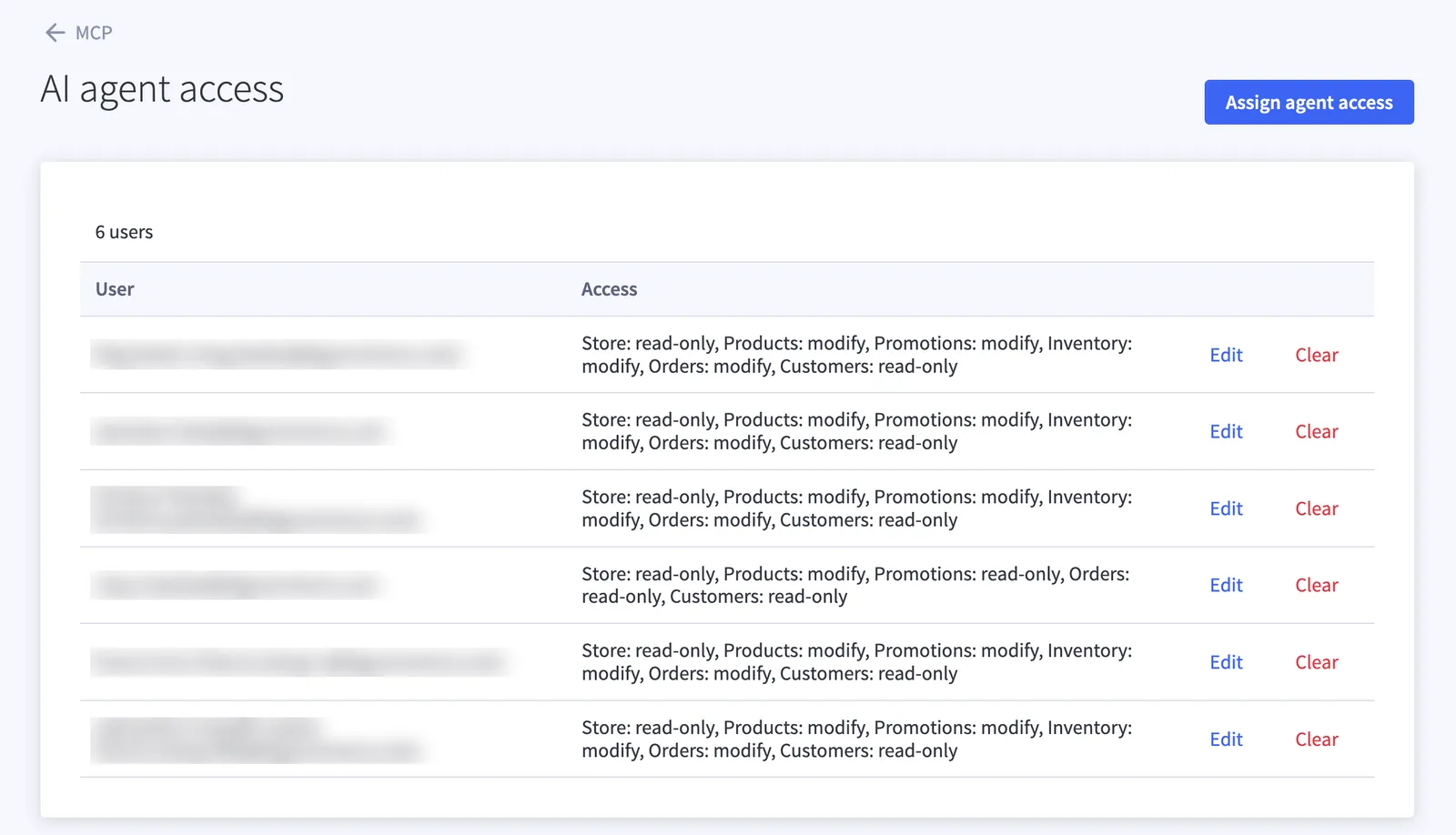
The AI agent access page lists every user you’ve granted access to, with their scopes spelled out in plain text and Edit and Clear links next to each. Clearing a grant stops future tool calls for that user, though an already-connected session can continue until it expires — see Beta limitations.
Delegate scope management
By default, only the store owner can view or assign AI agent access. To let another team member manage it, go to Settings → Users, edit their permissions, and grant one or both of these System Admin Permissions:
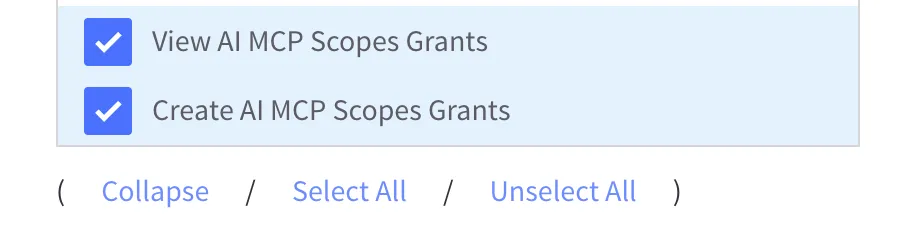
This only delegates scope management. Turning Management MCP on or off for the store, in the section above, remains store owner-only.
Connect your MCP client
The following clients were tested during this phase. In every case, you point the client at your store’s address and sign in through the BigCommerce login — you never paste a password, API key, or token into the client. Any client with standard MCP and OAuth support should work, even if it isn’t listed here.
Menu names in third-party clients change often. If a step doesn’t match what you see, check that client’s MCP documentation.
Server address
Each store has its own MCP address:
Point your MCP client at the address for the store you want to connect. Because the address identifies the store, the connection flow has no separate store picker.
Authentication
Connections use OAuth 2.1 with PKCE. Your MCP client registers itself automatically, so there’s no client ID or client secret to create or manage.
When you connect, your client sends you to the standard BigCommerce login. Your agent never sees or holds your BigCommerce password, session, or any other credential. If your login normally uses two-factor authentication or single sign-on, it works the same way here.
The scopes assigned to your BigCommerce user (see Grant a user access) determine which tools your agent can see after you sign in. Every tool call is checked against those scopes on the server, on every request — nothing your agent sends is trusted to establish its identity or permissions.
Claude Desktop
Claude (browser)
Claude Code
Cursor
ChatGPT
Grok
- Go to Settings → Connectors and select Add custom connector.
- Paste your store’s address:
https://api.bigcommerce.com/stores/{store_hash}/mcp - Select Connect, then sign in with your BigCommerce login when prompted.
To configure the connection manually instead, add an entry to the Claude Desktop config file that uses mcp-remote as a bridge:
Available tools
The closed beta includes 16 tools across five scopes: Products, Inventory, Orders, Promotions, and Store. An agent only sees the tools within the scopes granted to the connecting user — tools outside those scopes aren’t just blocked, they’re invisible to the agent.
Tool details
The following tools have behavior worth knowing before you use them.
update_product_content
- Partial update. Only the fields your agent sends are changed; everything else keeps its current value. Sending an empty string clears that field. The product name can’t be cleared.
- Search keywords replace the whole list. Keywords are stored as one comma-separated string, so your agent has to read the current keywords first and send back the full set, not only the new word.
- Descriptions accept HTML or plain text, not Markdown. Markdown is stored as-is, so shoppers would see the raw asterisks.
- Text only. It can’t change prices, stock, visibility, categories, brand, SKU, weight, dimensions, images, variants, or option sets. Custom fields have their own tool,
set_product_custom_fields. - No undo. The previous text can’t be recovered through the tool, so have your agent confirm new wording with you before it writes.
- One product per call. It’s safe to retry.
set_product_custom_fields
- Matched by exact, case-sensitive name. If a field with that name exists, its value is updated. Otherwise, a new field is added. “Material” and “material” are two different fields.
- Never deletes. Fields you don’t name are left alone. Custom fields can’t be removed through this tool, and an empty value is rejected.
- Not atomic. Each field is written separately, so if a call fails partway through, the fields before the failure are already saved. Your agent gets a result for each field: created, updated, or unchanged.
- Limits. Up to 50 fields per call, 250 characters per name or value, and 200 custom fields per product. It’s safe to retry.
get_orders
- Summaries only. Each order includes status, dates, totals, payment method, payment status, and refunded amount. It never returns shopper names, email addresses, phone numbers, shipping or billing addresses, IP addresses, staff notes, or order comments.
- Line items on request. Your agent can ask for each order’s product lines and shipping consignments. The product line
idis the order product ID, not the catalog product ID, and the shippingididentifies the shipping consignment. The refund tools need both, and no other tool returns them. Asking for line items lowers the maximum page size from 250 to 25. - Truncated item lists are flagged. If an order has a consignment with more than 50 line items, the response says the list is incomplete. Your agent shouldn’t quote or refund from an incomplete list.
- Filters. Your agent can filter by customer ID (
0selects guest orders), customer email, status, channel, payment method, creation date, and archived state.
get_refund_quote
- Moves no money. A quote only calculates the refund, so it’s safe to retry. It’s also the required first step before
create_refund. - Typed items. Each item to refund has a type.
PRODUCTandGIFT_WRAPPINGare refunded by quantity.SHIPPING,HANDLING,ORDER, andFEEare refunded by amount; useORDERfor a partial refund that isn’t tied to a product. Listing the same item twice is rejected. - Payment options to choose from. The quote returns the total, including tax and rounding, and a list of options. Each option is a complete way to pay back the whole refund, and it can split the amount across the payment methods the order was paid with, for example part back to the card and part as store credit. Your agent should show you the options and let you choose, not pick one for you.
- One order per call. An archived order can still be quoted. Refunding an archived order hasn’t been verified, so have your agent check the order isn’t archived first.
create_refund
- Moves money, with no undo. It returns the money to the shopper and debits your store. Have your agent confirm the total and the payment option with you before it calls the tool.
- Needs the quote’s numbers. Your agent sends the same items, one payment option copied exactly from the quote, and the quote’s total. Before submitting, the tool takes a fresh quote and refuses if the total or the payment option no longer matches. When that happens, no money moves, and your agent has to quote again and confirm with you again.
- Never retried. There’s no way to make a refund safe to repeat, so a second submit can refund the shopper twice. If a call fails and the outcome is unknown, your agent should check the order’s refunds in the control panel before doing anything else. When the error says no money moved, your agent can fix the request, take a fresh quote, and try again.
- Declined payments. A refund can be recorded even though one of its payment methods declined. The response lists every payment with whether it was declined, and your agent should tell you if any were.
- Reason. An optional reason of up to 1,000 characters is kept on the refund record.
- One order per call. The option to skip the store’s tax calculation isn’t available through the tool.
get_promotions
- Read-only. It shows how promotions are set up (status, schedule, channels, customer groups, rules, and usage count), but not redemption history, revenue, or which customers used a promotion.
- Coupon codes aren’t returned. Your agent can look up the promotion a code belongs to, but it can’t list a promotion’s codes.
- No individual shoppers. Customer targeting is shown as group and segment IDs only.
- Empty channel list means every channel. A promotion with an empty channel list applies to every channel, not none.
create_promotion
- Always created disabled. Status isn’t something your agent can set, so a new promotion discounts nothing until someone reviews it and enables it in the control panel.
- Four kinds.
percentage_off_productsandfixed_amount_off_productsneed at least one product ID or category ID.percentage_off_ordertakes a percentage and an optional minimum order amount.free_shippingtakes an optional minimum order amount and optional shipping zone IDs, and applies to all zones when you omit them. - One promotion, one rule. It can’t create buy-one-get-one offers, free gifts, tiered or stacked discounts, customer group or segment targeting, country targeting, day-of-week schedules, or any condition other than a minimum order amount. Create those in the control panel.
- Parameters must match the kind. A parameter the chosen kind doesn’t use is rejected instead of ignored.
- Coupon promotions have no code. Your agent can create a promotion that’s redeemed with a coupon, but not the code itself. Add the code in the control panel when you enable the promotion.
- Optional settings. Start and end dates (RFC 3339 timestamps with an offset, not bare dates), a total usage limit, whether the promotion can be used with other promotions (it can by default), and channel IDs. Without channel IDs, the promotion applies to every channel. Each ID list takes up to 50 unique IDs, and amounts are in the store’s default currency.
- Not safe to retry. Creating a promotion twice makes two promotions, and both apply to a cart. If a call fails and the outcome is unknown, your agent should check the store’s promotions before trying again.
get_store_info
- Read-only. Returns store name, contact email, phone, address, and address type, plus any new store email that’s waiting for confirmation.
- Channel reads show overrides only. If your agent asks for a specific channel, a blank field means that channel uses the store-wide value, not that the field is empty.
- Business data, not shopper data. See the note under Grant a user access about stores registered to personal contact details.
Example prompts
The following prompts map directly onto the tools above:
- “Look up SKU WIDGET-100 and tell me its current price and stock level.” →
get_product - “Find all products with ‘scarf’ in the name.” →
search_products - “Create a hidden product called ‘Autumn Wool Scarf’, physical, 0.3 kg, $34.99, SKU SCARF-AUT-01.” →
create_product - “File that scarf product under the Winter and Accessories categories.” →
assign_product_categories - “Raise the price of SKUs WIDGET-100, WIDGET-101, and WIDGET-102 by 10%.” →
get_productto confirm current prices, thenupdate_catalog_pricesto apply the change - “Update the Wholesale price list so SKU MUG-042 is $6.50.” →
update_price_list_records - “What’s our current stock level on SKU MUG-042?” →
get_inventory_levels - “We just received 50 units of SKU MUG-042 — update the stock count.” →
set_inventory_levels - “Show me the last 10 orders.” →
get_orders(only works if the connecting user has been granted the Orders scope) - “How much would it cost to refund one unit of the Autumn Wool Scarf on order 180, and how could I pay it back?” →
get_ordersto find the order’s line items, thenget_refund_quote - “Refund that to the original card.” →
create_refund, after your agent has shown you the quote and you’ve confirmed the total and payment option - “Rewrite the description of product 123 to emphasize that it’s handmade, and show me the new text before you save it.” →
get_product, thenupdate_product_content - “Add ‘eco-friendly’ to the search keywords on the Autumn Wool Scarf.” →
get_productto read the current keywords, thenupdate_product_contentwith the full list - “Set Material to ‘100% Merino Wool’ and Care to ‘Hand wash cold’ on product 123.” →
set_product_custom_fields - “Which promotions are running right now on my US channel?” →
get_promotions - “Which promotion does the code SAVE20 belong to, and when does it end?” →
get_promotions - “Create a 15% off promotion on the Winter category.” →
create_promotion, which creates it disabled for you to review - “Set up free shipping on orders over $75.” →
create_promotion - “What email address and phone number are shoppers seeing for my store?” →
get_store_info
Your agent reports what it did, not what it verified. Spot-check a price or stock change against the control panel the first few times. Scopes aren’t field-level, so an agent with Products modify access can change any price it can see, not just the one you asked about — be specific about what you want changed. The same applies to refunds and promotions: check the amounts and payment options before you confirm.
Troubleshooting
Beta limitations
- No shopper personal data. None of the tools return shopper names, email addresses, phone numbers, or addresses. The Store scope can expose your own contact details if they’re personal — see Grant a user access.
- Orders modify can move money. With Orders set to modify, your agent can refund orders. A refund can’t be undone through the tool, so only grant modify to users who should be able to issue refunds.
- Scopes aren’t field-level. Each scope grants full read and write access across its area. For example, you can’t allow description edits while blocking price changes within Products.
- Scopes apply per user, not per agent. Every agent you connect under your account shares the same access. You can’t give two agents different scopes.
- No self-service view of connected agents. You can review and clear a user’s scope grant yourself, but there’s no visibility into which agents or sessions are actively using that access right now, and no way to force one off immediately. Contact your BigCommerce closed beta contact for that.
- Scope changes aren’t always immediate. When an administrator changes or removes your scopes, the change can take up to the remaining length of your current session to take effect. Sessions are kept short during the beta to minimize this window.
- No agent attribution. Anything your agent does is recorded in your audit trail against the user who authorized it, the same as if that person had made the change by hand.
Get help
If anything is confusing, broken, or unexpected, contact your BigCommerce closed beta contact directly.