

Create a Sandbox Store
Sandbox stores are intended for developing and testing apps. They cannot process any live transactions.
This article walks you through the steps of creating a sandbox store and explains how to open a support case if you encounter any issues.
Creating a sandbox store
To create a sandbox store, complete the following steps:
- Navigate to the BigCommerce Partner Portal and sign in using your credentials.
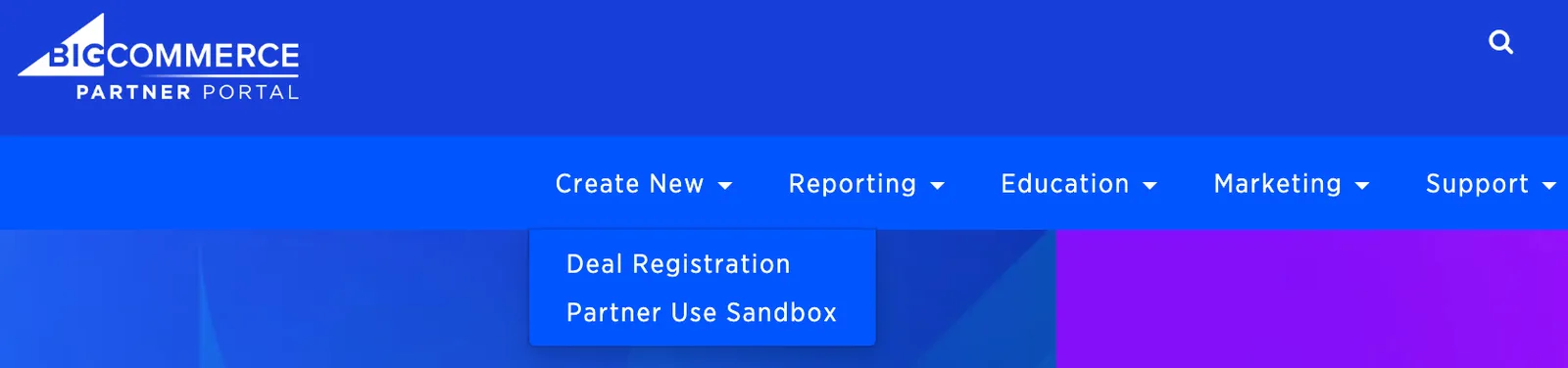
- After signing in, hover over Create New in the top navigation, then select one of the following two options:
- To register a new deal and create an associated sandbox, select Deal Registration and consult the following instructions to create a Deal Registration sandbox.
- To create a sandbox for your own general use, select Partner Use Sandbox and consult the following instructions to create a Partner Sandbox.
Store regions are immutable
You cannot update the store region of a partner sandbox.
Deal Registration sandbox
After you click Create New > Deal Registration in the top navigation, complete the following steps:
-
On the Create a Store/Register a Deal page, complete all the required fields.
-
To ensure that your Deal Registration also includes a sandbox store, locate the Create a Store? field, then select Partner Sandbox.

- In the Store Region field, select the global region of best fit for your use case.

- Below the Create a Store? field, select the checkbox to acknowledge that the Store Region value cannot be changed.

- Click Submit.
After you click Submit, you will receive two emails:
- a Deal Registration confirmation email, and
- an email that contains sign in credentials for the new sandbox.
For more about viewing and working with partner sandboxes, consult the following section on accessing and managing partner sandboxes.
Partner Use sandbox
After you click Create New > Partner Use Sandbox in the top navigation, complete the following steps:
-
On the Create a Partner Sandbox page, give the sandbox a name.
-
In the Store Region field, select the global region of best fit for your use case.
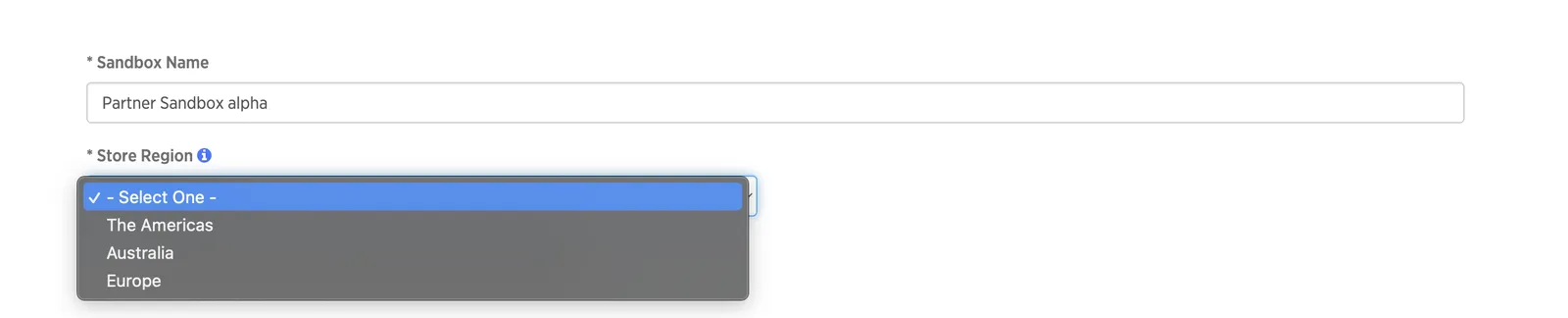
- Below the Store Region field, select the checkbox to acknowledge that the store region cannot be changed.

- Click Submit.
After you click Submit, you will receive an email that contains sign in credentials for the new sandbox.
For more about viewing and working with partner sandboxes, consult the following section on accessing and managing partner sandboxes.
Accessing and managing partner sandboxes
Allow up to 15 minutes for the new store to appear in any list of stores.
The email that contains the sandbox credentials is sent only once. However, you can access the sandbox by signing in to the BigCommerce account that uses the same email address as your Partner Portal account.
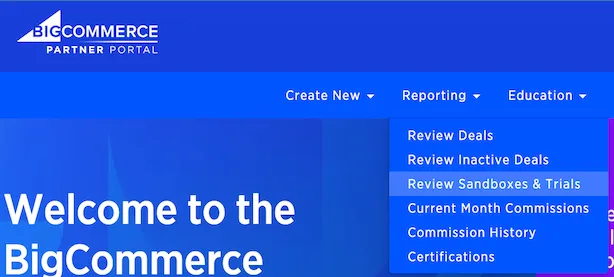
To review and manage your sandbox and trial stores in the Partner Portal, hover over Reporting in the top navigation, then click Review Sandboxes & Trials.
Creating a support case
If you encounter trouble creating or managing partner sandboxes, you can create a partner-specific support case.
To create a partner-specific support case, complete the following steps:
- Sign in to the Partner Portal.
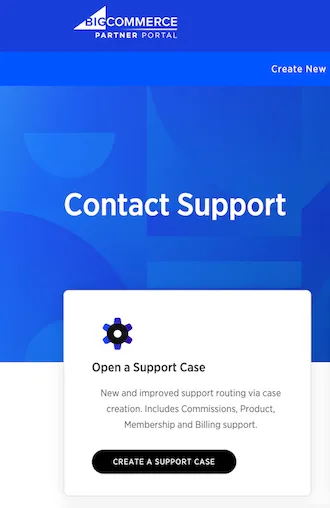
- In the top navigation, hover over Support, then click Contact Support.
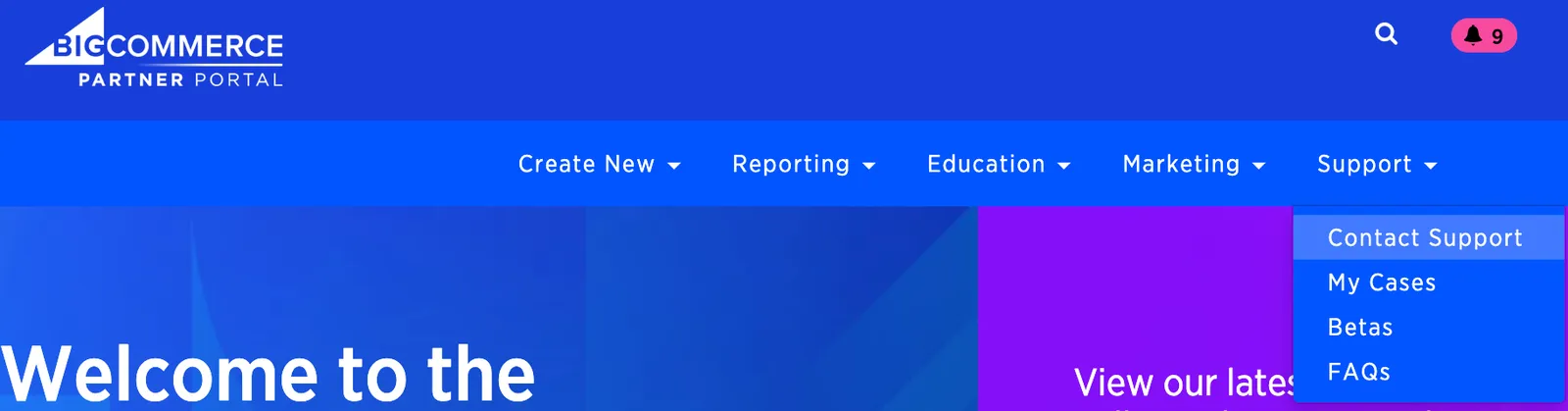
- On the Contact Support page, click the Create a Support Case card.
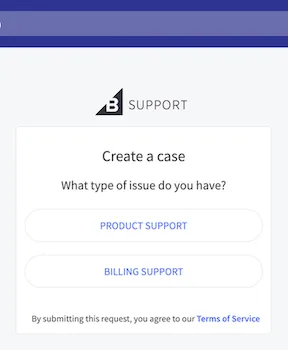
- Indicate whether you need Product Support or Billing Support.
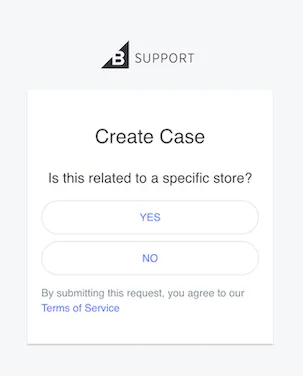
- When asked Is this related to a specific store?; answer Yes.
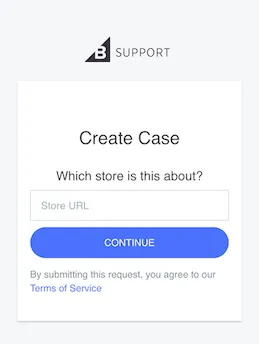
- Enter the canonical URL of your sandbox store. For example,
https://store-xxxxxxxxx.mybigcommerce.com.
-
Sign in to the BigCommerce account that uses the same email address as your Partner Portal account.
-
At the bottom of the Admin panel, click Help, then locate the Services & Support section to connect with our support team using your desired mode of communication.