For AI agents: a documentation index is available at the root level at /llms.txt and /llms-full.txt. Append /llms.txt to any URL for a page-level index, or .md for the markdown version of any page.
Dev Portal
DocsAPI ReferenceLearnCommunityChangelog
  • Overview
    • Quick Start
    • Sandboxes
    • Tools & SDKs
    • Support
  • Docs
      • Getting Started
        • Overview
        • Localization
          • Overview
          • Versioning
          • Global Regions
          • GraphQL Templates
        • Examples
        • Widget Builder
        • Scripts
    • Archive
    • Closed Beta Programs
Dev Portal
LogoLogo
On this page
  • Prerequisites
  • Create the widget template
  • GraphQL queries
  • Place the widget using Page Builder
  • Place the widget using the API
  • Related resources
  • Articles
  • API reference
DocsAdminWidgets & ScriptsGuide

Create Widgets Powered by GraphQL

Was this page helpful?
Previous

Global Regions

Next

Examples

Built with

Widgets are configurable and reusable components of content that merchants can display on their storefront. Widgets consist of a combination of HTML/CSS, JavaScript, and Handlebars, and are rendered as part of the storefront’s HTML.

In this tutorial, we will walk you through the process of creating a product widget powered by BigCommerce’s widgets feature and the GraphQL Storefront API. This setup allows widgets to dynamically update and display information such as product name, image, and price. By the end of this tutorial, you should have a functional widget that is configurable using the Page Builder UI in a store’s control panel.

Prerequisites

  • A BigCommerce store.
  • A store-level or app-level API account with the OAuth Content scope set to modify.
  • Understanding of widgets and the REST Content API’s widgets feature.
  • Familiarity with Page Builder.

The steps in this tutorial assume that you are familiar with BigCommerce’s widgets feature, and have created a store-level or app-level API account with the content: modify scope. The API account’s access_token is required to inject, remove, or list widgets on any page of the store. To learn more about widgets, see the Widgets overview. For information on how to create an API account, see the Guide to API accounts.

Create the widget template

To create a widget, you first need to create a template for it. Use the Create a widget template endpoint.

Request
Response
Example request: Create a widget template
POST https://api.bigcommerce.com/stores/{{STORE_HASH}}/v3/content/widget-templates
X-Auth-Token: {{ACCESS_TOKEN}}
Content-Type: application/json
Accept: application/json
{
"name": "Product Widget",
"storefront_api_query": "query Product($productId: Int = 1, $activeCurrencyCode: currencyCode) { site { product(entityId: $productId) { name entityId prices(currencyCode: $activeCurrencyCode) { price { currencyCode value } } defaultImage { url(width: 500, height: 500) } } } } ",
"schema": [
{
"type": "hidden",
"settings": [
{
"type": "graphQl",
"id": "graphQueries",
"typeMeta": {
"mappings": {
"productId": {
"reads": "productId",
"type": "Int!"
}
}
}
}
]
},
{
"type": "tab",
"label": "Content",
"sections": [
{
"label": "Product",
"settings": [
{
"type": "productId",
"label": "Product",
"id": "productId",
"default": "",
"typeMeta": {
"placeholder": "Search by name or SKU"
}
}
]
}
]
}
],
"template": "<div style=\"text-align:center\">\n<h1>{{_.data.site.product.name}}</h1>\n<div>\n<img src=\"{{_.data.site.product.defaultImage.url}}\">\n</div>\n<div>\n<p>${{_.data.site.product.prices.price.value}}</p>\n</div>\n</div>"
}
PropertyTypeDescription
namestringThe name of the widget template.
schemaobjectThe widget settings JSON schema for Page Builder UI.
templatestringThe widget template rendered as Handlebars HTML.
storefront_api_querystringGraphQL Storefront API query that provides widget data; accessed in a template using {{_.data}}.

GraphQL queries

The storefront_api_query field allows you to query store data that widgets can use. The widget configuration provides the values for the storefront_api_query parameters. For example, the $productId parameter comes from the widget configuration when a user selects a product. The mappings object from the widget template schema settings tells the widget to map the value of the widget configuration’s productId setting to the GraphQL parameter called productId.

  • You can use the activeCurrencyCode query parameter to return user-selected currency.
  • There is no need to provide the mapping for the activeCurrencyCode property as it is auto-populated with the shopper’s active currency at the time of page load.

Place the widget using Page Builder

After creating the widget template, you should see it listed in Page Builder under Custom.
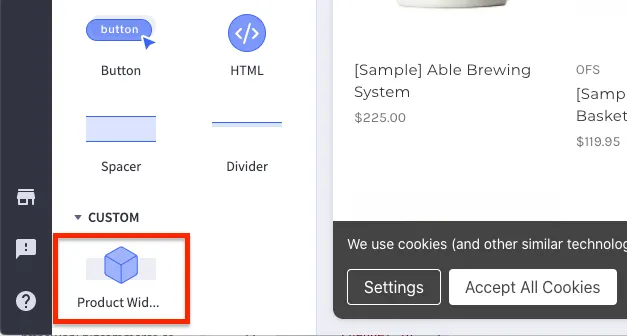
Custom widgets

Drag and drop the widget onto the desired page, select a product from the product picker, then publish your widget.
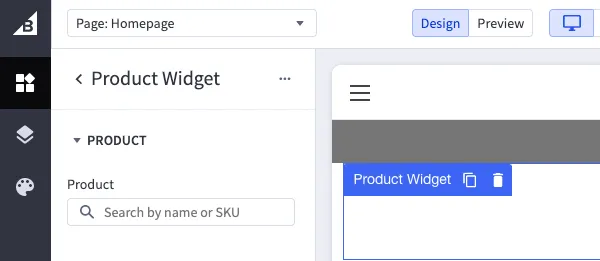
Product widget preview

Doing so creates a widget and a widget placement. For more information on placing and configuring widgets in the control panel, see Page Builder in the Help Center.

To view the widget’s data, retrieve the widget’s ID by accessing its data-widget-id attribute in the browser’s developer tools, then pass it in a GET request to /v3/content/widgets/{uuid}.

Alternatively, you can send a request to the Get all widgets endpoint, passing your widget_template_uuid as a query parameter. The following code block shows an example response.

{
"data": [
{
"channel_id": 1,
"date_created": "2021-04-09T21:27:21.163Z",
"date_modified": "2021-04-09T21:40:47.892Z",
"description": "",
"name": "Product Widget",
"storefront_api_query_params": {
"productId": 77
},
"uuid": "7e6d7a11-164e-4eb1-ae0a-af07f3e2c8fb",
"version_uuid": "3f4defcf-2429-425d-8e5a-7c3807fa9896",
"widget_configuration": {
"_": {
"id": "7e6d7a11-164e-4eb1-ae0a-af07f3e2c8fb"
},
"productId": "77"
},
"widget_template": {
"channel_id": 1,
"client_rerender": false,
"current_version_uuid": "3f4defcf-2429-425d-8e5a-7c3807fa9896",
"date_created": "2021-04-09T21:23:16.274Z",
"date_modified": "2021-04-09T21:23:16.274Z",
"icon_name": "default",
"kind": "custom",
"name": "Product Widget",
"schema": [
{
"settings": [
{
"id": "graphQueries",
"type": "graphQl",
"typeMeta": {
"mappings": {
"productId": {
"reads": "productId",
"type": "Int!"
}
}
}
}
],
"type": "hidden"
},
{
"label": "Content",
"sections": [
{
"label": "Product",
"settings": [
{
"default": "",
"id": "productId",
"label": "Product",
"type": "productId",
"typeMeta": {
"placeholder": "Search by name or SKU"
}
}
]
}
],
"type": "tab"
}
],
"storefront_api_query": "query Product($productId: Int = 1, $activeCurrencyCode: currencyCode) { site { product(entityId: $productId) { name entityId prices(currencyCode: $activeCurrencyCode) { price { currencyCode value } } defaultImage { url(width: 500, height: 500) } } } } ",
"template": "<div style=\"text-align:center\">\n<h1>{{_.data.site.product.name}}</h1>\n<div>\n<img src=\"{{_.data.site.product.defaultImage.url}}\">\n</div>\n<div>\n<p>${{_.data.site.product.prices.price.value}}</p>\n</div>\n</div>",
"template_engine": "handlebars_v3",
"uuid": "95eaa664-b19e-4a31-b9c7-498f9bc60bae"
}
}
],
"meta": {...}
}

The value of the productId inside of the widget_configuration object is mapped to the productId parameter of the storefront_api_query_params object.

Place the widget using the API

It is also possible to place widgets programmatically using the API. First, send a request to the Create a widget endpoint.

POST https://api.bigcommerce.com/stores/{{STORE_HASH}}/v3/content/widgets
X-Auth-Token: {{ACCESS_TOKEN}}
Content-Type: application/json
Accept: application/json
{
"name": "Product Widget",
"widget_template_uuid": "{{TEMPLATE_UUID}}"
}

Take note of the widget’s uuid returned in the response. You will need the widget’s uuid to Create a placement for your widget. The following code block gives an example response

{
"data": {
"uuid": "{{WIDGET_UUID}}",
...
}
}

To create a widget placement, use the Create a placement endpoint.

POST https://api.bigcommerce.com/stores/{{STORE_HASH}}/v3/content/placements
X-Auth-Token: {{ACCESS_TOKEN}}
Content-Type: application/json
Accept: application/json
{
"widget_uuid": "{{WIDGET_UUID}}",
"template_file": "{{TEMPLATE_FILE}}",
"status": "active",
"region": "{{REGION}}"
}

For a list of accepted template_file values, see Placements.

To determine the value of the region property, send a request to the Get a list of theme regions endpoint and pass the desired template_file value as a query parameter.

GET https://api.bigcommerce.com/stores/{{STORE_HASH}}/v3/content/regions?template_file={{TEMPLATE_FILE}}
X-Auth-Token: {{ACCESS_TOKEN}}
Accept: application/json

Related resources

Articles

  • GraphQL Storefront API overview
  • Page Builder overview
  • Widgets overview
  • Widget UI schema

API reference

  • REST Content API - Widgets