

Remote Tunnels
A remote tunnel gives a server running on your machine a public HTTPS URL. Use one whenever the environment you’re running locally needs to be reachable by outside systems.
There are several use cases for BigCommerce development:
- Single-click app callbacks and the control panel iframe that renders your app
- Webhook destination URLs
- An Embedded Checkout channel site URL
- An HTTPS live preview of a Stencil theme
BigCommerce servers can’t reach http://localhost, and the control panel only embeds HTTPS content. A tunnel forwards requests from a public HTTPS URL to a port on your machine.
This page covers three options. Pick the one that fits your environment.
A public tunnel makes your local server reachable by anyone who has the URL. Don’t expose services that hold sensitive data, and stop the tunnel when you’re done.
VS Code port forwarding
VS Code includes port forwarding through Microsoft dev tunnels, so no extra software is needed. Cursor provides the same Ports view. For full details, see Port forwarding (VS Code docs).
Forward the port
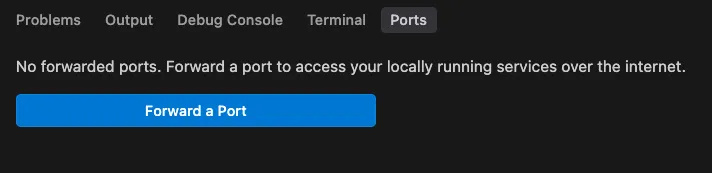
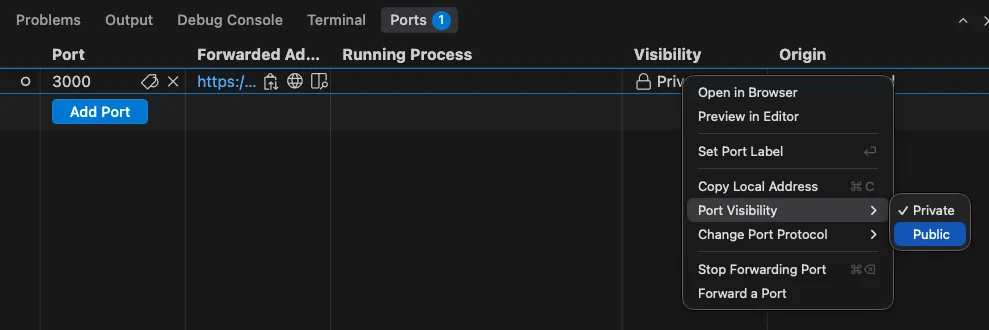
Open the Ports view, using the Ports tab next to the terminal or the Ports: Focus on Ports View command, then click Forward a Port. If you haven’t connected VS Code to GitHub before, sign in when prompted. Then enter the port number.
ngrok
ngrok is a dedicated tunneling tool. It works from any terminal, and its traffic inspector shows every external request, which helps when debugging webhooks and app callbacks. For full details, see the ngrok agent documentation.
Install ngrok
Download the agent for your operating system from the ngrok downloads page. To use a package manager instead, run brew install ngrok/ngrok/ngrok on macOS or choco install ngrok on Windows.
Connect your account
Sign up for a free ngrok account, copy your authtoken, and add it to your ngrok configuration. Unauthenticated tunnels expire quickly.
To inspect requests and responses, open the ngrok traffic inspector at http://localhost:4040.
Free ngrok accounts include one assigned dev domain, so the forwarding URL stays the same each time you start the tunnel. Free accounts also show an interstitial warning page in front of browser traffic. If it appears, click Visit to continue. For other ways to remove it, see Free plan limits (ngrok docs).
GitHub Codespaces
GitHub Codespaces runs your project in a cloud dev container and forwards its ports. This configuration replicates the same experience as VS Code port forwarding, just in a remote environment. For full details, see Forwarding ports in your codespace (GitHub docs).
Create a codespace
Push your project to a GitHub repository you own, or fork a starter repository. On the repository page, click Code > Codespaces > Create codespace on main.
Set up and start the project
In the codespace terminal, complete your project’s setup, such as installing dependencies and creating environment files, then start the dev server. Codespaces detects the port and forwards it automatically.
Codespaces stop when idle. The forwarded URL usually stays the same when you restart a codespace, but its visibility can reset to private. If BigCommerce requests start failing after a restart, check the port visibility again.
Verify the tunnel
Before you use the URL in any BigCommerce configuration, open it in a browser, or in a private window if you used port forwarding, to confirm it loads your local server. If it shows a login page, an error, or nothing at all, see Troubleshooting.
Update your configuration when the URL changes
BigCommerce stores the tunnel URL wherever you enter it, so it doesn’t update on its own. Whenever your tunnel URL changes, update every place that references it, for example:
- Apps: your app’s origin environment variable, such as
APP_ORIGIN, and all callback URLs in the Developer Portal. Restart the dev server afterward. If the app is already installed, uninstall and reinstall it. - Webhooks: the
destinationof each webhook that points to the old URL. - Embedded Checkout: the channel site URL.
Keeping a single tunnel running for your whole work session, or using an option with a stable URL, saves you from repeating these updates.
Troubleshooting
Requests get a login page instead of your server. The forwarded port is private. Set its visibility to Public in the Ports view.
Nothing reaches your server. The tunnel or the dev server isn’t running, the tunnel points to the wrong port, or the URL has changed. Confirm both processes are running, then open the tunnel URL in a browser.
BigCommerce still calls an old URL. Update every reference to the tunnel URL, as described in Update your configuration when the URL changes.
ngrok command not found. ngrok isn’t on your system PATH. Either move the binary into a directory on your PATH (for example, mv ngrok /usr/local/bin on macOS and Linux, or add the folder containing ngrok.exe to your PATH environment variable on Windows), or run it from its folder with ./ngrok http 3000 on macOS and Linux or .\ngrok.exe http 3000 in Windows PowerShell.