

Becoming a Partner
The BigCommerce Partner Program includes access to resources, training, sales enablement, partner support, and a referral network to increase your client base and build better ecommerce experiences. Becoming an official BigCommerce partner will empower you to provide best-of-breed solutions to the fast-growing online businesses we host.
We offer two partnership programs designed to help you grow your business.
Agency partners
The Agency Partner Program is for agencies that build ecommerce solutions and deliver custom experiences for their clients. As an agency partner, you get access to advanced features, training resources, and integrations. To learn more, see Partner Program.
Technology partners
The Technology Partner Program is for companies that design ecommerce themes, custom apps, and business software integrations. To learn more, see Partner Program.
You don’t need to be a partner to build and test an app. You can test in any BigCommerce store. You need an approved Technology Partner account to submit an app to the BigCommerce App Marketplace.
Apply to the Partner Program
The following steps outline how to apply to become a BigCommerce partner (Agency or Technology):
-
Go to the Partner Portal.
-
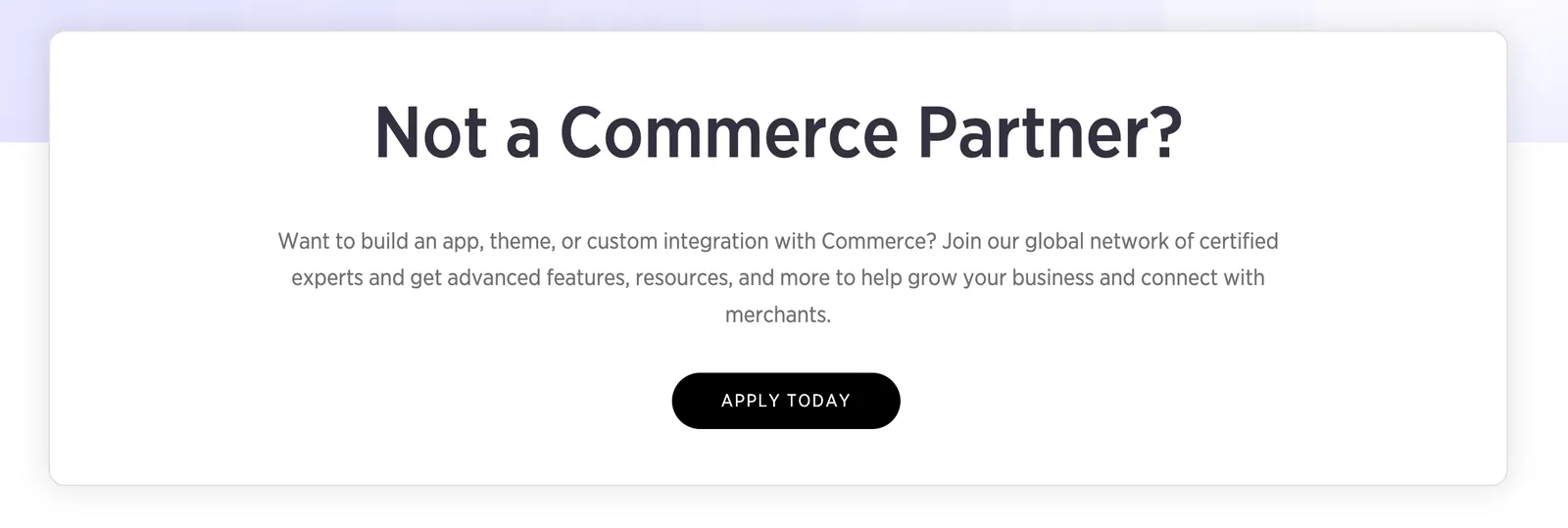
Click Apply Today.
-
Enter your email address and click Submit.
You may be asked, “Are you employed by one of the following companies?” This means a partner account already exists for your company’s email domain. If you select Yes, you’re added to the existing partner account. An admin on the existing partner account can also add you without you filling out the application again.
-
On the next page, fill out your account information.
-
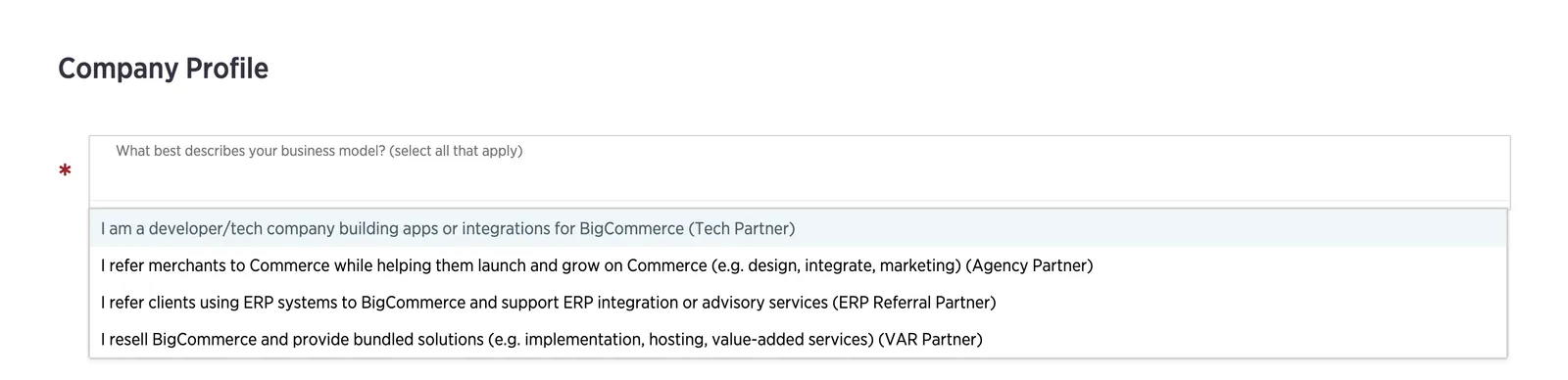
Under Company Profile, select the options that fit your business. You can select more than one.
-
Accept the agreement and authorization.
-
Click Submit.
We recommend using the email address you want to use for development. This is the email address that your sandbox store and Developer Portal access will be created under. After you register, you can add additional users to the account.
To submit an app to the App Marketplace, a contact on your partner account must also have the Billing/Financial role. To assign it, go to Account Profile > Manage Members in the Partner Portal and edit the contact who should have the role. For the full list of account requirements, see Before you submit.
What happens after you apply
When you submit your application, your partner account is registered for the program immediately. You receive one or more emails with your Partner ID, a temporary password, and next steps. Save your Partner ID. You need it to submit apps to the App Marketplace.
These emails are often filtered to spam or junk. If you don’t see them in your inbox, check your spam folder before you contact support.
After you register, complete the following setup:
-
Sign in to the Partner Portal. Use the email address you applied with and the temporary password. On your first sign-in, you may be asked to agree to the program terms and conditions if you haven’t already.
-
Create a sandbox store. In the Partner Portal, hover over Create New and select Partner Use Sandbox. The store owner of the sandbox is the email address you use for the Partner Portal. For steps, see Sandbox stores.
-
Sign in to the Developer Portal. Go to the Developer Portal and sign in with your sandbox store owner credentials. On your first sign-in, BigCommerce asks you to grant the Developer Portal additional permissions. You need these permissions to create apps and install draft apps.
The Partner Portal and the Developer Portal use separate passwords, even when you use the same email address for both. Resetting one password doesn’t reset the other. Your Developer Portal password is the same as your sandbox store password.
After you sign in to the Developer Portal, you can create and manage apps.
If you don’t receive your credentials
First, check your spam or junk folder. The credentials email is often filtered there, so confirm it isn’t in your spam folder before you contact support.
If you can’t find the email, or you can’t create an account, contact the BigCommerce support team. Include the company name and email address you applied with.
- If you haven’t received your Partner Portal credentials yet, use the BigCommerce Support Portal. It lists several ways to contact support.
- If you’re an approved partner, sign in to the Partner Portal and contact support directly.
Partner Portal training
BigCommerce offers training modules to help you get up to speed with the BigCommerce platform. You need to complete these training modules to become a BigCommerce Certified Partner.
To access the training modules, log into the Partner Portal, hover over the Education tab (top navigation), and select Training & Certification. This path takes you to the Trainings page.
Certifications and the BigDev Bootcamp
Advanced training is available through the BigDev Bootcamp. The BigDev Bootcamp delivers sessions focused on the Catalog API, Orders API, Cart and Checkout APIs, Storefront API, and Stencil. Reach out to your account manager if you are interested in registering for these sessions.
Ongoing support
BigCommerce provides ongoing support to help you every step of the way. From dedicated account managers to access to the BigCommerce Community, BigCommerce offers a wide variety of resources to assist you.
In the Partner Portal, go to Support > Contact Support to reach the right support team directly through cases, live chat, and phone. To view your open cases, go to Support > My Cases.
Not a partner yet? See the BigCommerce Support Portal for options to get in touch with the support team.