

App Extensions Overview
App Extensions help developers extend the capabilities of the BigCommerce control panel by registering custom menu items that appear on select native control panel pages. This article is a high-level explanation of what App Extensions are and what they can do, and covers the following topics:
- The App Extensions user experience
- Registering App Extensions
- Rendering markup from an App Extension’s load callback
- The sources of truth for the information required to respond accurately to an App Extension load callback, including:
- The App Extension object
- The load callback’s signed_payload_jwt
- Your app or an API call
- Use cases
For more detail about each attribute of the App Extension object, see the App Extensions Glossary or the full AppExtension object schema in GraphQL Admin API Reference.
User experience
As the preceding section says, App Extensions let you add custom menu items on select control panel pages. This section describes what that’s like from the user’s point of view.
Locale support
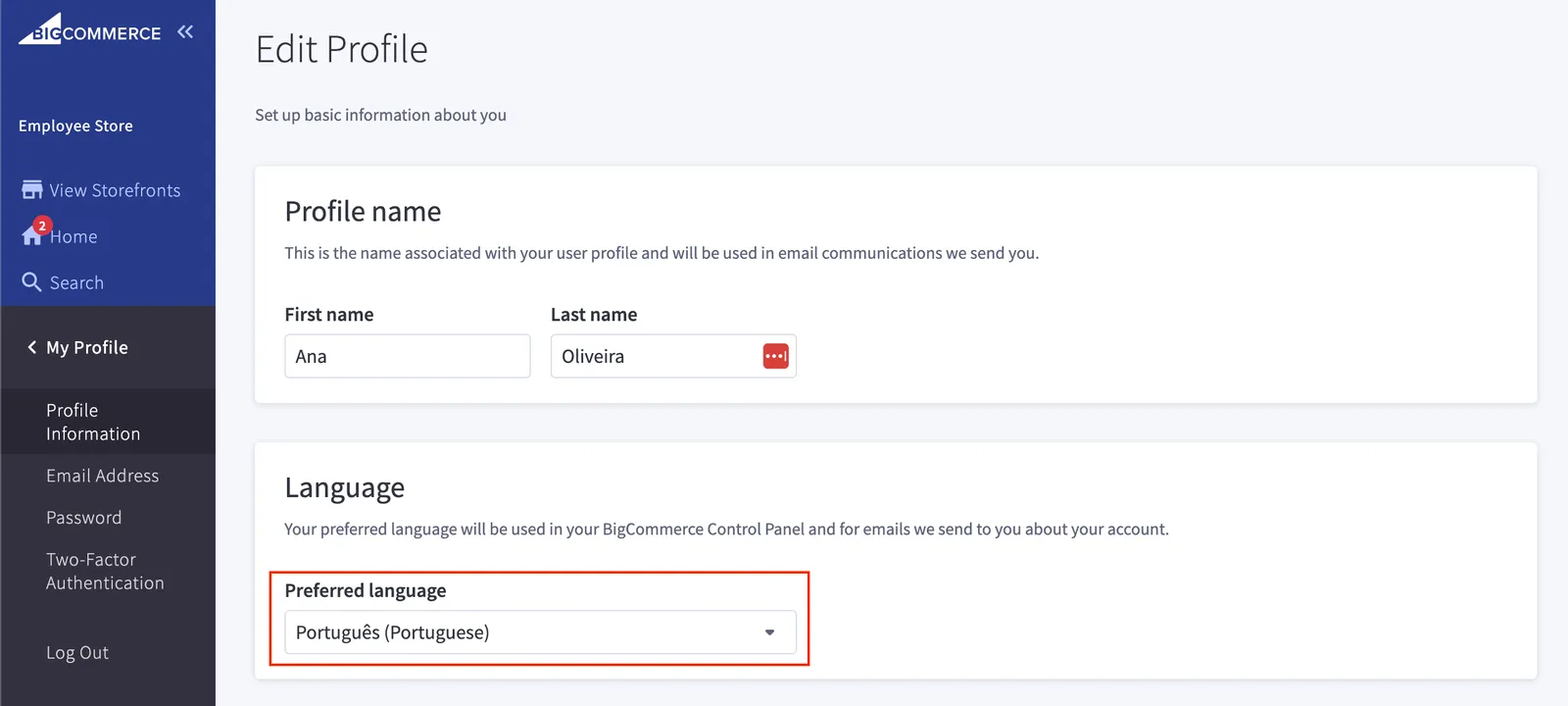
App Extensions support all available control panel languages, so you can show the user app content in the language they are already using. You can register alternate link text for any supported control panel language (Help Center) and handle content rendering to present markup in translation on a per-user basis, using the user.locale property of the signed_payload_jwt that accompanies BigCommerce’s load callback to your app.
Navigation
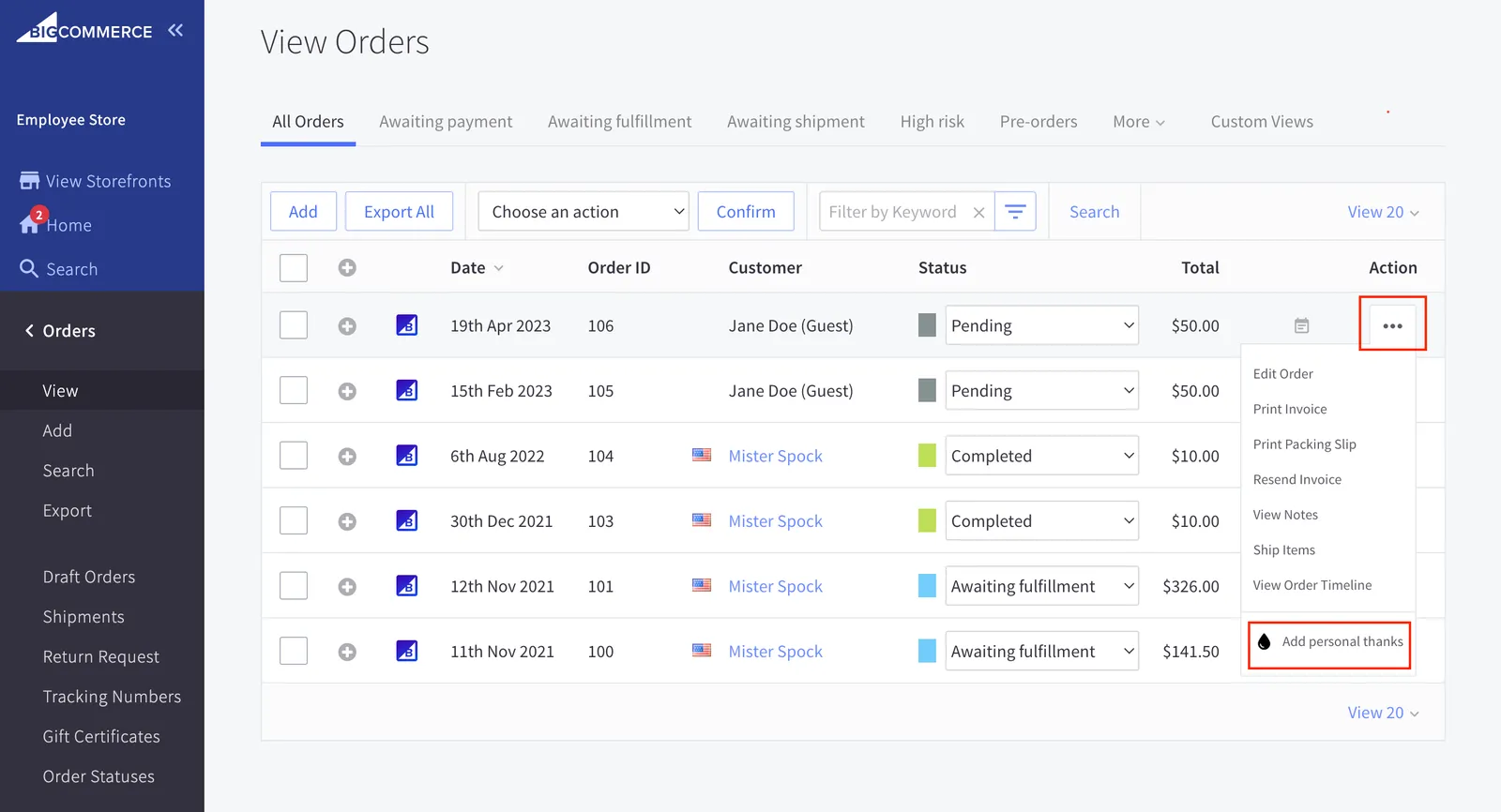
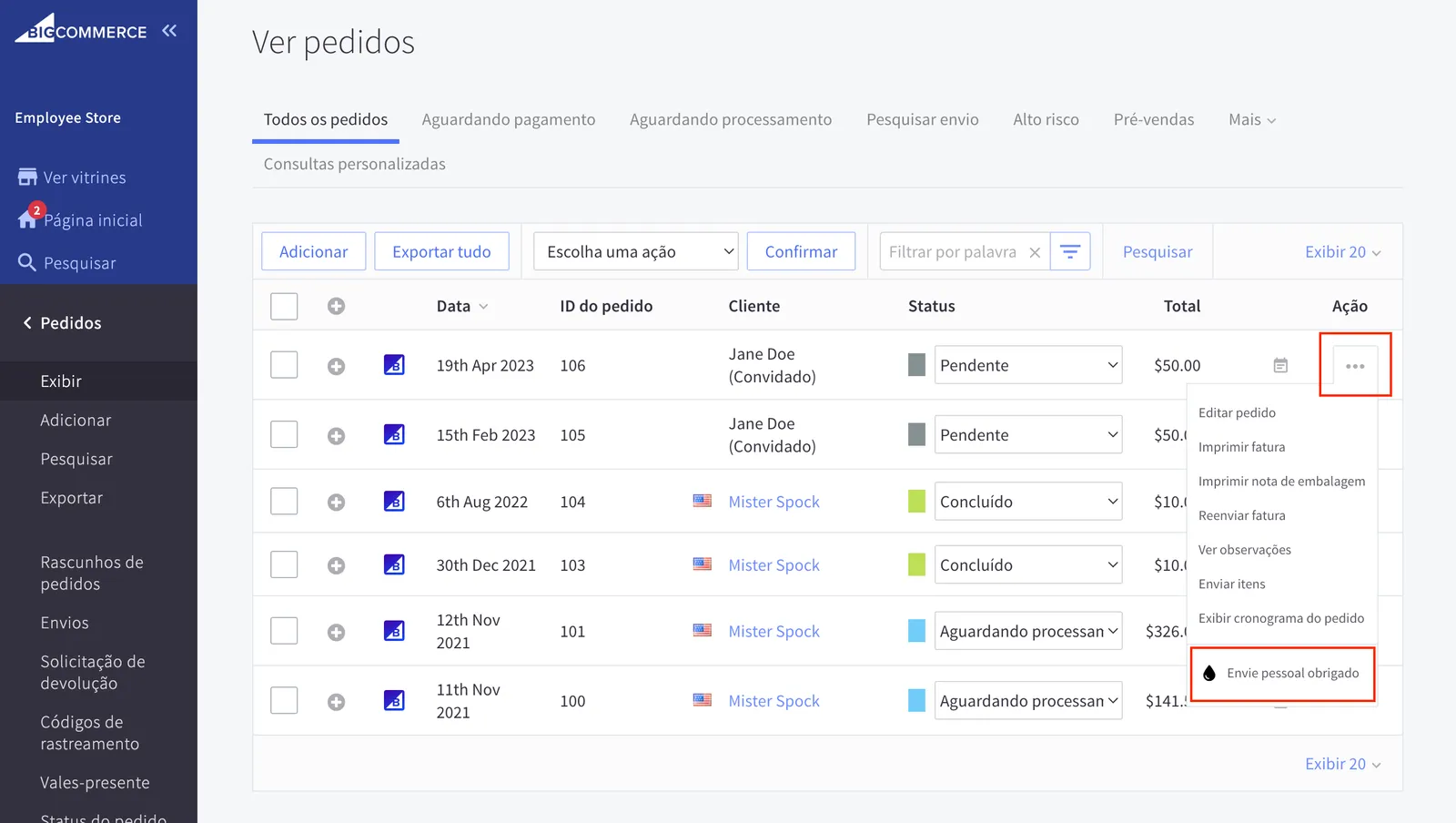
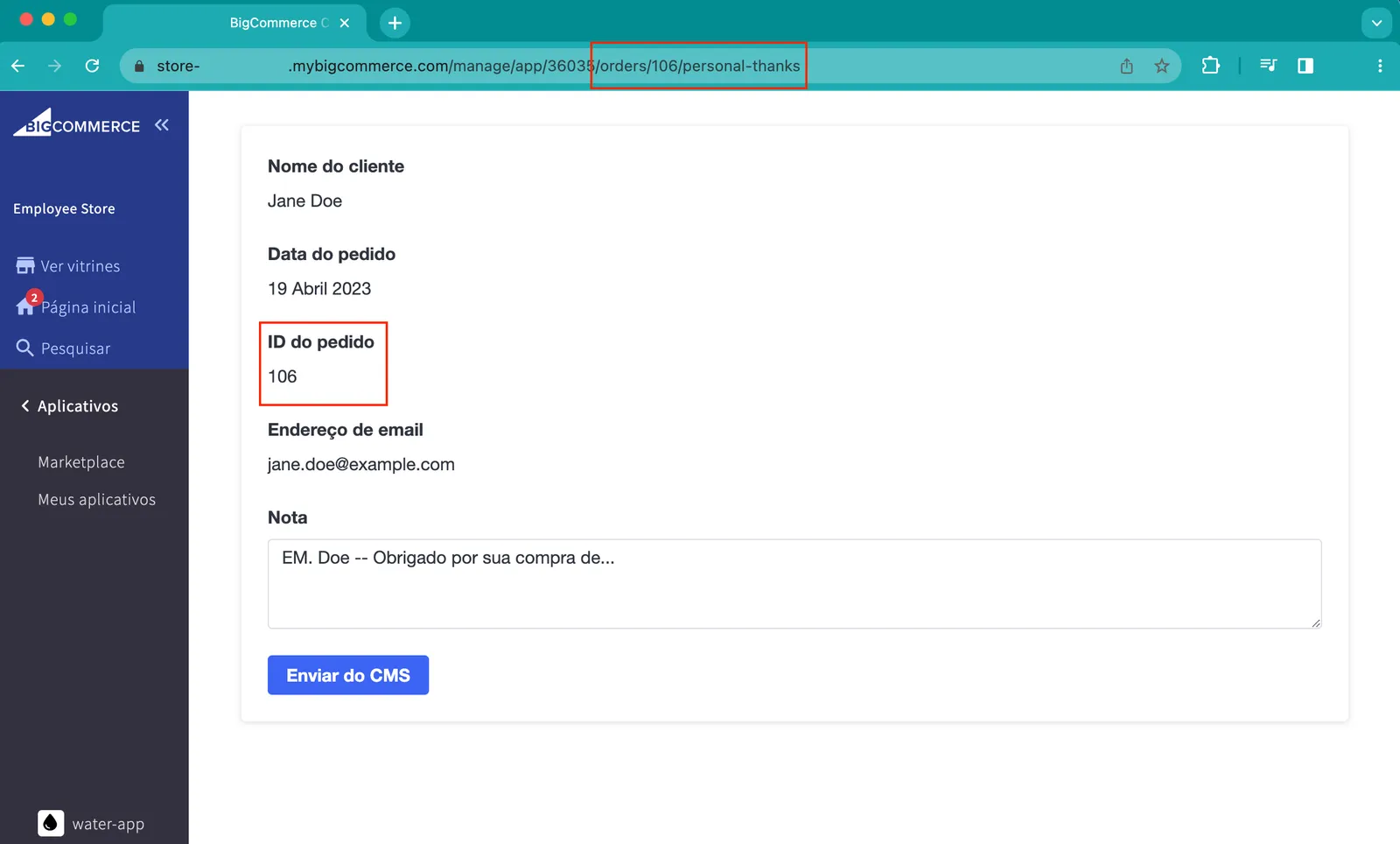
When a control panel user clicks an App Extension-generated menu item, the app can either render content in a side panel - without navigating the user away from the native page - or it can redirect the user to the app’s home iFrame in the Apps sub-menu, and render App Extension-specific content there.
The following set of tabs show example pictures of the menu item and two load contexts, along with the schemas that describe them. If image diagrams are not accessible to you, use the alt text to determine which sections of the App Extensions Glossary to read instead.
Menu item
The menu item also includes one of the app images you upload as part of the app profile. A production app that uses App Extensions should have high-quality app images. You can read more about app images in the Apps Guide.
The following tabs show a screenshot of an App Extensions menu item and the corresponding AppExtensions object. For more about the menu item URL and default label, see the App Extensions Glossary.
Use English for label.defaultValue.
Screenshot of menu item
App Extension Schema
Panel
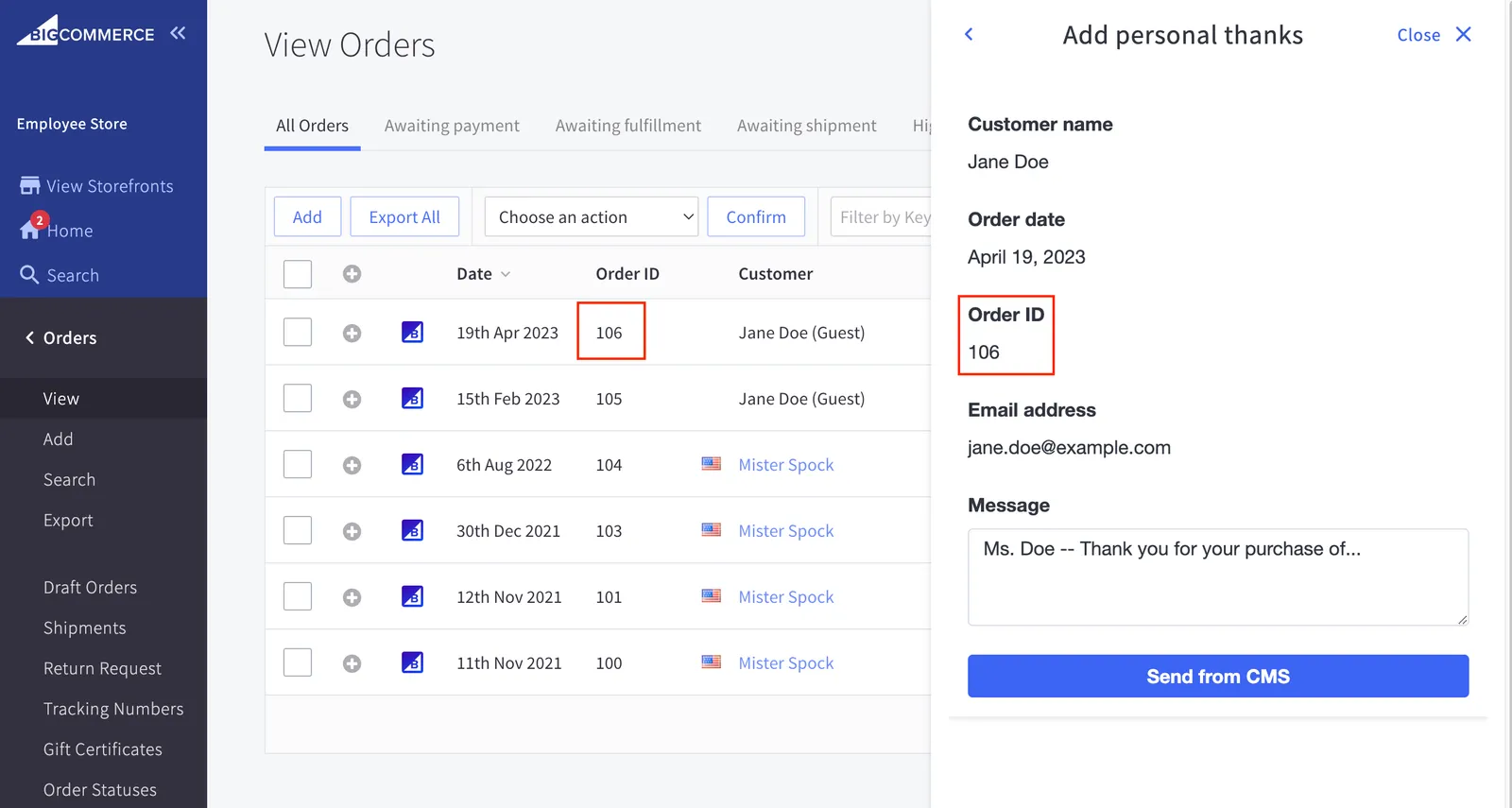
In the panel context, the App Extension renders your response to the load callback in an overlay panel that opens from the right. The panel is responsive, so make sure to send responsive markup. The width can vary from 45% to nearly 100% of the control panel content page.
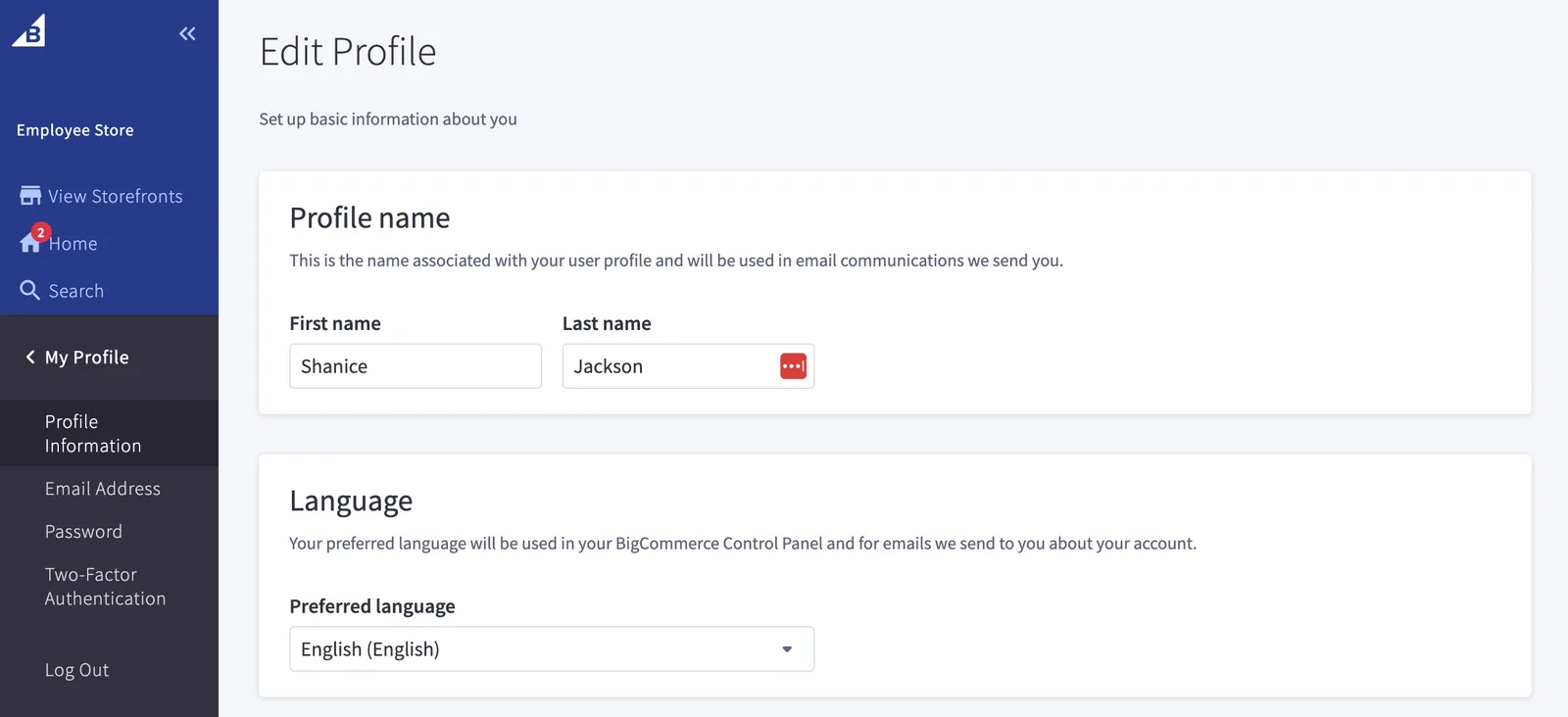
The following tabs show both a panel and an example of an alternate user locale. The first tab contains screenshots of the control panel locale, an App Extensions menu item, and app content rendered in the panel context. The second tab shows the corresponding AppExtensions object and signed_payload_jwt, with highlighted lines that indicate what information is useful in determining which locale’s markup to send. For more about rendering context and label locales, see the App Extensions Glossary.
Screenshot of side panel
App Extension and JWT
Link
Screenshot of deep link
App Extension and JWT
Registering App Extensions
You can register, update, query, and remove App Extensions using the GraphQL Admin API. For example requests and responses, as well as additional information about each call, see the App Extensions Guide.
Store-specific registration
App Extensions are registered independently for each store that installs your app, so you must register a given App Extension separately for each store. Registering per store provides several benefits, including the following:
- Your app can offer App Extension-based functionality based on user settings, pricing plan, or code version.
- You can offer different sets of App Extensions to different stores.
- You can design your app to be transparent about the data you collect and allow merchants to opt out of features.
- You can limit the app’s exposure to denial-of-service attacks.
- You can control the timing of an App Extension’s rollout in the store control panel.
It’s a best practice for your app to keep track of how it has instantiated its types of App Extensions on each store; namely, the mapping between the store’s App Extension IDs and your set of possible App Extensions. This is particularly crucial if you offer several related App Extensions distinguished by settings or pricing. You can retrieve your app’s App Extensions from BigCommerce using the Store appExtensions query.
The simplest design pattern is registering identical App Extensions on each store as part of your app’s initial installation flow. You can use the updateAppExtension mutation to modify them later or use the deleteAppExtension mutation to remove them.
App ownership and scope
Although App Extensions are stored per store, they are not anonymous store data — each one has a direct relationship in the BigCommerce backend with the app that created it. In practice, App Extensions are dual-scoped:
- App-scoped ownership: Each App Extension is tied to the app registration that created it through the app’s OAuth client (
client_id). Only that API account can create, update, query, or delete the app’s App Extensions. You can’t read or modify another app’s App Extensions. - Store-scoped persistence: App Extensions live in each store’s own database rather than in a central location, so every store keeps its own independent copies.
In other words, App Extensions are app-owned entities that are stored per store. Because BigCommerce tracks which app owns each App Extension, it can clean them up automatically when the app is uninstalled.
Automatic deletion on app uninstall
When a store owner uninstalls your app, BigCommerce automatically deletes all of that app’s App Extensions from the store. You don’t need to call deleteAppExtension as part of handling the uninstall callback; the platform removes the app’s App Extensions for you, along with its other registered resources such as webhooks.
Sources of truth
Several components go into using App Extensions effectively. The following table lists some of the key components of App Extensions and disambiguates the source of truth for each:
Supported control panel pages
Each App Extension is associated with one control panel page, which you define using the model property. The model corresponds with the page’s primary API entity.
For supported models, see the App Extensions Glossary and the GraphQL Admin API Reference.
There is a limit of two App Extensions per app, per model. Your app can register up to two App Extensions for the orders model, two for the products model, and two for customers. If these limits are detrimental to your use case or user experience, please reach out through our Developer Community.
Load context
When you develop an App Extension, keep in mind the two available page load contexts: the side panel, or panel, and the deep link, or link. Panel-type App Extensions load in an <iframe> element that overlays the content of the control panel page in which they are embedded. Link-type App Extensions redirect to a detail view in the app’s dedicated iFrame in the Apps sub-menu.
The side panel context can enhance a lot of use cases that benefit from keeping the control panel user on the page for task context or workflow efficiency reasons. The user can expand the panel to full screen, but if the task the App Extension assists would benefit from additional control over page routing, the link context can provide the desired experience. The link context allows users to jump to the relevant page within the app. It supports transparent multi-page workflows because the app can expose additional URLs that let the user navigate more intuitively between different routes in the app.
Use cases
The App Extensions feature unlocks new use cases. The following sections organize use cases by the supported control panel page.
View Orders
- Send receipts on request.
- View and modify draft invoices.
- Verify or manually retry order syncing between BigCommerce and an OMS or ERP system.
- Generate and view a pick map that gives stockroom associates the fastest fulfillment trajectory through a warehouse, using data from the Catalog API or a third-party PIM system.
- Use Inventory and Location API features to help group or regroup multi-consignment order items.
- Use the control panel to move orders through more complex fulfillment states than are available in the native control panel view.
View Customers
- Open equivalent customer objects in a CRM or help desk system.
- Check whether the merchant has received feedback, input, or requests from the customer in multiple channels, such as emails in a shared inbox.
- Expose Customer attributes and other data in a CRM-like interface.
- View multiple parts of a customer’s shopper journeys from both BigCommerce and third-party providers, such as net promoter score, abandoned cart metrics, promotions used, and customer reviews.
- Unlock extra features written into a headless storefront bundle on a per-customer basis.
View Products
- Manage related variants in a novel UI.
- Expose the whole product object, including metafields, for control panel users to view and edit.
- Expose a third-party product configurator that uses an ERP or PIM system as the source of truth, then use the Catalog API to sync with BigCommerce and resolve any errors.
Using App Extensions in public apps
Public apps that use App Extensions have the following additional requirements for approval:
- Must meet the App Marketplace approval criteria
- Must follow the best practices outlined for App Extensions and the BigCommerce platform
- Must use our BigDesign component library to match the look and feel of the underlying control panel
- Must complete a UX review session