For AI agents: a documentation index is available at the root level at /llms.txt and /llms-full.txt. Append /llms.txt to any URL for a page-level index, or .md for the markdown version of any page.
Dev Portal
DocsAPI ReferenceLearnCommunityChangelog
  • Overview
    • Quick Start
    • Sandboxes
    • Tools & SDKs
    • Support
  • Docs
      • Getting Started
        • Overview
          • Overview
          • Local Development
          • Versioning
            • Custom Components
            • Manually Installing Scripts
            • Mailchimp Newsletter
            • Algolia Search
            • Customer Group Component
    • Archive
    • Closed Beta Programs
Dev Portal
LogoLogo
On this page
  • Introduction
  • Installing the script
  • Wrapping up
DocsStorefrontCatalystGetting StartedGuides

Adding Mailchimp to Catalyst

Was this page helpful?
Previous

Manually Installing Scripts

Next

Algolia Search

Built with

Introduction

In this guide, we’re assuming you have installed the Mailchimp app on your BigCommerce store and already have the script URL Mailchimp provides, as detailed in the Install scripts section of the Mailchimp docs.

Make sure you’ve read the Local development documentation to get your development environment setup before continuing.

If you want more details on the <Script/> component we use in this guide, check out our Manually installing scripts guide.

Installing the script

Now that you have your Catalyst environment running and your Mailchimp script URL in hand, you are ready to add it to your site.

The script needs to load on every page, so we’re going to add it to the default layout, which is shared across all pages:

core/app/[locale]/(default)/layout.tsx
import Script from 'next/script';
import { setRequestLocale } from 'next-intl/server';
import { PropsWithChildren } from 'react';
import { Footer } from '~/components/footer';
import { Header } from '~/components/header';
interface Props extends PropsWithChildren {
params: Promise<{ locale: string }>;
}
export default async function DefaultLayout({ params, children }: Props) {
const { locale } = await params;
setRequestLocale(locale);
return (
<>
<Header />
<main>{children}</main>
<Footer />
<Script
src="https://chimpstatic.com/mcjs-connected/js/users/xxxxxxxxxxxxxxxxxxxxxxxxxxxxxxxxxxxxxxxxxxxxxxxxxxx.js"
strategy="lazyOnload"
/>
</>
);
}

Notice we used the lazyOnload strategy! This will prevent the script from loading until the browser has processed all the critical interactive elements and scripts.

If you have active Mailchimp pop-ups, when you load your site after making these changes, you’ll see the script is loading correctly. Here is a demo of an email signup pop-up offering a discount that was displayed using this method:
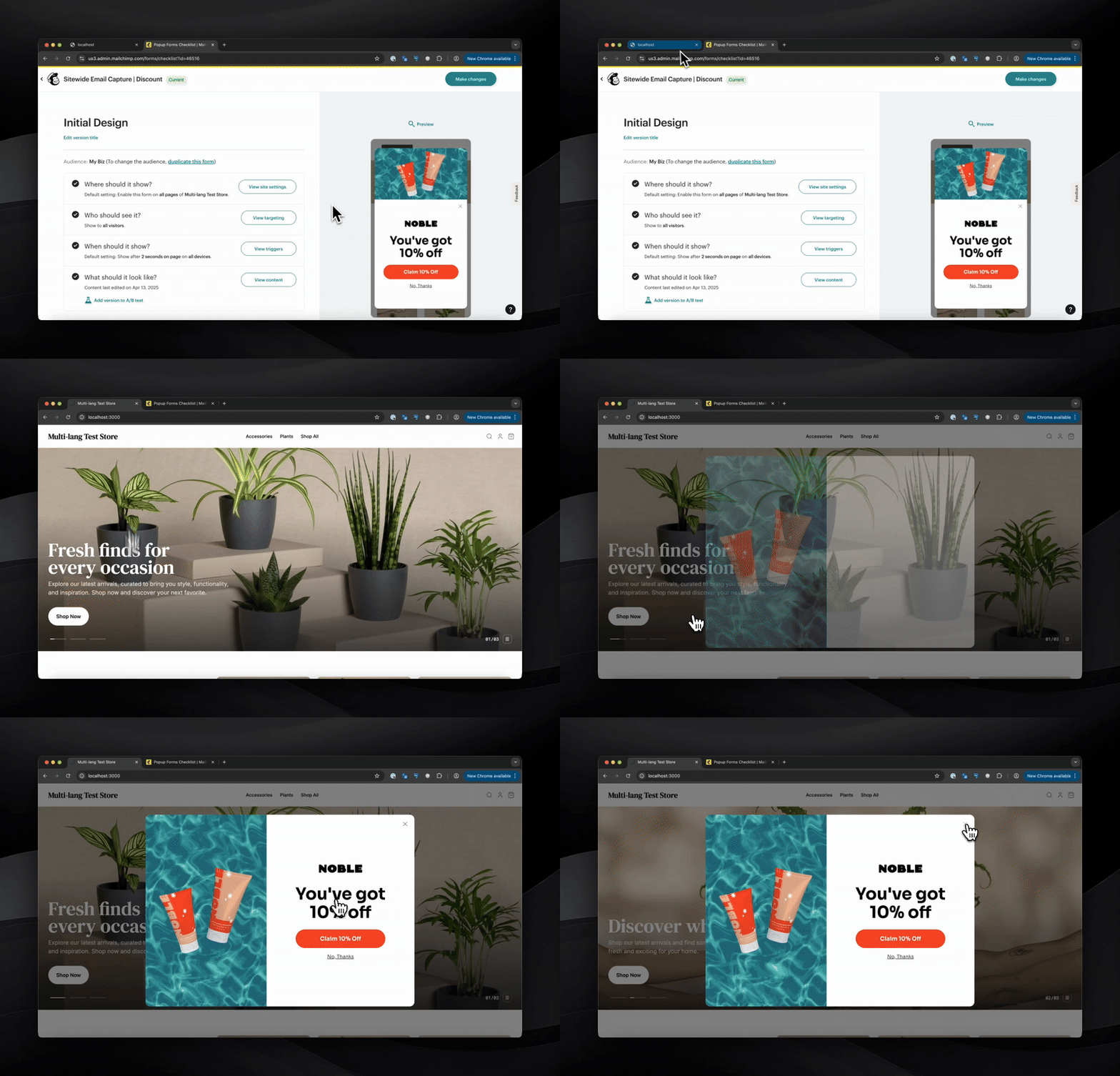
Mailchimp popup loading within Catalyst via script

If you don’t see a popup, you might not have one configured. You can still see if the Mailchimp script is loading correctly by checking your local storage. In your browser you should see mcform keys in Application -> Local storage:
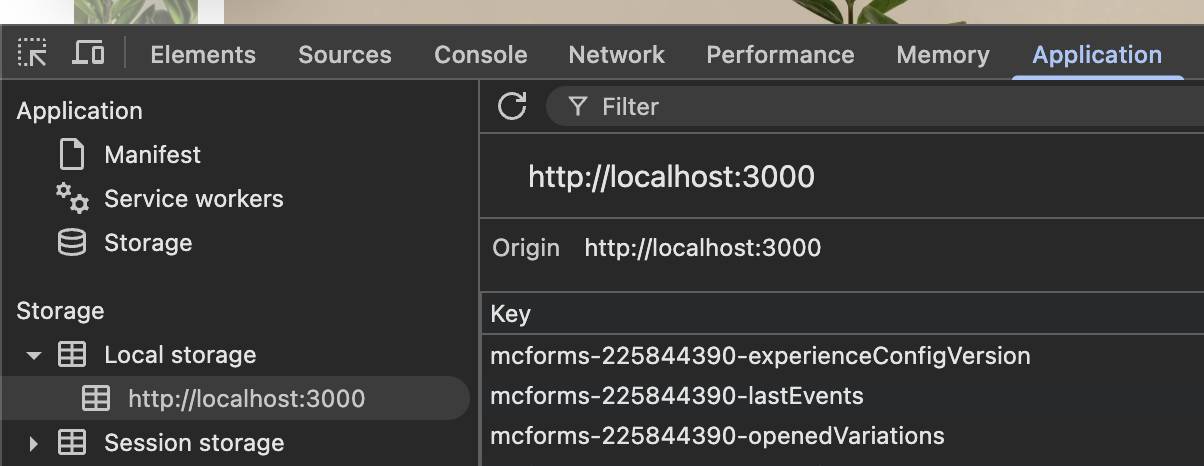
Mailchimp localstorage values

Because you added the script within the default shared layout file, navigating between pages on the site doesn’t re-render the widget. The script is only loaded once per session, instead of once every page:
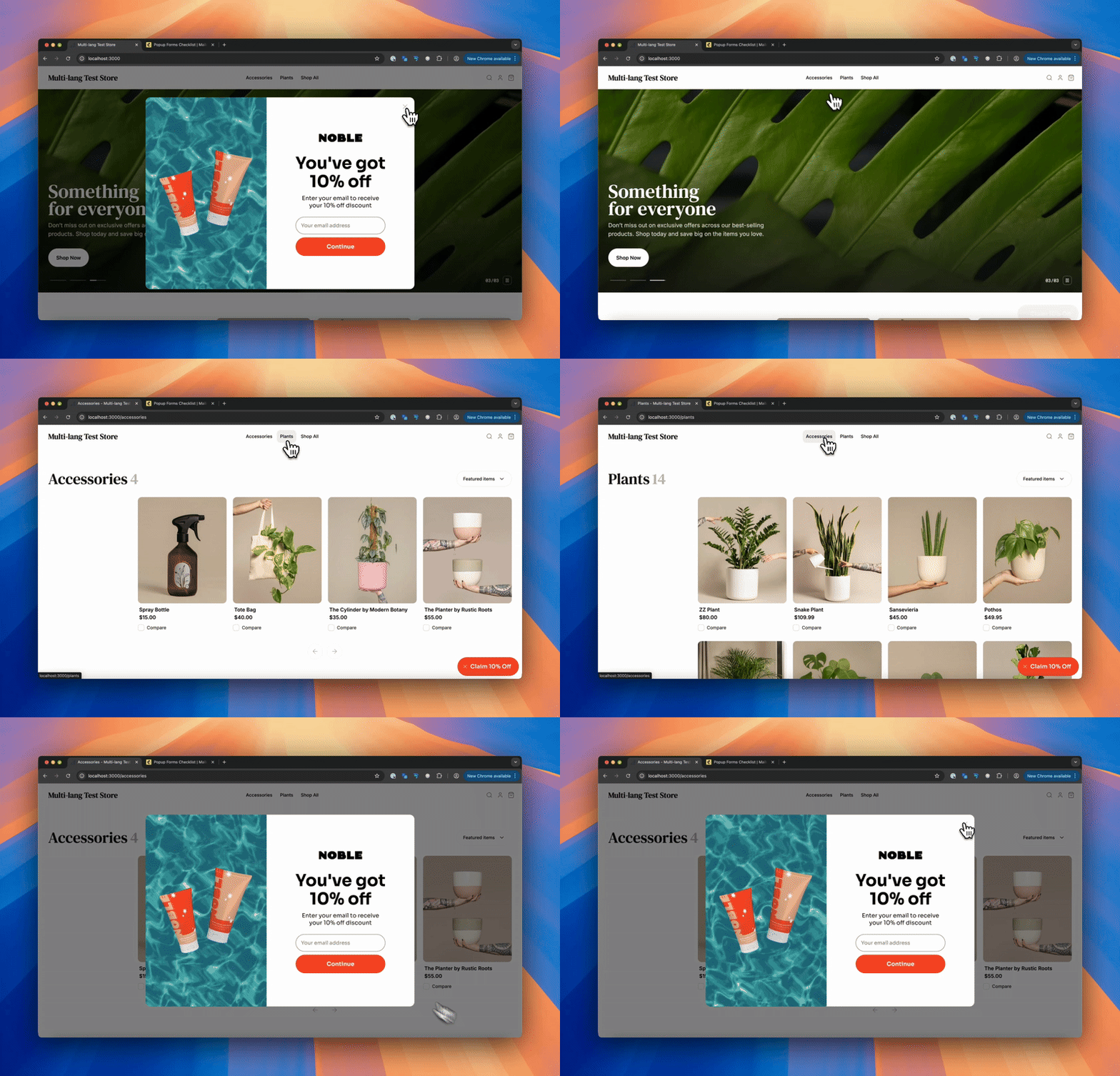
Mailchimp navigation experience

Wrapping up

That’s it! The Mailchimp script is now loaded in an optimized way.