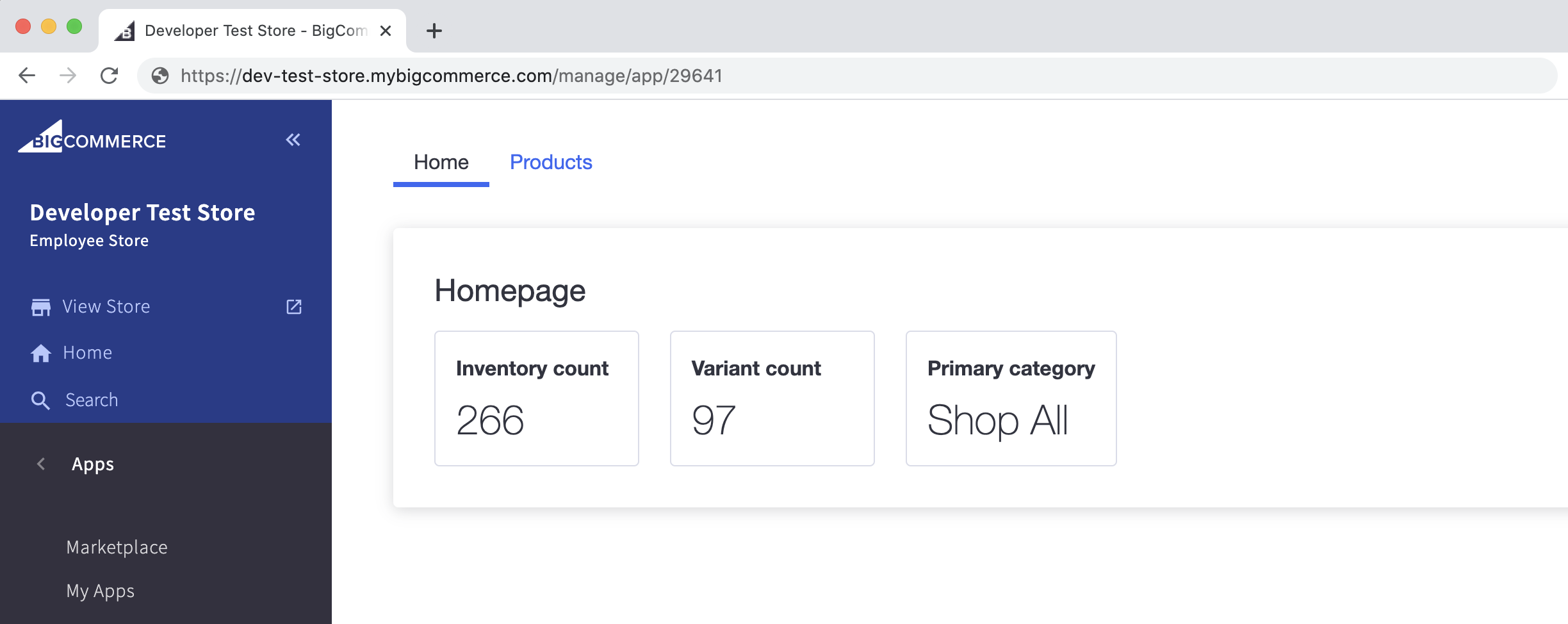
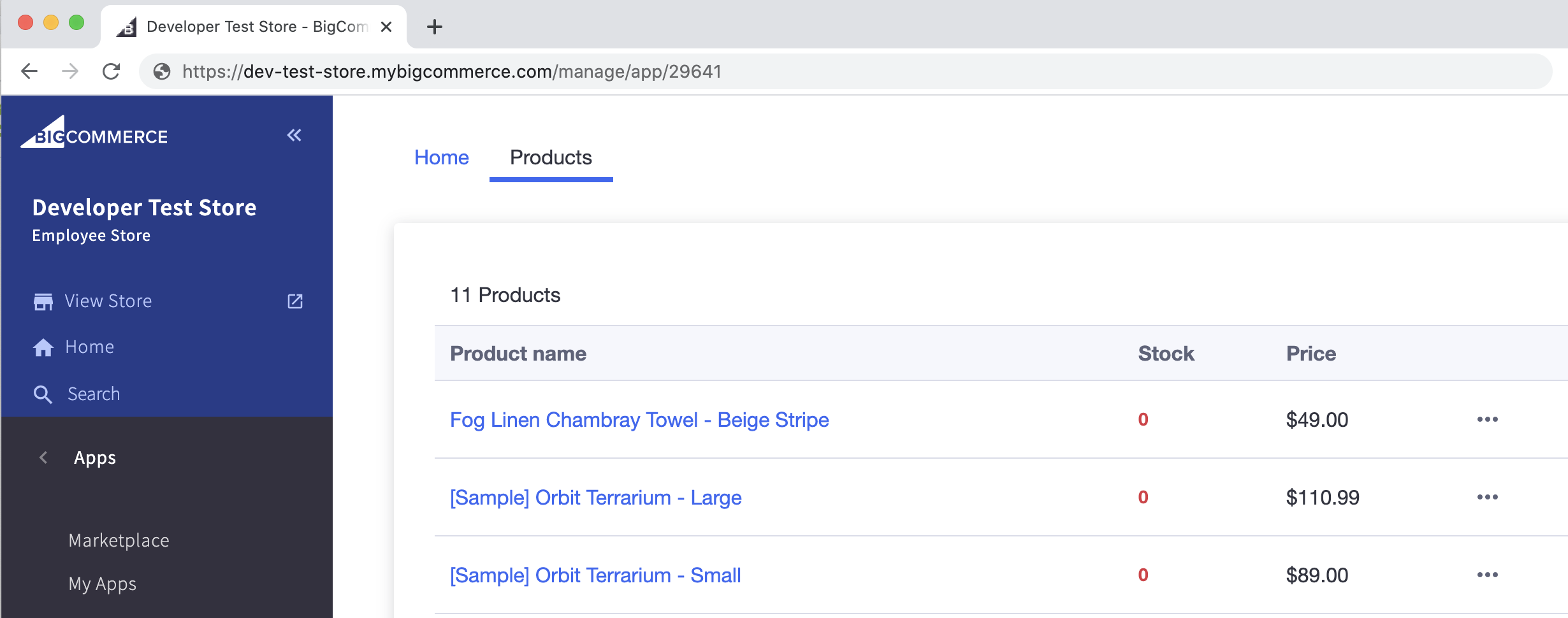
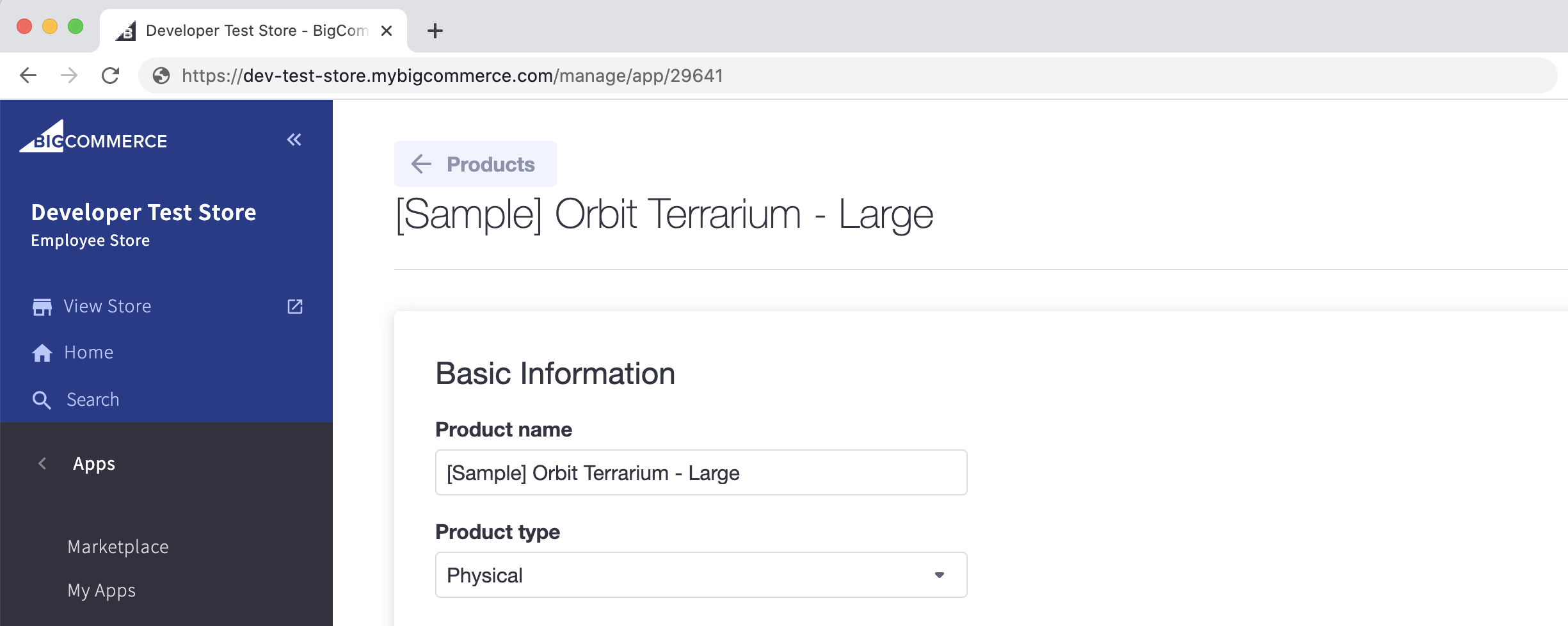
Quick Start: Deploy to Heroku Install Flow
Quick Start: Deploy to Heroku Install Flow
If you want to skip the tutorial and get the app running quickly, you can use this install flow to deploy the sample app to Heroku. To create a Heroku account, visit the Heroku signup page.
Click deploy
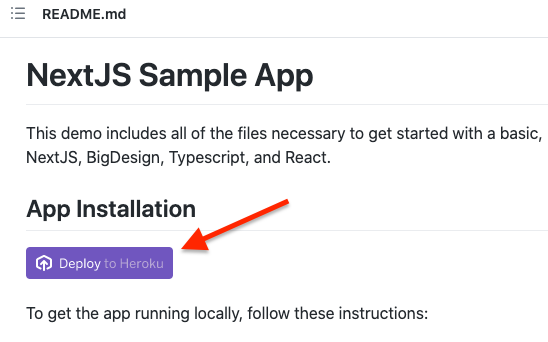
In your fork, locate the README.md file. Click Deploy to Heroku. This will open Heroku’s Create New App page in your browser.
Heroku: add app details
When prompted, fill out your app details including giving your app a name.
Scroll down to Config Vars and replace the <APP NAME> placeholder inside AUTH_CALLBACK with your app’s name.
BC DevTools: Create an app profile
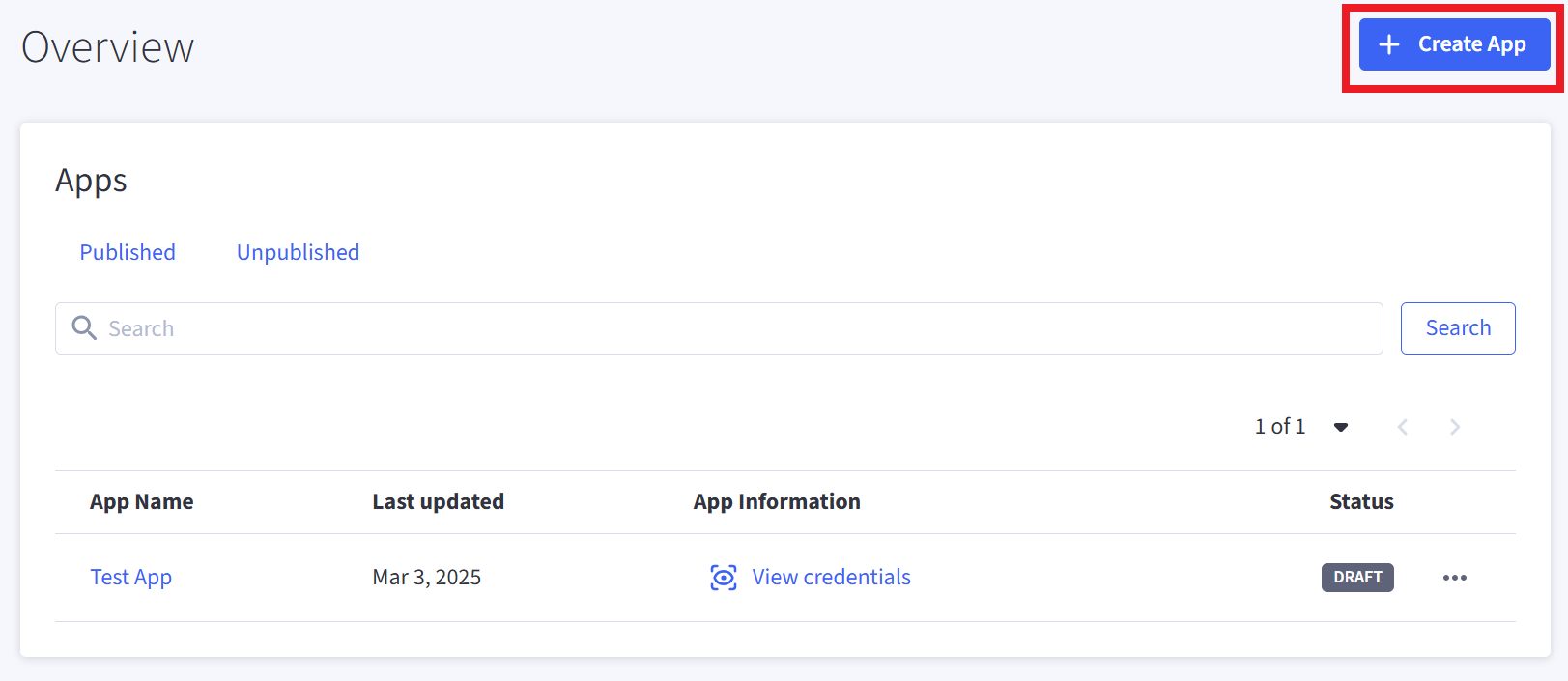
To obtain the client ID and client secret, sign in to the Developer Portal and click Create app. Name the app and click Create.
Add the app API account to Heroku
On the My Apps page of the BC Developer Portal, locate your newly created app and click View Client ID. This will open a new window displaying your client ID and client secret.
Copy and paste your app’s client ID and client secret into your Heroku app.
Heroku: Deploy app server
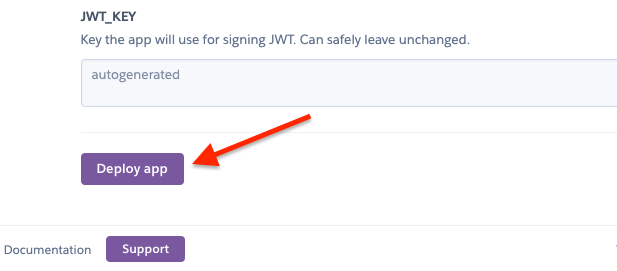
Click Deploy app at the bottom of Heroku’s Create New App page. Wait for the deploy script to finish running.
BC DevTools: Add Heroku callback URLs
- In the Developer Portal, click Edit App.
- Open the Technical tab. Select STORE OWNER for Multiple Users and SINGLE-CLICK for App Type.
- Scroll down to Callback URLs and update Auth, Load, and Uninstall URLs, replacing placeholders with your Heroku app URL. For example, your Auth Callback should look similar to the following:
https://heroku-sample-app.herokuapp.com/api/auth. - Scroll down to OAuth scopes and set the Products access to MODIFY.
- Click Update & Close.