

Lab - Regions
Lesson 5 of 22 · 30 min
In this lab you will…
- Add a new widget region to a Stencil template file
- Create a global region
- Place a widget in the global region
Prerequisites
- BigCommerce sandbox store
- API credentials for the store (Content: Modify)
Add a Region
Add a new widget region to a Stencil template file
- Log in to the BigCommerce store that you have access to
- Navigate to ‘Storefront’ in the left navigation
- Click the ‘Advanced’ menu on the currently applied theme
Themes must be copied before the ‘Edit Theme Files’ option is available. You cannot edit the original version of the theme. Click the ‘Advanced’ menu on the theme, then ‘Make a Copy’ to copy your theme.
- Click ‘Edit Theme Files’
- Add the following code to the templates/pages/home.html template file:
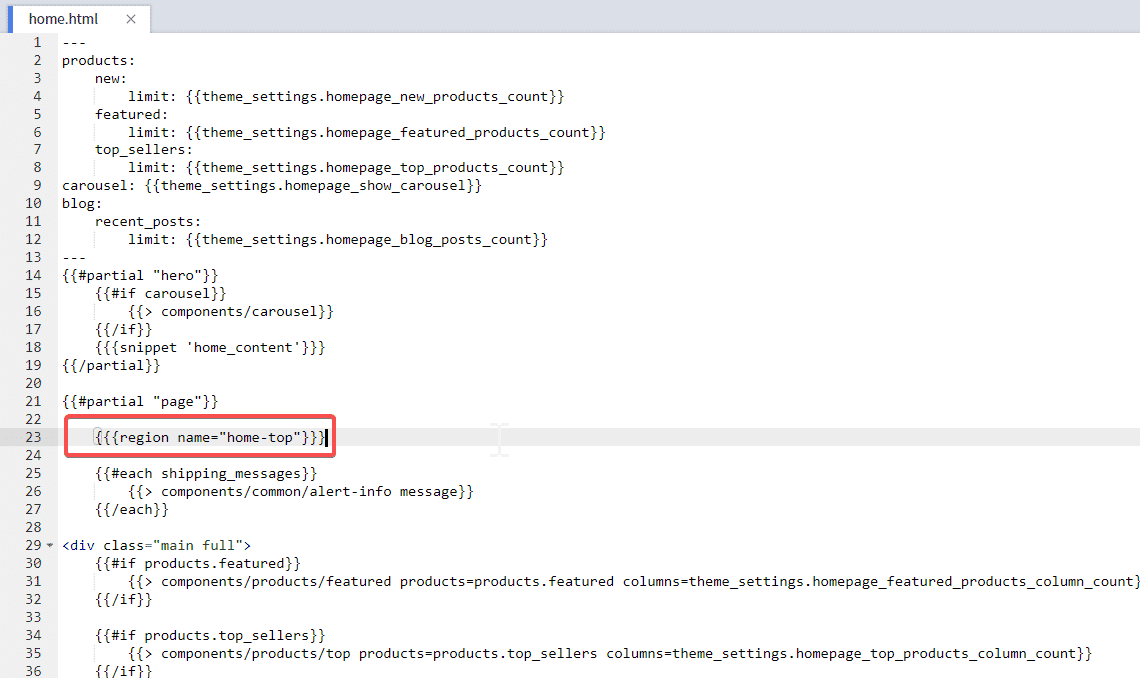
- Click ‘Save File’ in the bottom right corner of the ‘Edit Theme Files’ window
Create a Global Region
- Log in to the BigCommerce store that you have access to
- Navigate to ‘Storefront’ in the left navigation
- Click the ‘Advanced’ menu on the currently applied theme
- Click ‘Edit Theme Files’
- Add the following code at the end of the ‘main full’ div tag in home.html to at the end of the ‘page-content’ div tag in category.html as shown in the examples below:
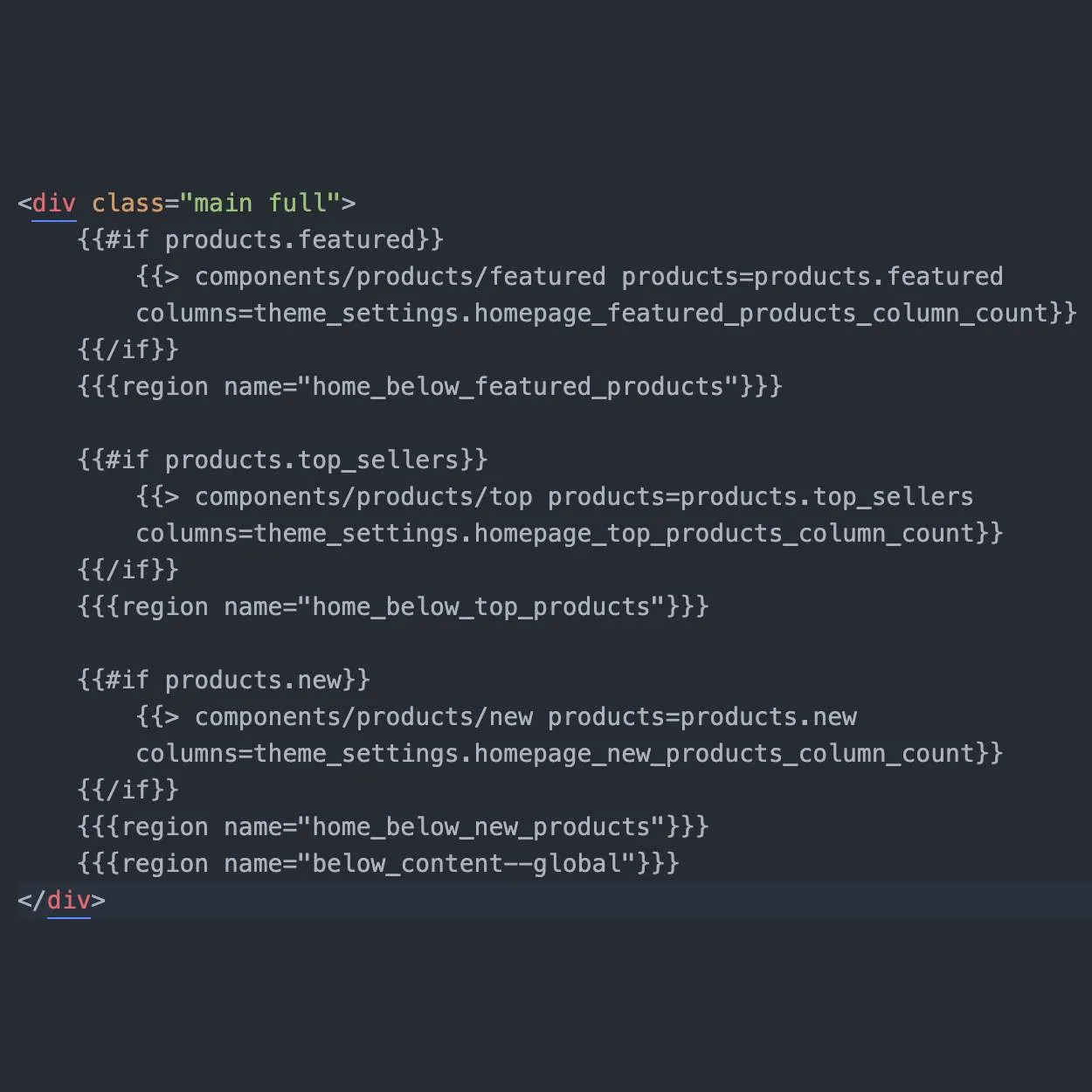
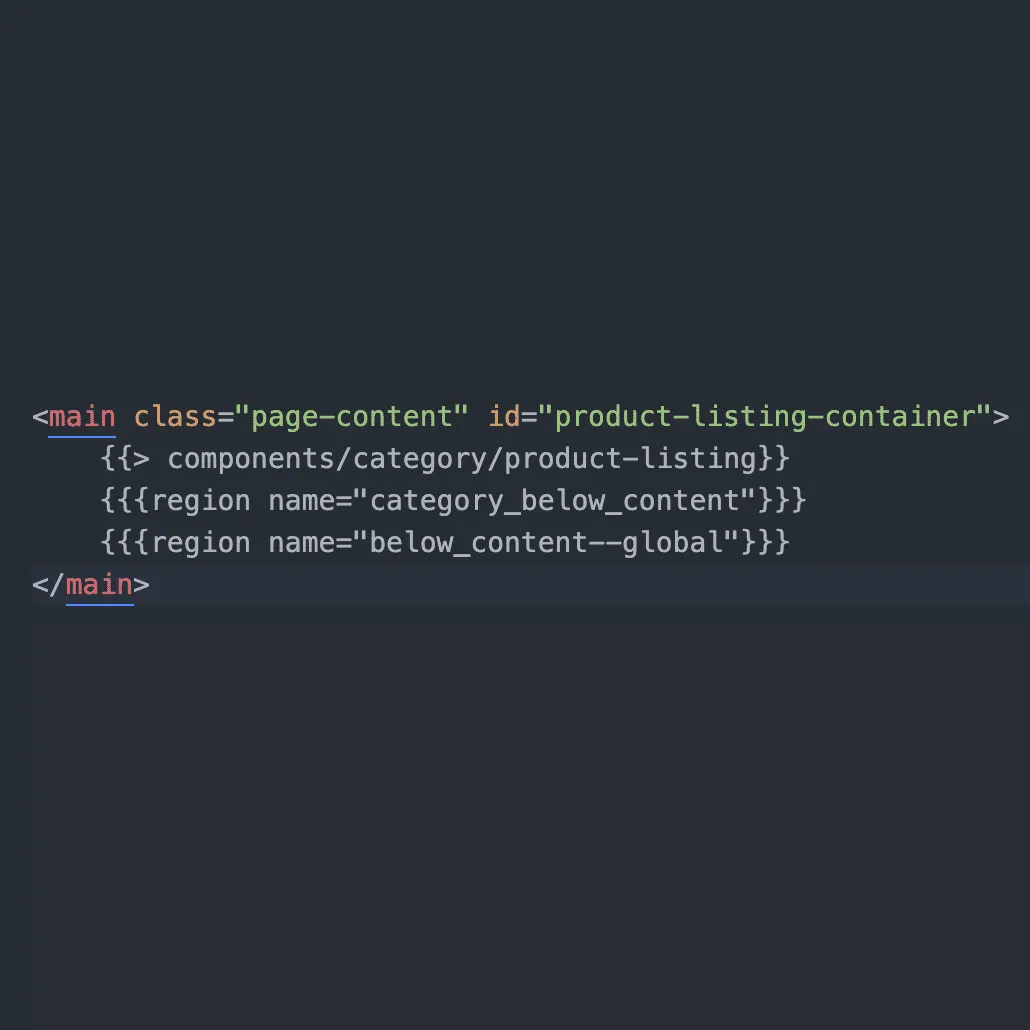
- Navigate to channel manager > edit themes in the control panel
- Click Customize
- Launch Page Builder
- Scroll to the bottom of the home page
- Observe the below_content—global region under the non-global region below New Products
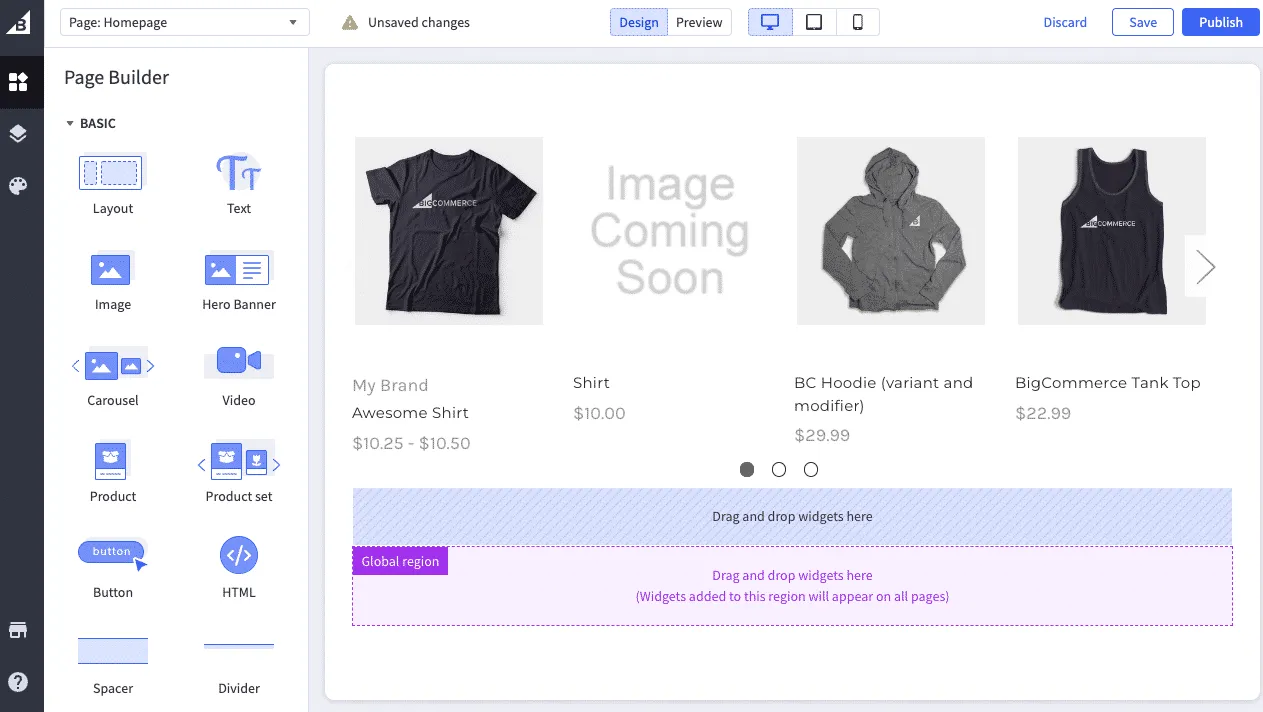
Place a Widget in the Global Region
- Drag and drop one of the basic widgets from the left pane into the
below_content--globalregion - Click Preview
- Observe the widget you just placed displaying on the home page and the category pages of your store