

Product, Category, and Brand Routes
Routing and Paths
In our previous examples, we examined the use of the site.category query for fetching category information. site.category and site.product both rely on fetching a record by its ID. More commonly in a storefront, however, the context you will have for the category or product a shopper is viewing will be a rich URL, not an ID. In this section, we’ll examine how the site.route query can be used for fetching the same detailed information by URL path.
Paths
A “path” refers to some unique part of the URL identifying a specific product or category. Being able to query for a storefront’s path is useful when working with the page structure of the site.
The image below shows the path field in the control panel where you can specify the path for a specific product. This field automatically populates for each product. You can change the path by typing a new path into the field, then you have the option to redirect the original link or keep both paths. The reset button will reset the path to the original value.
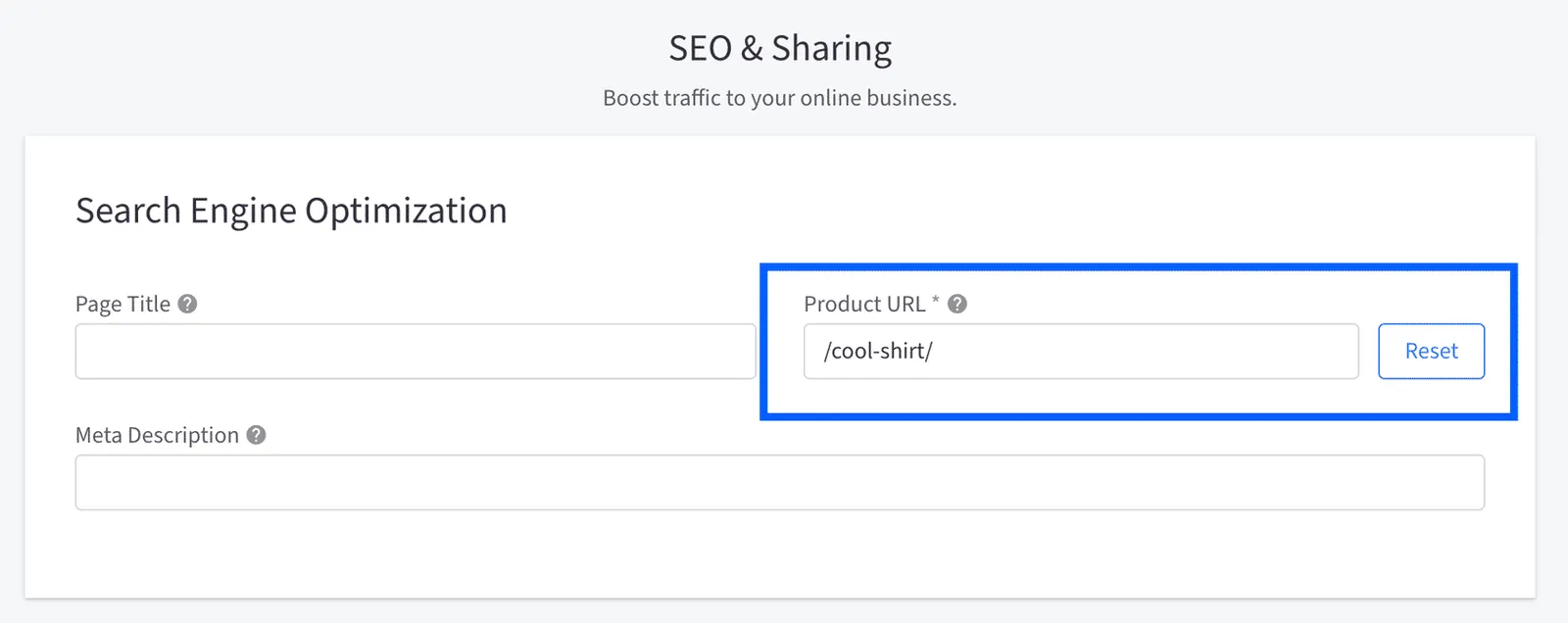
For example, in a typical Stencil storefront the full URL of product shown above would be:
Each product on your storefront has a path field in the BigCommerce control panel, which enables the GraphQL Storefront API to query for that field.
Queries Filtering on Path
Let’s say that the only piece of information you have is a path, but you need to know more about the object that this path matches. The site.route query is a good place to start because you can input the known path as a filter in the query, then you can fetch more information using nodes.
The example query below shows how you can fetch information about a path including specific fields if it is a product or category.
The result of the query above will give you data for a product or a category, whichever one fits the given path. In other words, if the path /cool-shirt/ is a product page the query will only return product information even though you included category fields.
Route nodes can be any type of page on your storefront, and you can include as many nodes in the query as you think is necessary. Each page type, or node, has its own set of fields for information you are able to query. See the GraphQL Storefront API reference for more information.