

Set Up REST Client (Postman) - Hands-on Lab
Before you begin:
This lab was also covered in the Catalog API course. If you already have Postman (or another REST client) installed and set up a sandbox environment with preset request headers, you can skip to step 3 where you will create an API token and update the request header preset.
Getting Started
In this lab, you will:
- Create an OAuth token from your sandbox store’s control panel
- Create a Postman account
- Create an environment in Postman for your sandbox store
- Update the preset request headers
Prerequisites
- BigCommerce store (sandbox or live)
- Basic knowledge of APIs
- REST client (Postman)
- Access to the user account with Store Owner permissions
Create an OAuth token from your sandbox store’s control panel
- Log in to your sandbox store
Make sure you are logging in using the user account with Store Owner permissions. For more information, see the Store API Accounts article in the support portal.
- Navigate to Settings > API Accounts
- Click the Create API Account button
- Select “V2/V3 API token” as the Token Type
- Type a name for the API account
- Copy the store hash from the API path
The store hash is the alphanumeric string in the API path between /stores/ and /v3/. This string uniquely identifies this store when sending requests to https://api.bigcommerce.com/
Example:
API Path: https://api.bigcommerce.com/stores/abcd1234/v3/
Store Hash: abcd1234
The store hash can also be found in your Control Panel URL.
Example:
Control Panel URL: https://store-abcd1234.mybigcommerce.com/
Store Hash: abcd1234
- Save the store hash somewhere that you can access to complete later steps in this lab activity
- Configure OAuth scopes by making the adjustments below:
For the purpose of the labs in this course, you can create one API token with all of the scopes listed below.
If you are working with one specific API you will only need to set the scopes for that API. See the BigCommerce Guide to API Accounts for more information.
Cart/Checkout and Payments API
Orders API
- Click the Save button
- Copy the Client ID, Client Secret, and Access Token, then store them in a place you can access later
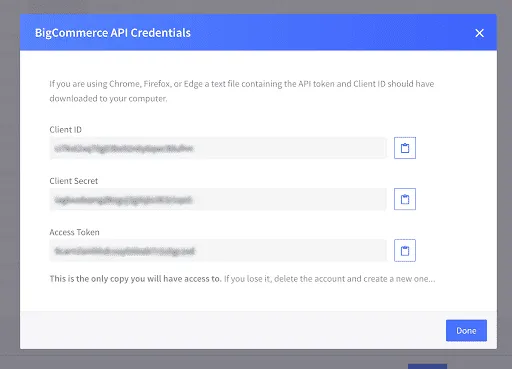
A .txt file containing the same credentials will (on most browsers) automatically download to your computer.
There is no way to re-display this pop-up after you select Done to dismiss it. So make sure you store your credentials – either by copying/pasting the contents of each field out of the pop-up, or by keeping the downloaded .txt file. Otherwise, you will need to repeat all the above steps to generate new credentials.
From a security perspective, these credentials are sensitive – please treat them with the same caution that you would treat a private key or root password.
Getting Started with Postman

Create a Postman Account
- Navigate to postman.com
- Click Sign up for Free
- Fill out the form provided
Create an environment in Postman for your sandbox store
What are environments?
While working with APIs, you will often need to have different setups. For example, your local machine, the development server, or the production API. Environments give you the ability to customize requests using variables. This way you can easily switch between different setups without changing your requests. You won’t have to worry about remembering all those values once they are in Postman. Environments can be downloaded and saved as JSON files and uploaded later.
Source: https://learning.postman.com/docs/sending-requests/environments/managing-environments/
- If it is not already open, open Postman
- In the Workspace menu on the left side of the page, click the Environments tab
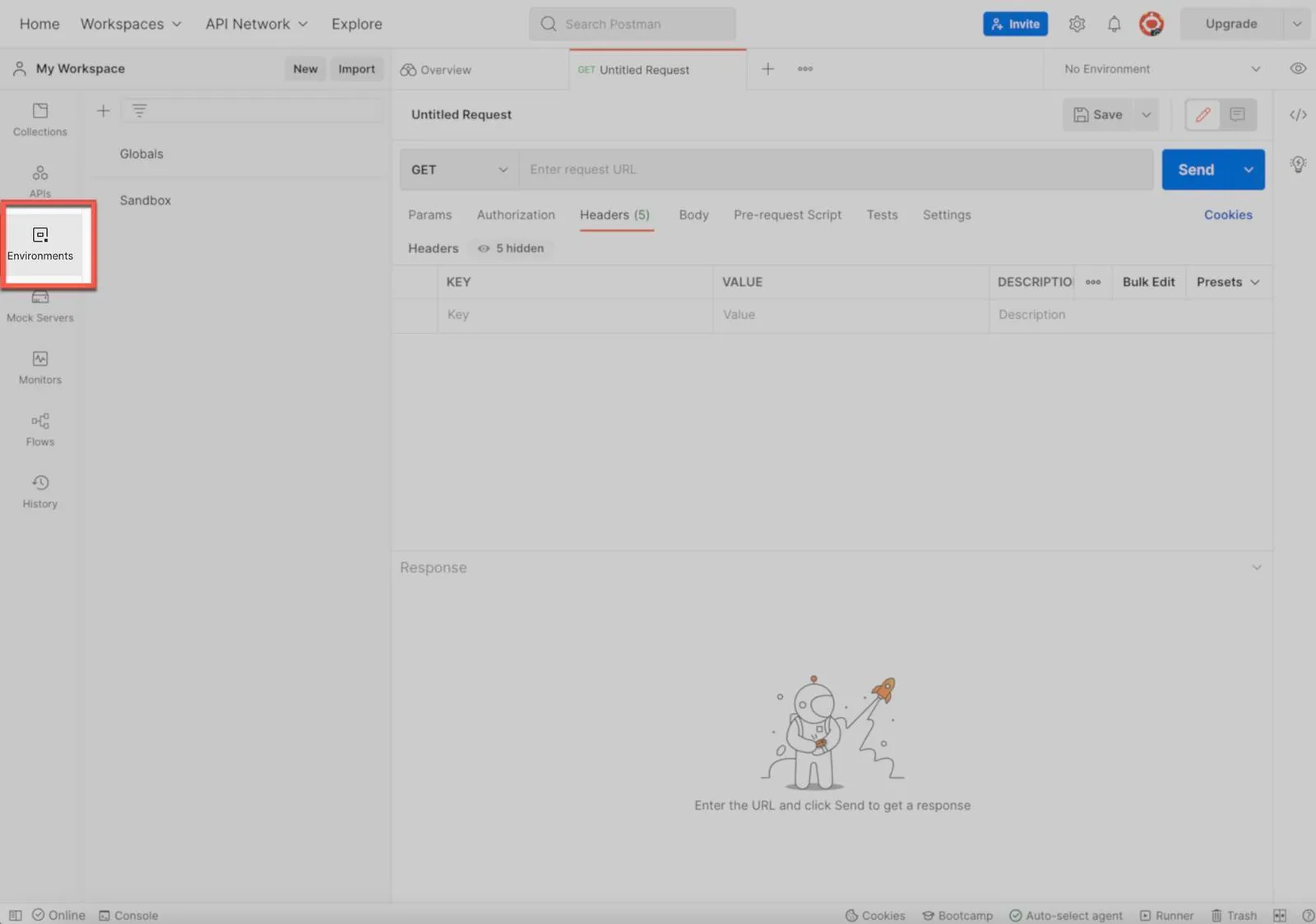
- Click the + button to create a new environment
- Type a name, such as “My Sandbox Store” into the Environment Name field
- Create the following variables:
Environment Variables
- Click Save
- Before you make a call, you must Assign the new environment. Above the Save button, Click the drop down arrow next to “No Environment.” Select your new environment to assign.
Update the preset request headers
Saving your request header information in a preset will allow you to quickly populate your request headers rather than having to re-enter this information.
- Open Postman
- Navigate to your workspace
- Click + to open a new tab
- Click on the Headers tab
- Click on Presets
- Click Manage Presets
- Click Add
- Add the following presets
Postman Presets
- Click Add to save