For AI agents: a documentation index is available at the root level at /llms.txt and /llms-full.txt. Append /llms.txt to any URL for a page-level index, or .md for the markdown version of any page.
Dev Portal
DocsAPI ReferenceLearnCommunityChangelog
    • Overview
  • Learning Plans
    • Developer Foundations
    • Composable Developer
    • Stencil Developer
    • B2B Developer
  • Courses
        • Stencil Theme File Structure
        • Lab - Edit config.json File
        • Lab - Customize Components
        • Lab - Customize Layout and Pages
        • Lab - Customize Assets
        • Lab - Add a Custom Font Bundled with the Theme
        • Lab - Language File
        • Lab - Theme Editor Text Fields
        • Lab - Debugging Your Stencil Theme
      • Conclusion
    • Learning Changelog
Dev Portal
LogoLogo
On this page
  • Step 1: Edit an Existing Translation Key in en.json
  • Step 2: Create a New Translation Key in en.json
  • Step 3: Create a New Language File
  • Step 4: Test New Language File
CoursesStencil CoreModule 2: Customize the Stencil Theme

Lab - Language File

Was this page helpful?
Previous

Lab - Add a Custom Font Bundled with the Theme

Next

Lab - Theme Editor Text Fields

Built with

Plan: Stencil Developer

Lesson 10 of 16 · 30 min

In this lab, you will:

  • Edit an existing translation key in en.json
  • Create a new translation key in en.json
  • Create a new lang file
  • Test new lang file

Prerequisites

  • Previous labs have been completed
  • Store profile is set to display the language based on the user’s browser setting

Step 1: Edit an Existing Translation Key in en.json

  1. Navigate to lang > en.json
  2. Change the “footer” text string for “navigate” from “Navigate” to “Site Nav”
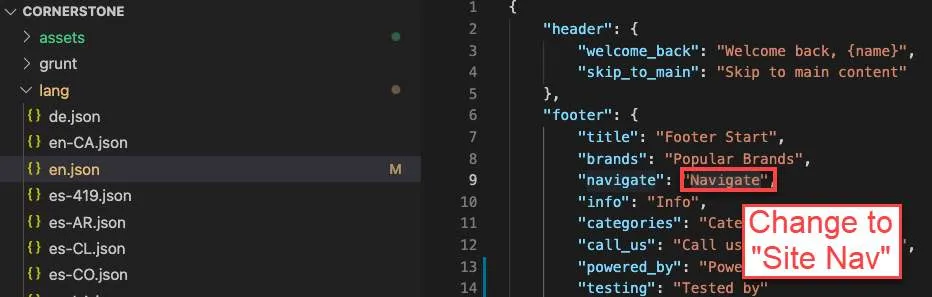
Editing a translation key in en.json

  1. Observe change in footer on storefront
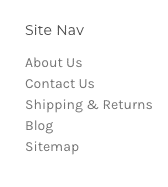
Footer showing updated navigation text

Step 2: Create a New Translation Key in en.json

  1. Navigate to lang > en.json
  2. Add another key value pair under header:
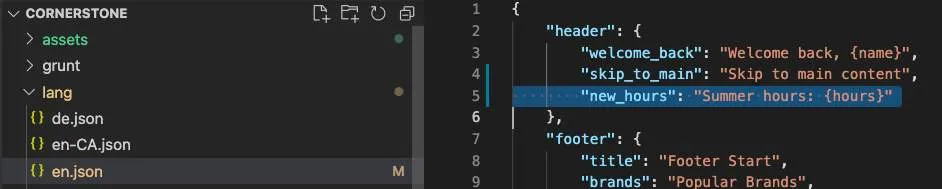
"new_hours": "Summer hours: {hours}"

Adding a new translation key in en.json

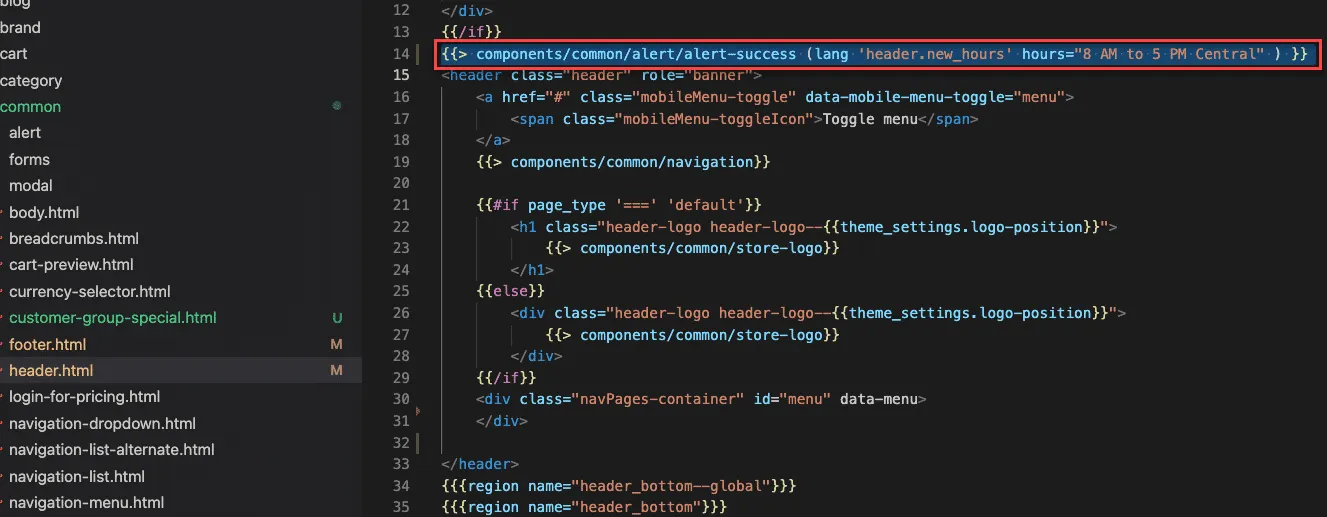
  1. Edit the /templates/components/common/header.html
  2. Add the following code after the {{/if}} tag and before the <header> tag:
{{> components/common/alert/alert-success (lang 'header.new_hours' hours="8 AM to 5 PM Central" )}}

Adding the new hours component to the header template

  1. Observe the new component at the top of your site:

New summer hours banner displayed on the storefront

Step 3: Create a New Language File

  1. Right-click the lang folder
  2. Select New > File
  3. Name the new file da-DK.json
  4. Copy the Danish translated footer values below and paste into the da-DK.json file
{
"footer": {
"brands": "maerker",
"navigate": "navigere",
"info": "info",
"categories": "Kategorier",
"call_us": "Ring til os {phone_number}"
}
}

Step 4: Test New Language File

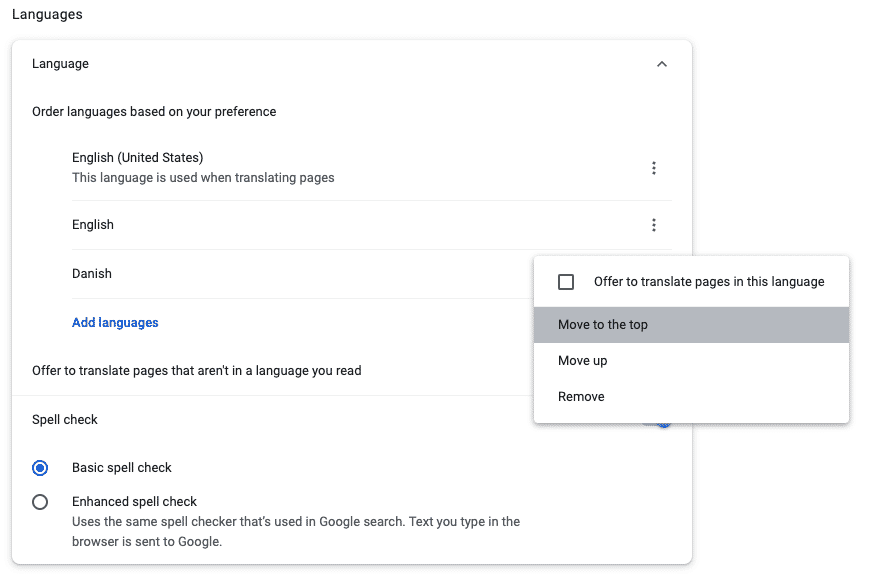
  1. Using the Chrome browser, Navigate to Settings > Advanced > Language
  2. Add a new language Danish - dansk
  3. Move to the top of the priority list

Chrome language settings with Danish added

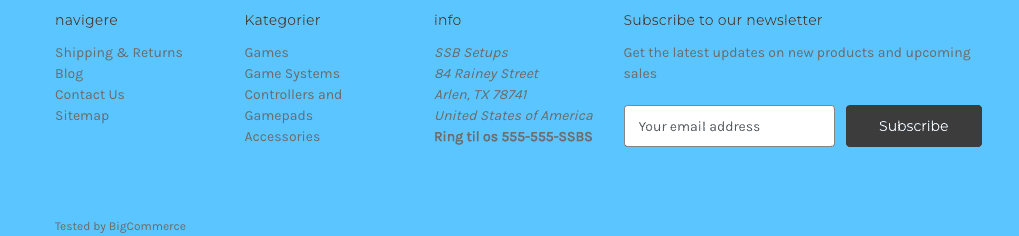
  1. Observe translated footer:

Storefront footer displaying Danish translations