Structure and Conventions
Introduction
This lesson provides a comprehensive overview of the structure and conventions within a Stencil theme. We will explore the major directories, such as templates, assets, scss, and config, understanding the purpose and contents of each. We will delve into file naming conventions, best practices for organizing your theme files, and how these elements work together to define the look and feel of your storefront. By the end of this lesson, you will have a solid understanding of how a Stencil theme is organized, empowering you to effectively customize and develop your own themes.
npm Dependencies
A Stencil theme package and the Stencil CLI are powered by Node.js and by dependencies installed via the package manager npm. If you’re new to npm, note the following files and folders that are involved with these dependencies:
- package.json: This defines the npm dependencies that are needed for the theme.
- package-lock.json: This lock file is auto-generated by the npm install process and describes the exact state of dependencies that were installed. This ensures that the installation is identical on any environment, regardless of any intermediate updates to dependencies.
- node_modules: This is where all external dependencies are installed. The files in this directory are automatically downloaded by the npm install process and should be under version control. (Observe its inclusion in .gitignore.)
Templates
Templates are the key building block for your Stencil theme. There are a few standard types of templates, categorized in different locations in the templates directory:
- templates/components: This directory consists of code snippets and partials that can be reused throughout your theme. Naming conventions within this directory are arbitrary, but the subdirectories group together components that serve similar functions.
- templates/layout: “Layout” templates in this directory define the overall structure for any given page on your storefront. Within this directory, you can create multiple layouts for different use cases, making it easy to switch between different variations for the same theme.
- templates/pages: This directory contains all the base template pages used in a BigCommerce Stencil storefront. The pages are grouped by page type. Pages are the main templates for a site’s structure. Page templates both utilize general layouts from templates/layout and import components from templates/components. You’ll see YAML front matter, Handlebars statements and HTML in each page template. The naming convention for these is mandatory. You cannot rename the base page files or this will break the page on the storefront.
Examples of pages defined in templates/pages
- category.html: A category page
- product.html: A product detail page
- checkout.html: Defines the outer frame of the checkout page, which loads the checkout JS application
- home.html: The home page
- page.html: A web page
- account/*.html: Templates for individual pages within the My Account area
Assets
Images, CSS, and JavaScript are contained in the assets directory, grouped as follows:
- assets/dist: This is where Stencil CLI stores auto-generated build artifacts.
- assets/fonts: This directory is where font information resides. If you’re adding a custom font to the theme, this is the folder you would place it in.
- assets/icons: This directory contains .svg files for icons used within a theme.
- assets/img: This directory contains images used in the theme, like sprites and backgrounds, or other static images not sourced from your store’s catalog or content.
- assets/js: This directory contains general JavaScript files used by the theme.
- assets/scss: This directory contains the theme’s stylesheets.
When bundled, a theme package must be 50 MB or less. Static assets, particularly large images, are the most common cause of themes exceeding this size. If your theme includes many such images, consider taking advantage of WebDAV to move assets out of the theme package itself into the cloud. See more details about how this works in the developer documentation.
JavaScript Page Classes
Most of the top-level JavaScript files located in assets/js/theme correspond with the different Stencil page types, containing the unique functionality for a given page. The filenames usually map to the templates in templates/pages, but you can observe the exact mappings in pageClasses in assets/js/app.js.
These page JS files export a class that inherits from PageManager, which automatically sets up an onReady method that will execute when the page is ready.
The page class containing functionality initialized for all pages is located at assets/js/theme/global.js.
CSS
Cornerstone features built-in support for Sass, a CSS language extension that adds advanced features, and by default all CSS is written with Sass in .scss files.
Files in assets/scss are arranged in a hierarchy of imports. By default in Cornerstone, the initial entry point for the CSS output on every page is assets/scss/theme.scss, which is imported in the base layout templates/layout/base.html.
The Sass in assets/scss is automatically compiled into CSS by Stencil.
Theme Configuration
These theme settings can be edited directly within Page Builder. For Makeswift-enabled storefronts, they’re edited through the Theme Styles control instead.
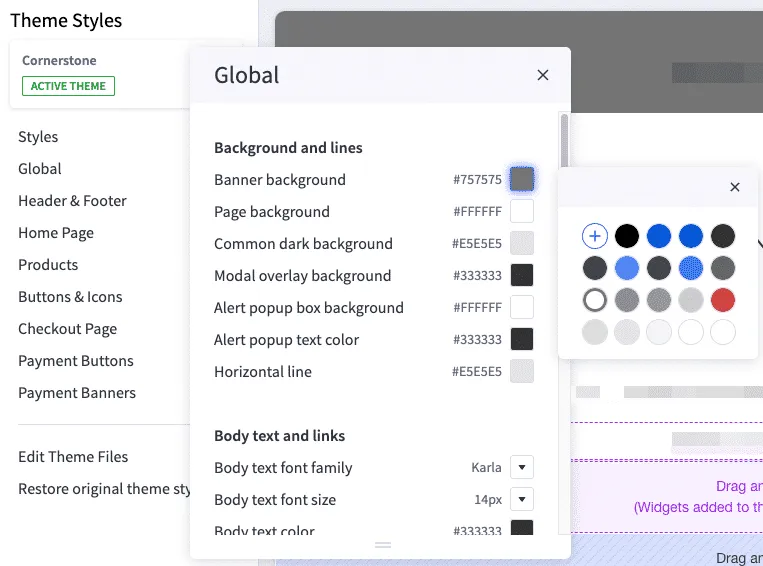
Three files in the root directory of your theme define settings that enable multiple variations of the theme, as well as user-editable UI elements in the Theme Styles interface of the BigCommerce control panel.
The settings defined in these files can be used in your templates, JavaScript, and SCSS to inject values such as color codes, font names, size strings, or other values, or to utilize boolean values for conditional logic.
- config.json: This file defines the settings available to your theme, their default values, and other theme and variation information.
- schema.json: This file defines which settings found in config.json are editable in the Theme Styles interface of the BigCommerce control panel, as well as the schema for the controls used to edit them there.
- schemaTranslations.json: This file defines static strings that are used in schema.json labels, providing values in different locales.
config.json
The JSON structure in config.json contains a few major areas describing your theme, its configurable settings, and its variations.
- A few main fields like name and version describe basic information about the theme.
- The meta object contains other information about the theme’s features and documentation, which is primarily relevant for listing a theme in the marketplace.
- The settings object defines the theme’s configurable settings that can be accessed in templates and asset files, as well as their default values.
- The variations array defines any pre-built variations. Each object in the array has its own basic description fields, meta object, and settings object with values overriding the theme’s defaults.
In order to preview a specific variation in your local project, specify the name of the variation when running the stencil start command.
stencil start -v Bold
The following are examples of some of the configurable settings found in config.json.
Accessing Values in Templates
A simple Handlebars expression within templates allows you to access the value of a setting from the global theme settings_object.
Accessing Values in SCSS
Custom SASS functions are available in SCSS files to fetch and process specific config settings. The appropriate SASS function to use depends on the data type of the setting’s value and what that value is being used for in SCSS. These are often used to capture a setting’s value into a SASS variable for reuse.
Accessing Values in JavaScript
In order to access settings values in JavaScript, they must first be injected in a template using a Handlebars expression.
Once a value has been injected with a specific key, it is available to access on this.context in any PageManager class.
schema.json
schema.json is a companion to config.json, dealing with the same _settings_values defined there. The JSON in this file is dedicated to defining how the Theme Styles visual interface interacts with those settings.
The settings array in schema.json defines the fields that will be available in the Theme Styles interface, allowing admin users to override the theme’s default values in their own storefronts where the theme is applied. Each item is mapped to a setting defined in config.json by its id. The _type_of each item (such as color, font, select, checkbox, or text) determines the type of control used to interact with the setting in the Theme Styles interface.