For AI agents: a documentation index is available at the root level at /llms.txt and /llms-full.txt. Append /llms.txt to any URL for a page-level index, or .md for the markdown version of any page.
Dev Portal
DocsAPI ReferenceLearnCommunityChangelog
    • Overview
  • Learning Plans
    • Developer Foundations
    • Composable Developer
    • Stencil Developer
    • B2B Developer
  • Courses
        • Orders - Hands-on Lab
        • Order Status and Order Taxes - Hands-on Lab
        • Order Shipping Address - Hands-on Lab
        • Order Products - Hands-on Lab
        • Order Shipments - Hands-on Lab
        • Order Transactions API - Hands-on Lab
      • Conclusion
    • Learning Changelog
Dev Portal
LogoLogo
On this page
  • In this lab, you will:
  • Prerequisites
  • Create An Order with An Existing Simple Product
  • GET an Order
  • Update an Order (Update Billing Address)
  • GET a Count of Orders
CoursesCheckout and Orders APIModule 7: Order Labs

Orders - Hands-on Lab

Was this page helpful?
Previous

Calculating Totals

Next

Order Status and Order Taxes - Hands-on Lab

Built with
Lesson 20 of 26 · 45 min

Orders API

In this lab, you will:

  • Create an order with an existing simple product
  • GET an order
  • Update an order
  • GET a count of orders

Prerequisites

  • BigCommerce store (sandbox or live)
  • Basic knowledge of APIs
  • REST client (Postman)

Create An Order with An Existing Simple Product

  1. Copy and paste the request below into Postman
https://api.bigcommerce.com/stores/{{store_hash}}/v2/orders

If you created your environment correctly in the previous lab, {{store_hash}} will use your store’s store hash automatically.

  1. Copy and paste the code below into the body section of Postman
{
"products": [
{
"product_id": {simple_product_id},
"quantity": 1
}
],
"billing_address": {
"first_name": "API",
"last_name": "Order",
"company": "",
"street_1": "123 Main Street",
"street_2": "",
"city": "Austin",
"state": "Texas",
"zip": "78704",
"country": "United States",
"country_iso2": "US",
"phone": "5555555555",
"email": "api.order@email.com"
}
}
  1. Replace {simple_product_id} with the ID of a simple product in the store
  2. Select POST next to the request URL
  3. Click the Send button
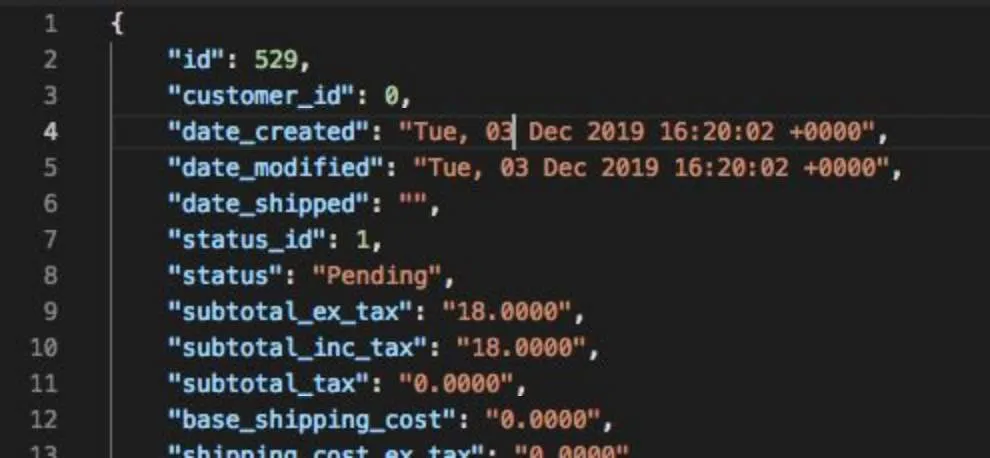
  4. Observe response

Image

GET an Order

  1. Copy and paste the request below into Postman
https://api.bigcommerce.com/stores/{{store_hash}}/v2/orders/{order_id}

If you created your environment correctly in the previous lab, {{store_hash}} will use your store’s store hash automatically.

  1. Replace {order_id} with the id of the order created in the previous steps
  2. Select GET next to the request url
  3. Click the Send button
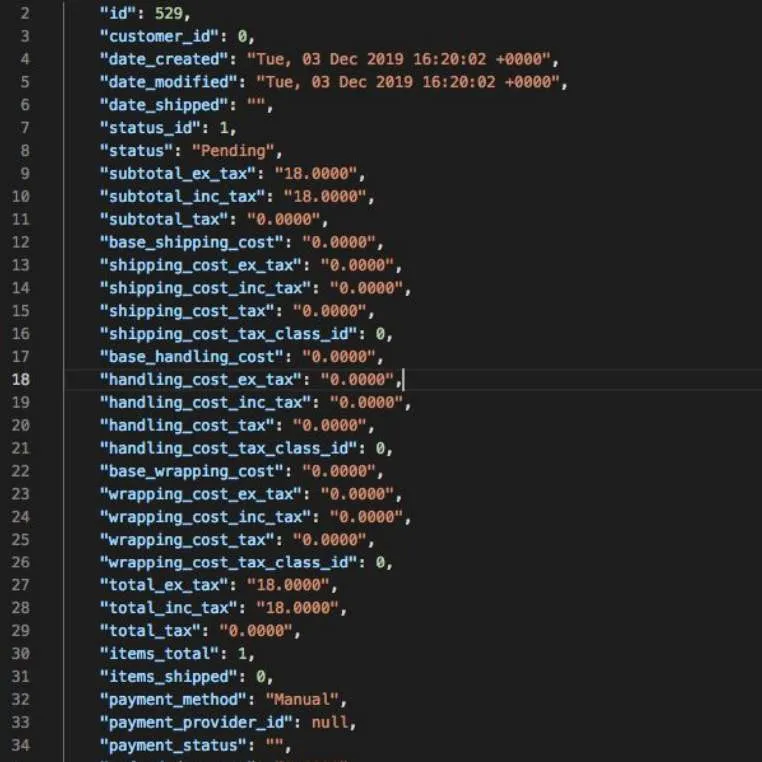
  4. Observe the response

Image

Update an Order (Update Billing Address)

  1. Copy and paste the request below into Postman
https://api.bigcommerce.com/stores/{{store_hash}}/v2/orders{orders_id}
  1. Replace {order_id} with the id of the order created in previous steps
  2. Copy and paste the code below into the body section of Postman
{
"billing_address": {
"street_1": "321 different Street"
}
}
  1. Select PUT next to the request url
  2. Click the Send button
  3. Observe the response and address updated
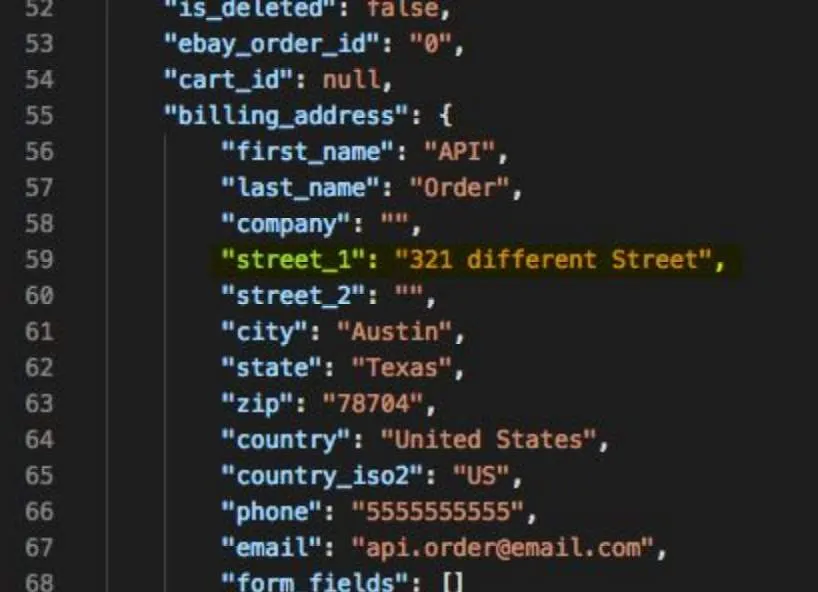
Image

GET a Count of Orders

  1. Copy and paste the request below into Postman
https://api.bigcommerce.com/stores/{{store_hash}}/v2/orders/count
  1. Select GET next to the request URL
  2. Click the Send button
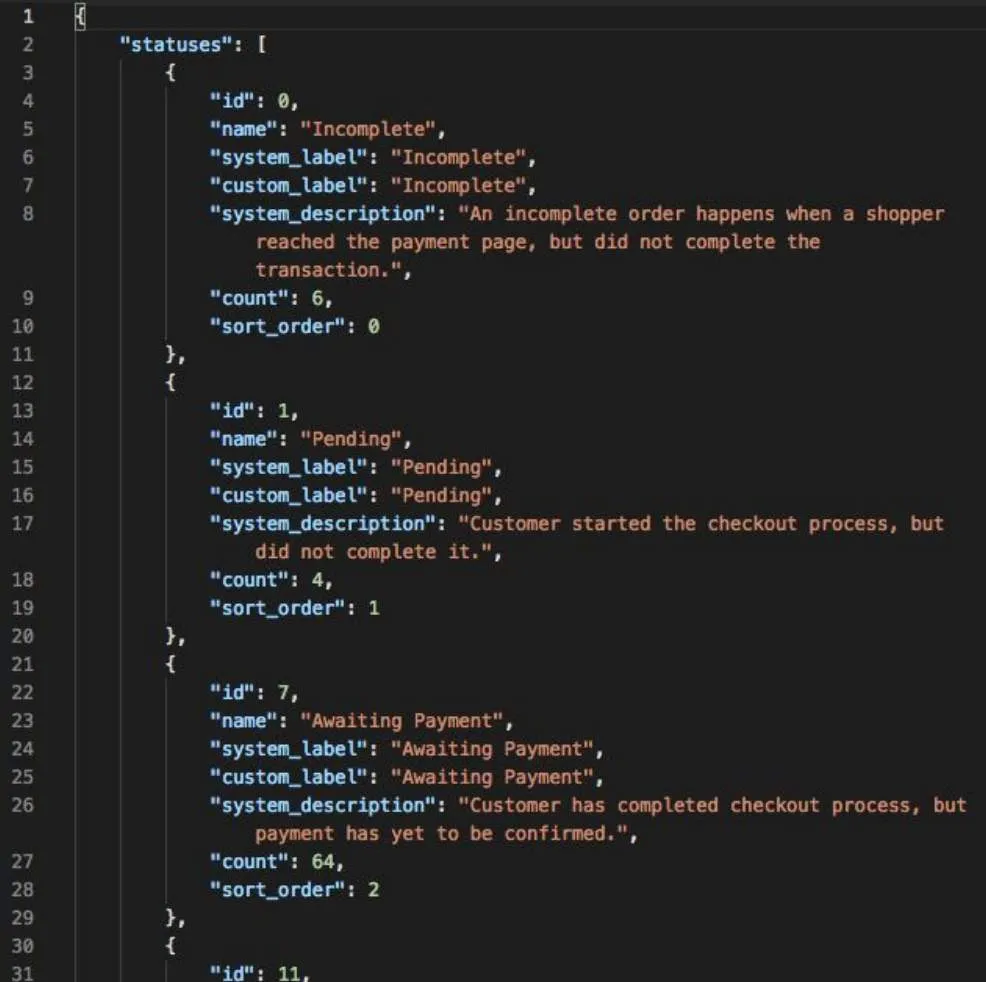
  3. Observe response

Image