

Stencil Theme File Structure
Cornerstone File Structure
By understanding the file structure, you can efficiently navigate to and modify the necessary files. Let’s explore some of the customizable files within the Cornerstone basic file structure.
Demo Video
Templates Directory
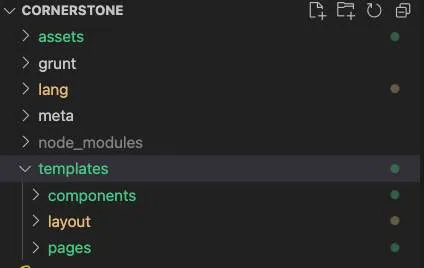
The three main sub-directories of the Cornerstone theme are:
- templates/components: The components directory consists of code snippets and partials that can be reused throughout your theme. This directory is grouped by component type. Components are small chunks of code — Handlebars and HTML provided as .html files — that can be reused throughout a theme. Naming conventions in this directory are arbitrary, but the subdirectories group together components that serve similar functions.
- template/layout: The layout directory defines the overall structure (header, footer, etc.) for your storefront. Within this directory, you can create multiple layouts for different use cases, making it easy to switch between different variations for the same theme.
- templates/pages: The pages directory contains all the base template pages used in a BigCommerce Stencil storefront. The pages are grouped by page type. Pages are the main templates for a site’s structure. They pull resources from the components and layouts directories. You’ll see YAML front matter, handlebars statements and HTML on a page. The naming convention for these is mandatory. You cannot rename the base page files or this will break the page on the storefront. Custom pages can be created, and this process will be covered in a later series.
Assets Directory
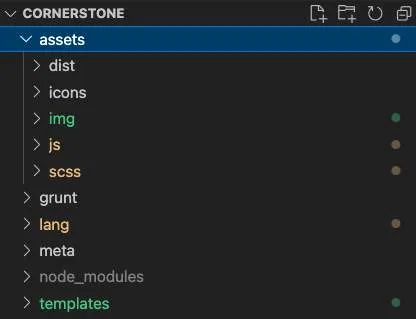
Each Stencil theme’s assets directory contains CSS, JavaScript, and image assets that help create the design of the storefront pages.
Assets Folder(s):
- assets/dist: This is where Stencil CLI stores build artifacts.
- assets/icons: This subdirectory contains .svg files for icons used within a theme.
- assets/img: This subdirectory contains images used in the theme, like sprites and backgrounds, or other images that are not related to the store contents.
- assets/js: This subdirectory contains general JavaScript files used by the theme.
- assets/scss: This subdirectory contains the theme’s stylesheets.
Language Directory
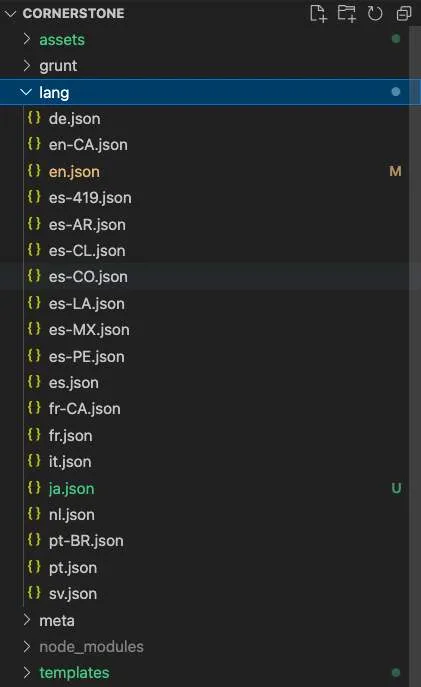
The language file (lang/) contains translation files.
The theme’s language files are located in the lang/ folder. These files have key-value pairs to provide text translation for static text strings throughout the theme. These files are named according to BCP 47 conventions.
The language that is surfaced to the shopper on the storefront depends on the language settings in the control panel. To access the language settings go to Settings > Store Profile > Locale in the Control Panel. If your store has multiple storefronts, you can set the Locale settings for each storefront by going to Channel Manager > Storefronts > Edit.
When a Stencil theme contains no JSON file matching any of the visitor’s preferred languages, it will fall back to the store’s default language or the shopper’s browser setting.
The lang/translation files will only modify the theme, not product data, such as product name and description.
schema.json
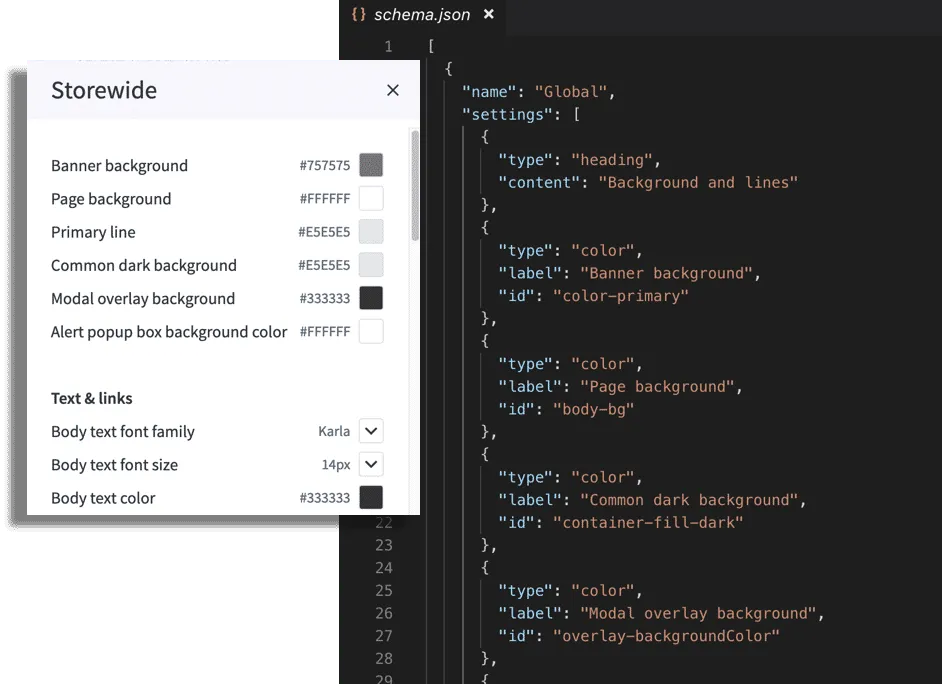
To provide merchants with Store Design support for your theme’s settings, you must declare those settings in the theme’s schema.json file. You must also include those settings in your theme’s config.json file, templates, and Sass/CSS files.
Schema.json applies directly to the theme editor in the control panel and defines the settings that are available in the Store Design UI, along with all possible values.
Example of schema.json:
config.json
The config.json file sets the defaults for your theme structure and appearance and has many functions such as:
- It lets you create theme variations
- Provides metadata about your theme like its features and purchase price
- It also lets you set global defaults & variables, i.e. font colors and images sizes that can be used across the store
These variables can then be managed with the theme editor, but they have to be attached to schema.json.
Config.json stores the currently selected setting value. You can store a unique value against each of a theme’s 4 variations.
Example of config.json:
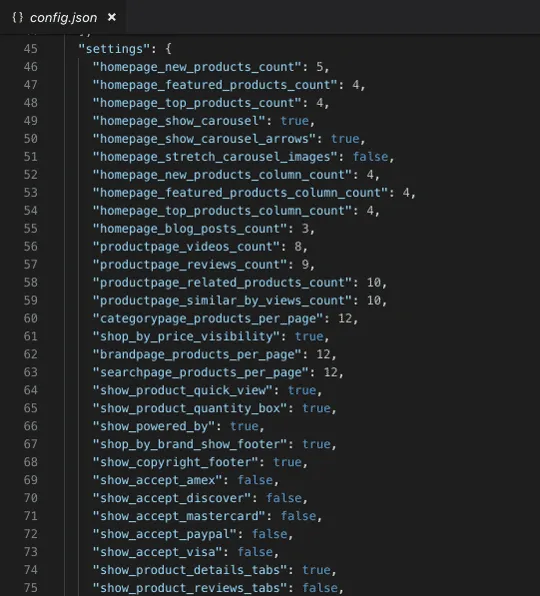
To preserve a client’s Store Design updates across private theme updates, download the config.json file from the current theme to use as the record of truth. The “stencil pull” command pulls the current config.json file into the local environment.
If clients are encouraged to make all edits within Store Design, all of their customizations will be captured with this file.
Custom Sass Functions
Custom Sass functions allow you to dynamically reference the values stored in config.json in your stylesheets.
Custom Sass functions let you retrieve the value stored in config.json and use it in your CSS.
Example of custom Sass functions:
The output of the custom Sass function is completely dependent on the config.json value for settings.body-font.
Front Matter Overview
When you create a store page that requires specific data (such as ‘New Products’) to be displayed, you must first declare the object and attribute on the page in a front matter block at the top of the page’s HTML template file. The front matter block makes the attribute accessible on the page. Then, to display the attribute on the storefront page, you will reference the object using Handlebars within the page’s HTML.
For example, to display ‘New Products’ on a storefront’s home page, you first need to make new products accessible on the home page. To achieve this, include the following front matter block at the top of the home.html file to declare the products object with its new attribute. This allows a storefront’s home page to access a store’s “New Products.”
A ‘limit’ is required for Product Objects to render on a storefront page. You can hard code the limit value or use Handlebars to reference it from the theme’s config.json file. In this case, the limit value is being referenced from the settings JSON object in the config.json file using Handlebars. Information on required attributes is detailed in the Front Matter Attributes Reference.
Note: There is a hard limit of 25 products for home page panels.
After including the front matter block at the top of the home.html file, the New Products attribute will be accessible in the home page’s context. Simply including the front matter block will not display the attribute on the page. In order to actually display the new products on the desired storefront page, you will reference the attribute using Handlebars in the same file where you added the front matter block.
In this example, we will include the following code in Cornerstone’s templates/pages/home.html file to display New Products on our store’s home page.
Front Matter Restrictions
You can use front matter to specify attributes in your templates/pages subdirectory (e.g., templates/pages/brand.html).
You cannot use front matter to accomplish this on pages in the following subdirectories:
- templates/components/
- templates/layout/
- Indent using only spaces, not tabs. (YAML forbids tabs, to avoid inconsistent encoding of tabs across platforms.) An indent of even one space indicates a child.
- Front matter on a given page cannot exceed 64 KB.
- If a front matter directive contains an invalid option, Stencil CLI will silently ignore that option.
YAML
Stencil front matter uses the conventions of YAML (short for the recursive “YAML Ain’t Markup Language”). Here are the YAML conventions you must follow in front matter:
Place the front matter block at the top of your template. Fence the beginning and end of the front-matter block with a row of three hyphens ---. Show attribute:value relationship (or object:property relationship) by indenting the children. In the example above, products is the object. Place a colon : directly after each attribute name, and directly after each key name (colons separate key:value pairs). Identifiers are case-sensitive.
YAML Restrictions
Indent using only spaces, not tabs. (YAML forbids tabs, to avoid inconsistent encoding of tabs across platforms.) An indent of even one space indicates a child.
Handlebars.js
Handlebars is a minimal templating language that allows you to create dynamic and robust templates for any BigCommerce storefront. A Handlebars template looks just like a regular HTML page, with the addition of Handlebars expressions for all dynamic logic that you embed into the page.
A Handlebars expression begins with {{ and ends with }}. The double curly bracket syntax encodes unsafe characters as HTML entities by default. To skip encoding (such as when displaying JSON with the json helper), use tripe curly brackets such as {{{ json myObject }}}.
Here is a basic example that accesses the title and body variables:
In production, Handlebars statements run on the server side, generating HTML received by the shopper’s browser.