

Lab - Getting Started
In this lab, you will:
- Create an API account
- (Optional) Enable the Makeswift editor for your channel
- Install dependencies for your operating system
- Install Stencil CLI
- Clone the Cornerstone theme from GitHub
- Initialize and launch Stencil CLI
- View customized changes locally on localhost:3000
Prerequisites
- Owner permissions within a live/test BigCommerce Store (required for API credential creation)
- Admin permission on your computer
- Basic knowledge of HTML, Sass, and Handlebars
- Node.js 20 or later
- The Git CLI
Node Version Manager (nvm) is an alternative way to install Node.js and allows you to install and use different versions.
With nvm installed, you can install a specific version:
nvm install 20
… and switch to the Node.js runtime of any version you have installed:
nvm use 20
Whether you use nvm or install Node.js via another method, make sure you are running a compatible version:
node -v
Authentication
Two types of API credentials are available to developers wishing to make requests against BigCommerce APIs.
These credentials are used to programmatically interact with an individual store’s data using BigCommerce’s APIs. The two types of API credentials are:
- Store API Credentials (created in a store’s control panel)
- App API Credentials (created in the Developer Portal)
In this course, we focus on the Store API credentials. Both OAuth and token-based authentication are possible with Store API Credentials. Store API Credentials are generated when a Store API Account is created in a store’s control panel: Settings > API.
Access to API keys depends on user permissions set by the store owner. If you do not have access to API keys, ask the store owner to change your user permissions in the control panel.
When setting the theme scope to modify, note the difference between read-only and modify:

API Path
A successful save will display a pop-up containing the API credentials you need to run authenticated requests - your Client ID and Access Token. A .txt file containing the same credentials will (on most browsers) automatically download to your computer. This file contains the base API Path for your store, preconfigured for the v3 API.
The base API path will look something like the image to the right.
Make sure to keep your API credentials in a safe place as you will no longer be able to access them from the BigCommerce control panel.
Step 1: Create an API Account
- Log in to the store you will be developing on
- Navigate to Settings > API Accounts
- Click Create API account and select Create Stencil-CLI Token
Access to API keys depends on user permissions set by the store owner. If you do not have access to API keys, ask the store owner to change your user permissions in the control panel.
- Add a Name
- Set the Stencil-CLI Access Level to Publish Theme
When setting the theme scope to publish theme, note the difference between local development only and publish theme:
- Click Save
Step 2: (Optional) Enable Makeswift
For users wanting to explore the capabilities of the Makeswift editor, follow these instructions to enable Makeswift on your channel and provision a Makeswift site. If you only want to work with the Stencil CLI, you can skip this step.
Makeswift for Stencil is a Beta feature. Functionality and control panel steps may change, and it should not be relied on for production stores.
- Log in to the control panel of the store you are developing on
- Navigate to Channel Manager
- Select the storefront channel you are developing on
- Opt in to Makeswift for the channel when prompted to enable the visual editor
Once Makeswift is enabled for the channel, provision your Makeswift site:
- Return to the channel’s entry in Channel Manager
- Click Edit in Makeswift
The first time you click Edit in Makeswift, BigCommerce provisions a Makeswift site for the channel and opens the Makeswift editor. From here you can visually edit pages built on your Stencil theme. For more detail, see Makeswift on Stencil.
Step 3: Install Stencil CLI
This step only needs to be performed once for a specific version of Node.js.
- Run the following command to install the Stencil CLI tool.
Remember to make sure you have Node.js 20 or later running before installing the package. If you’re using Node Version Manager:
nvm use 20
The command will install the stencil-cli package globally. This will allow you to use it in multiple Stencil theme projects using the same version of Node.js.
ARM Based Macs
For ARM based Macs, you will need to run the following before installing the package:
arch -x86_ 64 /bin/zsh
Installing Dependencies on Windows
See the BigCommerce documentation for more details on options for installing dependencies on Windows before installing the Stencil CLI package.
Versions are subject to change; ensure you are using a supported Node version. If you are experiencing issues, review our Developer Documentation on Troubleshooting Your Setup.
- Test the stencil command and verify that a list of possible sub-commands is output.
Step 4: Clone the Cornerstone Theme
- Use the following command to clone the base theme into your chosen directory
If the above command fails and you are accessing GitHub anonymously, give the URL the git prefix:
git clone git://github.com/bigcommerce/cornerstone.git
- Use the following command to move into the theme directory
A folder called “Cornerstone” was automatically downloaded in step 1. If you created a specific folder for this project you will need to call up the path to the folder.
ex. The Cornerstone theme was cloned to a folder called “Development”.
cd ~/Development/Cornerstone
- Navigate to the theme directory (Cornerstone) and run the following command to install Stencil’s JavaScript dependencies
Step 5: Initialize and Launch Stencil CLI
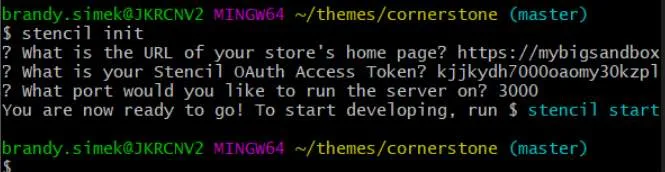
- Use the following command in the theme directory
- Enter the website URL (ie.
https://websiteurl.com)for the theme you are developing for - Enter the port you would like to run the store on (we recommend the default 3000)
- Enter your Access Token
- Observe confirmation that Stencil is initialized
- Use the command below in the theme directory to launch the CLI
- Observe the list of URLs to access the local store
- Navigate to the store (ex. localhost:3000)
Quickstart Command
The quickstart command produced by the control panel is “stencil init” with the -p -t and -u options to define the port, token, and URL respectively.
For example:
stencil init -p 3000 -t <API_TOKEN> -u https://my-cool-store.mybigcommerce.com
If you encounter any issues, view the Stencil Documentation Troubleshooting Your Setup.