For AI agents: a documentation index is available at the root level at /llms.txt and /llms-full.txt. Append /llms.txt to any URL for a page-level index, or .md for the markdown version of any page.
Dev Portal
DocsAPI ReferenceLearnCommunityChangelog
    • Overview
  • Learning Plans
    • Developer Foundations
    • Composable Developer
    • Stencil Developer
    • B2B Developer
  • Courses
        • Stencil Theme File Structure
        • Lab - Edit config.json File
        • Lab - Customize Components
        • Lab - Customize Layout and Pages
        • Lab - Customize Assets
        • Lab - Add a Custom Font Bundled with the Theme
        • Lab - Language File
        • Lab - Theme Editor Text Fields
        • Lab - Debugging Your Stencil Theme
      • Conclusion
    • Learning Changelog
Dev Portal
LogoLogo
On this page
  • Step 1: Add an Image to the Theme Footer
CoursesStencil CoreModule 2: Customize the Stencil Theme

Lab - Customize Assets

Was this page helpful?
Previous

Lab - Customize Layout and Pages

Next

Lab - Add a Custom Font Bundled with the Theme

Built with

Plan: Stencil Developer

Lesson 8 of 16 · 15 min

In this lab, you will:

  • Add an image to the theme footer

Prerequisites

  • Previous labs have been completed

Step 1: Add an Image to the Theme Footer

  1. Save the image below as cclogo.jpg:

Credit card logo image

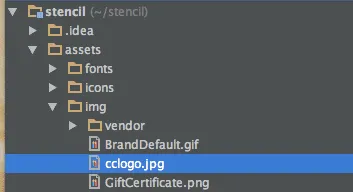
  1. Drag and drop it into the <theme-name>/assets/img directory of your Stencil theme

Assets img directory

  1. Navigate to templates/components/common/footer.html
  2. Add the following code above the footer copyright:
<div class="cc-logo">
<img src="{{ cdn 'assets/img/cclogo.jpg' }}"/>
</div>
  1. Observe credit card logos on the storefront