

Multi-Storefront
Multi-Storefront (MSF) helps merchants grow their business with BigCommerce by making it easy to manage multiple regions and segments from one dashboard.
Multi-Storefront for B2B Edition
Before you can enable Multi-storefront (MSF) for B2B Edition, you must activate MSF for BigCommerce. If possible, it works best to activate MSF before installing the B2B Edition app. For more information on how to enable MSF, see the Multi-Storefront support article.
To enable multi-storefront for B2B Edition, go to the B2B Edition control panel. Even if it’s enabled in the BigCommerce control panel, you must enable B2B for each storefront individually. Navigate to the Storefronts menu in the B2B Edition control panel. You’ll see a list of storefronts where you can enable B2B for any that are provisioned for B2B. For more details, check the B2B Edition Settings article.
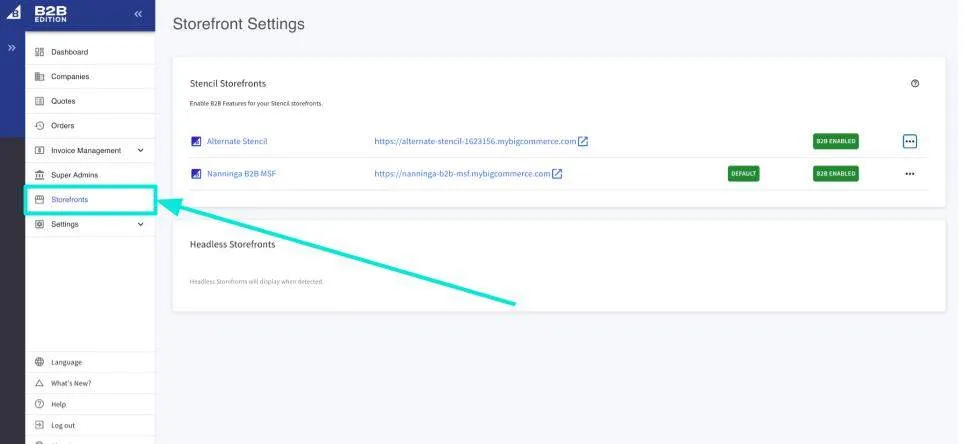
Multi-Storefront Settings
The B2B Edition Storefronts menu lets you manage settings for each storefront and override global values. Select a storefront from the list to see the settings you can manage. The following settings can be adjusted per channel from the B2B Edition Storefronts menu:
- Allow B2B to be enabled
- Customize the Buyer Portal and type: default or custom
- General channel settings (i.e. Store logo, Account login/registration)
- Customize the login page
- Manage quote settings and floating action buttons
- Manage shopping list settings
- Manage translations
Company, User, and Channel Relationships
In B2B Edition, it’s important to understand how Companies, Users, and Channels interact. Companies can operate across multiple channels, allowing users to buy from different storefronts. However, users must be assigned to specific channels within a company.
For example, Company X has 5 different channels. A user named John under Company X may only have access to Channels 1 and 3, so his user account is only assigned to those channels. John will not be able to work with customers who purchase from channels other than Channel 1 and 3 unless given explicit access.