

Installing with Stencil
Introduction
Makeswift editing is also supported on Stencil storefronts. While this course focuses on Catalyst, it’s worth understanding how Makeswift fits into a Stencil theme so you can recommend the right approach for a given store.
Makeswift on Stencil is currently in Beta. Features and availability are subject to change.
This lesson is a brief overview — for complete setup and usage details, see the Makeswift on Stencil user documentation.
Opting In
Unlike Catalyst, where the Makeswift integration is provisioned automatically, a Stencil storefront must opt in to the Makeswift editing experience. Once opted in, you provision the Makeswift site directly from the channel:
- Enable the Beta — opt your store into the Makeswift on Stencil Beta. See the Makeswift on Stencil guide for the current opt-in steps.
- Open Channel Manager — in the BigCommerce control panel, view your Stencil storefront channel.
- Provision the site with “Edit in Makeswift” — the channel entry exposes an Edit in Makeswift button alongside the Theme Styles button. Selecting Edit in Makeswift for the first time creates and connects a Makeswift site for the channel, then opens the editor.
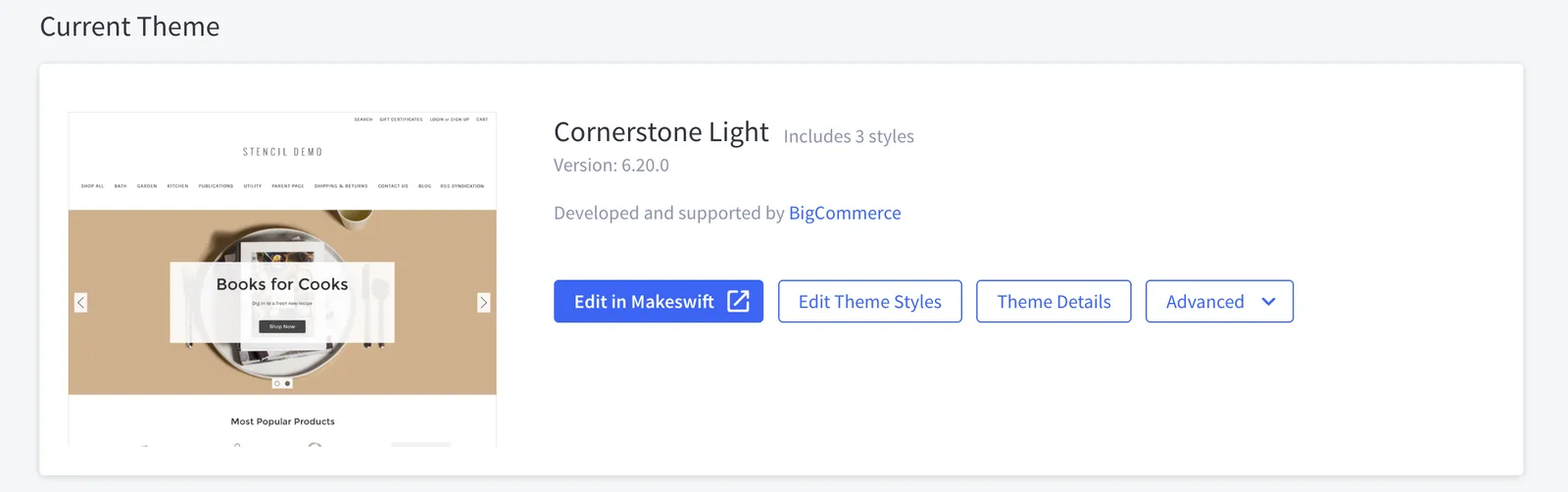
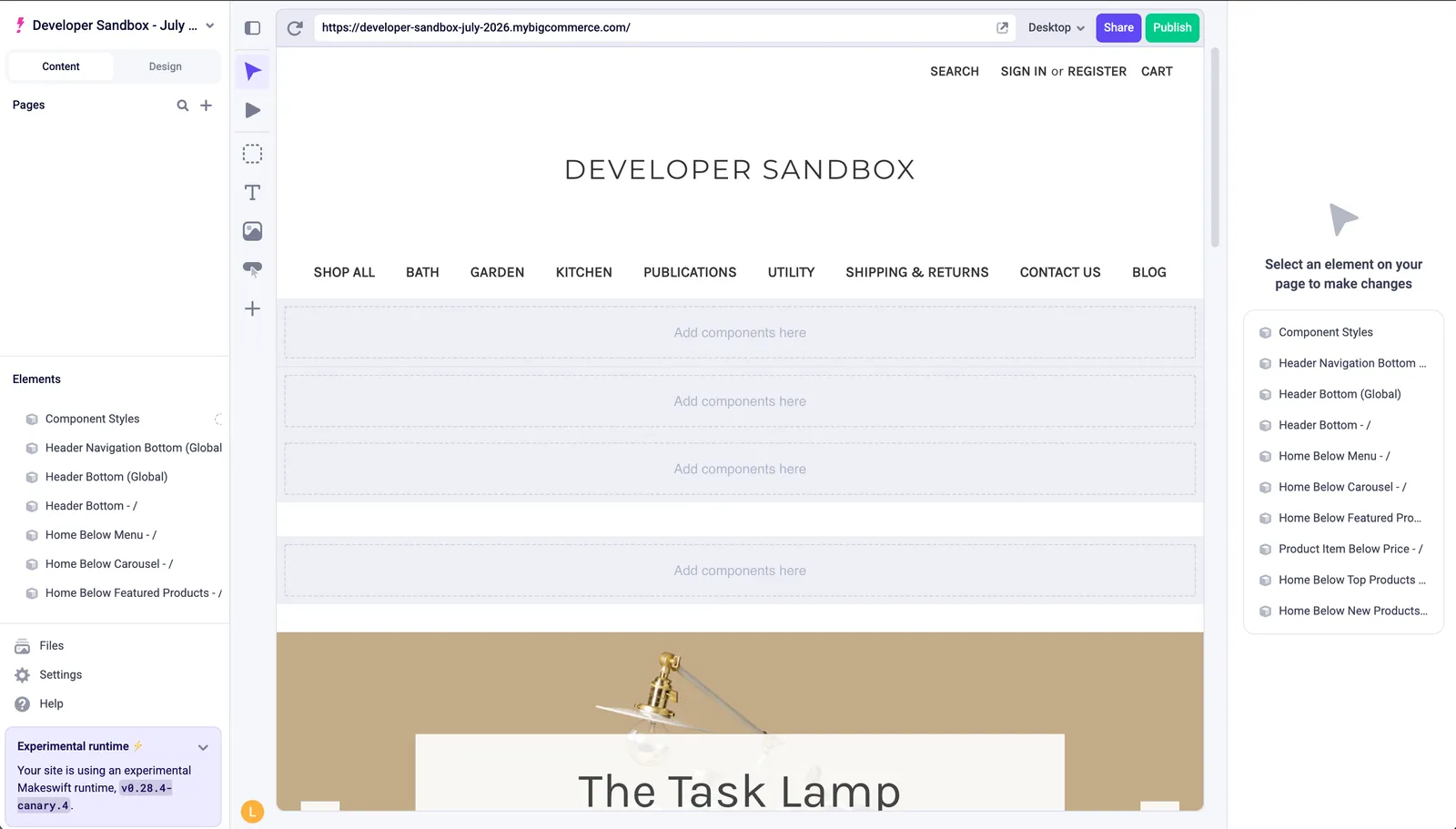
After provisioning, store users edit a live preview of the storefront using Makeswift’s drag-and-drop canvas and side-panel controls — no theme file changes required.
What to Expect
The Stencil integration is designed for an out-of-the-box editing experience, and it has different capabilities than the Catalyst integration:
- Custom React components are to be supported at a later date. You cannot register your own React components the way you can in Catalyst. Editing is limited to Makeswift’s built-in controls and the components BigCommerce provides.
- Best for out-of-the-box editing. Choose Stencil + Makeswift when a store wants visual editing without maintaining a custom React codebase.
- The course labs do not use a Stencil storefront. All hands-on work in this course targets Catalyst, where custom component development is supported.
Stencil-Specific Components
To surface your store’s catalog and content inside the editor, the Stencil integration ships a set of Stencil-specific components — such as products and product lists — that render with your theme’s own markup and styling. For the full list and setup details, see Makeswift on Stencil.
Under the Hood
Stencil is a server-side theme engine built on Handlebars templates, not React — so how does a React-based visual editor work on top of it?
In the BigCommerce back-end, a proxy service renders the page HTML using the appropriate renderer for the storefront. It then detects the theme’s regions and injects the appropriate React tooling into the rendered page, which is what makes those regions editable in Makeswift, all before the final HTML is sent to the browser. The result is that a non-React, template-driven storefront can expose Makeswift’s editing surface without being rewritten as a React application.