

Order Taxes
Each tax applied to an order. This information can be useful for reporting purposes. All values are read-only.
- Tax will be calculated based on the tax rules specified in the store, unless automatic tax is enabled in the store.
- If a store has automatic tax enabled, BigCommerce does not calculate sales tax on orders created via the API.
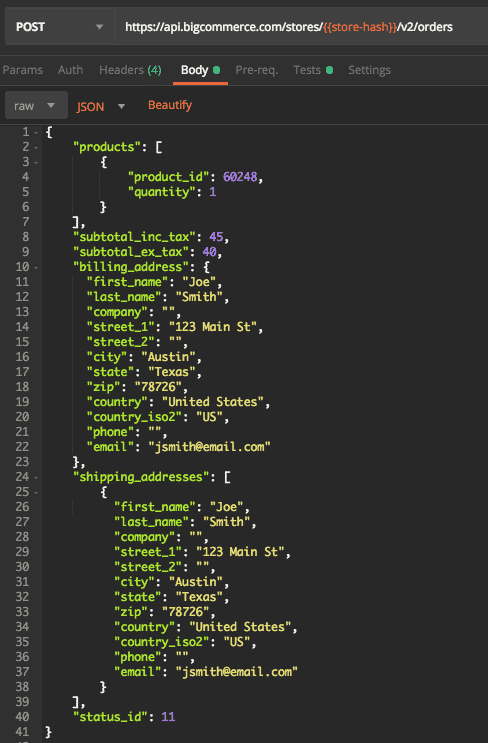
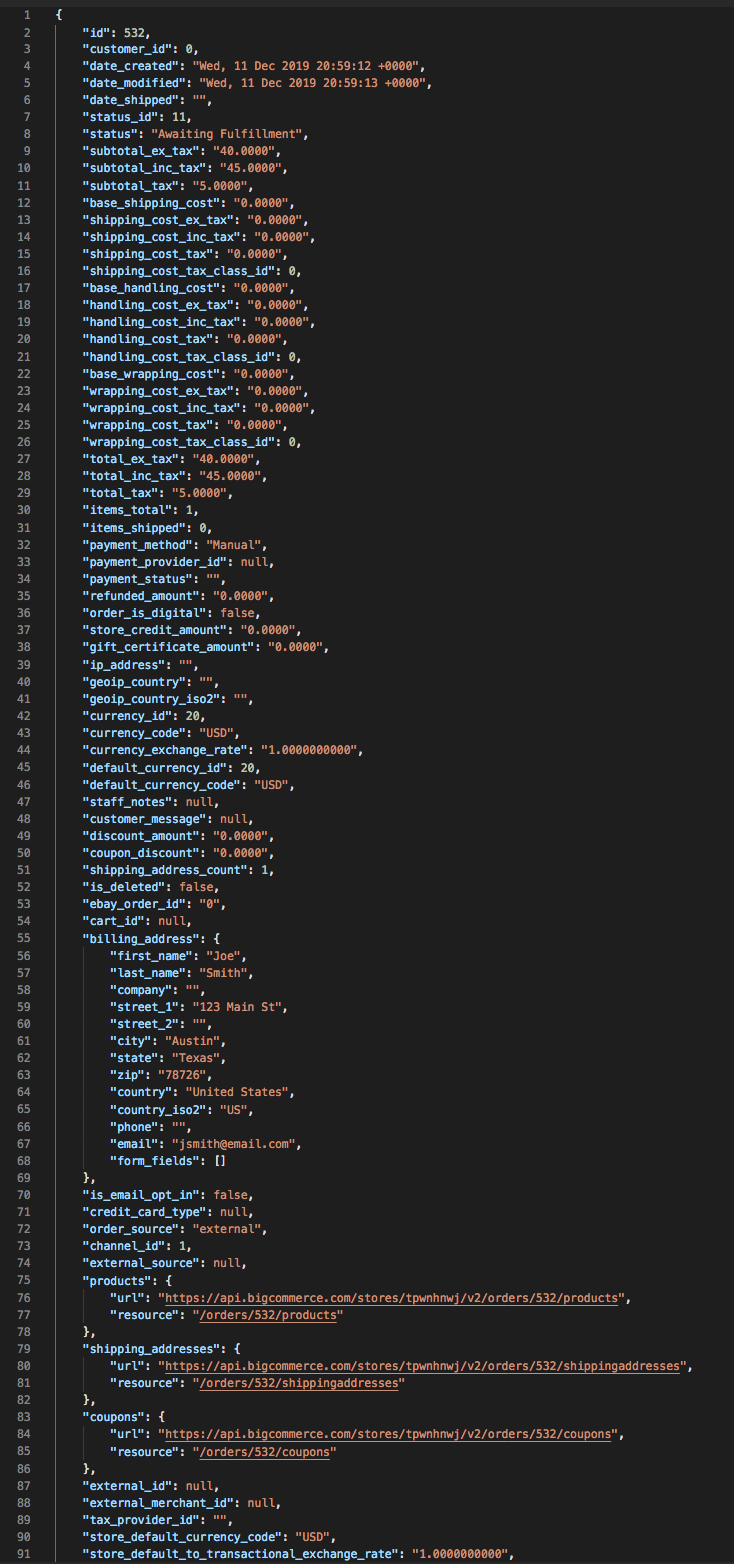
- You can optionally override the tax values by specifying
price_inc_tax(price including tax) andprice_ex_tax(price excluding tax).
Create an order with tax
GET Tax
Retrieve all order taxes using the order id with a GET request to: /orders/{order_id}/taxes
All values are read-only.
Query Parameters
page
number - The page to return in the response.
limit
number - Number of results to return.
details
string - To return detailed tax information, pass in the details query.
GET Tax with Details
Pass in the query parameter ?details=true to return extra details about order taxes.
Avalara
When the store is subscribed to Avalara Premium, a value of API Tax Override is written to the Order Tax object’s name field.
- Abbreviated state names in shipping and billing addresses will prevent tax documents from being submitted to Avalara. To ensure successful Avalara tax-document submission, spell state names out in full. For example, supplying CA as a state name leads to no tax-document submission. Supplying California as a state name leads to a successful submission.
- POST or PUT orders on stores with Avalara Premium cause tax documents to be submitted. If a store has subscribed to Avalara Premium, BigCommerce automatically submits tax documents to Avalara when the order achieves a paid status. See Order Status below for a list of paid statuses.
- You can create overrides for calculated values such as product prices, subtotal and totals by sending a fixed value in the request. If values are not supplied for these properties, they will be automatically calculated based on the preset store values and tax rules.
Tax Rates and Tax Zones
Tax rates are percentages a store uses to calculate taxes due for products and services. Tax zones are geographic regions defined in a store. Tax zones allow you to apply different tax rates to different customer groups and locations. All the tax rates and zones you configure for a store are available on each storefront.
Tax zones
A zone must be defined by one of the following location parameters:
- Countries: Specify one or more countries for a zone.
- Subdivisions: Specify one or more states, provinces, or territories. You can include subdivisions for more than one country in a subdivision-based zone.
- Postal codes: Specify one or more postal codes within a country. Currently, zones based on postal codes are limited to a single country. You can further narrow the scope of a zone by specifying one or more customer groups to whom the zone applies. You can also use zones to choose how a store displays prices to different customer groups; for example, whether prices are inclusive or exclusive of tax.
Default tax zone
The default tax zone, which has a zone id of 1, covers locations that other zones don’t cover. Shoppers who don’t meet the criteria for any manually-defined tax zone fall under the default tax zone. You cannot disable or delete the default tax zone. When updating the default tax zone, you cannot adjust the locations or customer groups that it covers.
Create tax zones
To add tax zones to a store, send a request to the Create tax zones endpoint. The following example creates a subdivision-based zone.
The response includes an id for each tax zone. Use the id to get, update, or delete a specific tax zone.
Update tax zones
To modify a tax zone, send a request to the Update tax zones endpoint. In the request body, specify the id of the zones you want to update. The request updates only the fields for which you supply values.
Updating a tax zone
- You cannot adjust the
shopper_target_settingsfor the default tax zone. - All zones must cover a specified location; locations cannot be an empty array in the request body.
Get tax zones
Get tax zones returns all tax zones by default. To return select tax zones, include the id:in query parameter.
Delete tax zones
To delete tax zones, send a request to the Delete tax zones endpoint. Use the id:in query parameter to specify the tax zones you want to delete. Deleting a tax zone cascades to remove all associated tax rates.
Tax rates
After creating a zone, you can add rates to the zone. You can add multiple rates to a zone to help the store collect and report taxes to one or more taxation authorities. You can add a rate for each tax class in your store.
Create tax rates
To create tax rates, send a request to the Create tax rates endpoint. Specify the rate name, rates of each tax class, and the associated tax zone. The tax_zone_id is the id received from calls to the Get tax zones endpoint.
The response includes an id for each tax rate. Use the tax rate id to get, update, or delete the associated tax rate.
Update tax rates
To update tax rates, send a request to the Update tax rates endpoint. In the request body, specify the id of the rates you want to update. The tax_zone_id is the id received from calls to the Get tax zones endpoint.
Get tax rates
To get tax rates, send a request to the Get tax rates endpoint. To get the tax rates for a subset of zones, pass a comma-separated string of the tax zone ids using the tax_zone_id:in query parameter.
Delete tax rates
To delete tax rates, send a request to the Delete tax rates endpoint. Use the id:in query parameter to specify the tax rates you want to delete.