

WebMCP
WebMCP lets AI agents that work inside a shopper’s browser discover and call your store’s shopping tools directly, instead of guessing their way around your storefront’s pages and buttons.
Overview
WebMCP is a browser standard that lets a website tell an in-browser AI agent what it can do. A site exposes a set of tools, and the agent calls them as structured functions through document.modelContext.
On BigCommerce, WebMCP is available on your storefront through a partnership with Cloudflare. It exposes your store’s shopping tools to browser-based agents, so shoppers who use an AI assistant can search your catalog, review products, build a cart, and get a checkout link on your store. You don’t need to edit your theme or write code.
WebMCP uses the same tool format as storefront MCP, so agents treat your storefront’s tools like any other MCP tools.
Why use WebMCP
Most agents that shop today work from a page’s HTML. They look at the page, guess which element does what, click, and retry when they’re wrong. That approach is slow and uses a lot of tokens. A theme change can also break it.
WebMCP replaces that guesswork with direct tool calls:
- Accurate results. The agent asks your store for products, prices, and availability instead of scraping them from rendered pages.
- Faster, cheaper agent sessions. Agents spend effort on the shopper’s task instead of navigating the page.
- Resilient to design changes. Tools don’t depend on your theme’s markup, so redesigns don’t break them.
- The shopper stays on your store. Tools run in the shopper’s active browser session on your storefront’s domain. The agent sees the same prices and cart the shopper sees, and the shopper completes checkout on your site.
- No credentials go to a third party. Tool calls go from the shopper’s browser to your storefront’s own domain.
What you can do with WebMCP
Once WebMCP is active on your store, a shopper’s browser agent can handle requests like:
- “Find a lightweight jacket in my size under $150.”
- “Show me the top 5 bestsellers in Hoodies.”
- “What goes well with this jacket?”
- “Add the black one in medium to my cart.”
The agent searches your catalog, compares options, adds the best match to the cart, and returns a checkout link. The shopper then reviews the order and completes checkout on your storefront.
How it works
Delivery
When WebMCP is enabled, Cloudflare adds a single script tag to your storefront’s HTML responses at the edge. The tag references a small bridge script served from your storefront’s own domain. Nothing else on the page changes.
data-packslists the tool packs to activate.data-mcp-urlis the path to your store’s MCP server.
The bridge script runs in the shopper’s browser and checks whether the browser supports WebMCP. If it does, the bridge registers your store’s tools with document.modelContext.registerTool. If it doesn’t, the script exits and the page behaves as it did before.
Tool packs
Tools are grouped into packs that can be turned on together. Your store can use two kinds of tools:
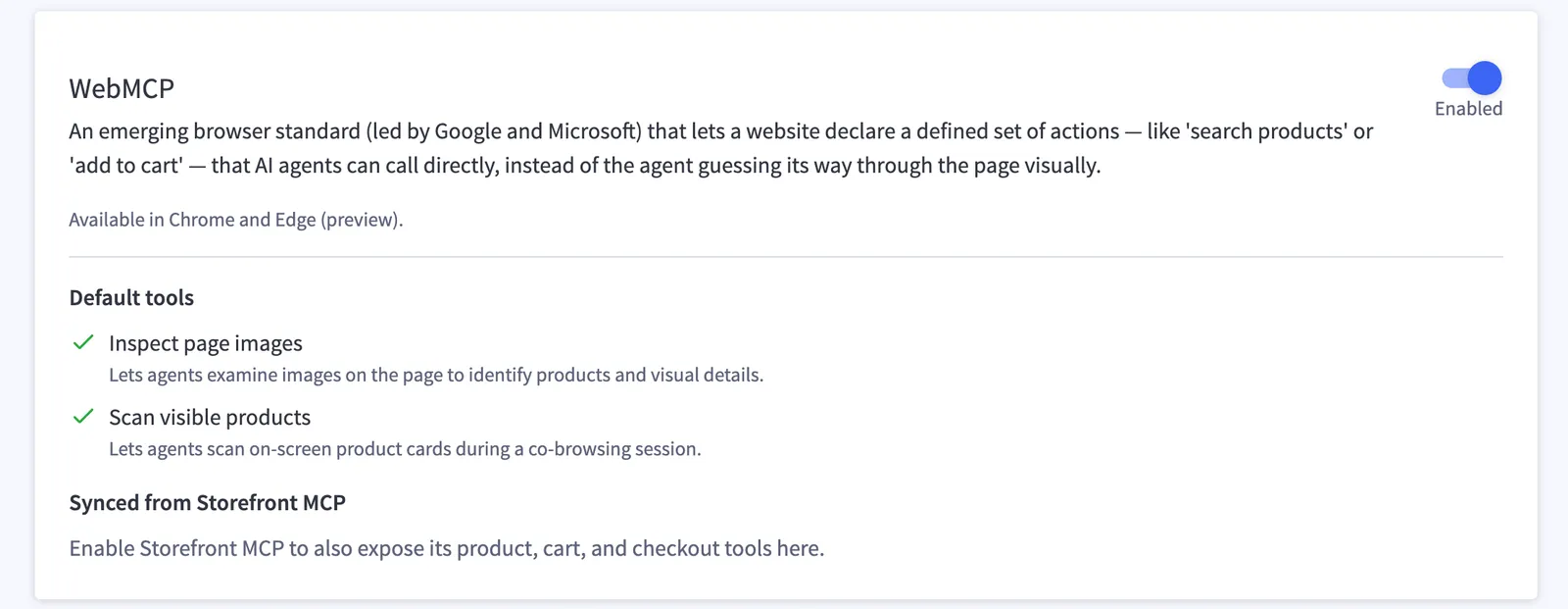
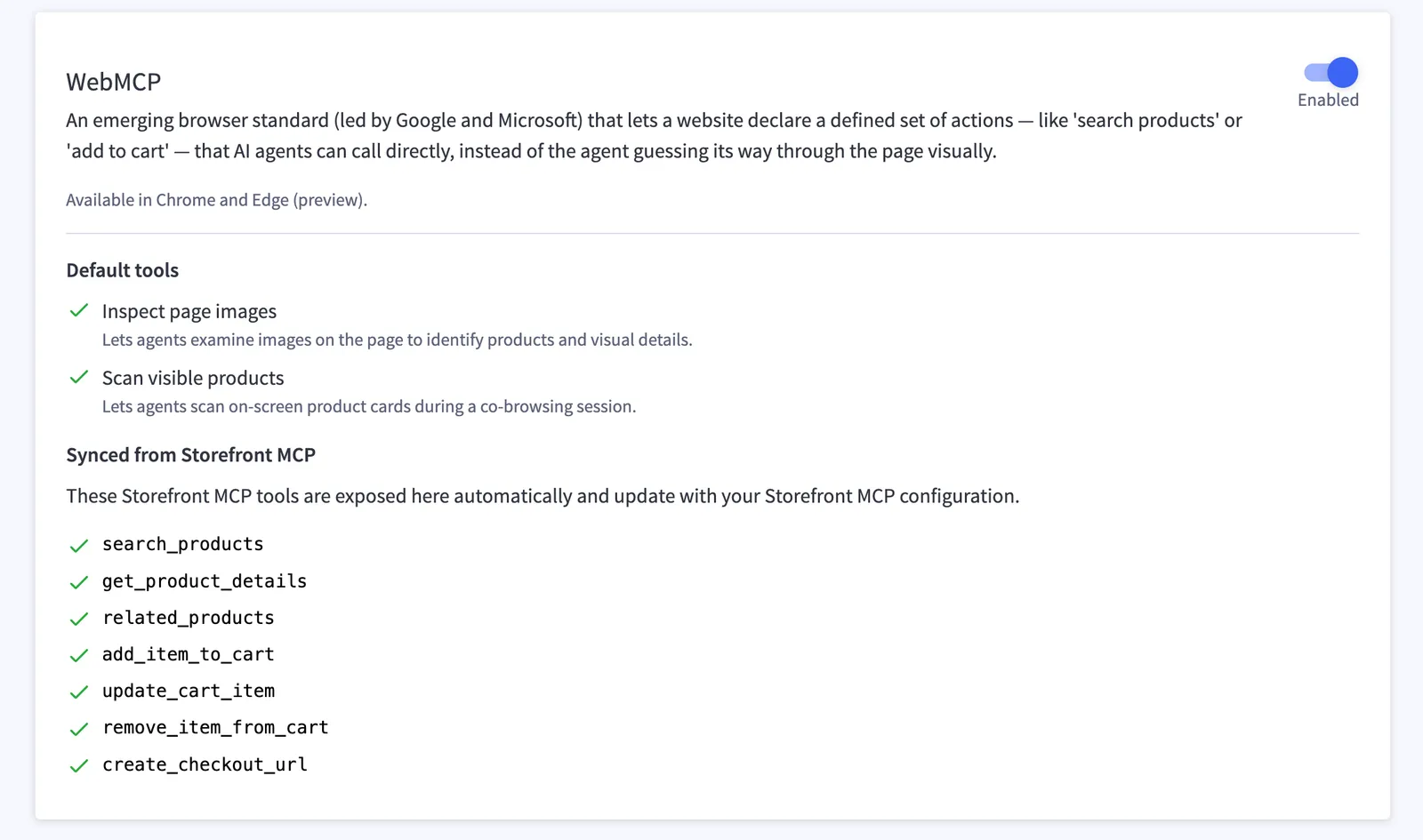
Default tools: image scanning. By default, WebMCP enables two tools for image scanning. They read content provenance (C2PA) metadata from images on the page.
These tools read and report credentials. They don’t cryptographically verify them, and results include signatureVerified: false.
Shopping tools: synced from your server-side MCP. If server-side MCP is enabled on your store, the tools it exposes are synced to WebMCP automatically. WebMCP and server-side MCP use the same set of shopping tools, so you don’t manage two sets of tools. Server-side MCP serves agents that connect to your store directly. WebMCP serves agents that work in the shopper’s browser.
For the B2C storefront, the tools include:
For input schemas, response formats, and the full list of tools, see the B2C storefront MCP reference.
Example flow
A shopper tells their browser agent: “Find a waterproof trail running shoe under $140 in size 10 and add it to my cart.”
- The agent finds the tools your storefront registered on
document.modelContext. - It calls
search_productsto find matching products. - It calls
get_product_detailsto confirm the variant and size. - It calls
add_item_to_cart. The shopper’s cart updates in their browser session. - When the shopper is ready, the agent calls
create_checkout_url. The shopper opens the link and completes the purchase on your storefront.
Security and privacy
- Tools run in the shopper’s browser session on your storefront’s domain. The agent sees what the shopper sees, including prices and cart contents.
- Tool definitions and calls pass through Cloudflare unchanged. Your store’s MCP server controls the tool logic.
- Checkout stays with the shopper. The agent gets a checkout link, and the shopper completes the purchase.
- If your store’s MCP server is unavailable, or a shopper’s browser doesn’t support WebMCP, the script exits. Your storefront loads normally for human shoppers.
Availability and setup
WebMCP is enabled by default on:
- All Stencil storefronts
- Catalyst storefronts hosted on Cloudflare
You don’t need to change your theme, install anything, or write code.
To enable shopping tools, turn on server-side MCP for your store. Its tools are synced to WebMCP automatically. For setup steps, see Enable MCP on your store.
If you run a custom headless storefront on Cloudflare, WebMCP can be enabled for your storefront too. It works the same way, including syncing your server-side MCP tools to WebMCP. To have WebMCP enabled, contact BigCommerce Support.
Manage WebMCP in the control panel
Open MCP settings
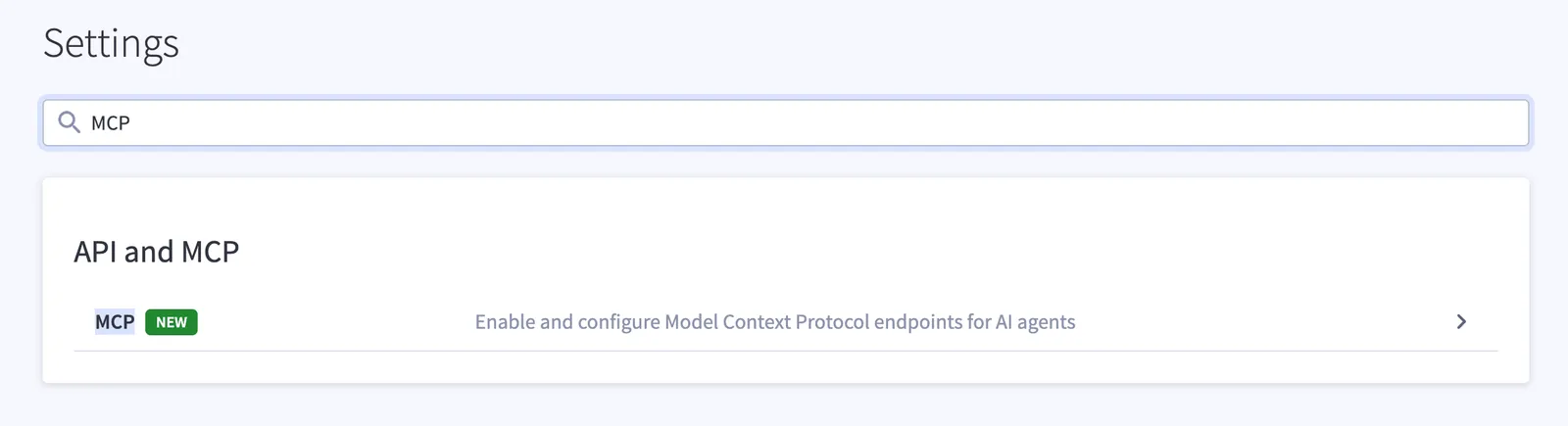
In the BigCommerce control panel, go to Settings. Under API and MCP, select MCP. You can also search for “MCP” in the Settings search bar.
Opt out of WebMCP
If you don’t want WebMCP on your store, you can opt out at any time. When you opt out, the script is no longer added to your storefront’s pages, and browser agents fall back to parsing your storefront’s pages to understand your products and navigation.
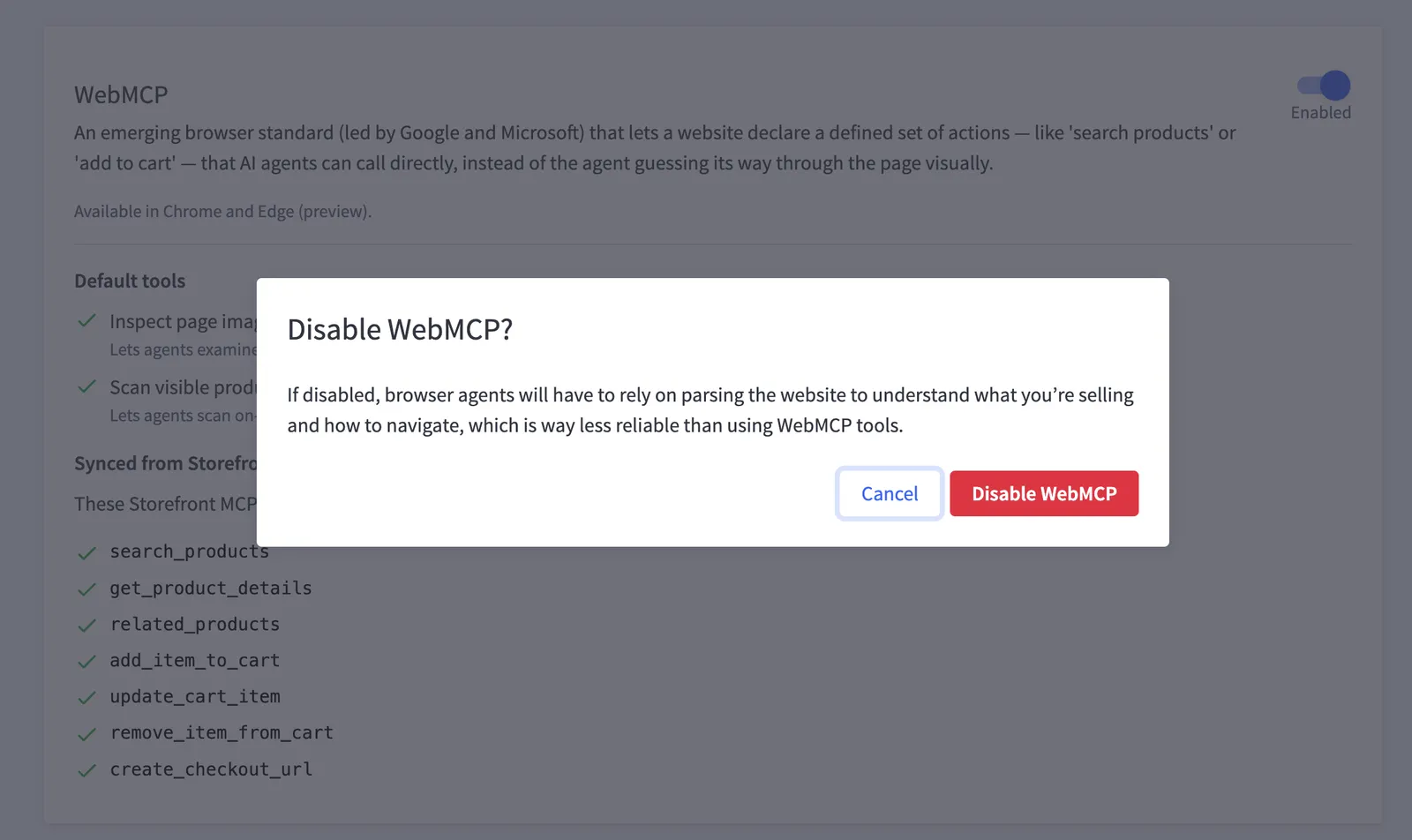
It can take a couple of days for WebMCP to be fully disabled on your storefront. To re-enable WebMCP after you opt out, contact BigCommerce Support.
Verify and try WebMCP on your store
You can check that WebMCP is active on your storefront, see which tools it exposes, and test those tools the way an agent would.
Check that the script is injected
Request a storefront page and look for the injected script tag:
If you see a /.webmcp/bridge.js script tag, WebMCP is active on your store. If you don’t, check that your storefront is eligible for WebMCP and that you haven’t opted out in Settings > API and MCP > MCP.
Turn on WebMCP in Chrome
WebMCP is a new browser standard, so Chrome needs it turned on for local testing:
- Open Chrome and go to
chrome://flags/#enable-webmcp-testing. - Set the flag to Enabled.
- Relaunch Chrome.
For current browser requirements and the WebMCP origin trial, see Chrome’s WebMCP documentation.
Inspect your store's tools
Use either of these tools from the Chrome team to see the tools your storefront registers.
Chrome DevTools (no install)
- Open DevTools on your storefront.
- Go to the Application tab and select the WebMCP pane.
Available tools lists every WebMCP tool detected on the page, with its name and description as an agent sees them. To run a tool without an agent, select it, enter its inputs, and click Run tool. Invoked tools logs each call with its status, input, and output. See Debug WebMCP tools for details.
Model Context Tool Inspector extension
WebMCP - Model Context Tool Inspector is a Chrome extension that lists the WebMCP tools on a page, shows each tool’s input schema, and lets you run tools manually. You can also type a request in natural language, such as “Find a waterproof trail running shoe under $140”, to see whether an agent picks the right tool. To use the natural-language option, add a Gemini API key in the extension. Your prompts are sent to the Gemini model you select.
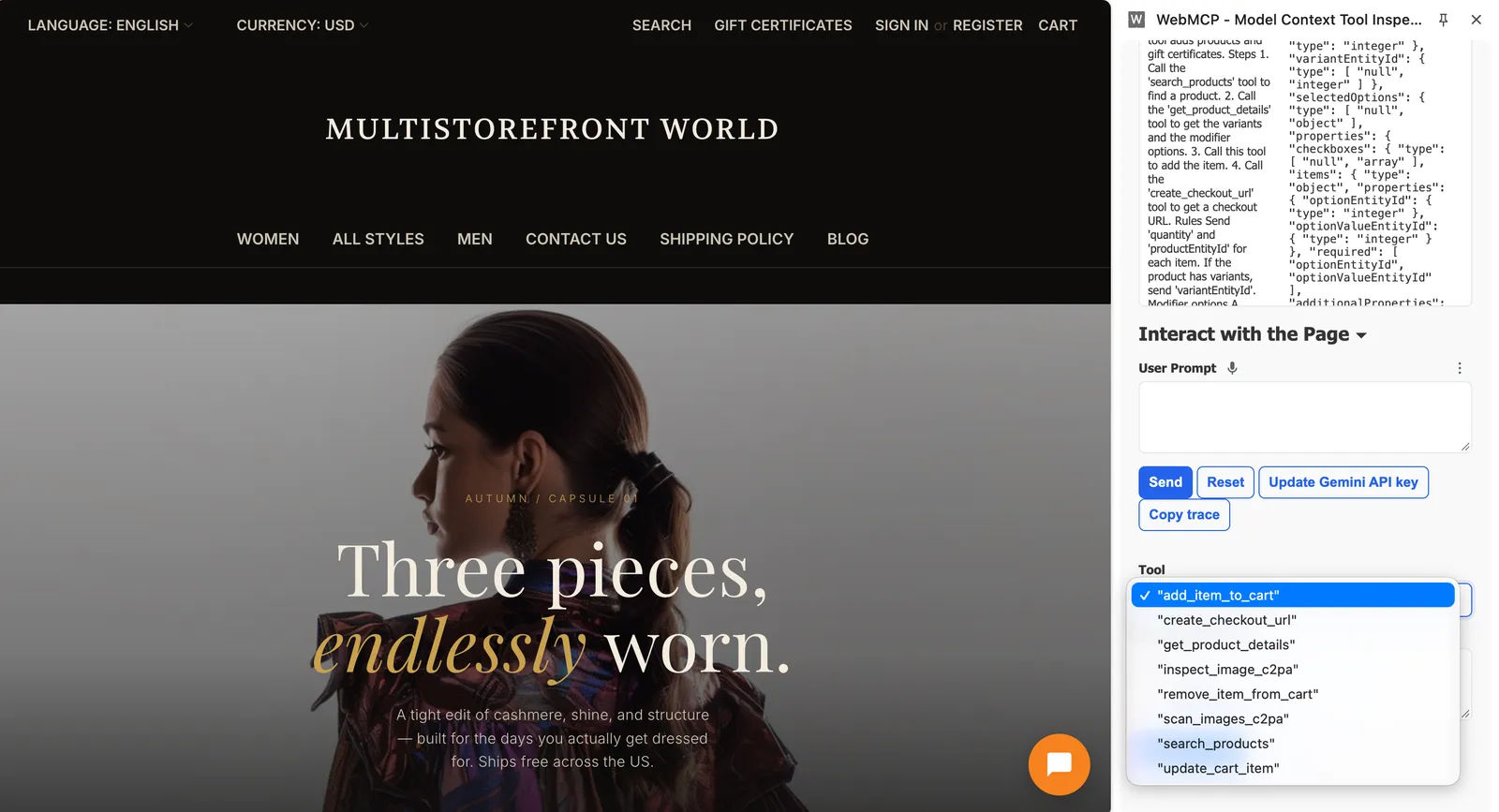
Chrome also offers an Example Agentic Chrome Extension that runs tools from natural-language prompts. It runs a small local Node server and needs an API key for the model provider you choose.
What you should see
- Shopping tools: If server-side MCP is enabled on your store, tools such as
search_products,get_product_details, andadd_item_to_cartappear in the list. - Default tools: The image scanning tools,
scan_images_c2paandinspect_image_c2pa, appear. - No tools listed: Confirm that the script tag is present (step 1), that the Chrome flag is enabled and Chrome has been relaunched, and that server-side MCP is enabled on your store. If the script tag is present but no tools load, check whether your domain’s Content Security Policy blocks the bridge script.
Bridge script blocked by Content Security Policy
Your domain’s Content Security Policy (CSP) headers control which scripts the browser can load, including the WebMCP bridge script. CSP headers are set by you on the account where you configured your storefront’s custom (vanity) domain, not by BigCommerce. If your CSP doesn’t allow the bridge script, the browser blocks it and no WebMCP tools are registered.
When this happens, the browser console shows an error like this:
To fix this, add your storefront’s bridge script URL to the script-src directive of your CSP header. Replace https://store.example.com with your storefront’s domain:
Test safely
Browser extensions can read and run WebMCP tools on any page you visit. Use these extensions on your own store or other sites you trust, and test with a cart that isn’t tied to a real order. These tools are for development. They aren’t built to protect you while you browse untrusted sites.
Requirements and limitations
- WebMCP is a new browser standard. Browser support is limited and evolving, and agents can only use your tools in browsers that support it. In the control panel, WebMCP is listed as available in Chrome and Edge (preview).
- Only agents running in the shopper’s browser use WebMCP. Agents that connect to your store directly use server-side MCP.
- The shopping tools available through WebMCP match the tools your server-side MCP exposes.