

Storefront MCP
Storefront MCP lets AI agents shop your storefront on behalf of a shopper. Agents can search products, manage a cart, and hand off to checkout through natural language, using the same access a shopper has. Each storefront has its own MCP server URL.
This page covers which tools Storefront MCP exposes, how to enable it, and how to connect an AI client.
Available tools
Both are served from the same MCP endpoint. The storefront tools (catalog, cart, and checkout) are the base set, and every session gets them, whether or not the store has B2B Edition. On B2B Edition stores, the B2B tools (shopping lists and quotes) are added on top, gated per tool by the authenticated buyer’s permissions. Logged-in customers and B2B buyers both authenticate the same way. See Connecting with session sync.
The set of tools a session sees can change mid-session when permissions or configuration change. For how agents should handle this, see Tool Resynchronization.
Prerequisites
- A BigCommerce store with an active storefront
- Node.js version 18 or higher (for
npx mcp-remote)
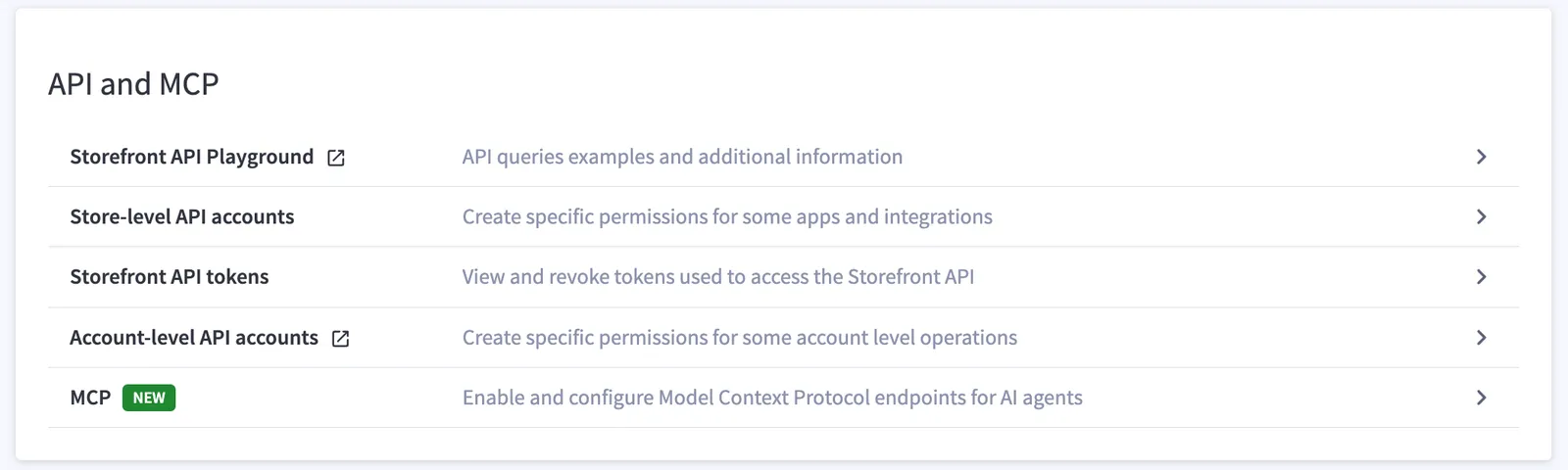
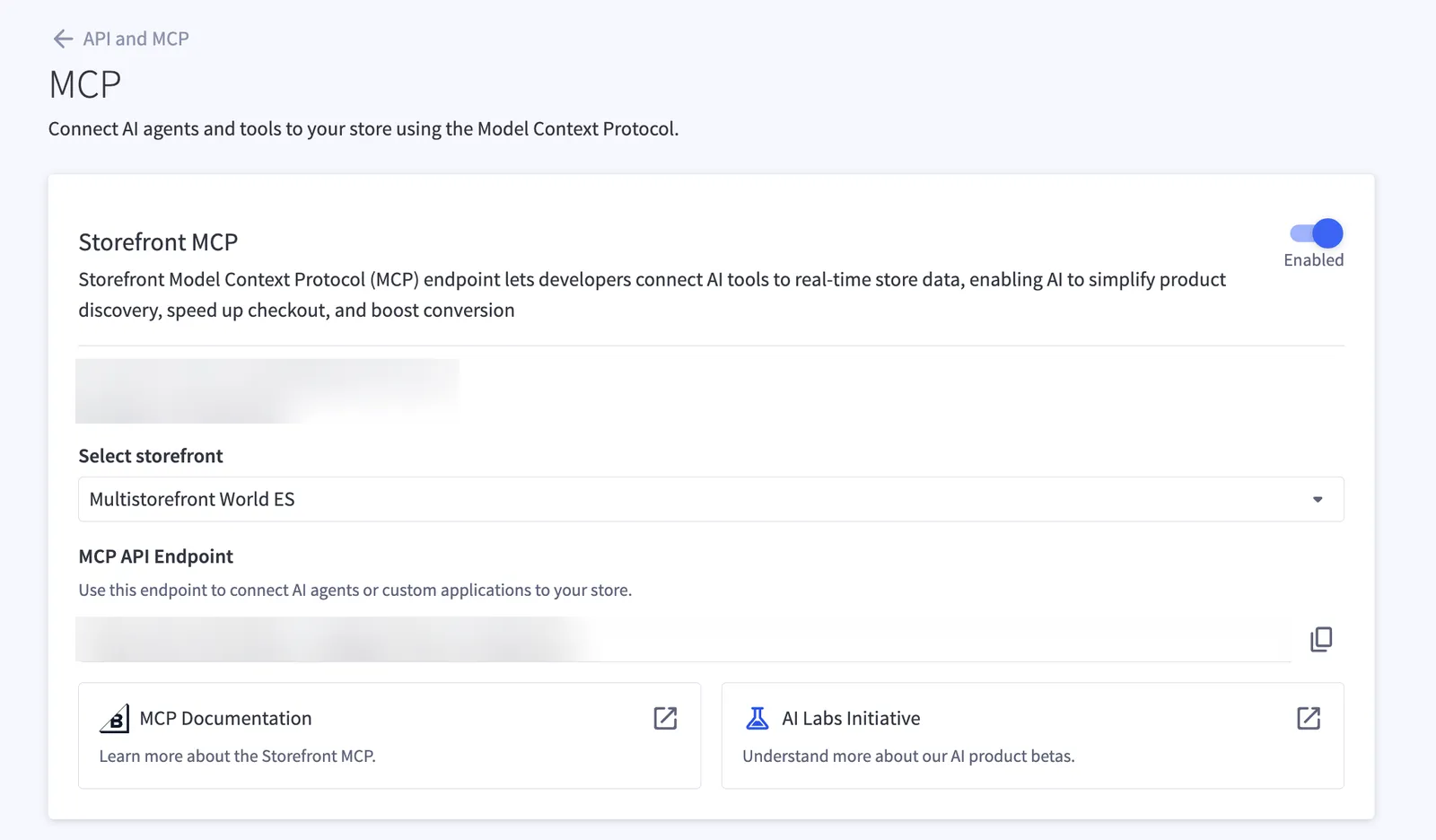
Enable Storefront MCP
You must be a store owner to enable Storefront MCP on a store.
Connect your AI client
Once you’ve enabled Storefront MCP in the control panel, you have an MCP server URL specific to your storefront. Replace <YOUR_MCP_SERVER_URL> in the snippets below with that URL.
The steps below happen in your AI client (Claude Desktop, Claude Code, Cursor, or Warp), not in the BigCommerce control panel. Select the tab for the client you use.
Claude Desktop
Claude Code
Cursor
Warp
In Claude Desktop, go to Settings → Developer → Edit Config and add the following:
Connecting with session sync (Stencil storefronts)
If you are building a chat widget on a Stencil storefront and want the agent to operate in the shopper’s existing browser session, pass a sync token at initialization. This is the same mechanism for storefront and B2B tools. It links the MCP session to a logged-in customer session or an authenticated B2B buyer session, including the buyer’s company and permissions:
See Storefront session sync for setup instructions, including how to generate the token from Stencil and how to handle reverse sync when a new cart is created.
After you enable Storefront MCP in the control panel, it can take up to 10 minutes for the server to become fully available.