> This page is for Developer.
> For clean Markdown of any page, append .md to the page URL.
> For a complete documentation index, see https://docs.bigcommerce.com/llms.txt.
> For AI client integration (Claude Code, Cursor, etc.), connect to the MCP server at https://docs.bigcommerce.com/_mcp/server.
# Widget Versioning
This article documents how to use [widget versioning](/developer/docs/admin/widgets-and-scripts#widget-versioning) to update a widget template without updating its widgets.
### Prerequisites
* [A BigCommerce store](https://support.bigcommerce.com/s/article/Starting-a-Bigcommerce-Trial).
* API `access_token` with `content modify` scope.
* Knowledge of the [Widgets API](/developer/docs/admin/widgets-and-scripts).
> **Note**
>
> This tutorial uses [Cornerstone](https://github.com/bigcommerce/cornerstone) theme.
## Create a widget template
To create a widget template, send a `POST` request to [`v3/content/widget-templates`](/developer/api-reference/rest/admin/content/widgets/widget-template/create-widget-template).
**`Example request: Create a widget template`**
```http title="Example request: Create a widget template" showLineNumbers={false}
POST /stores/{{store_hash}}/v3/content/widget-templates
Host: api.bigcommerce.com
X-Auth-Token: {{ACCESS_TOKEN}}
Content-Type: application/json
Accept: application/json
{
"name": "Simple Text",
"schema": [
{
"type": "tab",
"label": "Content",
"sections": [
{
"settings": [
{
"type": "text",
"label": "Text Content",
"id": "textContent",
"typeMeta": {
"maxLength": 1000
}
}
]
}
]
}
],
"template": "{{textContent}}
"
}
```
> **Note**
>
> Make a note of `uuid` and `current_version_uuid`. We will use them in the steps that follow.
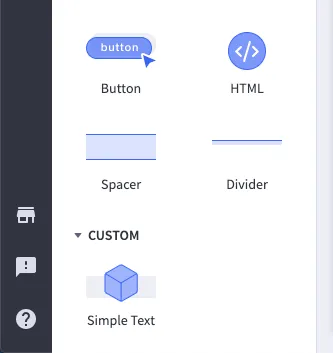
You can use [Page Builder](https://support.bigcommerce.com/s/article/Page-Builder), BigCommerce's storefront editing and customization tool, to view your widget template in the control panel. It will be displayed in the left pane under **Custom**.
### Create a widget
In this tutorial, you will create and place a widget programmatically. To place your widget using Page Builder, drag and drop the widget template from the left pane onto the page.
To create a widget using the Widgets API, send a `POST` request to [`/v3/content/widgets`](/developer/api-reference/rest/admin/content/widgets/widget/create-widget). Replace the `widget_template_uuid` placeholder with the `uuid` from the [previous step](#create-a-widget-template).
**`Example request: Create a widget`**
```http title="Example request: Create a widget" showLineNumbers={false}
POST /stores/{{STORE_HASH}}/v3/content/widgets
Host: api.bigcommerce.com
X-Auth-Token: {{ACCESS_TOKEN}}
Content-Type: application/json
Accept: application/json
{
"name": "Version 1 Widget",
"widget_configuration": {
"textContent": "Hello, World!"
},
"widget_template_uuid": "{your-widget-template-uuid}"
}
```
Look for `version_uuid` and `current_version_uuid` in the response. The widget's `version_uuid`should match the `current_version_uuid` of the widget template.
**`Example response: Create a widget`**
```json title="Example response: Create a widget" showLineNumbers={false}
{
"data": {
"channel_id": 1,
"date_created": "2020-11-06T18:05:21.679Z",
"date_modified": "2020-11-06T18:05:21.679Z",
"description": "",
"name": "Version 1 Widget",
"uuid": "03ada835-fc01-4cf1-9c05-af86ee141cd5",
"version_uuid": "5bb17ca3-a8c3-4a5a-bbf1-18a2b9ee9ddd", // value matches current_version_uuid
"widget_configuration": {...},
"widget_template": {
"channel_id": 1,
"client_rerender": false,
"current_version_uuid": "5bb17ca3-a8c3-4a5a-bbf1-18a2b9ee9ddd", // value matches version_uuid
"date_created": "2020-11-06T18:04:34.817Z",
"date_modified": "2020-11-06T18:04:34.817Z",
"icon_name": "default",
"kind": "custom",
"name": "Simple Text",
"schema": [...],
"template": "{{textContent}}
",
"uuid": "ee65e81f-a6a6-43a4-8d52-60bab87dbff3"
}
},
"meta": {}
}
```
### Place the widget
You can place the widget on the storefront by [creating a placement](/developer/api-reference/rest/admin/content/widgets/placement/create-placement). The following example uses the `home_below_featured_products` region. To get a list of all available regions, send a `GET` request to [`v3/content/regions`](/developer/api-reference/rest/admin/content/widgets/regions/get-content-regions).
To place your widget, send a `POST` request to [`/v3/content/placements`](/developer/api-reference/rest/admin/content/widgets/placement/create-placement).
**`Example request: Place a widget`**
```http title="Example request: Place a widget" showLineNumbers={false}
POST /stores/{{STORE_HASH}}/v3/content/placements
Host: api.bigcommerce.com
X-Auth-Token: {{ACCESS_TOKEN}}
Content-Type: application/json
Accept: application/json
{
"widget_uuid": "{your-widget-uuid}",
"entity_id": "",
"template_file": "pages/home",
"status": "active",
"sort_order": 1,
"region": "home_below_featured_products"
}
```
The widget should now be visible on your store's homepage under **Featured Products**.
## Update the widget template
The `create_new_version` parameter controls whether widget updates are *forced* or *opt-in*. Omitting the `create_new_version` parameter or setting it to `false` will make it a *forced* update.
To create a new version of the widget template without affecting existing widgets, set `create_new_version` to `true` when sending a `PUT` request to [`/v3/content/widget-templates/{uuid}`](/developer/api-reference/rest/admin/content/widgets/widget-template/update-widget-template). This will create a new widget template version record and associate that record to the `current_version_uuid`.
**`Example request: Update a widget template`**
```http title="Example request: Update a widget template" showLineNumbers={false}
PUT /stores/{{store_hash}}v3/content/widget-templates/{uuid}
Host: api.bigcommerce.com
X-Auth-Token: {{ACCESS_TOKEN}}
Content-Type: application/json
Accept: application/json
{
"name": "Red Text",
"schema": [
{
"type": "tab",
"label": "Content",
"sections": [
{
"settings": [
{
"type": "text",
"label": "Text Content",
"id": "textContent",
"typeMeta": {
"maxLength": 1000
}
}
]
}
]
}
],
"template": "{{textContent}}
",
"create_new_version": true
}
```
Send a `GET` request to [`/v3/content/widgets/{uuid}`](/developer/api-reference/rest/admin/content/widgets/widget/get-widget) to retrieve your widget's data.
You will notice that `current_version_uuid` has changed and is now different from the widget's `version_uuid`. Although you have updated the widget template, the widget created using that template did not change.
### Create a new widget
All widgets created after the update will be based on the most current version. Let's create another widget to test this functionality.
Send a `POST` request to [`/v3/content/widgets`](/developer/api-reference/rest/admin/content/widgets/widget/create-widget) replacing the `widget_template_uuid` placeholder with your widget template `uuid`.
**`Example request: Create a widget`**
```http title="Example request: Create a widget" showLineNumbers={false}
POST /stores/{{STORE_HASH}}/v3/content/widgets
Host: api.bigcommerce.com
X-Auth-Token: {{ACCESS_TOKEN}}
Content-Type: application/json
Accept: application/json
{
"name": "Version 2 Widget",
"widget_configuration": {
"textContent": "Hello, World!"
},
"widget_template_uuid": "{your-widget-template-uuid}"
}
```
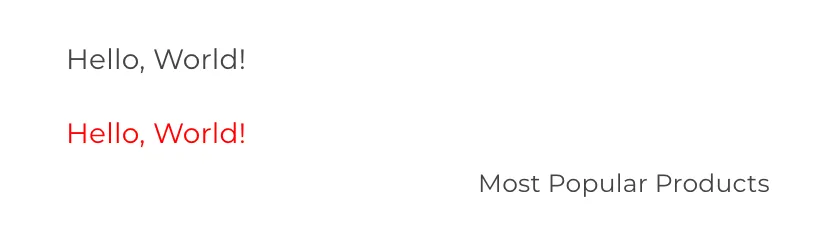
To display the new widget next to the old one, place it in the same region. In our case, it is `home_below_featured_products`.
You should now see two different widgets displayed below **Featured Products**.
## Upgrade the widget
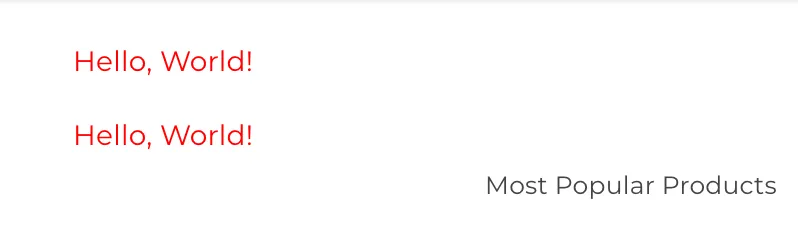
To upgrade the widget derived from the original widget template, send `"upgrade":true` in a `PUT` request to [`/v3/content/widgets/{uuid}`](/developer/api-reference/rest/admin/content/widgets/widget/update-widget). This will push the widget up to the latest widget template version.
> **Note**
>
> If the newer version of your widget template contains different schema settings, you need to provide the necessary configuration values along with the `upgrade` flag to make sure the widget is updated correctly.
## Related resources
### Articles
* [Widgets Overview](/developer/docs/admin/widgets-and-scripts)
* [Page Builder Overview](/developer/docs/storefront/stencil/content/page-builder)
### Endpoints
* [Widgets API](/developer/api-reference/rest/admin/content/widgets)