> This page is for Developer.
> For clean Markdown of any page, append .md to the page URL.
> For a complete documentation index, see https://docs.bigcommerce.com/llms.txt.
> For AI client integration (Claude Code, Cursor, etc.), connect to the MCP server at https://docs.bigcommerce.com/_mcp/server.
# Create Widgets Powered by GraphQL
Widgets are configurable and reusable components of content that merchants can display on their storefront. Widgets consist of a combination of HTML/CSS, JavaScript, and Handlebars, and are rendered as part of the storefront’s HTML.
In this tutorial, we will walk you through the process of creating a product widget powered by BigCommerce's [widgets feature](/developer/docs/admin/widgets-and-scripts) and the [GraphQL Storefront API](/developer/docs/storefront/guides/graphql-storefront-api). This setup allows widgets to dynamically update and display information such as product name, image, and price. By the end of this tutorial, you should have a functional widget that is configurable using the [Page Builder](https://support.bigcommerce.com/s/article/Page-Builder) UI in a store's control panel.
## Prerequisites
* [A BigCommerce store](https://support.bigcommerce.com/s/article/Starting-a-Bigcommerce-Trial).
* A store-level or app-level [API account](/developer/docs/overview/api-fundamentals/api-accounts#api-accounts) with the OAuth **Content** scope set to **modify**.
* Understanding of [widgets](/developer/docs/admin/widgets-and-scripts#widgets) and the [REST Content API's widgets feature](/developer/api-reference/rest/admin/content/widgets).
* Familiarity with [Page Builder](/developer/docs/storefront/stencil/content/page-builder).
The steps in this tutorial assume that you are familiar with BigCommerce’s widgets feature, and have created a store-level or app-level API account with the `content: modify` scope. The API account's `access_token` is required to inject, remove, or list widgets on any page of the store. To learn more about widgets, see the [Widgets overview](/developer/docs/admin/widgets-and-scripts). For information on how to create an API account, see the [Guide to API accounts](/developer/docs/overview/api-fundamentals/api-accounts#api-accounts).
## Create the widget template
To create a widget, you first need to create a template for it. Use the [Create a widget template](/developer/api-reference/rest/admin/content/widgets/widget-template/create-widget-template) endpoint.
#### Request
**`Example request: Create a widget template`**
```http title="Example request: Create a widget template" showLineNumbers={false}
POST https://api.bigcommerce.com/stores/{{STORE_HASH}}/v3/content/widget-templates
X-Auth-Token: {{ACCESS_TOKEN}}
Content-Type: application/json
Accept: application/json
{
"name": "Product Widget",
"storefront_api_query": "query Product($productId: Int = 1, $activeCurrencyCode: currencyCode) { site { product(entityId: $productId) { name entityId prices(currencyCode: $activeCurrencyCode) { price { currencyCode value } } defaultImage { url(width: 500, height: 500) } } } } ",
"schema": [
{
"type": "hidden",
"settings": [
{
"type": "graphQl",
"id": "graphQueries",
"typeMeta": {
"mappings": {
"productId": {
"reads": "productId",
"type": "Int!"
}
}
}
}
]
},
{
"type": "tab",
"label": "Content",
"sections": [
{
"label": "Product",
"settings": [
{
"type": "productId",
"label": "Product",
"id": "productId",
"default": "",
"typeMeta": {
"placeholder": "Search by name or SKU"
}
}
]
}
]
}
],
"template": "
",
"template_engine": "handlebars_v3",
"uuid": "95eaa664-b19e-4a31-b9c7-498f9bc60bae"
},
"meta": {}
}
```
| Property | Type | Description |
| ---------------------- | ------ | ---------------------------------------------------------------------------------------------------------------------------------------------------------------------------------- |
| `name` | string | The name of the widget template. |
| `schema` | object | The widget settings JSON [schema](/developer/docs/admin/widgets-and-scripts/input-reference/schema) for [Page Builder](https://support.bigcommerce.com/s/article/Page-Builder) UI. |
| `template` | string | The [widget template](/developer/docs/admin/widgets-and-scripts#widget-templates) rendered as Handlebars HTML. |
| `storefront_api_query` | string | [GraphQL Storefront API](/developer/docs/storefront/guides/graphql-storefront-api) query that provides widget data; accessed in a template using `{{_.data}}`. |
### GraphQL queries
The `storefront_api_query` field allows you to query store data that widgets can use. The widget configuration provides the values for the `storefront_api_query` parameters.
For example, the `$productId` parameter comes from the widget configuration when a user selects a product. The `mappings` object from the widget template schema `settings` tells the widget to map the value of the widget configuration’s `productId` setting to the GraphQL parameter called `productId`.
> **Note**
>
> * You can use the `activeCurrencyCode` query parameter to return user-selected currency.
> * There is no need to provide the mapping for the `activeCurrencyCode` property as it is auto-populated with the shopper’s active currency at the time of page load.
## Place the widget using Page Builder
After [creating the widget template](#create-the-widget-template), you should see it listed in Page Builder under **Custom**.
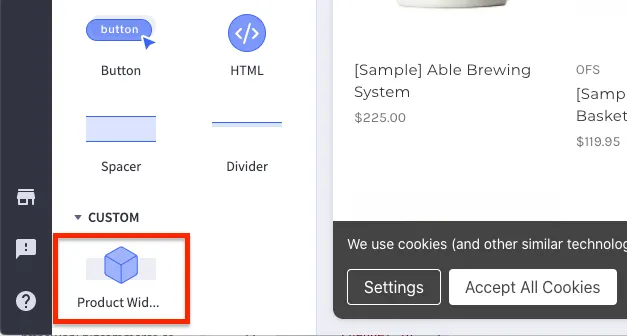
Drag and drop the widget onto the desired page, select a product from the product picker, then publish your widget.
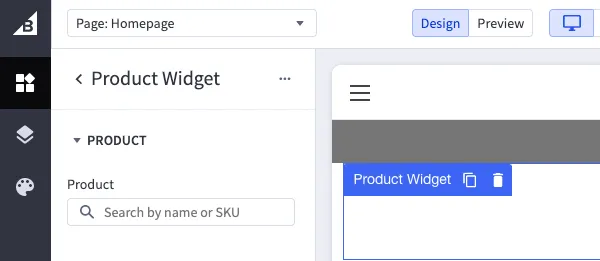
Doing so creates a [widget](/developer/api-reference/rest/admin/content/widgets/widget/create-widget) and a [widget placement](/developer/api-reference/rest/admin/content/widgets/placement/create-placement). For more information on placing and configuring widgets in the control panel, see [Page Builder](https://support.bigcommerce.com/s/article/Page-Builder) in the Help Center.
To view the widget's data, retrieve the widget's ID by accessing its `data-widget-id` attribute in the browser's developer tools, then pass it in a `GET` request to [`/v3/content/widgets/{uuid}`](/developer/api-reference/rest/admin/content/widgets/widget/get-widget).
Alternatively, you can send a request to the [Get all widgets](/developer/api-reference/rest/admin/content/widgets/widget/get-widgets) endpoint, passing your `widget_template_uuid` as a query parameter. The following code block shows an example response.
```json showLineNumbers={false}
{
"data": [
{
"channel_id": 1,
"date_created": "2021-04-09T21:27:21.163Z",
"date_modified": "2021-04-09T21:40:47.892Z",
"description": "",
"name": "Product Widget",
"storefront_api_query_params": {
"productId": 77
},
"uuid": "7e6d7a11-164e-4eb1-ae0a-af07f3e2c8fb",
"version_uuid": "3f4defcf-2429-425d-8e5a-7c3807fa9896",
"widget_configuration": {
"_": {
"id": "7e6d7a11-164e-4eb1-ae0a-af07f3e2c8fb"
},
"productId": "77"
},
"widget_template": {
"channel_id": 1,
"client_rerender": false,
"current_version_uuid": "3f4defcf-2429-425d-8e5a-7c3807fa9896",
"date_created": "2021-04-09T21:23:16.274Z",
"date_modified": "2021-04-09T21:23:16.274Z",
"icon_name": "default",
"kind": "custom",
"name": "Product Widget",
"schema": [
{
"settings": [
{
"id": "graphQueries",
"type": "graphQl",
"typeMeta": {
"mappings": {
"productId": {
"reads": "productId",
"type": "Int!"
}
}
}
}
],
"type": "hidden"
},
{
"label": "Content",
"sections": [
{
"label": "Product",
"settings": [
{
"default": "",
"id": "productId",
"label": "Product",
"type": "productId",
"typeMeta": {
"placeholder": "Search by name or SKU"
}
}
]
}
],
"type": "tab"
}
],
"storefront_api_query": "query Product($productId: Int = 1, $activeCurrencyCode: currencyCode) { site { product(entityId: $productId) { name entityId prices(currencyCode: $activeCurrencyCode) { price { currencyCode value } } defaultImage { url(width: 500, height: 500) } } } } ",
"template": "
\n
{{_.data.site.product.name}}
\n
\n\n
\n
\n
${{_.data.site.product.prices.price.value}}
\n
\n
",
"template_engine": "handlebars_v3",
"uuid": "95eaa664-b19e-4a31-b9c7-498f9bc60bae"
}
}
],
"meta": {...}
}
```
> **Note**
>
> The value of the `productId` inside of the `widget_configuration` object is mapped to the `productId` parameter of the `storefront_api_query_params` object.
## Place the widget using the API
It is also possible to place widgets programmatically using the API. First, send a request to the [Create a widget](/developer/api-reference/rest/admin/content/widgets/widget/create-widget) endpoint.
```http showLineNumbers={false}
POST https://api.bigcommerce.com/stores/{{STORE_HASH}}/v3/content/widgets
X-Auth-Token: {{ACCESS_TOKEN}}
Content-Type: application/json
Accept: application/json
{
"name": "Product Widget",
"widget_template_uuid": "{{TEMPLATE_UUID}}"
}
```
Take note of the widget's `uuid` returned in the response. You will need the widget's `uuid` to [Create a placement](/developer/api-reference/rest/admin/content/widgets/placement/create-placement) for your widget. The following code block gives an example response
```json showLineNumbers={false}
{
"data": {
"uuid": "{{WIDGET_UUID}}",
...
}
}
```
To create a widget placement, use the [Create a placement](/developer/api-reference/rest/admin/content/widgets/placement/create-placement) endpoint.
```http showLineNumbers={false}
POST https://api.bigcommerce.com/stores/{{STORE_HASH}}/v3/content/placements
X-Auth-Token: {{ACCESS_TOKEN}}
Content-Type: application/json
Accept: application/json
{
"widget_uuid": "{{WIDGET_UUID}}",
"template_file": "{{TEMPLATE_FILE}}",
"status": "active",
"region": "{{REGION}}"
}
```
For a list of accepted `template_file` values, see [Placements](/developer/docs/admin/widgets-and-scripts#placements).
To determine the value of the `region` property, send a request to the [Get a list of theme regions](/developer/api-reference/rest/admin/content/widgets/regions/get-content-regions) endpoint and pass the desired `template_file` value as a query parameter.
```http showLineNumbers={false}
GET https://api.bigcommerce.com/stores/{{STORE_HASH}}/v3/content/regions?template_file={{TEMPLATE_FILE}}
X-Auth-Token: {{ACCESS_TOKEN}}
Accept: application/json
```
## Related resources
### Articles
* [GraphQL Storefront API overview](/developer/docs/storefront/guides/graphql-storefront-api)
* [Page Builder overview](/developer/docs/storefront/stencil/content/page-builder)
* [Widgets overview](/developer/docs/admin/widgets-and-scripts)
* [Widget UI schema](/developer/docs/admin/widgets-and-scripts/input-reference/schema)
### API reference
* [REST Content API - Widgets](/developer/api-reference/rest/admin/content/widgets)
 \n
\n